


如何解决 Multilogin 启动问题
 约6分钟作者Yelena V
如果 Multilogin 无法启动或卡在加载页面,请依次检查时间同步、第三方软件、网络访问和应用组件。
➡️ 从以下检查开始,每完成一项就测试 Multilogin。如果问题仍然存在,请重现问题,并将日志发送给 Multilogin 支持团队。
如果应用无法在设备上启动,请按以下步骤解决问题。

同步系统时区
Windows
- 点击“Start”→“Settings”
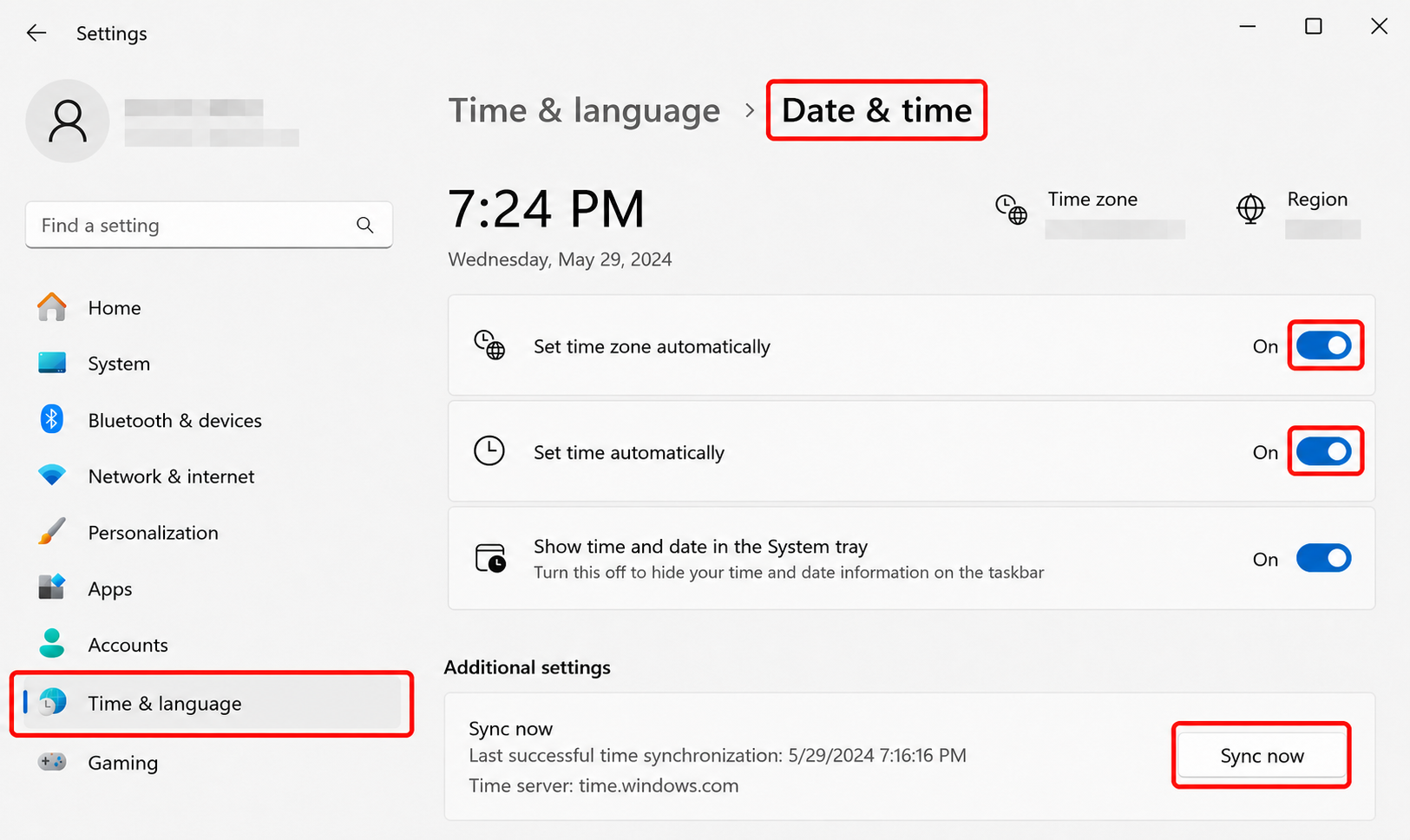
- 前往“Time & language”→“Date & time”
- 开启“Set time zone automatically”和“Set time automatically”
- 点击“Sync now”
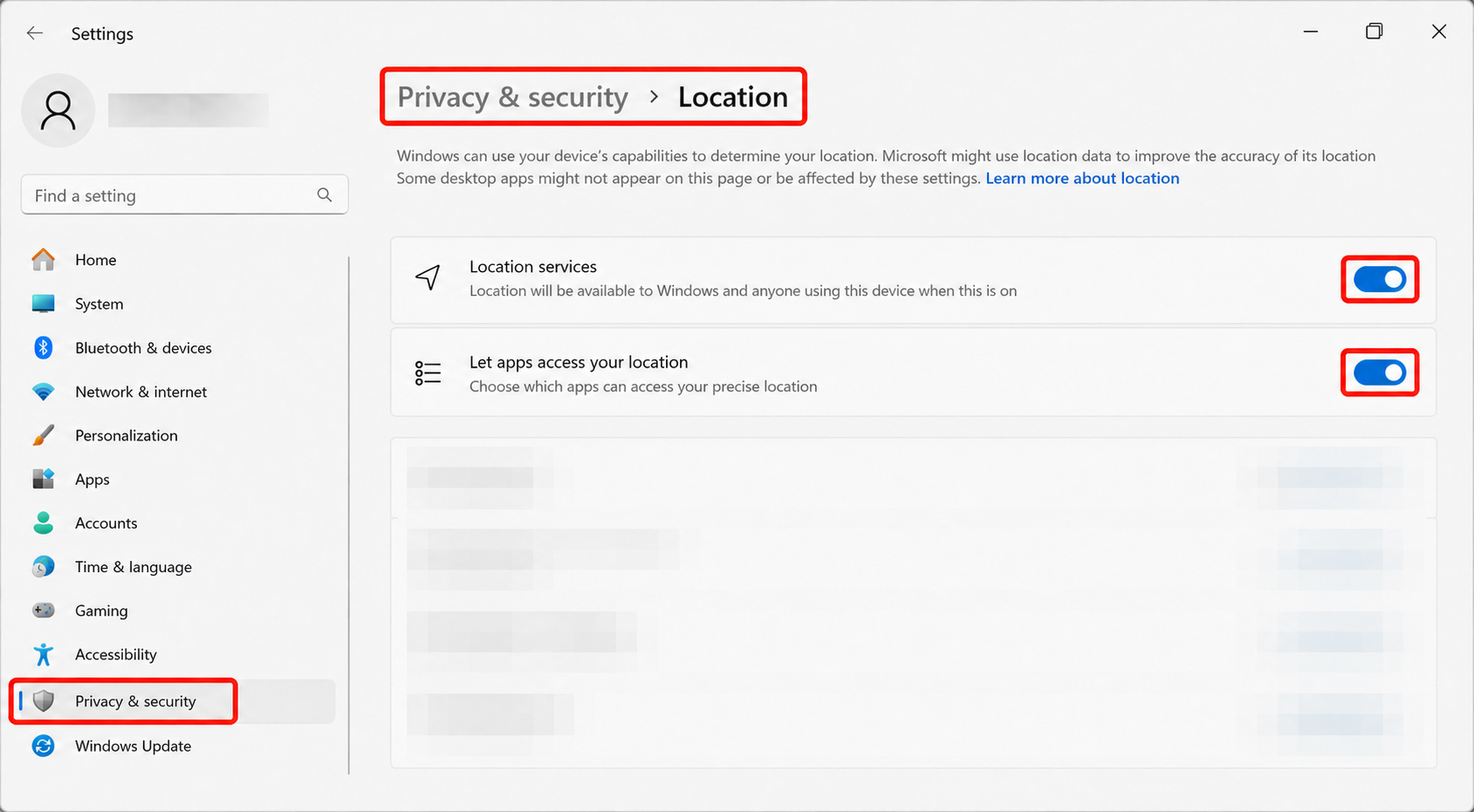
无法开启“Set time zone automatically”?请开启定位服务:
- 前往“Settings”→“Privacy & security”→“Location”
- 开启“Location services”
- 开启“Let apps access your location”
macOS
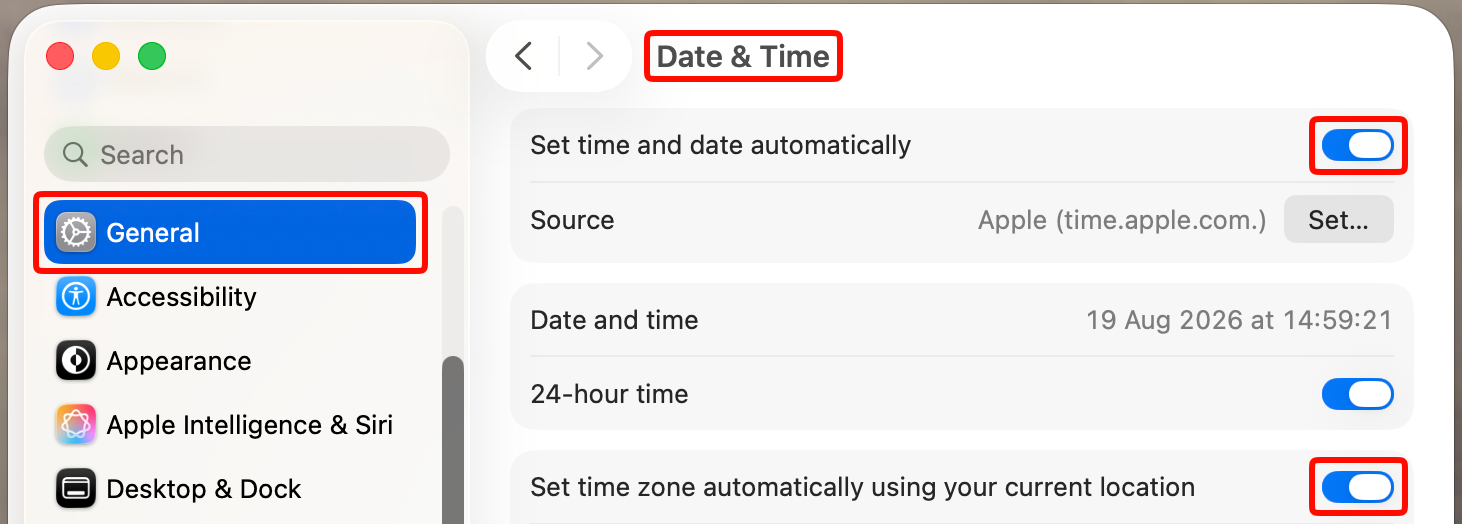
- 前往“System Settings”→“General”
- 选择“Date & Time”部分
- 开启“Set time and date automatically”和“Set time zone automatically using your current location”
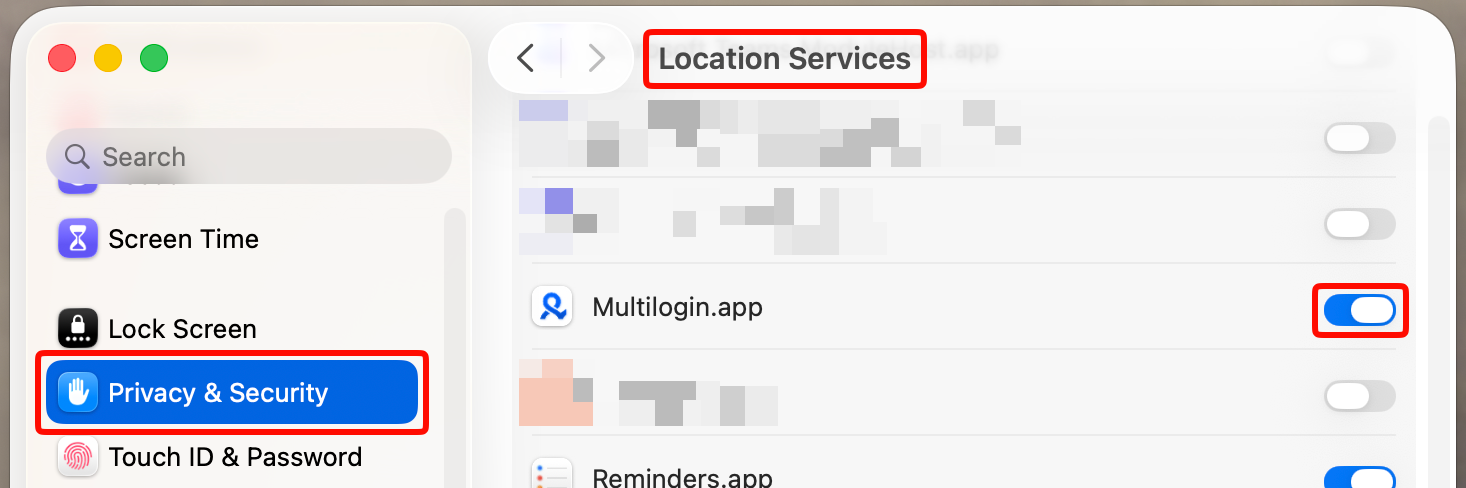
无法开启自动时区检测?请开启定位服务:
- 前往“System settings”→“Privacy & Security”
- 选择“Location services”
- 为 Multilogin 开启此功能
检查第三方应用
电脑上的某些应用,如杀毒软件、防火墙、VPN 和全局IP工具,可能干扰 Multilogin,导致功能异常或运行变慢。
可以尝试以下方法:
- 卸载这些应用
- 如果需要保留这些应用,请暂时关闭它们,或在其设置中将 Multilogin 加入白名单
这些操作有助于解决冲突,让应用恢复正常运行!
如何解决 Windows 上的第三方应用冲突:
杀毒软件
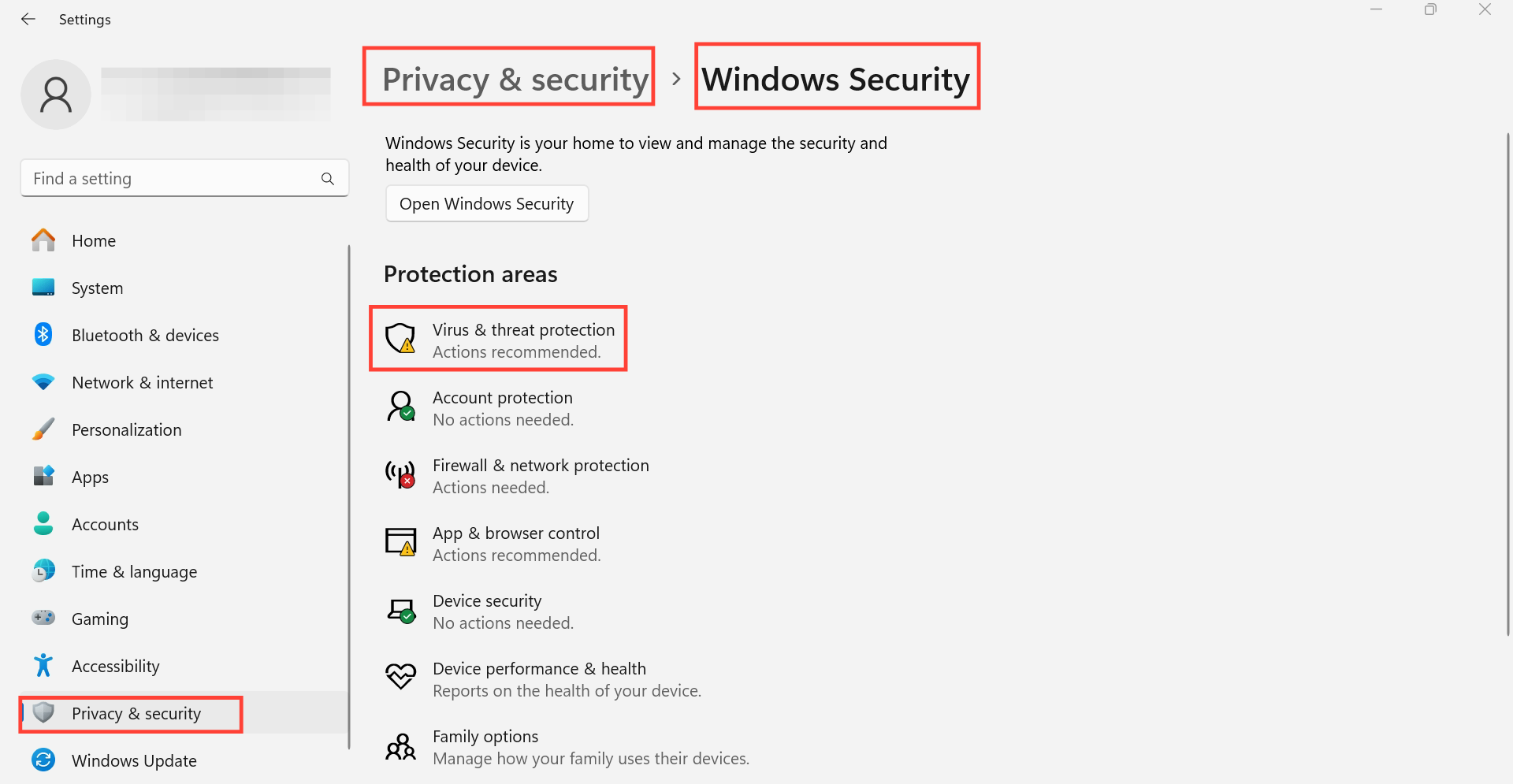
- 前往“Settings”→“Privacy & security”→“Windows Security”→“Virus & threat protection”
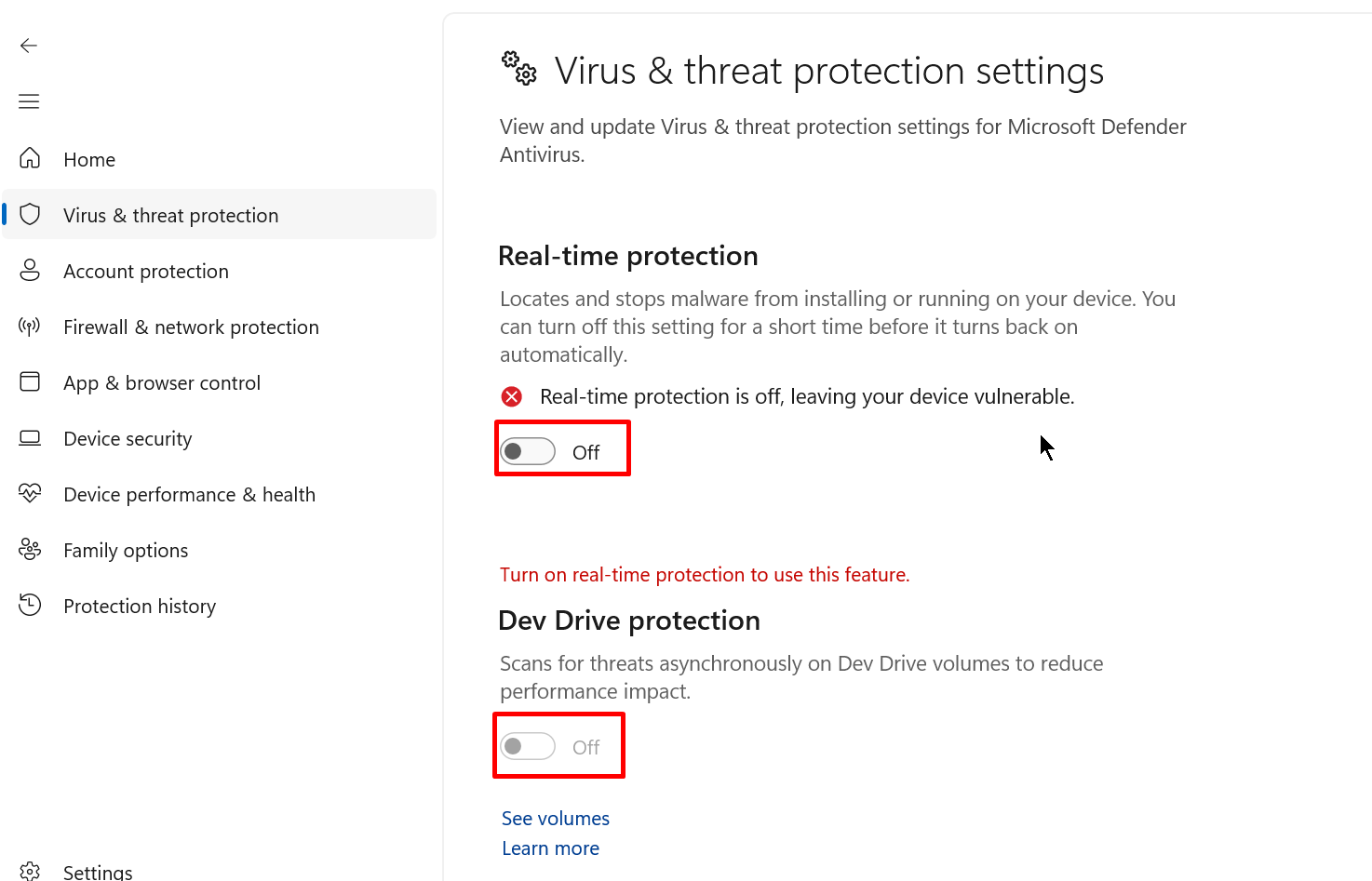
- 选择“Manage settings”,然后关闭当前窗口中的所有选项
防火墙
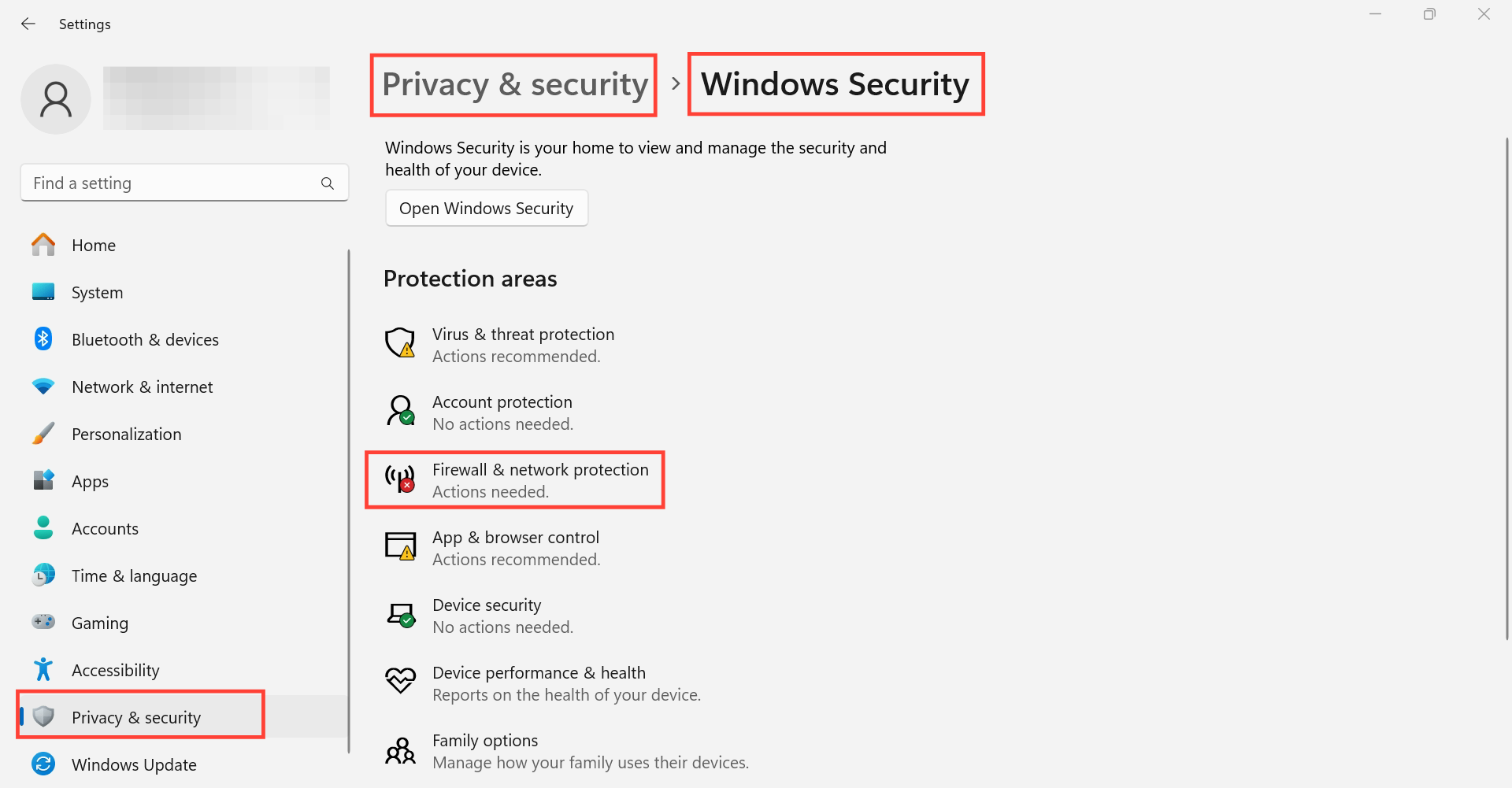
- 前往“Settings”→“Privacy & security”→“Windows Security”→“Firewall & network protection”
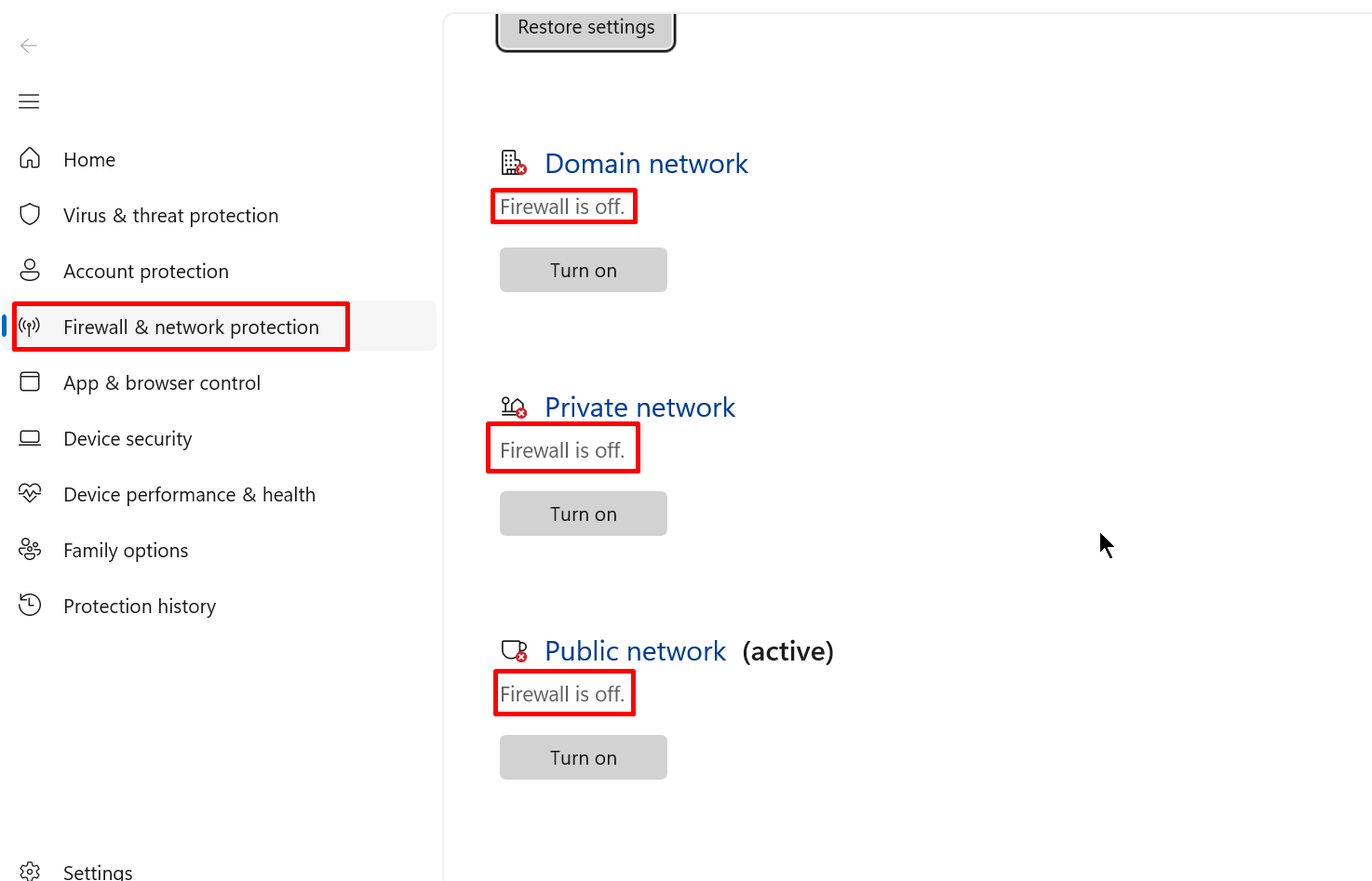
- 关闭当前窗口中的所有选项
VPN
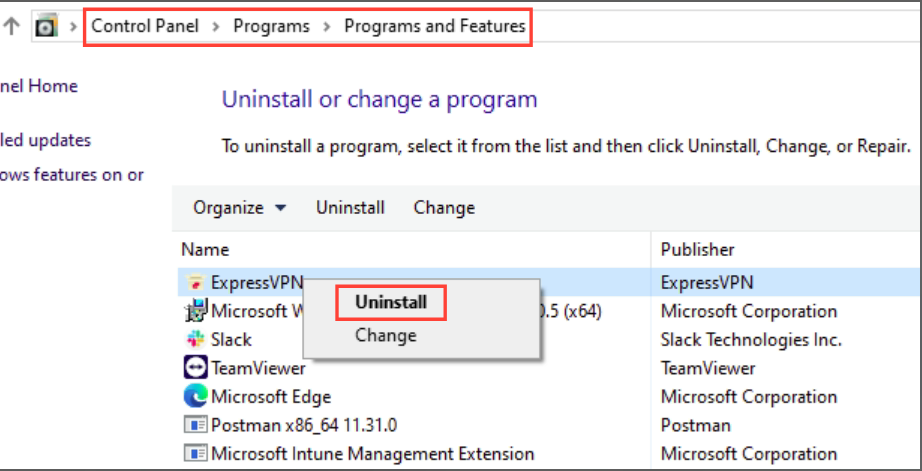
卸载 VPN 应用:
- 打开“Control Panel”→“Programs”→“Programs and Features”
- 右键点击 VPN 应用→“Uninstall”
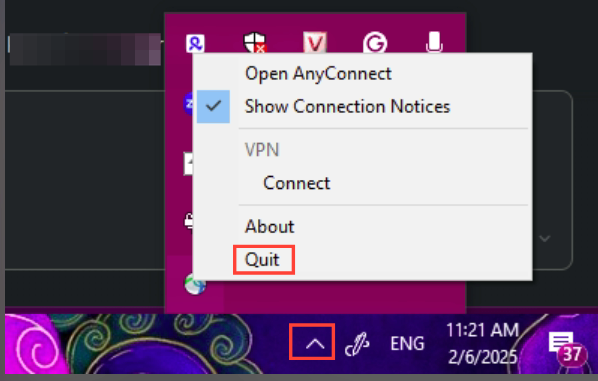
关闭 VPN 应用:打开任务栏菜单→右键点击 VPN 应用→点击“Quit”
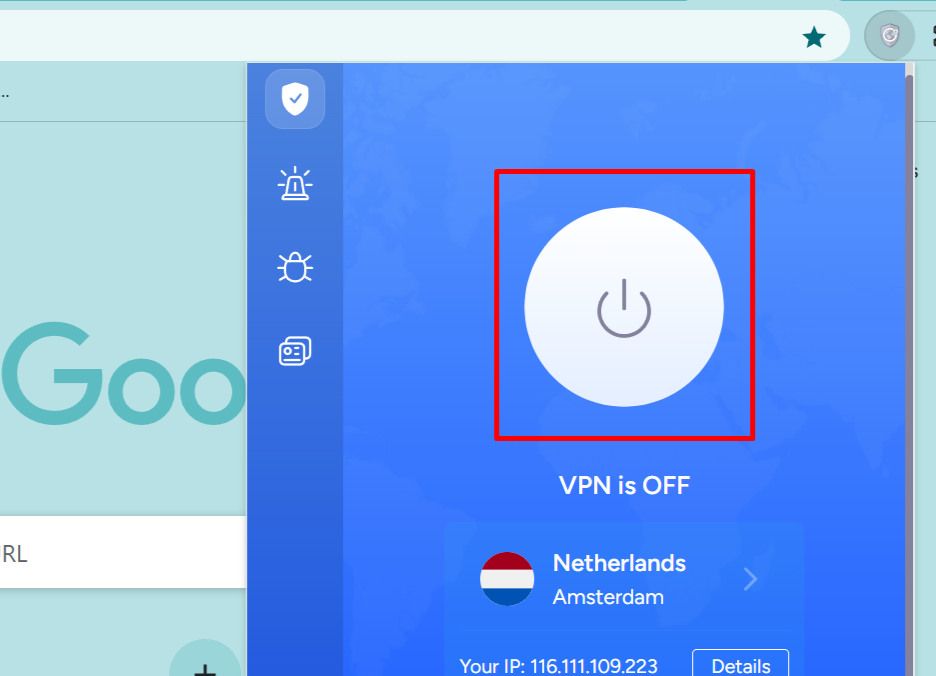
关闭浏览器中的 VPN 扩展程序:别忘了检查并关闭浏览器中安装的 VPN 扩展程序。以下以 Chrome 为例:
如何解决 macOS 上的第三方应用冲突:
macOS 安全系统
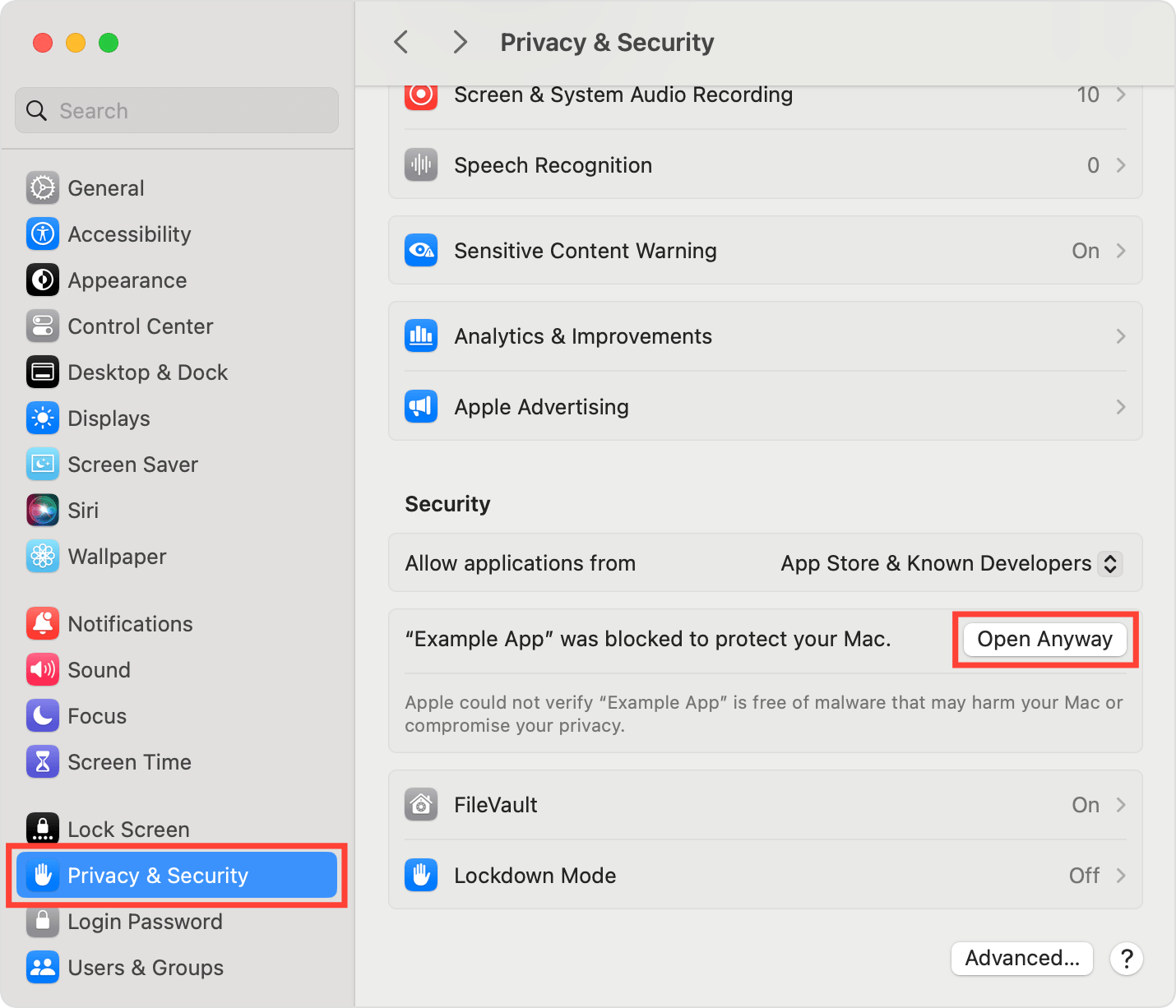
如果应用受到 macOS 安全系统限制,可以按以下方法允许访问:
- 打开“System Settings”→“Privacy & Security”→“Security”
- 点击应用对应的“Open anyway”
建议将“Allow applications from”设为“App Store & Known Developers”。
杀毒软件
防火墙
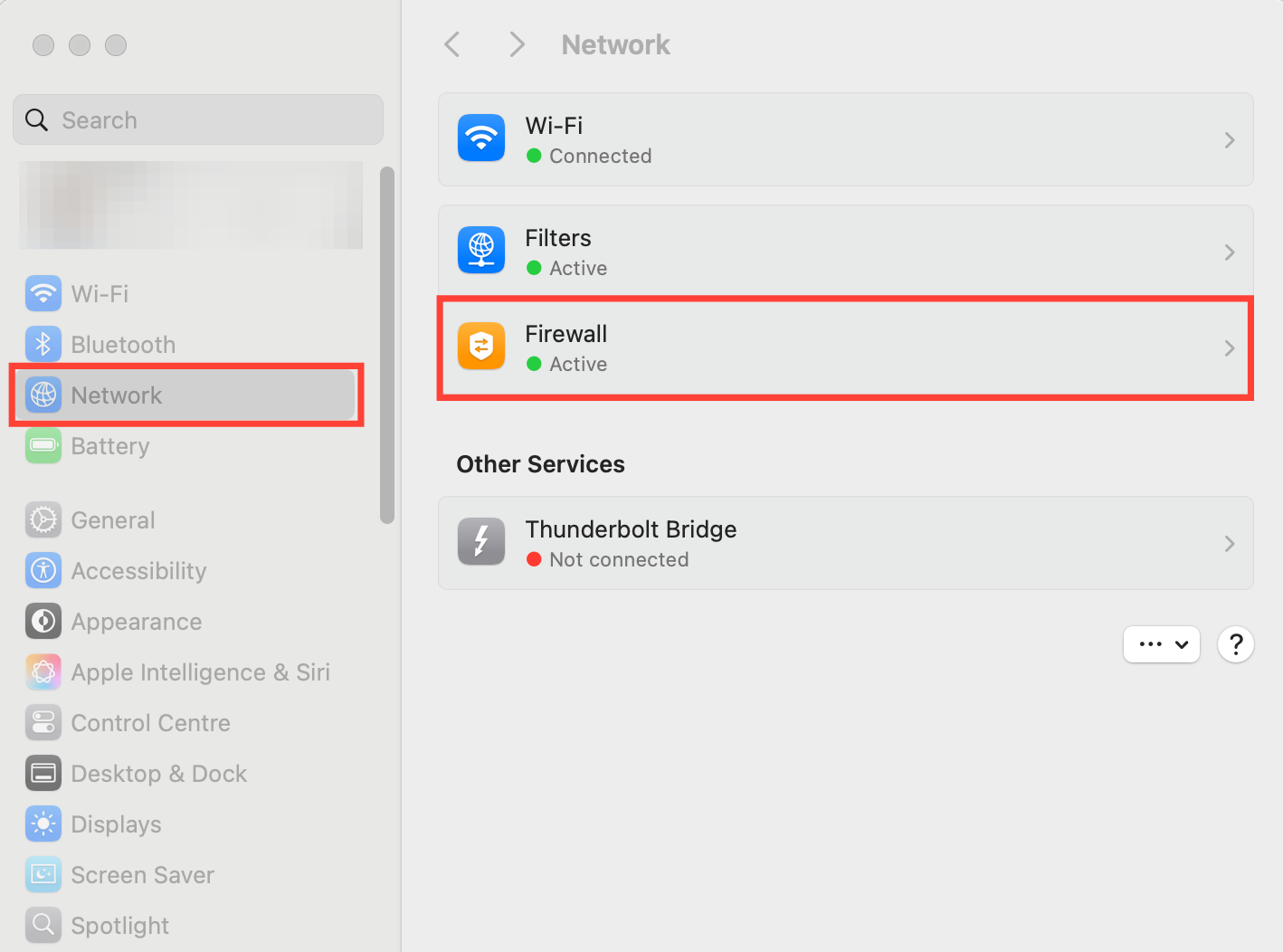
- 打开“Apple menu”→“System Preferences”→“Network”
- 前往“Firewall”标签页并关闭防火墙
VPN
卸载 VPN 应用:
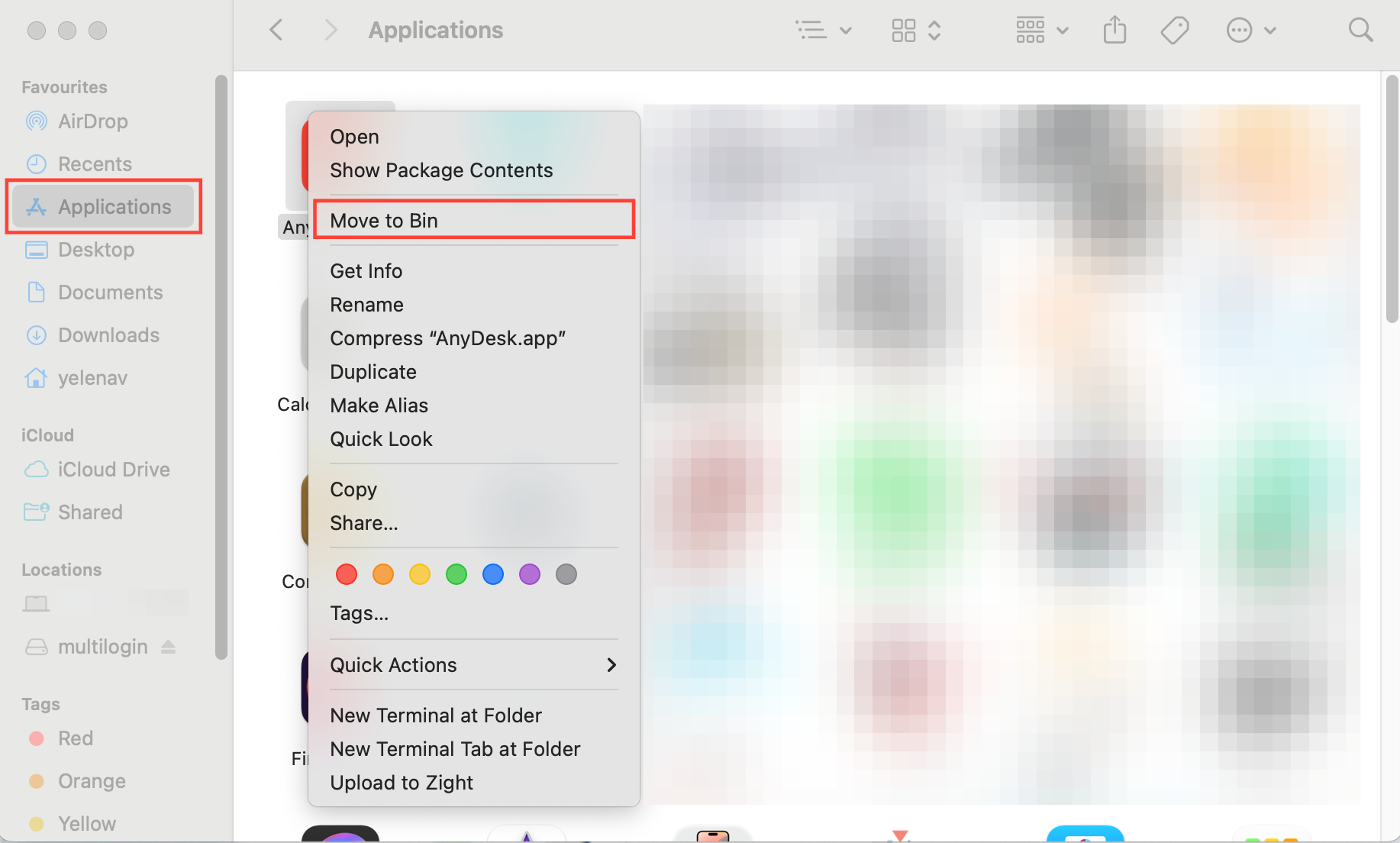
- 前往“Finder”→“Go”→“Application”
- 右键点击 VPN 应用→“Move to Bin”
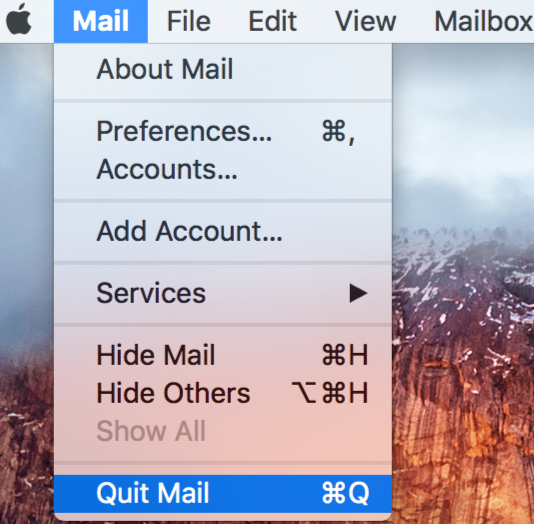
关闭 VPN 应用:右键点击菜单栏中的 VPN 应用→选择“Quit <name of app>”。
关闭浏览器中的 VPN 扩展程序:别忘了检查并关闭浏览器中安装的 VPN 扩展程序。以下以 Safari 为例:
- 选择“Safari”→“Settings”(或“Preferences”)→点击“Extensions”
- 取消勾选扩展程序的复选框,即可关闭它
检查网络服务商
有时,互联网服务提供商(ISP)会阻止全局IP供应商,甚至阻止 Multilogin。可以这样测试并解决:
- 尝试通过 VPN 连接:这可能绕过网络服务商的限制
- 切换网络:使用其他 Wi-Fi,或开启手机移动数据热点
- 检查网速:如果当前网络服务商速度较慢,更换网络也可能提高性能。
如果这些操作解决了问题,原因很可能是你的网络服务商。
刷新组件
仍然无法解决?
如果尝试本文所有步骤后问题仍然存在,请发送日志。我们会进一步调查并帮你解决 🛠️
- 重现问题,或等待错误消息出现
- 将以下位置的 logs 文件夹打包:
-
Windows:
C:\Users\%username%\mlx -
macOS:
/Users/%username%/mlx -
Linux:
/home/%username%/mlx
-
Windows:
- 发送邮件至 [email protected],并提供:
- 清晰的问题描述
- 打包后的 logs 文件夹附件


