


How to fix startup issues in Multilogin
 ~4 minWritten by Yelena V
If Multilogin does not start or stays stuck on the loading screen, work through time synchronization, third-party software, network access, and app components in order.
➡️ Start with the checks below and test Multilogin after each one. If the issue continues, reproduce it and send your logs to Multilogin Support team.
If the app isn't launching on your device, follow the steps below to fix the issue.

Sync system timezone
Windows
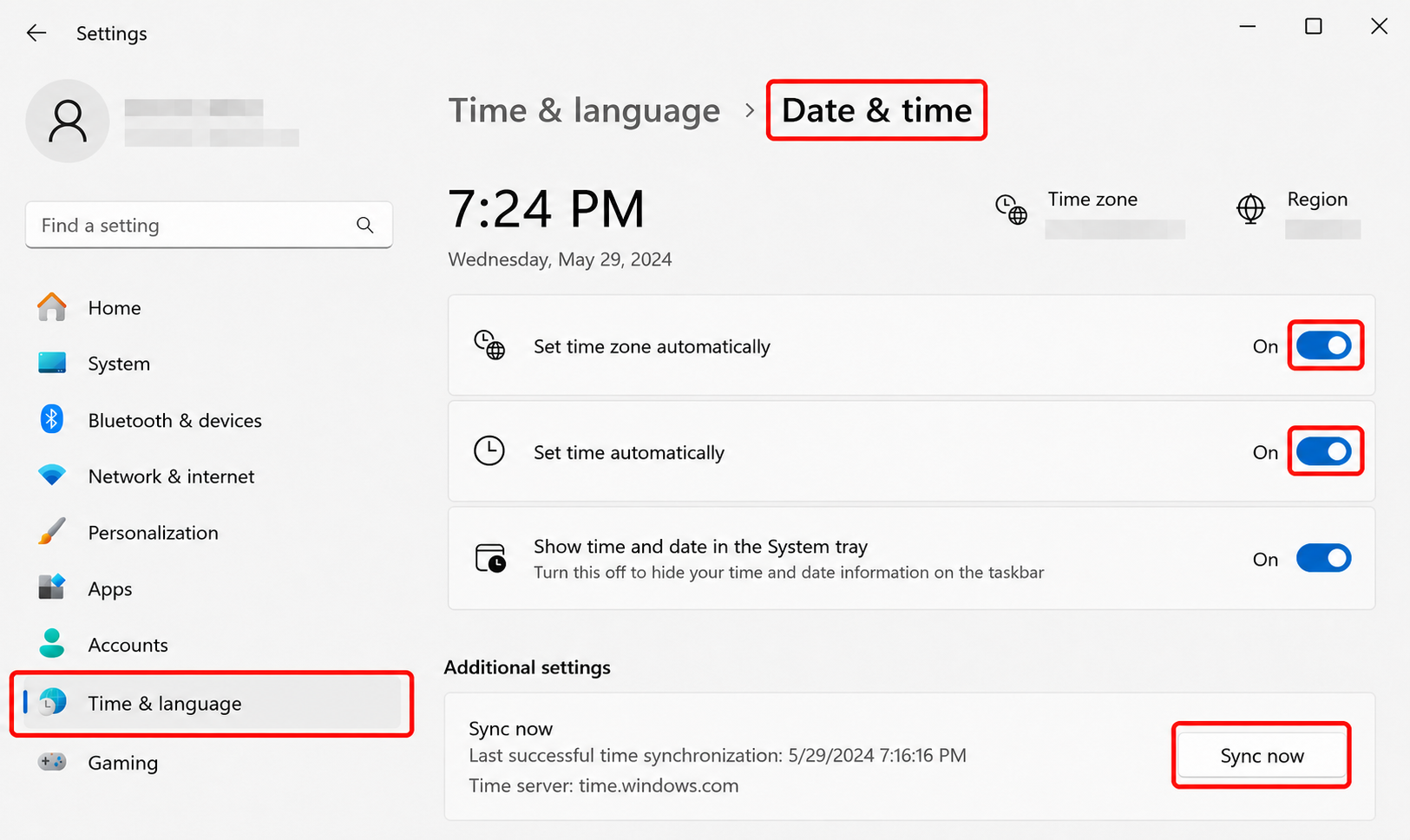
- Click “Start” → “Settings”
- Go to “Time & language” → “Date & time”
- Enable “Set time zone automatically” and “Set time automatically”
- Click “Sync now”
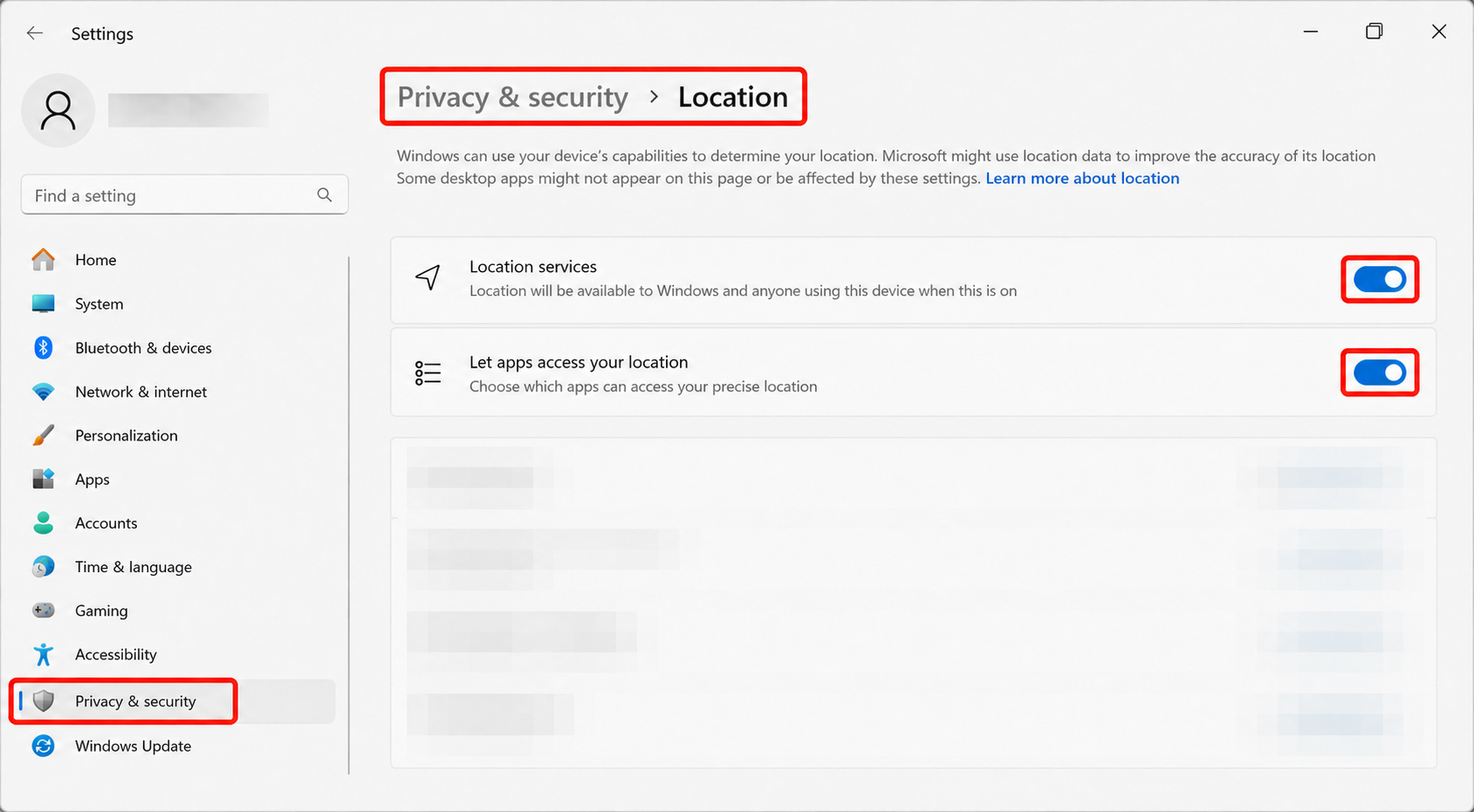
Can’t enable “Set time zone automatically”? Turn on location services:
- Go to “Settings” → “Privacy & security” → “Location”
- Enable “Location services”
- Enable “Let apps access your location”
macOS
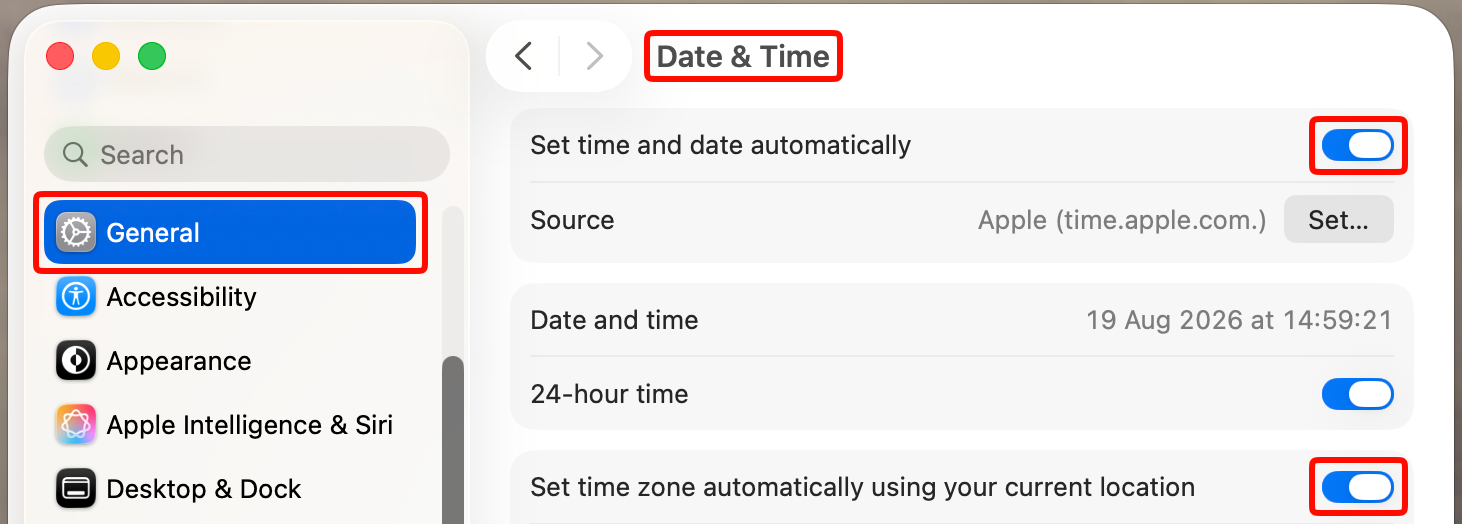
- Go to “System Settings” → “General”
- Choose the “Date & Time” section
- Enable the “Set time and date automatically” and “Set time zone automatically using your current location” settings
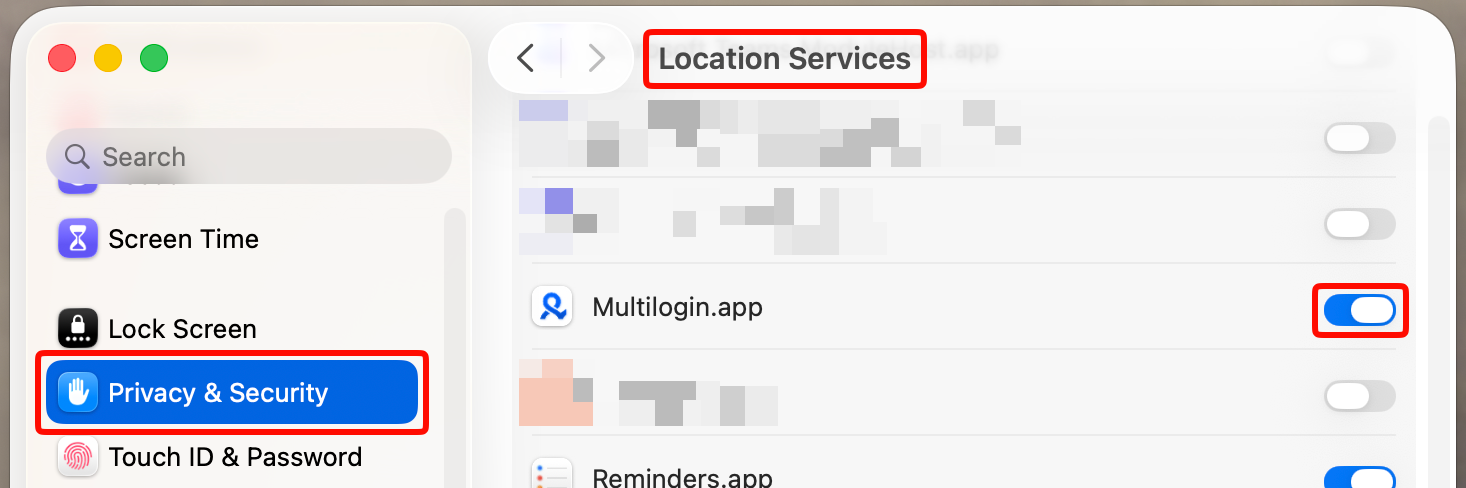
Can’t enable automatic timezone detection? Turn on location services:
- Go to “System settings” → “Privacy & Security”
- Pick “Location services”
- Turn on this feature for Multilogin
Check third-party apps
Some apps on your computer, like antivirus programs, firewalls, VPNs, and proxy tools, can mess with Multilogin. These apps might stop Multilogin from working right or make things run slower.
Here are some quick fixes:
- Uninstall these apps
- If you do need them, disable the apps temporarily or add Multilogin to their whitelist in the settings
This should help resolve the issue and keep everything running smoothly!
How to resolve conflicts with 3rd-party apps on Windows:
Antivirus apps
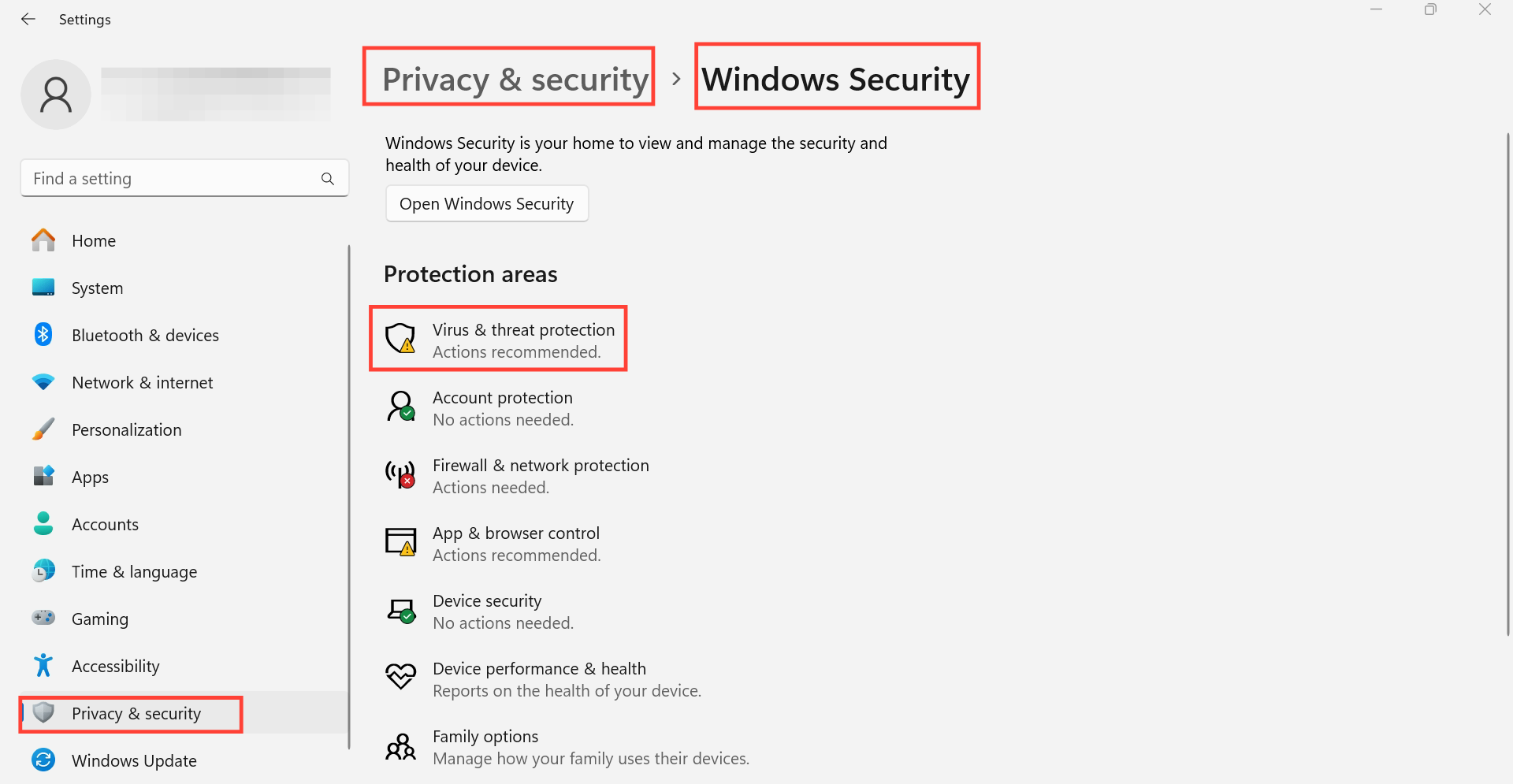
- Go to “Settings” → “Privacy & security” → “Windows Security” → “Virus & threat protection”
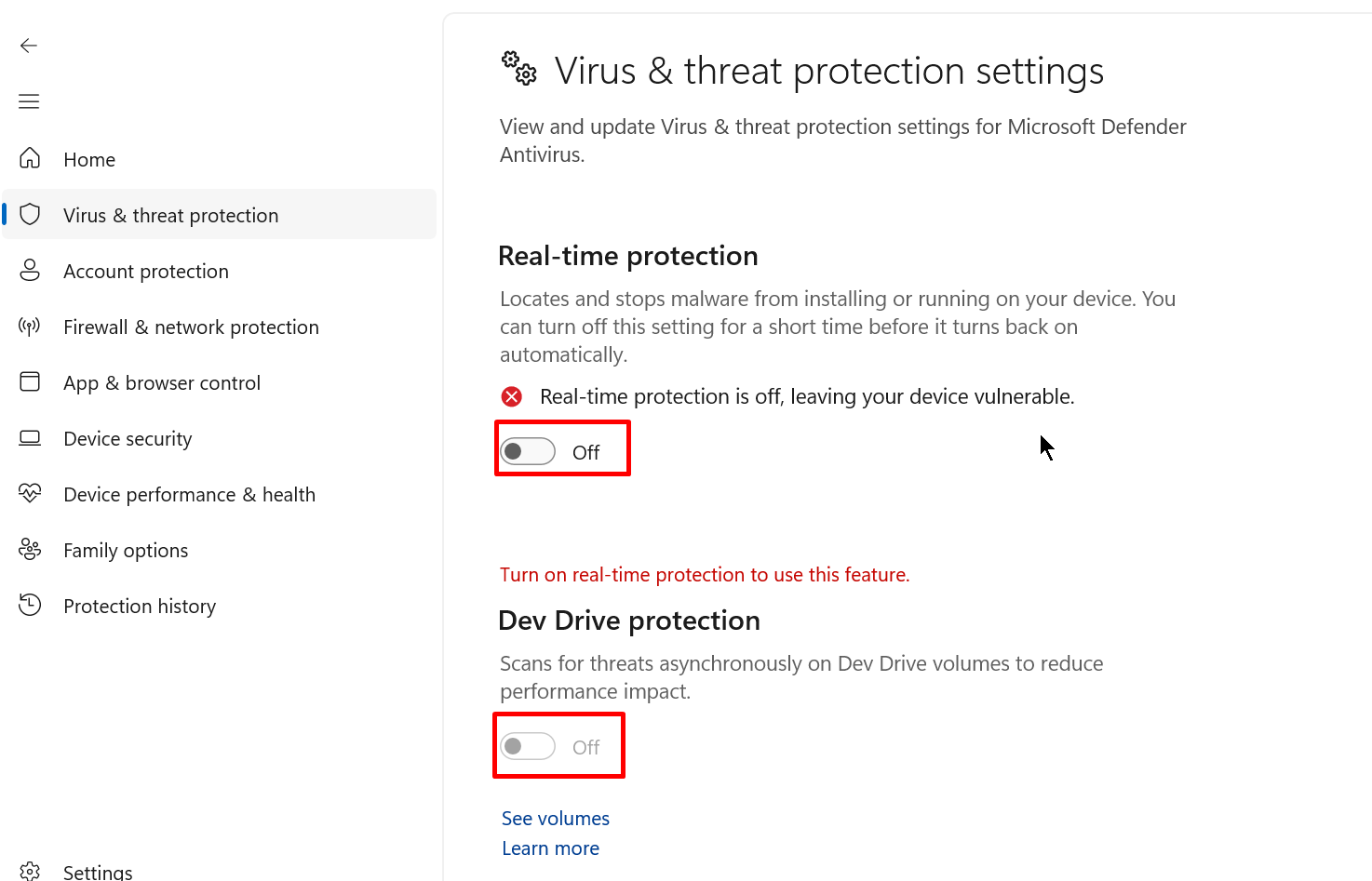
- Choose “Manage settings” and then turn off all the parameters in the displayed window
Firewalls
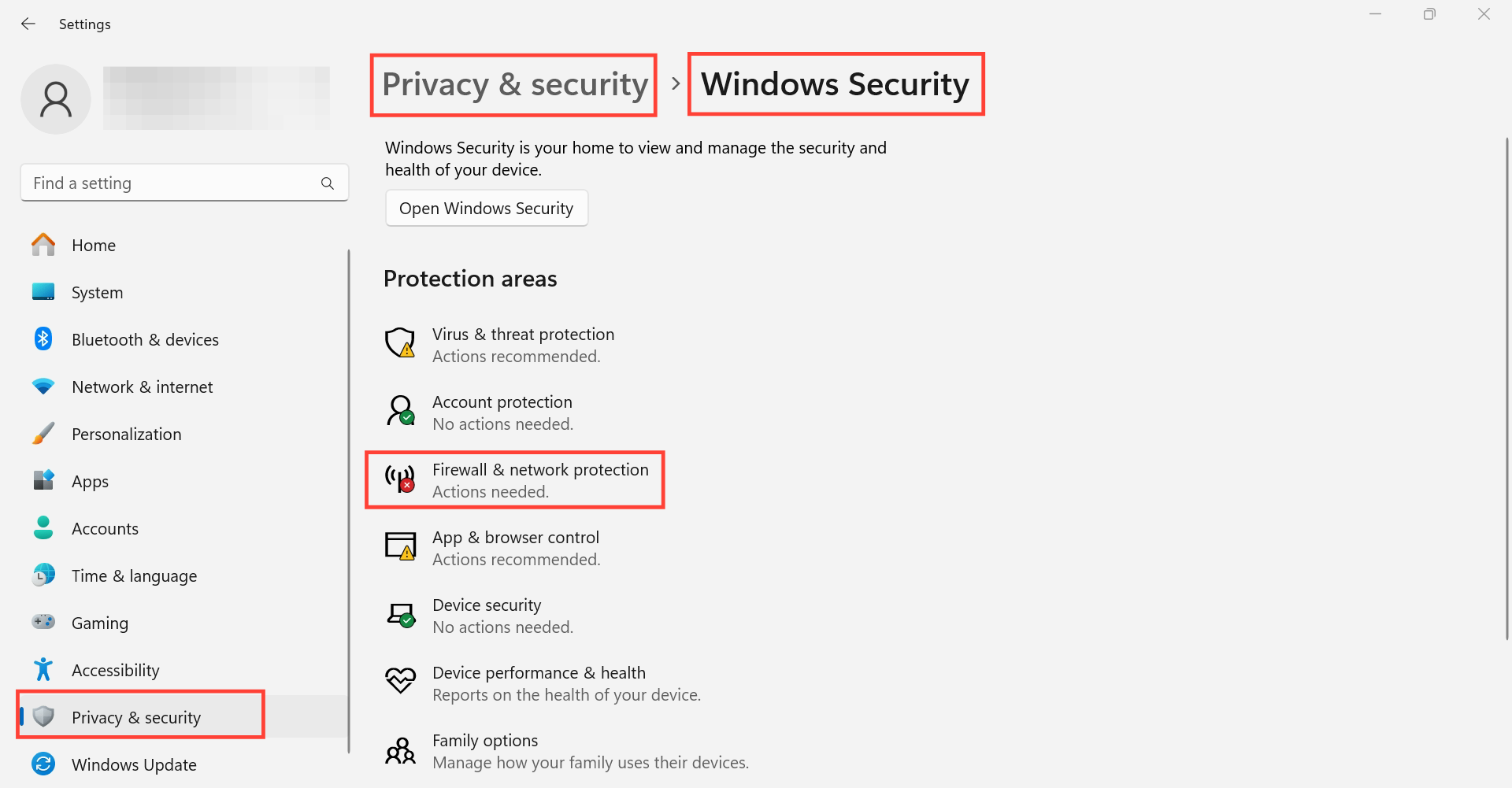
- Go to “Settings” → “Privacy & security” → “Windows Security” → “Firewall & network protection”
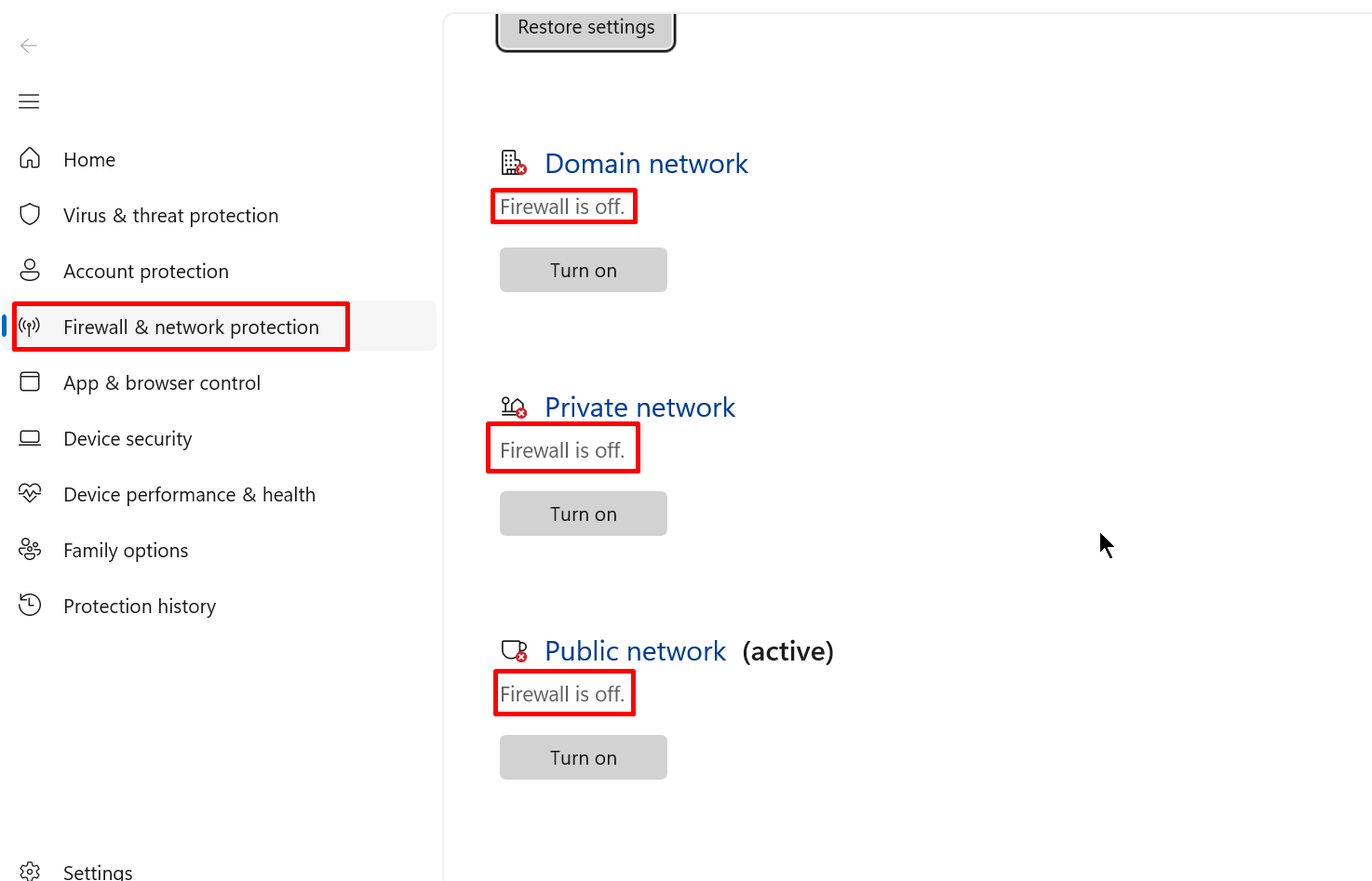
- Turn off all the parameters in the displayed window
VPNs
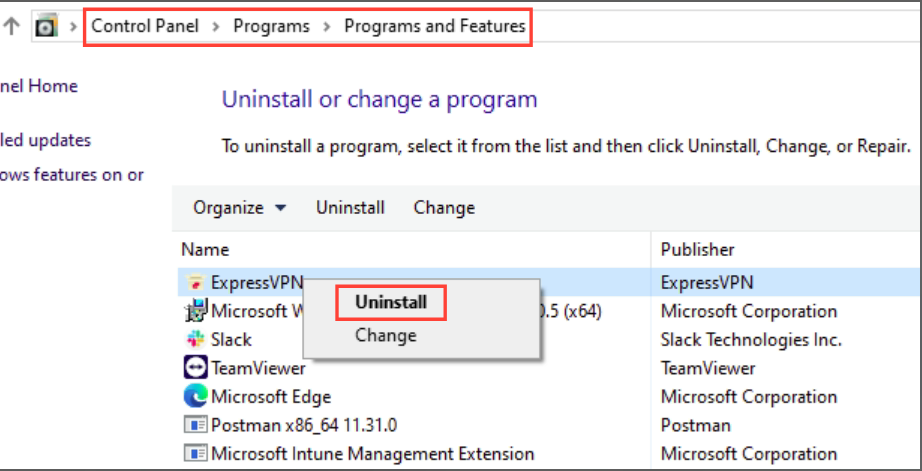
Uninstall VPN applications:
- Open “Control Panel” →” Programs” → “Programs and Features”
- Right-click the VPN applications → “Uninstall”
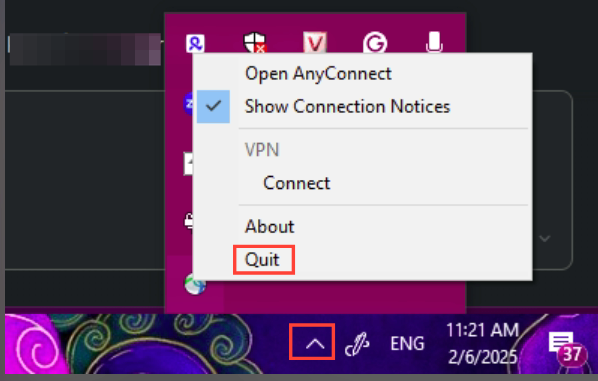
Disable VPN applications: open the menu in the task bar → right-click the VPN apps → click “Quit”
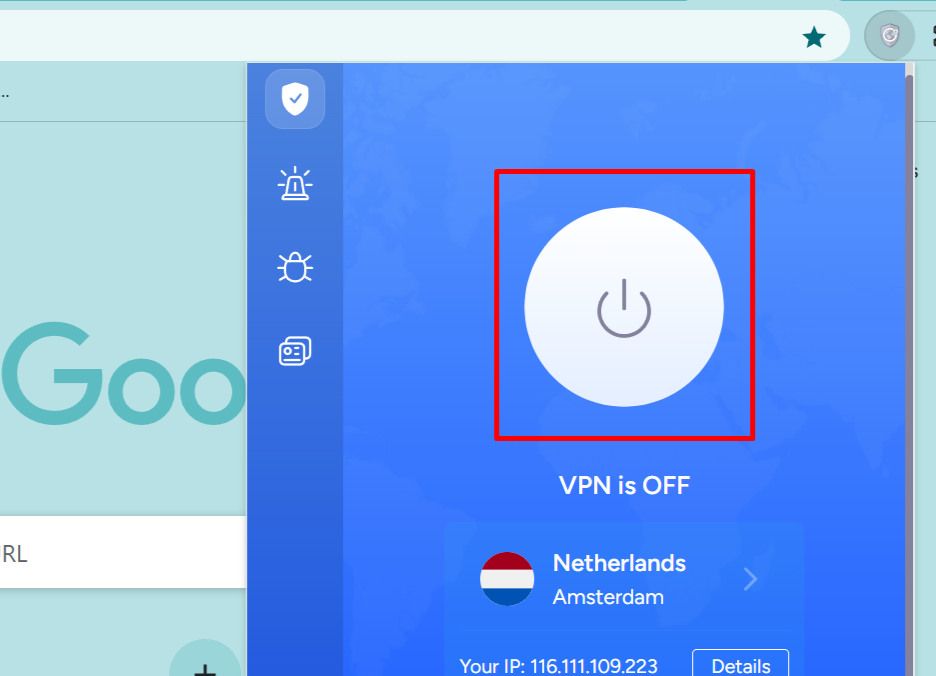
Turn off VPN extensions in browser: don't forget to check and turn off VPN extensions that you installed in your browser, for example, Chrome:
How to resolve conflicts with 3rd-party apps on macOS:
macOS security system
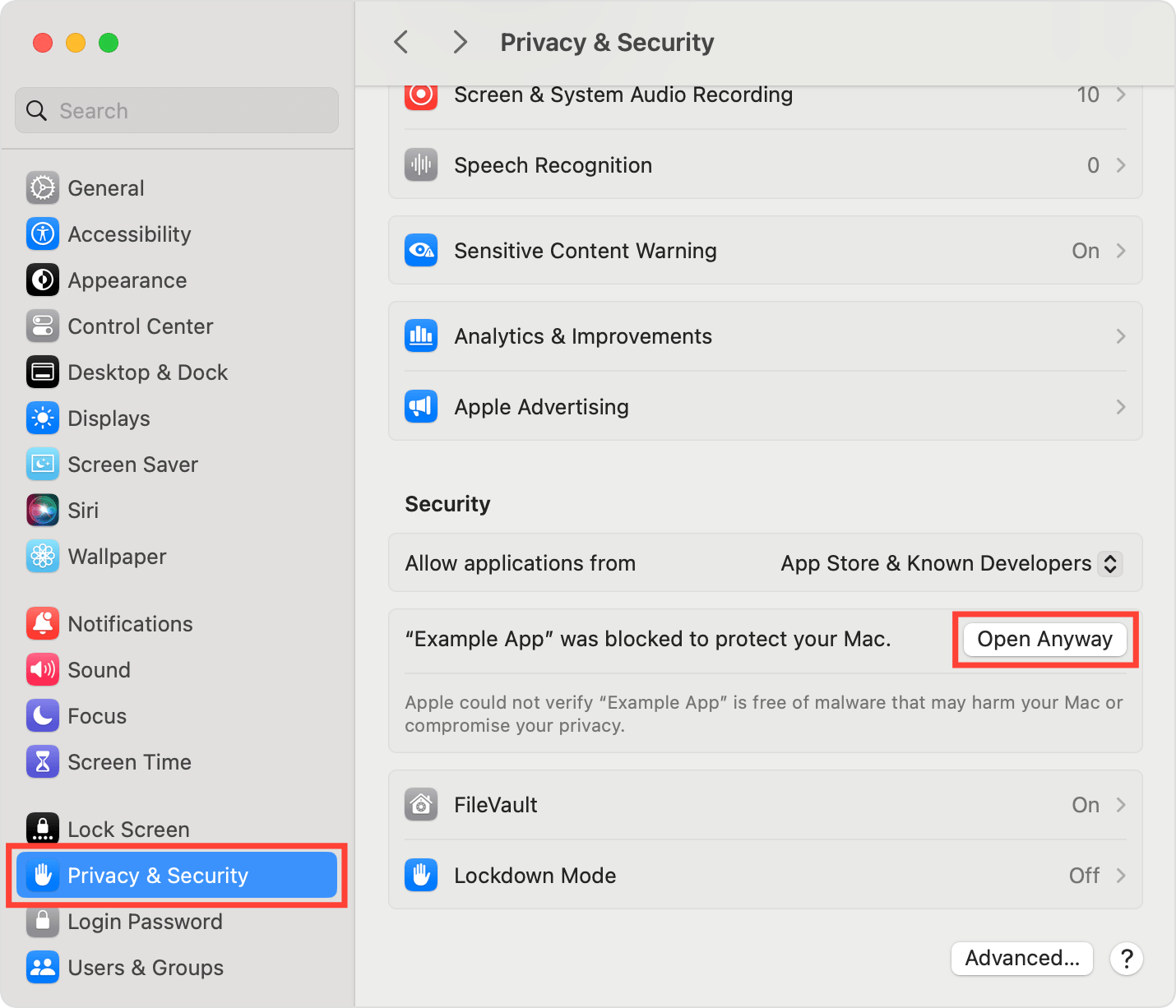
If the application got restricted from the macOS security system, you can access it by the following way:
- Open “System Settings” → “Privacy & Security” → “Security”
- Click “Open anyway” for the apps
We recommend to change “Allow applications from” value to “App Store & Known Developers”.
Antivirus apps
Firewalls
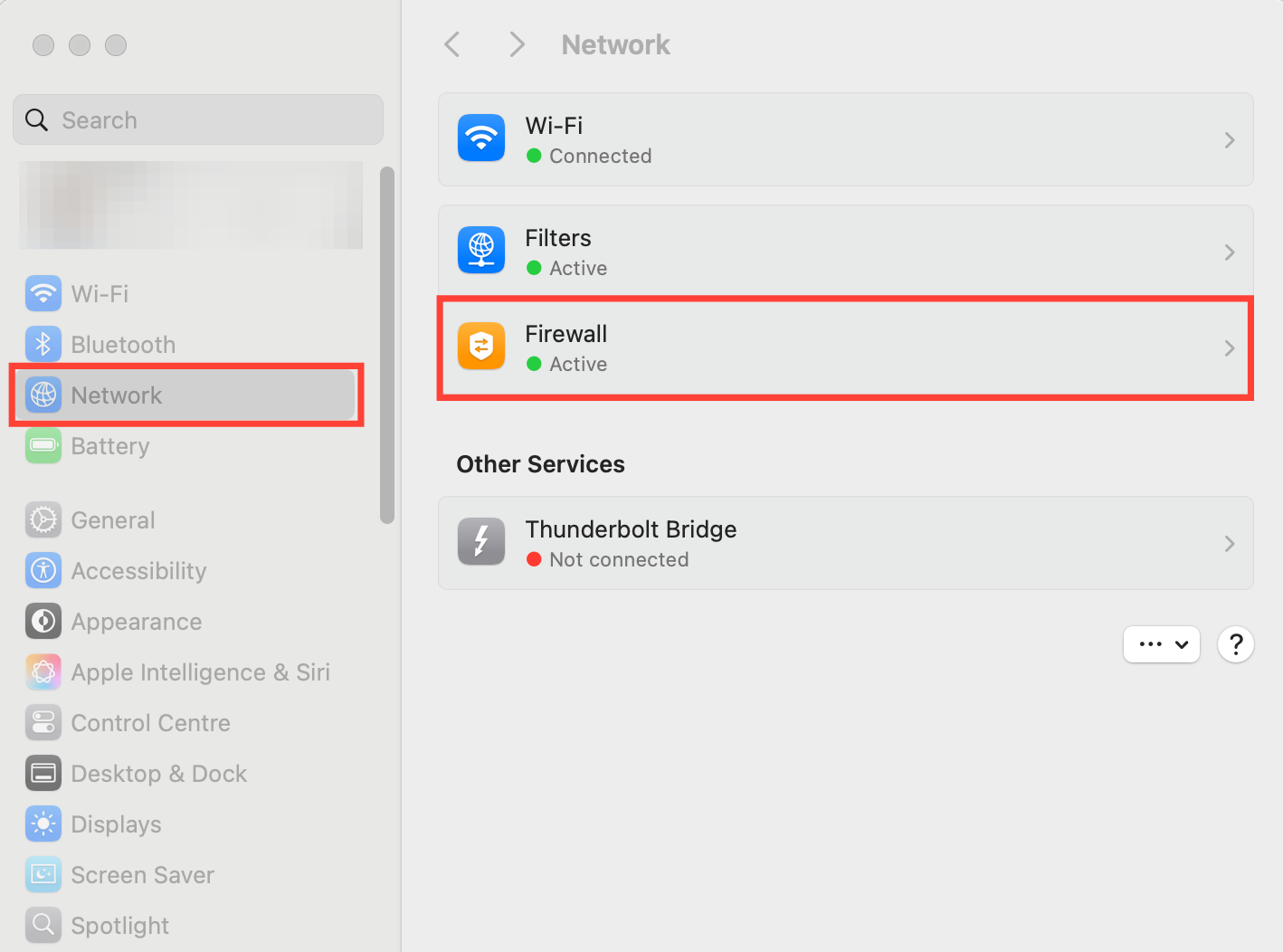
- Open “Apple menu” → “System Preferences” → “Network”
- Go to the “Firewall” tab and turn it off
VPNs
Uninstall VPN applications:
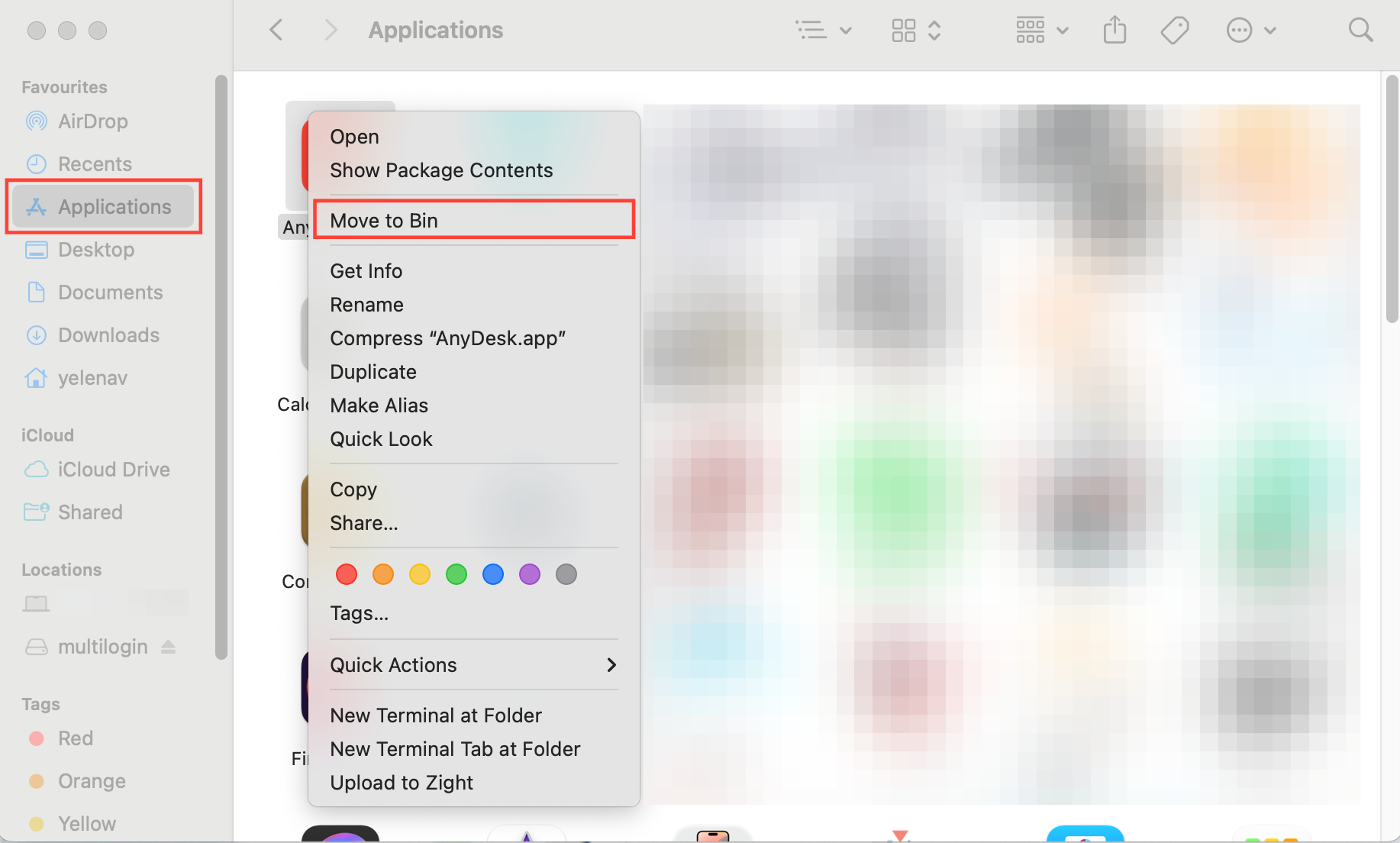
- Go to “Finder” → “Go” → “Application”
- Right-click the VPN apps → “Move to Bin”
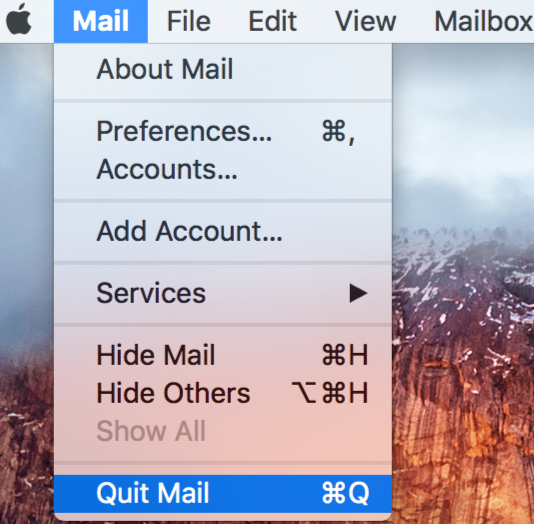
Disable VPN applications: right-click the VPN apps on the menu bar → choose “Quit <name of app>”.
Turn off VPN extensions in browser: don't forget to check and turn off VPN extensions that you installed in your browser. This is an example for Safari browser:
- Choose “Safari” → “Settings” (or “Preferences”) → click “Extensions”
- To turn off an extension, deselect its checkbox
Check the ISP
Sometimes, internet service providers (ISPs) block proxy providers or even Multilogin itself. Here’s how to test and work around it:
- Try connecting through a VPN: this can bypass ISP restrictions
- Switch networks: use a different Wi-Fi, or turn your phone into a hotspot with mobile data
- Check your speed: if your current ISP is slow, changing networks might also improve performance.
If the issue resolves with these steps, it’s likely your ISP causing the trouble.
Refresh components
- Close the desktop app 🖥️ or disconnect the agent if you're using the web interface 🌐
- Go to the
mlxfolder:-
Windows:
C:\Users\%username%\mlx -
macOS:
/Users/%username%/mlx -
Linux:
/home/%username%/mlx
-
Windows:
- Delete the
depsfolder - Reopen the desktop app 🖥️ or reconnect the agent for the web interface 🌐
- Start any profile – this will automatically kick off the components download process
Nothing helps?
If the issue persists – even after trying all the steps in this article – send us your logs. We’ll investigate and help you out 🛠️
- Recreate the issue or wait until the error message appears
- Archive the logs folder found in these locations:
-
Windows:
C:\Users\%username%\mlx -
macOS:
/Users/%username%/mlx -
Linux:
/home/%username%/mlx
-
Windows:
- Email support at [email protected] with:
- A clear description of the issue
- The archived logs folder attached


