


Cloud phone for YouTube
Run YouTube and YouTube Studio on dedicated Android cloud phones without managing physical devices. Upload videos, reply to comments, and manage multiple YouTube channels from one desktop dashboard. Use cloud phones for native Android tasks and browser profiles for desktop YouTube Studio workflows.
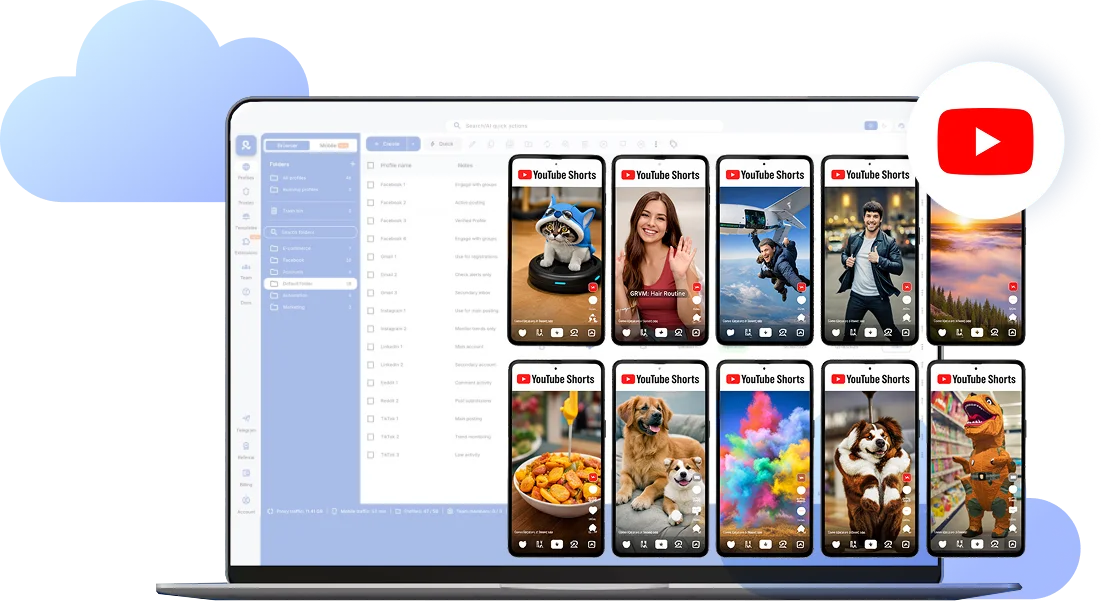
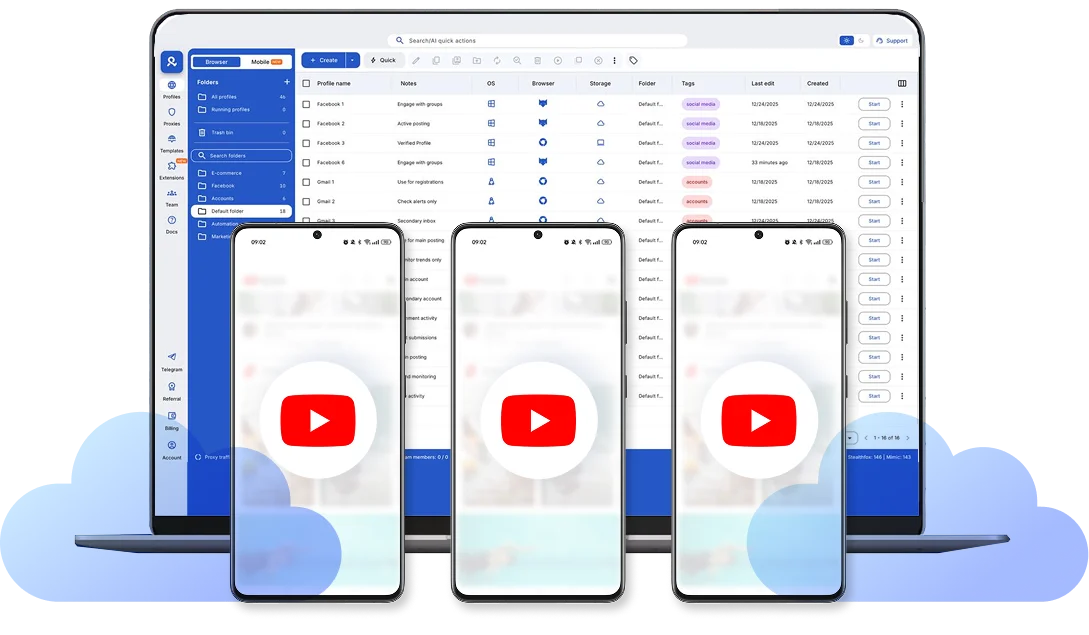
Run all YouTube accounts from one desktop dashboard
Open and manage multiple YouTube channels from one workspace. Give each channel its own Android cloud phone with separate apps, files, and login sessions.
Manage all YouTube activity from one desktop
Upload videos directly into the YouTube app on your Android cloud phones, no cables or device transfers. Manage comments, analytics, and monetization settings while running multiple channels side-by-side from one desktop workspace.
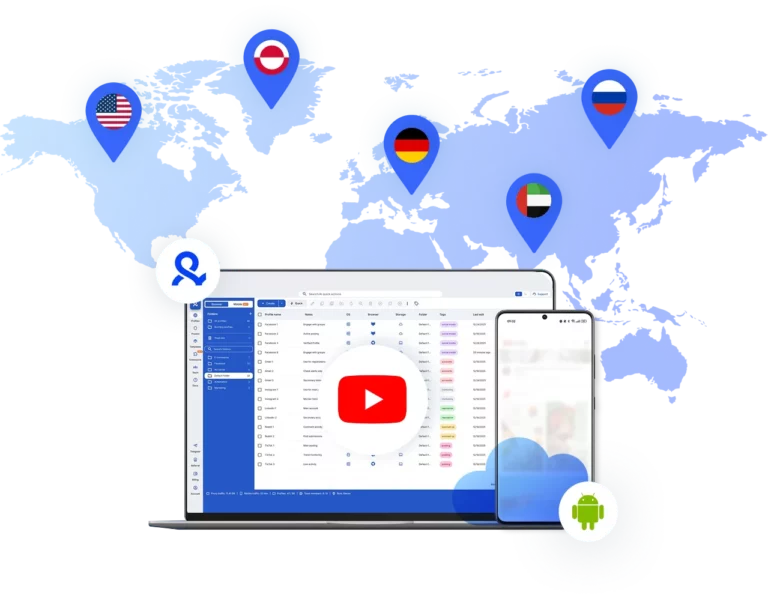
Run YouTube accounts from the location you choose
Each Android cloud phone connects through mobile-grade residential IPs from 30M+ addresses across 195+ countries. Your YouTube activity appears consistent with the device’s selected region, keeping channel signals aligned and sessions stable across uploads, engagement, and monetization workflows.
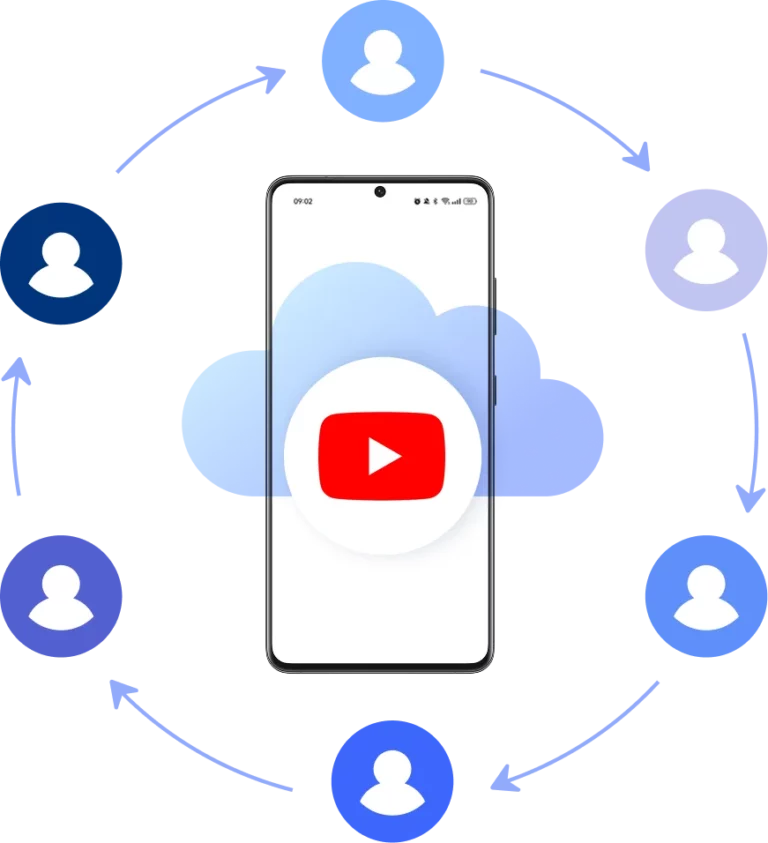
Manage YouTube channels with your team
Assign cloud phones to team members, control access permissions, and keep responsibilities clearly defined across multiple channels. Launch and manage several YouTube accounts at once while keeping sessions separate and organized, all from a secure desktop environment.
Grow your social media accounts with Multilogin cloud phones
-
Unlimited time
-
Mobile and browser profiles included
-
Free built-in proxies & mobile minutes
-
Unlimited time
-
Mobile and browser profiles included
-
Free built-in proxies & mobile minutes
What are cloud phones?
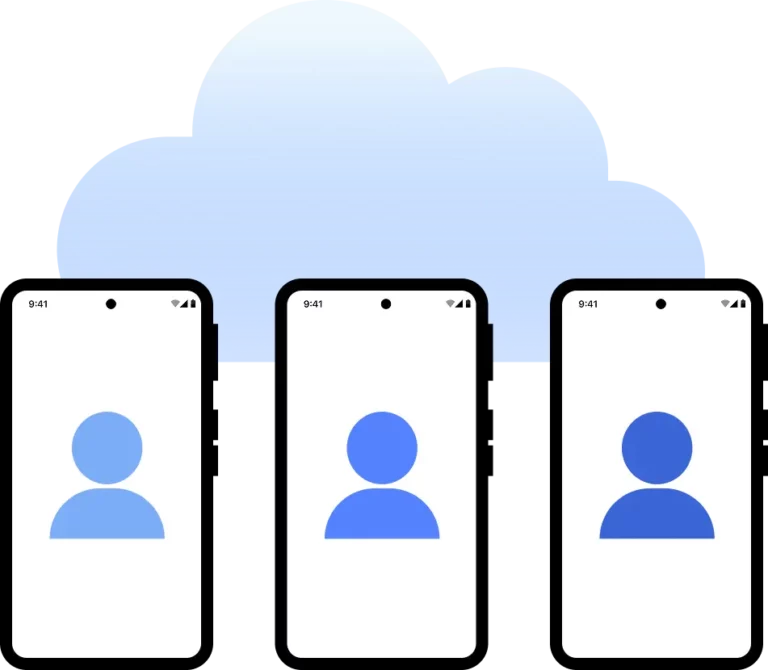
Cloud phones are dedicated Android devices hosted in the cloud that run mobile apps like YouTube in separate environments. Each phone operates independently with its own device identifiers and connection, keeping channels isolated instead of mixed together. This allows you to manage multiple YouTube accounts without sharing devices or overlapping sessions.
Why choose Multilogin for cloud phone?
Multilogin cloud phones keep each YouTube channel separated at the device level, so sessions remain independent and organized. This structure supports scalable channel management with consistent environments, whether you’re operating a few channels or managing larger workflows.
Multilogin features for Cloud Phone management
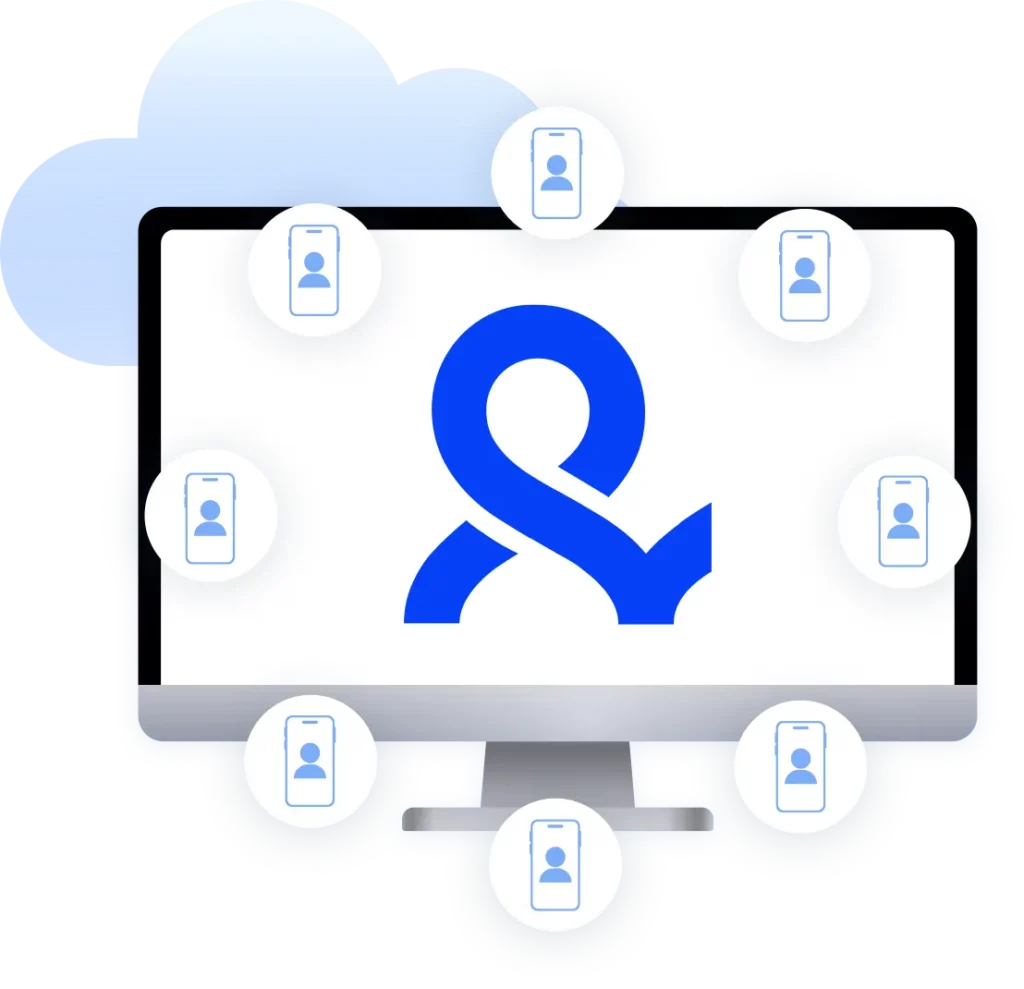
Multilogin 2-in-1
Anti-detect browser profiles and cloud phones in one ecosystem. One app, one dashboard, full control.
Built-in proxy integration
Residential IPs are included by default. 150+ countries and 1,400+ cities with daily quality testing.
Up-to-date Android versions
Stable Android versions 10–15, fully compatible with modern mobile apps.
Real brands and devices
Support for 7 real Android device brands with unique IMEI and system-level digital fingerprints.
App repository
Install TikTok, Instagram, Reddit, and other popular apps without Google Play. APK uploads are also supported.
Folders, tags and access control
Organize profiles using folders, tags, and role-based access. Manage team workflows with ease.
Enterprise-grade security
Profile encryption, 2FA, access control, and compliance-ready security for safe operations.
Launch Real Android Devices in 60 Seconds
Install YouTube and start managing accounts. While your competitors spend days setting up physical phones.
Why Multilogin wins for YouTube
Fast and intuitive interface
Everything at your fingertips: drag-and-drop, hotkeys, and smooth multitasking without losing speed.
Browser built for multi-accounting
Advanced engine effectively avoids multi-account detection by creating unique browser fingerprints.
Created for team collaboration
Proxies included in every plan
24/7 support in 5 languages
Manage accounts across all major platforms












How to start using Multilogin cloud phone
Launch and manage real mobile environments in the cloud.

Sign up
Register using a verified email address.

Choose your plan
Select from various subscription plans tailored to your business needs.

Download Multilogin X app
Install the Multilogin desktop app to manage mobile sessions securely.

Access the Multilogin dashboard
Launch cloud phone, assign proxies, configure fingerprints, and manage mobile environments from one place.

Manage multiple cloud phone profiles
Set up and manage multiple cloud phone profiles using separate browser profiles with consistent identities.
Most Awarded Antidetect Browser











Watch the Multilogin Demo
Get a 10-minute demo video on how Multilogin can help you easily build your database of cloud phone profiles while remaining undetected. Just fill in your name, last name and email below, and we’ll deliver the demo video directly to your inbox.
Cloud phone for YouTube: Managing multiple channels without conflict
YouTube lets users switch between channels, and one Google Account can manage several channels. This may be enough for one creator with a small number of related projects.
The workflow becomes harder when an agency or team manages channels for different clients, languages, regions, or brands. Video files, comments, notifications, sessions, and publishing tasks can quickly become mixed.
A YouTube cloud phone gives each channel or workflow its own Android environment. It does not replace YouTube channel permissions. It adds a dedicated mobile workspace for apps, files, and sessions.
Understanding the role of device environments
A device environment includes its Android version, installed apps, files, app data, login state, system settings, and network connection.
When several channels use the same physical phone, teams must switch accounts, move files, manage notifications, and remember which settings belong to each channel.
A cloud phone moves that environment to the cloud. Team members can open the correct Android device from their computer without passing a physical phone between people.
Multilogin also provides browser profiles for desktop YouTube tasks.
How to set up a cloud phone for YouTube on Android
Follow these steps to create a YouTube Android cloud phone:
- Create a mobile profile in Multilogin.
- Choose an Android version from Android 10 through 16.
- Select an Android phone brand and model.
- Assign a built-in or third-party proxy.
- Launch the cloud phone.
- Install YouTube and YouTube Studio.
- Transfer your video, thumbnail, and caption files.
- Sign in to the correct Google Account or channel.
- Add a clear profile name, folder, tag, and note.
- Stop the cloud phone when you finish your work.
Your apps, files, and login state remain available for the next session unless the profile is reset or deleted.
Mobile app and desktop workflows on YouTube
YouTube creators often use both Android apps and desktop tools.
Use the YouTube Android app to:
- Upload videos
- Upload Shorts
- Review notifications
- Reply to comments
- Check public channel pages
- Manage basic mobile activity
Use the YouTube Studio Android app to:
- Upload videos
- Edit titles and descriptions
- Choose audience and visibility settings
- Review analytics
- Manage comments
- Check channel performance
Use desktop YouTube Studio to:
- Review detailed analytics
- Manage monetization settings
- Edit channel settings
- Update several videos
- Work with longer metadata
- Create reports
- Manage permissions
Multilogin gives you cloud phones for Android work and browser profiles for desktop work.
How to watch and stream YouTube on an Android cloud phone
Launch the cloud phone, open YouTube, sign in when needed, and choose a video.
The video plays through the live cloud phone stream on your computer.
For smoother playback:
- Keep the YouTube app updated
- Use a stable internet connection
- Use a stable proxy
- Lower the playback quality if buffering starts
- Avoid opening more cloud phones than your connection can support
- Restart the app when playback becomes unresponsive
Multilogin supports YouTube playback, but the platform is designed mainly for social profile and channel management rather than personal entertainment streaming.
Uploading, downloading, and backing up YouTube video files
Transfer your video from your computer to the cloud phone before uploading.
Open YouTube, tap Create, select the video, and add the title, description, audience, and visibility settings.
You can also upload videos through the YouTube Studio Android app.
YouTube may let creators save their own uploaded videos to the device. Open Your Videos or Content, open the video menu, and select Save to device when available.
YouTube does not provide a general option for saving another creator’s video as a normal video file.
YouTube Premium or Premium Lite may offer offline viewing for eligible videos and locations. These downloads remain inside the YouTube app.
Keep original videos, thumbnails, captions, and project files in your normal cloud storage or asset management platform. Do not use a cloud phone as the only backup location.
Scaling beyond physical devices
Physical Android phones may work when one person manages a small number of channels.
As the operation grows, teams may need to:
- Purchase more phones
- Keep devices charged
- Move files between devices
- Pass phones between team members
- Replace lost or damaged hardware
- Track which phone belongs to each channel
- Manage phones across offices or countries
Cloud phones remove most physical device management.
Create new Android environments when you add clients, channels, or campaigns. Organize them with folders, tags, notes, and profile names.
Team-based channel management
YouTube operations may involve editors, upload managers, community managers, analysts, channel owners, and client managers.
Multilogin controls access to the working environment. YouTube controls what each person can do inside the channel.
An agency can:
- Share a cloud phone with an upload manager
- Share a browser profile with an analyst
- Use YouTube permissions for channel roles
- Keep ownership access with the channel owner
- Add notes for each client and workflow
Use YouTube channel permissions instead of sharing the owner’s Google Account password whenever possible.
The Multilogin cloud phone adds an organized Android environment around the channel workflow.
Automation and structured workflows
Automation can help teams repeat profile setup, file transfers, reporting, testing, and other routine tasks.
Multilogin supports API access, ADB, Selenium, Puppeteer, Playwright, Postman, and Appium-compatible Android workflows.
Teams and AI agents can use these tools to:
- Launch profiles
- Install Android apps
- Transfer files
- Take screenshots
- Collect logs
- Connect approved workflow systems
Automation must follow YouTube’s Terms of Service, API policies, spam policies, and Community Guidelines.
Do not automate artificial views, subscriptions, likes, comments, or other misleading engagement.
Learn more about automation with Multilogin.
Regional channel management
Creators, agencies, and brands may manage YouTube channels for different countries, languages, clients, or offices.
A regional workflow can include:
- Country-specific channels
- Local-language videos
- Regional publishing schedules
- Local comment management
- Market-specific thumbnails
- Team members in different locations
Multilogin provides access to residential proxies across more than 150 locations.
Choose country, city, region, or ISP targeting based on availability.
Keep the proxy location consistent with the channel’s real operating context. A proxy does not change the YouTube channel country, control recommendations, or make a channel eligible for regional features.
What to look for in a YouTube cloud phone service
A useful YouTube cloud phone service should support more than basic video playback.
Check Android support
Choose a service that supports Android versions accepted by the current YouTube app.
Old Android versions may cause app installation, update, or sign-in problems.
Keep apps and sessions
The service should keep YouTube, YouTube Studio, app data, files, and login sessions available between uses.
Transfer files easily
Creators need a simple way to move videos, thumbnails, captions, and other files into the Android environment.
Control the phone remotely
The remote interface should make it easy to open apps, enter video details, review comments, and manage uploads.
Combine mobile and web tools
Look for browser profiles if your workflow also includes desktop YouTube Studio, analytics, reporting, or research.
Select network locations
Check whether the service supports built-in proxies, third-party proxies, and country or city targeting.
Share access with teams
Agencies should look for folders, tags, notes, profile sharing, and role-based permissions.
Understand the pricing
Check whether the provider charges by device, minute, storage, proxy traffic, or active session.
Multilogin combines Android cloud phones, browser profiles, built-in proxies, file handling, team tools, and automation options.
Cloud phone costs and YouTube subscription costs
Multilogin and YouTube subscriptions cover different services.
Multilogin pricing covers cloud mobile and browser profiles, mobile minutes, proxy traffic, team features, and automation access based on the selected plan.
The Multilogin free plan includes:
- Five mobile and browser profiles
- One mobile profile
- 30 one-time mobile minutes
- 200 MB of one-time proxy traffic
- No credit card requirement
- No fixed expiration date
Buy additional mobile minutes and proxy traffic when needed.
Check the Multilogin pricing page for current plan details.
YouTube Premium and Premium Lite are separate subscriptions purchased through YouTube. Features may include ad-free playback, offline downloads, and background playback depending on the plan and location.
A Multilogin subscription does not include YouTube Premium.
Who typically uses cloud phones for YouTube?
YouTube cloud phones are useful for:
- Creators managing multiple niche channels
- Agencies managing client channels
- Brands running regional channels
- Social media teams handling uploads and comments
- Editors working with Android publishing apps
- Community managers managing several channels
- AI workflow builders connecting content processes
- Remote teams working across mobile and desktop environments
A cloud phone is most useful when you need repeatable mobile environments, team access, file handling, and clear channel organization.
Someone who only wants to watch videos may prefer a physical phone, tablet, computer, or television.
FAQ
What is a cloud phone for YouTube?
A cloud phone for YouTube is an Android device hosted in the cloud that runs the YouTube and YouTube Studio apps. Creators and teams can control it remotely from a computer without managing a physical Android phone.
Why use a cloud phone for multiple YouTube channels?
A cloud phone gives each channel or workflow its own Android environment.
This separates apps, video files, notifications, login sessions, and mobile channel tasks.
Can I upload videos to YouTube using a cloud phone?
Yes. Transfer the video into the cloud phone and upload it through YouTube or YouTube Studio. You can add the title, description, audience, visibility, and other video settings from the Android app.
Why would someone use a cloud phone for multiple YouTube channels?
Managing multiple YouTube channels on the same device can become difficult as activity increases. A cloud phone allows each channel to run in a separate environment, which makes workflows easier to organize. This is especially helpful for creators or agencies handling uploads, comments, analytics, and monetization across several channels.
How is a cloud phone different from using multiple physical phones?
A physical phone must be purchased, charged, stored, and passed between team members. A cloud phone is hosted remotely and opened through a desktop dashboard.
Can teams use cloud phones for YouTube channel management?
Yes. Cloud phones can be assigned to different team members, allowing structured collaboration across multiple YouTube channels. Instead of sharing passwords or passing devices around, each team member can work within a defined environment. Platforms like Multilogin support permission-based access and centralized management for this type of workflow.
Do cloud phones support YouTube Studio and desktop workflows?
Cloud phones are primarily used for the mobile app environment. For YouTube Studio and browser-based management, isolated desktop browser profiles can be used alongside cloud phones. Some platforms, including Multilogin, combine both Android cloud phones and browser isolation in the same dashboard to support mobile and desktop workflows together.
How can I watch YouTube on an Android cloud phone?
Launch the cloud phone, open YouTube, sign in when needed, and choose a video. The video plays through the remote stream on your computer.
How do I set up a cloud phone to stream YouTube videos?
Create a mobile profile, choose an Android version and device model, assign a proxy, and install YouTube.
Open the app and play a video as you would on a physical Android phone.
Which Android version does YouTube require?
The current YouTube Android app requires Android 9 or later. Multilogin cloud phones support Android 10 through Android 16.
Can I download YouTube videos for offline viewing?
YouTube Premium or Premium Lite may let users download eligible videos for offline viewing. The videos remain inside the YouTube app and may require occasional internet access.
Can I download another creator’s video as a file?
YouTube does not offer a general option for saving another creator’s video as a normal MP4 file. Use the official offline viewing feature when available.
Does background playback work on a cloud phone?
Background playback works when the signed-in YouTube account has a subscription that includes it.
Availability also depends on the video, location, and YouTube plan.
Does background playback work on a cloud phone?
Background playback works when the signed-in YouTube account has a subscription that includes it.
Availability also depends on the video, location, and YouTube plan.
Does Multilogin include YouTube Premium?
No. Multilogin and YouTube Premium are separate subscriptions. Multilogin provides cloud phones, browser profiles, proxy traffic, team controls, and workflow tools.
Is a cloud phone an Android emulator?
No. An emulator simulates Android locally on a computer. Multilogin cloud phones run Android environments on smartphone hardware in the cloud.
Can teams manage YouTube channels with cloud phones?
Yes. Teams can share selected cloud phones and browser profiles through Multilogin permissions. They should also use YouTube channel permissions to control access inside YouTube Studio.
Does Multilogin support YouTube Studio?
Yes. Run the YouTube Studio Android app inside a cloud phone. Use a browser profile for the full desktop version of YouTube Studio.
What should I look for in a YouTube cloud phone service?
Look for current Android versions, persistent sessions, easy file transfers, proxy support, team permissions, browser profiles, and clear pricing.
Is Multilogin designed for YouTube streaming or channel management?
Multilogin supports YouTube playback, but it is mainly designed for channel and social profile management.
It helps creators, agencies, teams, and AI workflows manage dedicated Android cloud phones and browser profiles from one dashboard.
