


如何通过 Postman 为 Mimic 启用命令标志
 约16分钟作者Yelena V
在 Multilogin 中,你可以通过 Postman 为 Mimic 浏览器配置文件添加 Chromium 命令标志,将它们放在受支持 API 请求的 cmd_params 对象中。需要改变 Chromium 的行为时可以使用此方式,例如关闭通知或启用远程调试端口。
➡️ 在 Postman 中打开受支持的配置文件端点 → “Body” → 在 parameters → fingerprint 下添加 cmd_params → 输入命令标志和可选值 → 点击“Send”。
创建、更新、部分更新配置文件以及启动快速配置文件的端点都支持命令标志。
第 1 步:打开 Postman
按照如何登录并刷新 Multilogin API 令牌中的步骤,完成以下操作:
- 在 Documenter 访问 API 文档
- 将 API 集合导入本地 Postman
- 登录并获取自动化令牌
这些操作也可以通过脚本完成,但本指南使用 Postman。
第 2 步:选择要运行的端点
可以向以下端点添加命令标志:
- POST Profile Create
- POST Profile Update
- POST Profile Partial Update
- POST Start Quick Profile
- POST Start Quick Profile v3
本文使用 POST Profile Create 端点。
- 在 Postman 工作区中进入“Profile Management”文件夹,选择 POST Profile Create
- 选择“Body”选项卡
- 在请求体中,将以下变量替换为你的值:
下一步将在“Body”选项卡中添加标志。
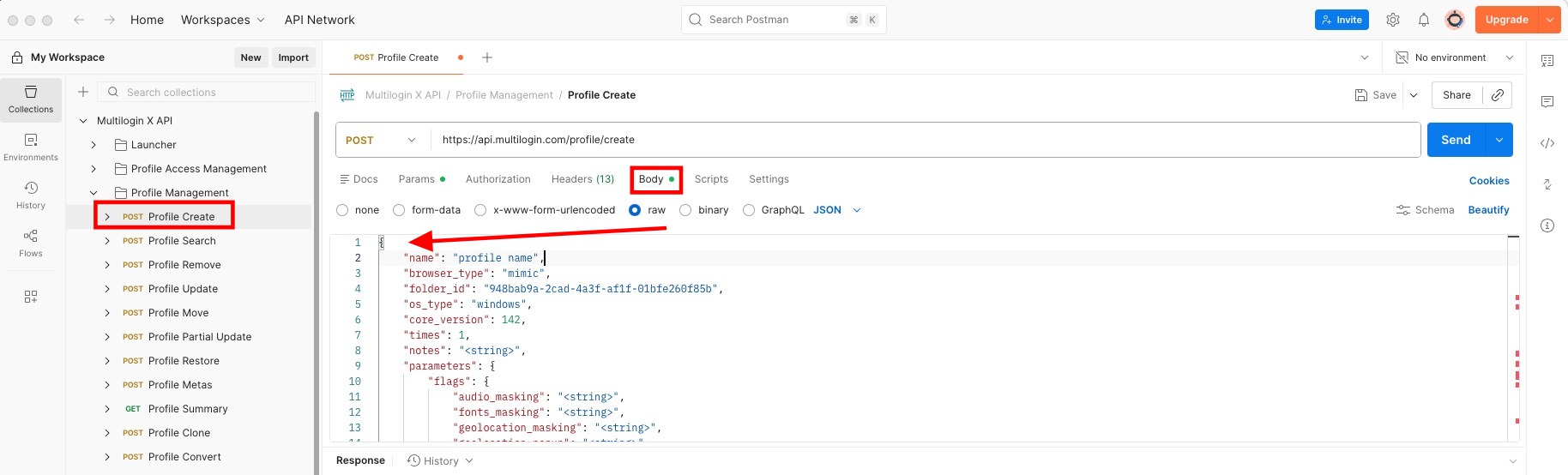
第 3 步:添加命令标志
命令标志通过 cmd_params 定义,应放在 fingerprints 参数下:

"cmd_params": {
                "params": [
                    {
                        "flag": "FLAG NAME",
                        "value": "FLAG VALUE"
                    }
                ]
}参考完整请求体,了解如何正确添加命令标志(替换 <YOUR PROFILE NAME> 和 <YOUR FOLDER ID>):
完整请求体
{
    "name": "<YOUR PROFILE NAME>",
    "browser_type": "mimic",
    "core_version": 142,
     "folder_id": "<YOUR FOLDER ID>",
    "os_type": "windows",
    // "automation": "selenium",
    "is_headless": false,
    "parameters": {
        "flags": {
            "audio_masking": "mask",
            "fonts_masking": "custom",
            "geolocation_masking": "custom",
            "geolocation_popup": "prompt",
            "graphics_masking": "custom",
            "graphics_noise": "mask",
            "localization_masking": "custom",
            "media_devices_masking": "custom",
            "navigator_masking": "custom",
            "ports_masking": "mask",
            "proxy_masking": "custom",
            "quic_mode": "natural",
            "screen_masking": "custom",
            "timezone_masking": "custom",
            "webrtc_masking": "custom",
            "canvas_noise:": "custom",
            "startup_behavior": "custom"
        },
        "fingerprint": {
            "navigator": {
                "hardware_concurrency": 8,
                "platform": "Win32",
                "user_agent": "Mozilla/5.0 (Windows NT 10.0; Win64; x64) AppleWebKit/537.36 (KHTML, like Gecko) Chrome/124.0.0.0 Safari/537.36",
                "os_cpu": ""
            },
            "localization": {
                "languages": "en-US",
                "locale": "en-US",
                "accept_languages": "en-US,en;q=0.5"
            },
            "timezone": {
                "zone": "Asia/Bangkok"
            },
            "graphic": {
                "renderer": "ANGLE (NVIDIA, NVIDIA GeForce RTX 4070 Ti Direct3D11 vs_5_0 ps_5_0, D3D11)",
                "vendor": "Google Inc. (NVIDIA)"
            },
            "webrtc": {
                "public_ip": "123.123.123.123"
            },
            "media_devices": {
                "audio_inputs": 1,
                "audio_outputs": 1,
                "video_inputs": 2
            },
            "screen": {
                "height": 1200,
                "pixel_ratio": 1,
                "width": 1920
            },
            "geolocation": {
                "accuracy": 100,
                "altitude": 100,
                "latitude": 52.02,
                "longitude": -52.1
            },
            "ports": [
                12345
            ],
            "fonts": [
                "81938139"
            ],
            "cmd_params": {
                "params": [
                    {
                        "flag": "disable-background-timer-throttling"
                    },
                    {
                        "flag": "disable-backgrounding-occluded-windows"
                    },
                    {
                        "flag": "disable-renderer-backgrounding"
                    },
                    {
                        "flag": "disable-features",
                        "value": "CalculateNativeWinOcclusion"
                    },
                    {
                        "flag": "disable-component-update"
                    }
                ]
            }
        },
        "proxy": {
            "host": "host",
            "type": "http",
            "port": 8081,
            "username": "username",
            "password": "password"
        },
        "custom_start_urls": [
            "https://multilogin.com/ ",
            "https://whoerip.com/multilogin/ "
        ]
    }
} 重要!如果在脚本中使用 automation,需要将其转为注释,以确保正确执行。例如:
// "automation": "selenium",另外,请求体中的值都是占位值。请编辑或移除多余参数,尤其是全局IP相关参数。未正确配置,请求体就无法正确发送。
第 4 步:发送请求
编辑所有必需参数(包括命令标志)后,点击“Send”按钮。
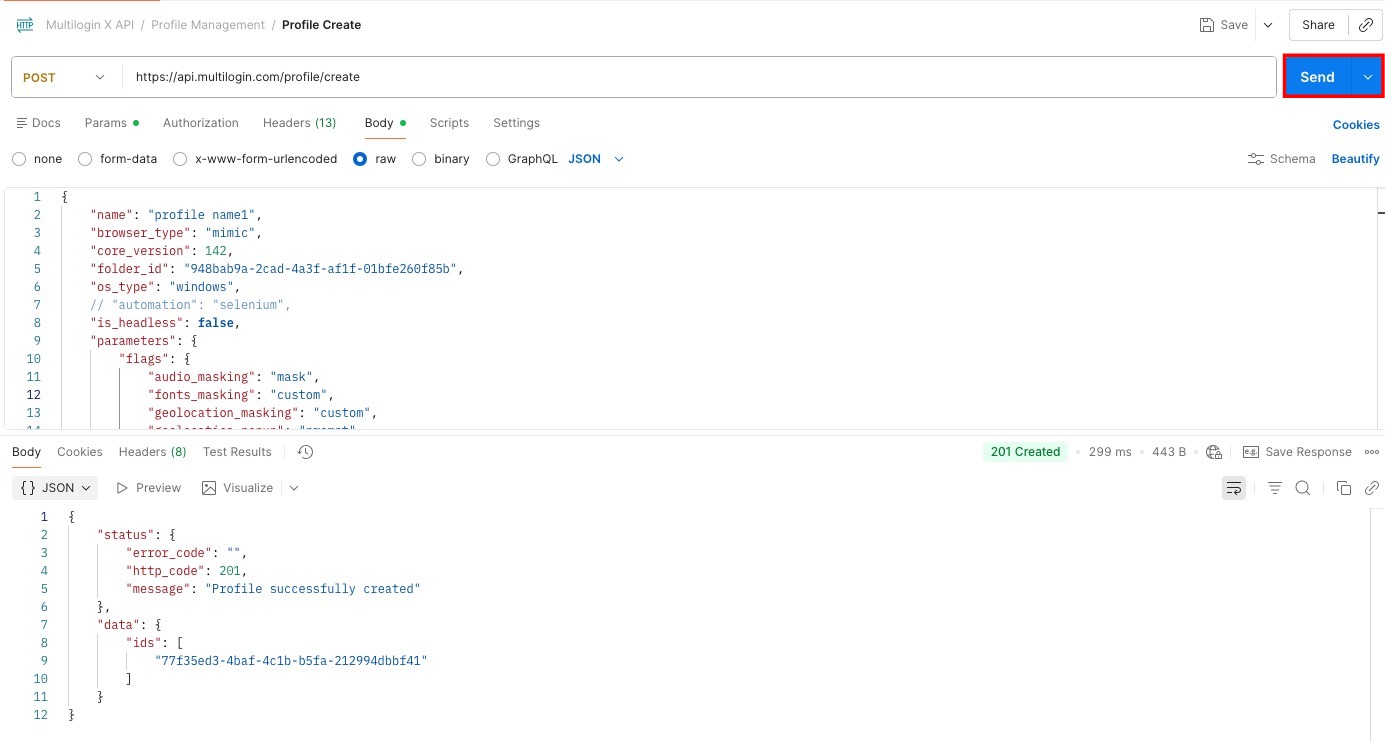
使用场景:关闭 Chromium 通知
关闭 Chromium 通知是命令标志的常见用途。使用 --disable-notifications 标志即可关闭,适合使用 Multilogin 运行自动化时使用。
包含关闭通知标志的请求体参考
{
    "name": "flag test",
    "browser_type": "mimic",
    "folder_id": "<YOUR FOLDER ID>",
    "os_type": "macos",
    "core_version": 142,
    "parameters": {
        "flags": {
            "audio_masking": "natural",
            "fonts_masking": "mask",
            "geolocation_masking": "mask",
            "geolocation_popup": "allow",
            "graphics_masking": "mask",
            "graphics_noise": "natural",
            "localization_masking": "mask",
            "media_devices_masking": "mask",
            "navigator_masking": "mask",
            "ports_masking": "natural",
            "proxy_masking": "disabled",
            "screen_masking": "natural",
            "timezone_masking": "mask",
            "webrtc_masking": "mask",
            "canvas_noise:": "disabled"
        },
        "storage": {
            "is_local": false
        },
        "fingerprint": {
            "cmd_params": {
                "params": [
                    {
                        "flag": "disable-notifications",
                        "value": "true"
                    }
                ]
            }
        }
    }
}使用场景:启用调试端口
远程调试端口可用于自动化和问题排查。
JSON 片段如下:
"cmd_params": {
    "params": [
        {
            "flag": "remote-debugging-port",
            "value": "28481"
        }
    ]
}重要!如果在脚本中使用 automation,需要将其转为注释,以确保正确执行。例如:
// "automation": "selenium",请求示例
{
    "name": "profile name2",
    "browser_type": "mimic",
    "core_version": 142,
    "folder_id": "948bab9a-2cad-4a3f-af1f-01bfe260f85b",
    "os_type": "linux",
   // "automation": "selenium",
    "is_headless": false,
    "parameters": {
        "flags": {
            "audio_masking": "mask",
            "fonts_masking": "custom",
            "geolocation_masking": "custom",
            "geolocation_popup": "prompt",
            "graphics_masking": "custom",
            "graphics_noise": "mask",
            "localization_masking": "custom",
            "media_devices_masking": "custom",
            "navigator_masking": "custom",
            "ports_masking": "mask",
            "proxy_masking": "custom",
            "quic_mode": "natural",
            "screen_masking": "custom",
            "timezone_masking": "custom",
            "webrtc_masking": "custom",
            "canvas_noise:": "custom",
            "startup_behavior": "custom"
        },
        "fingerprint": {
            "navigator": {
                "hardware_concurrency": 8,
                "platform": "Win32",
                "user_agent": "Mozilla/5.0 (Windows NT 10.0; Win64; x64) AppleWebKit/537.36 (KHTML, like Gecko) Chrome/124.0.0.0 Safari/537.36",
                "os_cpu": ""
            },
            "localization": {
                "languages": "en-US",
                "locale": "en-US",
                "accept_languages": "en-US,en;q=0.5"
            },
            "timezone": {
                "zone": "Asia/Bangkok"
            },
            "graphic": {
                "renderer": "ANGLE (NVIDIA, NVIDIA GeForce RTX 4070 Ti Direct3D11 vs_5_0 ps_5_0, D3D11)",
                "vendor": "Google Inc. (NVIDIA)"
            },
            "webrtc": {
                "public_ip": "123.123.123.123"
            },
            "media_devices": {
                "audio_inputs": 1,
                "audio_outputs": 1,
                "video_inputs": 2
            },
            "screen": {
                "height": 1200,
                "pixel_ratio": 1,
                "width": 1920
            },
            "geolocation": {
                "accuracy": 100,
                "altitude": 100,
                "latitude": 52.02,
                "longitude": -52.1
            },
            "ports": [
                12345
            ],
            "fonts": [
                "81938139"
            ],
            "cmd_params": {
                "params": [
                    {
                        "flag": "remote-debugging-port",
                        "value": "28481"
                    }
                ]
            }
        }
    }
}请求体中的值都是占位值。请编辑或移除多余参数,尤其是全局IP相关参数。未正确配置,请求体就无法正确发送。
添加这些值后,即可向 API 发送请求。点击 Postman 的“Send”按钮。
如何验证远程调试端口
编辑并发送请求后,打开 Mimic 配置文件,访问:chrome://version/
这里应显示 Remote Debugging Port 为 28481,说明配置已生效。
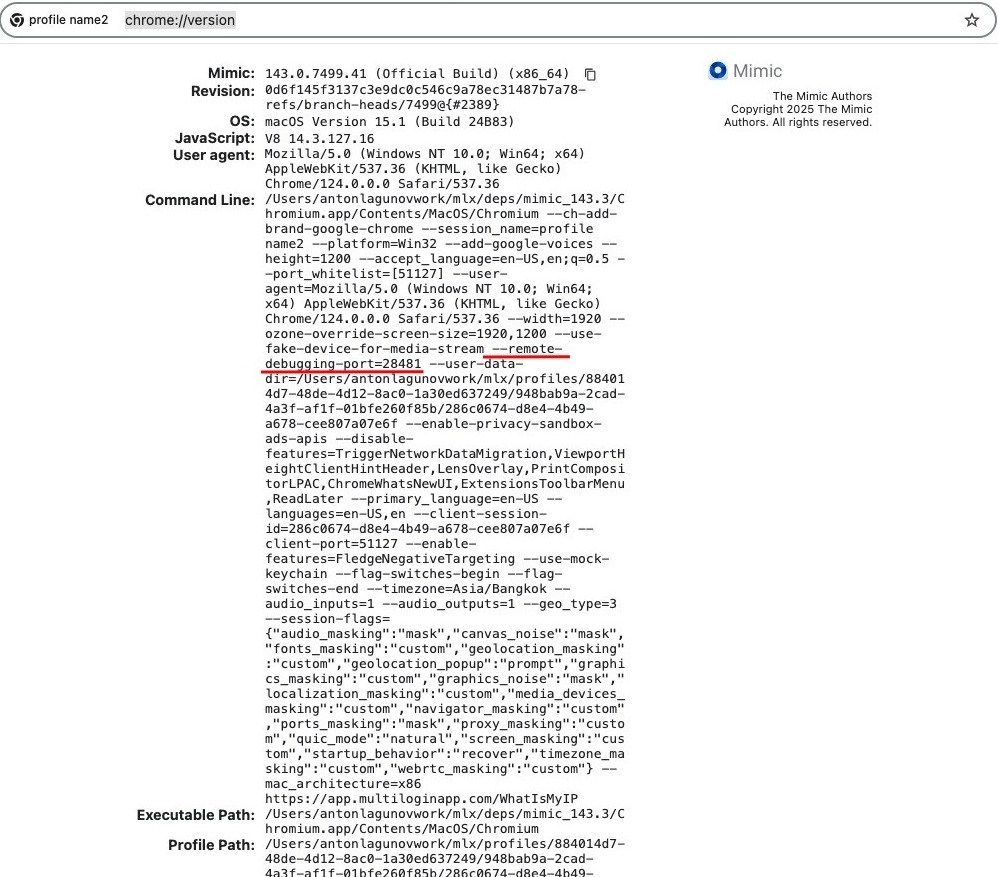
使用场景:关闭后台节流及相关功能
要防止浏览器在后台停止活动,请应用以下启动参数:
{
    ...
    "parameters": {
        ...
        "fingerprint": {
            ...
            "cmd_params": {
                "params": [
                    {
                        "flag": "disable-background-timer-throttling"
                    },
                    {
                        "flag": "disable-backgrounding-occluded-windows"
                    },
                    {
                        "flag": "disable-renderer-backgrounding"
                    },
                    {
                        "flag": "disable-features",
                        "value": "CalculateNativeWinOcclusion"
                    },
                    {
                        "flag": "disable-component-update"
                    }
                ]
            }
        }
    }
}这些标志会在启动时直接传递给 Mimic 实例。此场景使用的标志如下:
| 标志 | 作用 |
|---|---|
--disable-background-timer-throttling |
防止 Chromium 降低后台 JavaScript 定时器的频率 |
--disable-backgrounding-occluded-windows |
即使选项卡不可见(例如已最小化或在其他窗口后方),也保持活动 |
--disable-renderer-backgrounding |
防止 Chromium 降低后台选项卡中渲染任务的优先级 |
--disable-features=CalculateNativeWinOcclusion |
关闭检测并减慢隐藏或被遮挡窗口的功能 |
--disable-component-update |
停止自动更新 Chromium 组件,例如 Widevine、证书等 |


