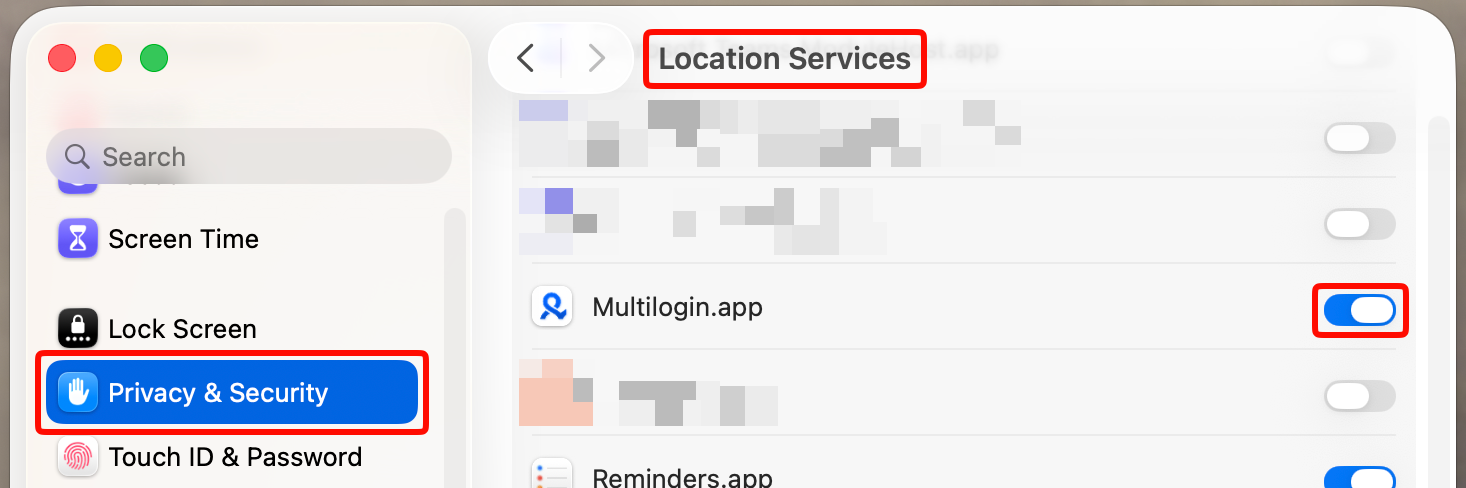
如何为 Multilogin 同步电脑的日期和时间
 约2分钟作者Yelena V
如果电脑的日期或时间不正确,Multilogin 可能无法正常验证登录、会话或安全连接,因为这些验证依赖时间戳。
➡️ 退出 Multilogin 账户 → 关闭桌面应用或断开代理程序连接 → 在系统设置中开启自动日期、时间和时区 → 同步时钟 → 重新打开 Multilogin。
Windows
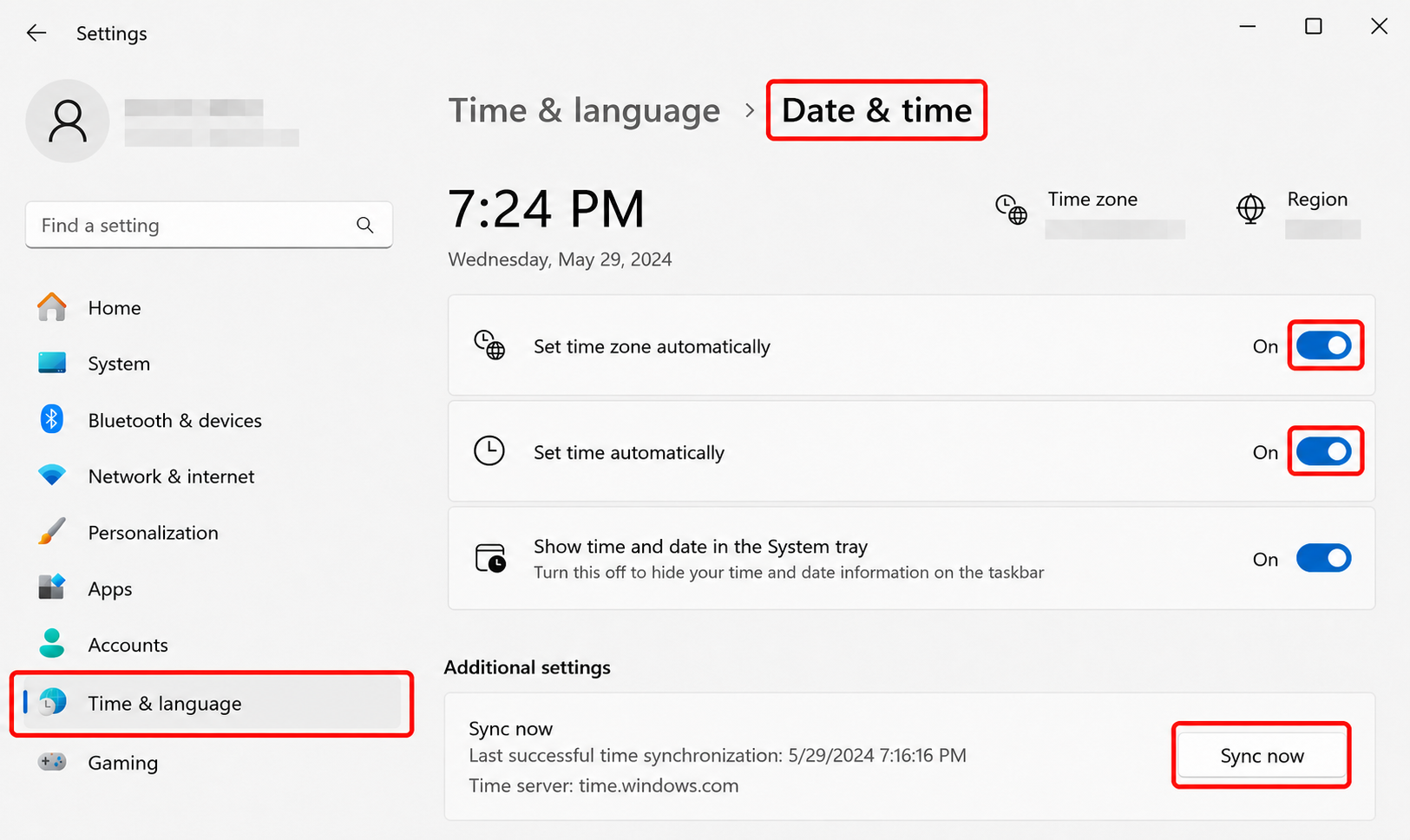
- 点击“Start”→“Settings”
- 前往“Time & language”→“Date & time”
- 开启“Set time zone automatically”和“Set time automatically”
- 点击“Sync now”
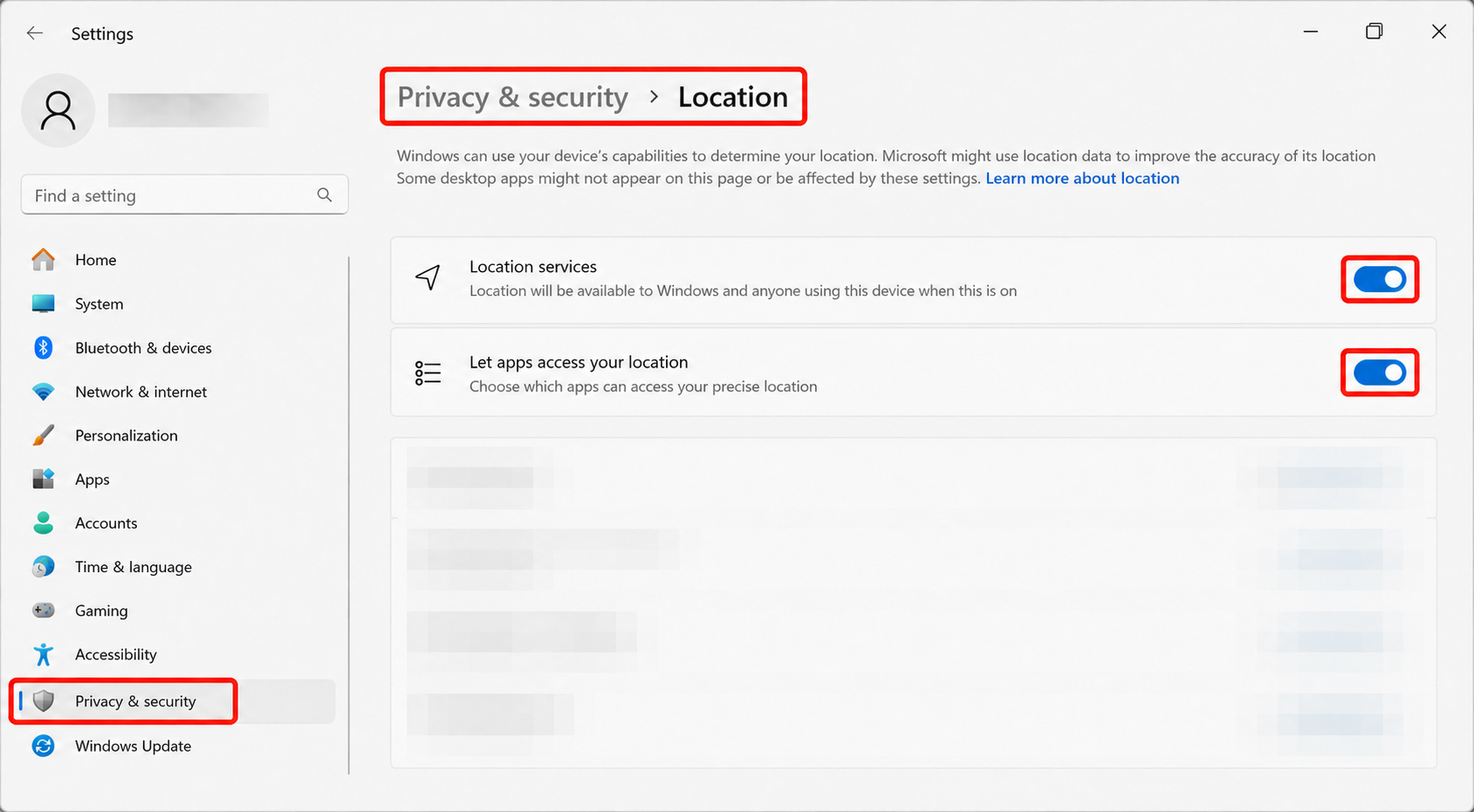
无法开启“Set time zone automatically”?请开启定位服务:
- 前往“Settings”→“Privacy & security”→“Location”
- 开启“Location services”
- 开启“Let apps access your location”
macOS
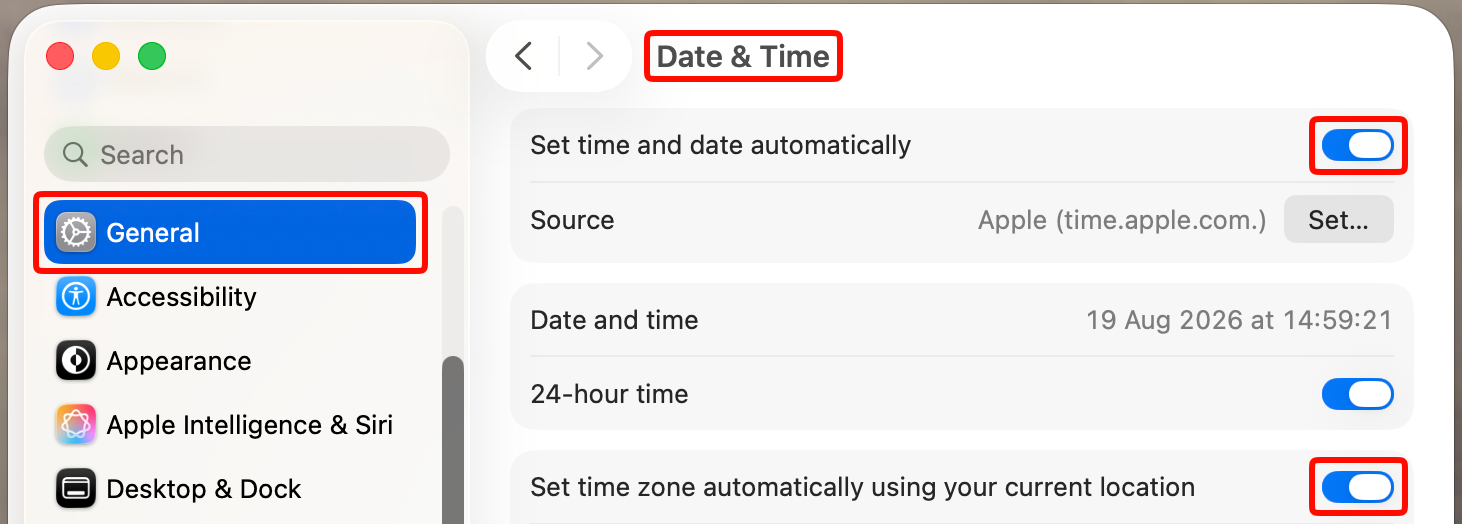
- 前往“System Settings”→“General”
- 选择“Date & Time”部分
- 开启“Set time and date automatically”和“Set time zone automatically using your current location”
无法开启自动时区检测?请开启定位服务:
- 前往“System settings”→“Privacy & Security”
- 选择“Location services”
- 为 Multilogin 开启此功能