


How to import browser profiles
 ~2 minWritten by Yelena V
Browser profile import lets you upload exported browser profiles in .zip format back into Multilogin.
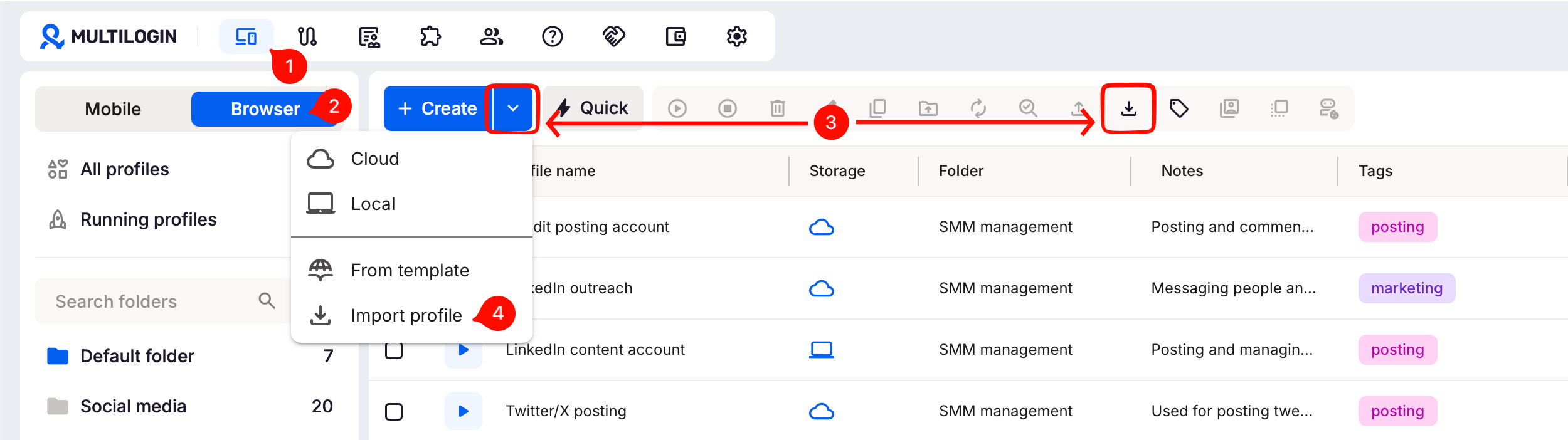
➡️ To import them, go to “Profiles” → “Browser” → arrow next to “Create” → “Import profile”. Then, upload your .zip files, choose the storage type, and click “Import”.
Use this when you’re switching devices, restoring a backup, or moving profiles into the right workspace.
This only works for browser profiles
To import mobile profiles, read the guide How to export and import (bulk create) cloud phones.
Who can use this feature?
- 👨💻 Account owner
- 💰 Available on Pro 50 and higher
Feature limitations
How to import browser profiles
- Go to the “Profiles” tab in the top menu
- Select “Browser” from the left-side selector
- Choose the menu you prefer:
- Use the top menu
- Click the arrow pointing down next to the “Create” button
- Click “Import profile”
- Upload up to 10
.zipfiles - Choose where to store them: cloud or local
- Click “Import” – your browser profile(s) will appear in the list
FAQs
Can I import more than 10 browser profiles?
You can – just repeat the process with the next batch.
Can I import a browser profile I exported from another Multilogin workspace?
Yes! Just make sure you’re logged into the correct workspace when importing.
What happens to tags?
The tags that the browser profile had when it had been exported will reappear after import.
Can I import Android cloud phones?
Yes, but not through this browser profile import flow.
-
Browser profiles are imported as
.zipfiles from the “Browser” section -
Android cloud phones use the bulk creation flow from the “Mobile” section and work with
.xlsxfiles


