


How to create Android cloud phones
 ~8 minWritten by Yelena V
In Multilogin, you can create an Android cloud phone in a few steps and use it as a dedicated device for one social profile.
➡️ Go to “Profiles” → “Mobile” → “Create” → add a profile name → choose and check a public proxy → review the settings → click “Create”.
Each cloud phone runs genuine Android on a real cloud-hosted device and keeps its apps, data, login history, and account state separate. For social media workflows, think one cloud phone = one social profile.
A public proxy is required. Creating the cloud phone doesn’t use mobile minutes. Minute usage starts only when you click “Start”.
Who can use this feature?
- 👨💻 Account owner, manager, and operator
- 💰 Available on all plans
General settings
Profile name
Good news: only you (and your team, if shared) can see your phone names – websites or apps can’t. So feel free to name them whatever helps you stay organized! Here are some quick tips:
- Be specific: include the platform or purpose (e.g., “FB_Ad_Team1” or “Amazon_Seller_UK”)
- Keep it short & readable: 2–4 words max (e.g., “LinkedIn_LeadGen_Alice”)
- Follow a naming rule (if in a team): so everyone stays in sync and finds what they need faster

Number of profiles
You can create one or multiple cloud phones in a single setup. When creating multiple phones at once, Multilogin will generate clones of the same phone.
Important to know:
- All cloned phones will have exactly the same settings – including device configuration, proxy setup, network type, tags, and notes (if added)
- You can create up to 100 phones at once
- Your plan limit still applies (if your plan allows 10 profiles, you can only create 10; if your plan allows 300 profiles, you can still only create 100 in one batch)
After creation, you can edit each phone individually.

Use case
Choose an app for the phone to make the profile easier to recognize in the list. With a huge app library, you can quickly match each phone to its purpose.

Tags
Add up to 10 color-coded tags per phone, making it super easy to group, filter, and find what you need – fast. Use them for clients, workflows, or anything else that fits your setup.
Tags are workspace-based and shared between browser profiles and cloud phones. If you create a tag in the mobile section, it will also be available for browser profiles – and vice versa.
Why use tags?
- Find phones quickly with tag-based filtering
- Keep things tidy with reusable, workspace-wide labels
➡️ Check out the full guide to start tagging like a pro.

Note
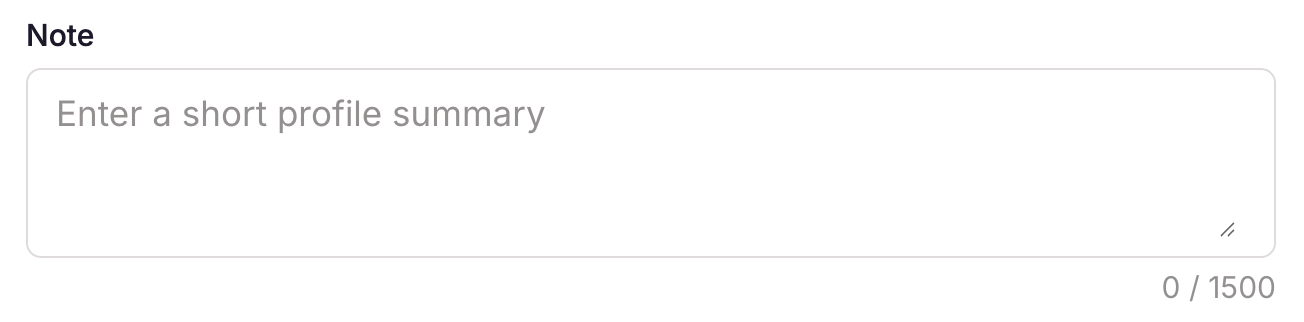
The notes feature lets you add short comments to individual phones or entire folders. It’s perfect for reminders, status updates, or sharing quick context with your team (max 1500 characters).
Folder
Organize phones into custom folders – perfect for sorting by client, project, or status. Add notes, drag and drop phones, and keep your dashboard clutter-free.
Browser profiles and cloud phones use separate folder systems. That means:
- Cloud phones can only be placed in phone folders
- Browser profiles can only be placed in browser folders
- Folders are not shared or synced between the two types
➡️ Check the full guide to get organized in just a few clicks.

Proxy settings
Every Android cloud phone needs a public proxy to connect to the internet. Local addresses such as 127.0.0.1 or 192.168.x.x won’t work because the phone runs on a remote server.
Choose a location that fits the social profile’s intended country or region. Whichever option you use, click “Check proxy” before creating the cloud phone.
Multilogin
Choose “Multilogin” when you want to set up a proxy without entering details from another provider.
- Mobile proxies: offer sticky sessions with rotating IPs and location targeting by country, region, or city
- ISP proxy: keeps one static IP for 30 days when a social profile needs a steady connection
Residential and mobile proxies use your proxy traffic balance. ISP proxies are purchased separately, include unlimited traffic, and keep the same IP for 30 days.
➡️ Setup: choose “Multilogin” → select the proxy type and location → choose the connection settings → click “Check proxy”.
Learn more about Multilogin residential, mobile, and ISP proxies.
Custom
Choose “Custom” when you already have a public proxy from another provider.
- Supported protocols: HTTP, HTTPS, and SOCKS5
- Required details: proxy IP or hostname, port, and login details when required
- Authentication: enter the username and password or whitelist your IP with the provider
➡️ Setup: choose “Custom” → select the protocol → enter the proxy as IP:port:login:password or IP:port → click “Check proxy”.
See the full guide to using custom proxies in Multilogin.
Template
Choose “Template” when you want to reuse a saved Multilogin or custom proxy setup instead of entering the same settings again.
- Best for: creating several cloud phones with matching proxy settings
- Before you start: create and test the setup in “Proxy templates”
- Important: ISP proxies can’t be used in proxy templates
➡️ Setup: choose “Template” → select a saved proxy template → confirm that the proxy check has passed.
Learn how to create and manage proxy templates.
Why device info may show the old location
The “Device info” location displayed in the profile list is based on the proxy used when the cloud phone was created.
Changing the proxy later doesn’t update the displayed device location, but the new connection still works normally. This is only a display difference.

Device info
OS version
This is the Android version your phone runs on (Android 10–16).
What to choose:
- Android 14–16 → best for modern apps and ads
- Older versions → only if a specific app needs it

Device brand
This setting defines the manufacturer of the phone (for example, Samsung, Google, Oppo).
What to choose:
- Random (default): Multilogin picks a popular brand for you
- Custom: manually select a brand

Device model
This setting defines the exact phone model (for example, Galaxy S22, Pixel 6).
What to choose:
- Random (default): Multilogin selects a matching model automatically
- Custom: manually choose a model from the selected brand

Available device brands and models
The list of available device brands and models depends on the Android version you choose.
Models in the table below are sorted from strongest to weakest for each brand. Need more power for heavy tasks? Pick a model closer to the start of the list.
Brand |
Model |
|---|---|
| Infinix | Note 40 Pro, Zero 30, Hot 50 Pro+, Hot 50i |
Samsung |
Galaxy S24+, Galaxy Z Flip6, W25 Flip, Galaxy S24, Galaxy S24 FE, Galaxy S23, Galaxy Z Flip4, Galaxy S23 FE, Galaxy S22, Galaxy S21 FE 5G, Galaxy A55, Galaxy C55 5G, Galaxy A73 5G, Galaxy A54 5G, Galaxy A34, Galaxy A52 5G, Galaxy A53, Galaxy A16, Galaxy A15 5G, Galaxy A15, Galaxy A05s |
| Motorola | G Stylus 5G, Edge 30 Neo |
| Xiaomi | MIX Flip, Xiaomi 13 Pro, Xiaomi 13, 12S Ultra, Mi 11, MIX 4, POCO F5, POCO X7, POCO F4, Civi 4 Pro, POCO X5, POCO M6 |
| HONOR | Magic5 Pro, X50 GT, 80 Pro, 60, Magic3 Pro |
| TECNO | Spark 20 Pro+ |
vivo |
X100s Pro, iQOO Neo9S Pro, iQOO 11 Pro, iQOO 11, iQOO Neo8 Pro, X80 Pro, X Flip, S18 Pro, X Note 5G, Y200 GT, S16 Pro, iQOO Z9, T3 5G, S18e, S15 Pro, iQOO 7, S16, X70, S12 Pro, iQOO Z7, Y200t, Y200i, Y200, iQOO Z6, Y37 5G, Y37, Y36 |
| Pixel 9 Pro, Pixel 9, Pixel 8 Pro, Pixel 8a, Pixel 7, Pixel 6 Pro, Pixel 6, Pixel 5a, Pixel 5 | |
OPPO |
Find X5 Pro, Find X5, Reno12 Pro, K12, Reno11 Pro, K12x, Reno11, Reno11 F 5G, K11, Reno8, A2 Pro, A1 |
Redmi |
K70 Ultra, K70 Pro, K70, K50 Ultra, K50 Pro, K50, Note 14 Pro+, Note 14 Pro, Note 12 Pro Speed, Note 13 Pro, Note 12 Pro+, Note 12 Pro, Note 11T Pro, Note 13, Note 12 |
| Realme | GT Neo6, GT6, 13 Pro+, 13 Pro, 13+, 12 Pro+, 12 Pro, 12X, 11 Pro |
OnePlus |
Ace 3, Ace 2 |
Extra
Network
The network type defines how your cloud phone connects to the internet and how it appears to apps and websites.
Wi-Fi |
Cellular (Android 12 and higher) |
|
|---|---|---|
When to use it |
When using residential, ISP, or static proxies |
When using mobile proxies (4G/5G) |
How the phone behaves |
Phone appears connected to a Wi-Fi network, no mobile signal shown |
Phone shows SIM and mobile signal (LTE/5G), behaves like real mobile data |
Best for |
Regular account management, stable long sessions, app testing |
Social media apps, mobile ads, apps that expect carrier signals |

Choose the network type that matches your proxy. A combination that doesn't match, for example Cellular with a residential or ISP proxy, can look unnatural to apps and may lead to account bans.
Phone number
Cloud phones can’t send or receive SMS codes or phone calls.
Choose what works best for you:
- Auto-generated number: use this if you’re working with existing accounts or you don’t need verification
- Custom number: enter a real or virtual number from a provider – you'll get the code on your real phone or in your provider dashboard
Good to know: if you add a custom number, apps can read it as part of the phone environment. It's not just there for display.
Also, keep in mind that eSIM is not supported.

Location
Set where the device is originally from: use the proxy IP or choose a country from the list.
For example, your device can be from Singapore while your connection appears in London. This gives you more flexibility when setting up profiles.



