How to use mobile and residential proxies with sticky sessions
 ~3 minWritten by Yelena V
Sticky residential and mobile proxies help your profiles use premium residential or mobile IPs directly from Multilogin.
They’re called sticky because they can keep the same IP for a while before it rotates. This is useful when you want a more stable session, but still need the flexibility of residential or mobile proxy pools.
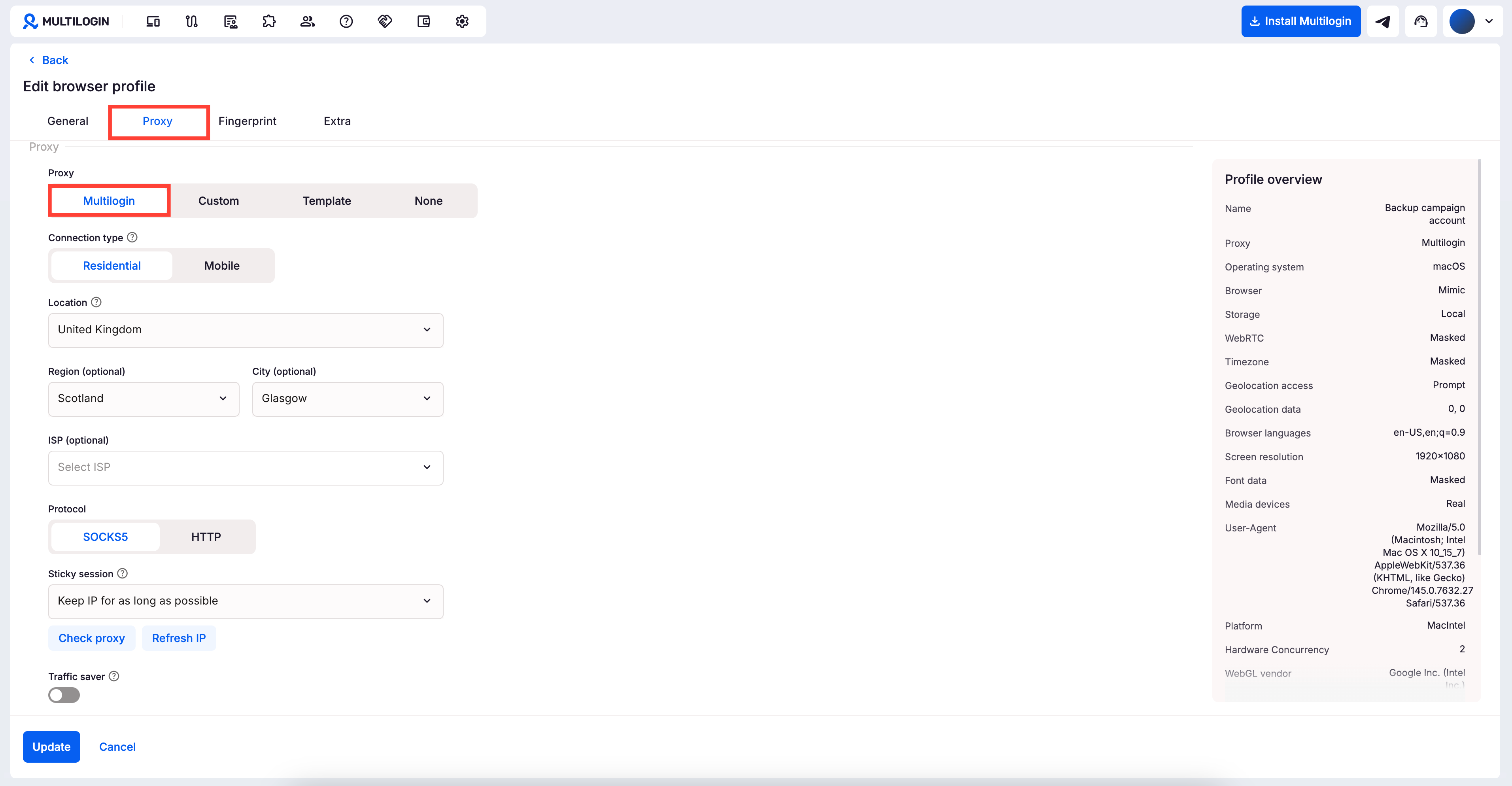
➡️ To use one, open your profile settings, go to "Proxy" → "Multilogin", and pick either "Mobile" or "Residential".
With Multilogin proxy service, you get access to 30M+ premium residential and mobile IPs from your profile settings. You can create unlimited HTTP or SOCKS5 proxies as long as your account has available proxy traffic.
📖 Not sure which proxy type fits your workflow? Check: What you need to know about Multilogin proxies.
Things to know before using sticky proxies
Sticky residential and mobile proxies use GB traffic.
With a paid Multilogin subscription, you get bonus proxy traffic based on your plan. Unused traffic rolls over while your subscription stays active, and when you run out, you can top up in a few clicks.
Sticky proxies can keep the same IP for longer sessions, but they’re not static proxies. If your workflow needs the same IP for the full proxy period, use an ISP proxy.
How to assign a sticky proxy to a profile
Setting up your Multilogin proxy is super easy. Just a few clicks, and you’re ready to browse with a fresh, premium IP from the location you choose.
- Open your profile settings and find the “Proxy” section
- Select “Multilogin” as your proxy type
- Pick “Mobile” or “Residential” connection type
- Choose the location you want your IP to appear from
That's all you need! Want more control? Here's how to customize your setup further:
- Choose the region and city you'd like to target
- Pick the ISP
- Choose a protocol (HTTP or SOCKS5)
- Set an IP rotation method:
- Keep IP for as long as possible: your IP will change on average every 24h
- Custom, sec: you can specify the frequency of your IP rotation
- Get new IP: you can manually switch the IP with a single click
- Click “Check proxy”:
- “Proxy check passed” means that Multilogin successfully connected to the proxy and got the required IP-dependent data
- “Proxy check failed” means that Multilogin couldn't connect to the proxy – check this article to learn why: How to fix profile start or proxy connection issues
How to get Multilogin proxy details
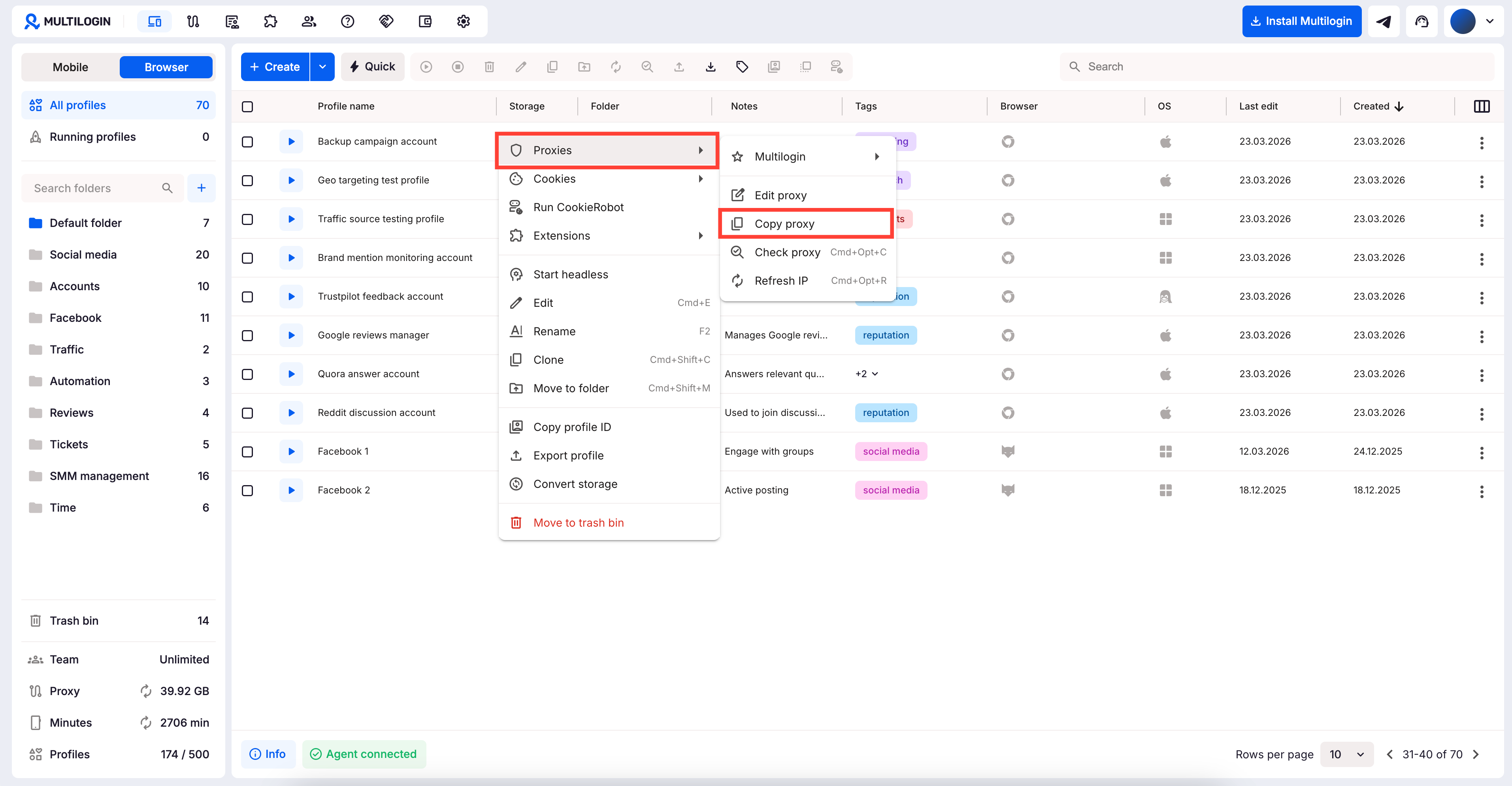
Need your proxy info fast? You can grab it straight from the Multilogin interface – no digging required.
- Right-click on a profile in your list
- Select “Proxies” → “Copy proxy”
That’s it! Your proxy details are now copied and ready to paste wherever you need.