


How to use CLI command flags in Multilogin
 ~3 minWritten by Yelena V
CLI flags are options you add after a command to control how it works. Some flags are required, while others are optional.
Example: you need to specify your browser type when using create_profile, such as --browser-type mimic.
CLI flags are used across browser-profile, Android cloud-phone, workspace, proxy, and other Multilogin commands.
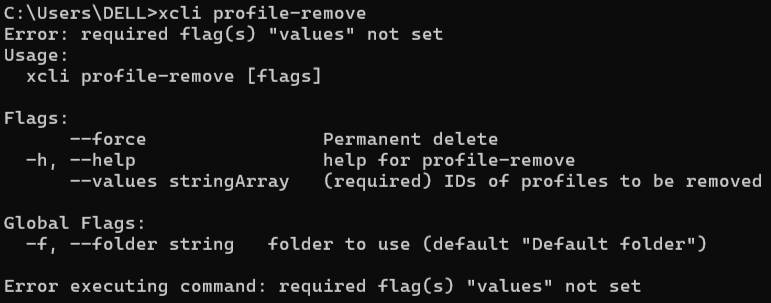
--valuesBefore you start
- Start Multilogin CLI
- Sign in to your Multilogin account
- Use the command format for your operating system
Launch Multilogin, then open Command Prompt or Terminal, go to the CLI folder and run CLI executable:
Windows
- Go to the CLI folder:

C:/Users/%username%/mlx/deps/cli - Run
xcli.exe
macOS
- Go to the CLI folder:
/Users/%username%/mlx/deps/cli - Run
./xcli:./xcli
Linux
- Go to the CLI folder:
/Home/%username%/mlx/deps/cli - Run
./xcli:./xcli
Follow the article for more details: How to start working with CLI.
How to use flags
- If you need to apply the same flag with various values, you need to type it twice. E.g., you want to remove several folders, let's say folder X and Y. Parameter
valuesis used for specifying the folder id for that command. In that case, your prompt to the CLI will be the following:./xcli remove-folder --values X --values Y - CLI will warn you if flags are missing. You can use
xcli command-name -hfor full help.
Flag reference list for “profile-create” command
Some commands can be overwhelming due to the amount of flags. One of them is profile-create. Here is the list of flags which you can use there:
Required flags | |
|
name of new profile |
--browser-type |
browser type: |
--os-type |
OS type: Android, Linux, macOS or Windows |
Other flags | |
--audio-masking |
audio masking mode: |
--auto-update |
enables auto update of profile (default: |
--cloud |
stores profile data in the cloud. No need to specify value. Simply including the parameter makes it true |
|
fonts masking mode: |
|
geolocation popup behavior: |
|
graphics masking mode: |
--graphics-noise |
graphics noise mode: natural or mask (default: natural)
|
--localization-masking |
localization masking mode: natural or mask (default: natural)
|
--media-devices-masking |
media device masking mode: natural or mask (default: natural)
|
--navigator-masking |
navigator masking mode: |
--ports-masking |
ports masking mode: |
--proxy-host |
proxy host |
--proxy-password |
proxy password |
--proxy-port |
proxy port |
--proxy-string |
proxy string in format |
--proxy-traffic-saver |
false by default. It tells the browser if it should save on proxy traffic by not showing media. Can be used only if we are using proxy is configured. |
|
proxy type: |
|
proxy username |
|
screen masking mode: |
--template |
template file |
|
timezone masking mode: |
--webrtc-masking |
webrtc masking mode: |
Cloud-phone commands use flags in the same way. See “How to use CLI commands for cloud phones” for command-specific examples.


