


Browser profile settings: Proxy section
 ~3 minWritten by Yelena V
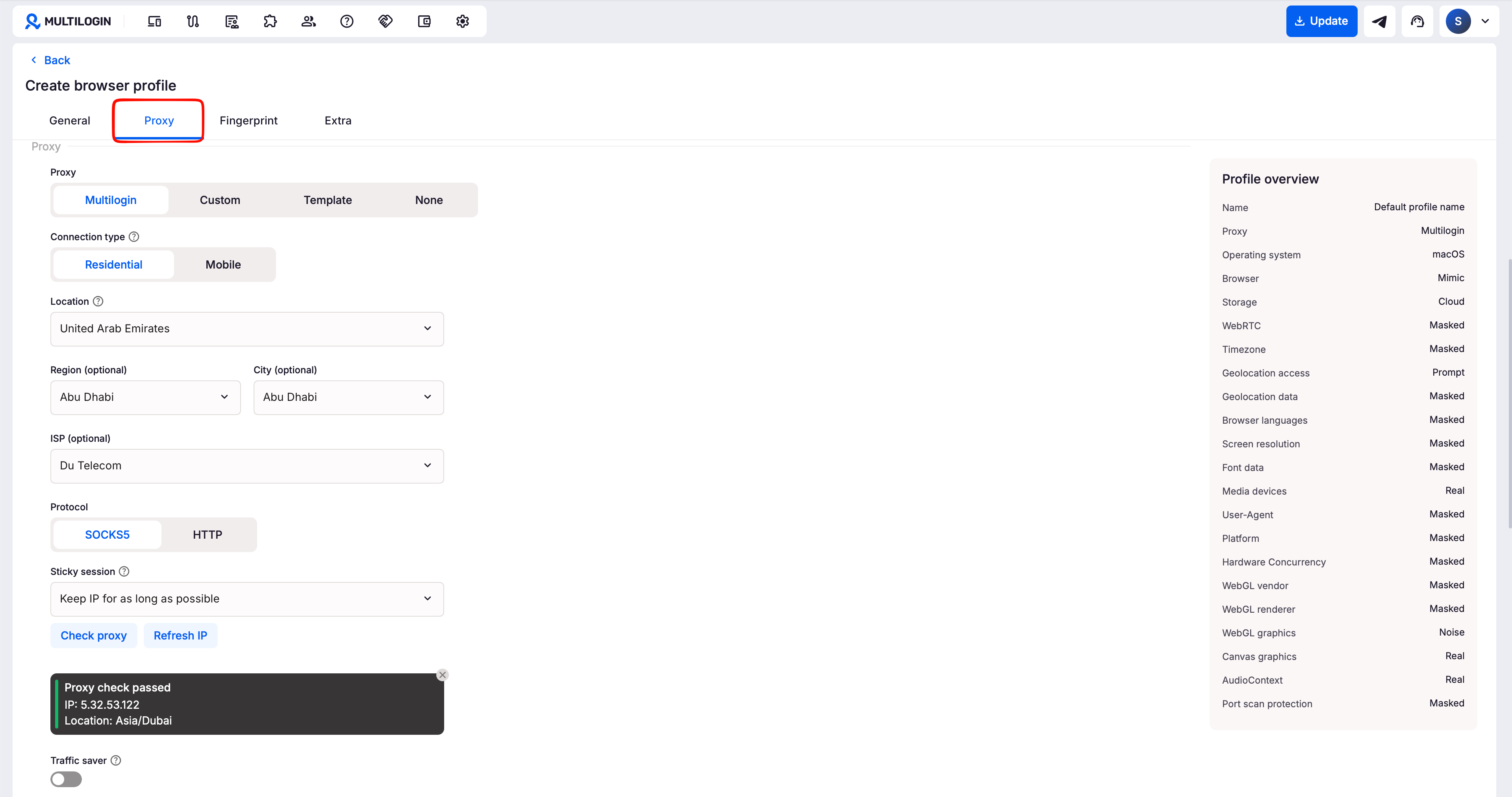
The “Proxy” section controls which IP address and location a Multilogin browser profile uses when it connects to websites. Choose “Multilogin”, “Custom”, “Template”, or “None” depending on how you want the profile to connect.
➡️ Go to “Profiles” → “Browser” → create or edit a profile → “Proxy”.
Use this section when you want to use a built-in Multilogin proxy, connect a third-party proxy, reuse saved proxy settings, or use your current internet connection.
This guide only covers proxy settings for browser profiles
Cloud phones have their own proxy settings – see How to create Android cloud phones for more details.
Who can use this feature?
- 👨💻 Account owner, manager, and operator
- 💰 Available on all plans
Multilogin proxy
Choose “Multilogin” to use built-in proxies without adding third-party proxy credentials.
You can choose between:
- Residential and mobile proxies: use these when you need flexible IPs, location selection, or IP rotation
- ISP proxies: use these when one browser profile needs one stable IP over time
Multilogin residential and mobile proxies give access to 30M+ IPs and support locations in 150+ countries and 1400+ cities. You can also choose how long to keep an IP, set a custom rotation time from 60 to 86,400 seconds, or refresh the IP manually.
ISP proxy availability depends on current stock. ISP proxies currently support country-level selection, not city-level targeting.
➡️ For the full setup, billing, locations, and rotation options, see What you need to know about Multilogin proxy: FAQ.
Custom
Prefer using proxies from your go-to provider? No problem. Multilogin lets you connect any HTTP, HTTPS, or SOCKS5 proxy in just a few clicks. Whether it’s password- or IP-authenticated, setup is quick and fully customizable.
What you’ll need:
- Proxy type (HTTP, HTTPS, or SOCKS5)
- Proxy IP and port
- Login credentials (if required)
➡️ Check out the full guide on using custom proxies in Multilogin to get started.
Template
Tired of setting up proxies profile by profile? The proxy template manager in Multilogin lets you save your custom or Multilogin proxy settings as templates – so you can apply them to multiple profiles in seconds.
Why use it?
- Apply one template to many profiles fast
- Keep settings organized by template (IP type, rotation, location, etc.)
- Test proxies with one click before applying
Simple setup, serious time-saver. ➡️ Dive into the full guide on proxy templates to streamline your workflow.
None
Choose “None” when you want the browser profile to use your device’s current internet connection.
Without a profile-level proxy, the browser profile uses the public IP address and network location of that connection. If several profiles use the same connection, they can share the same public IP.
Use a proxy when your workflow needs a different IP address, location, or proxy configuration.
Want better control and protection? Proxies are the way to go. ➡️ Learn more about proxy and IP settings to see why.


