


How to merge cloud phone folders
 ~2 minWritten by Yelena V
In Multilogin, merging folders moves all cloud phones from one folder into another and removes the folder you no longer need.
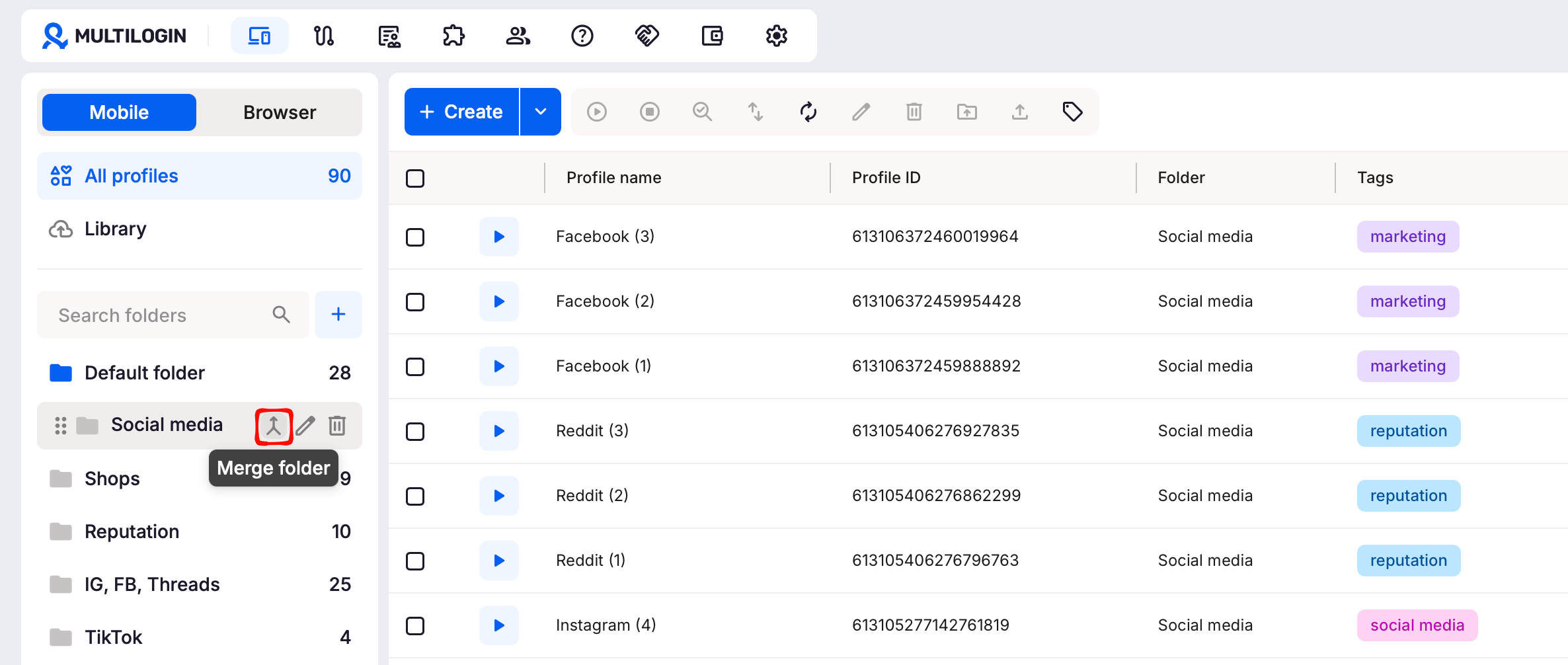
➡️ Go to “Profiles” → “Mobile” → hover over the source folder → “Merge folder” → choose the destination folder → click “Merge”.
Use this to clean up old or duplicate folders. The source folder is deleted after the merge, and any access shared through that folder is removed.
Who can use this feature?
- 👨💻 Account owner and manager
- 💰 Available on all paid plans
Before you merge
- All cloud phones from the source folder move to the destination folder
- The source folder is deleted automatically
- Team members who only had access through the source folder lose that access
How to merge folders
- Click “Profiles” in the top navigation bad
- Go to the “Mobile” section in the left-side menu
- Hover over the source folder you no longer need and click “Merge folder”
- Click the destination folder where you want to move the cloud phones
- Click “Merge” to confirm
FAQs
Will merging folders delete my cloud phones?
No. The cloud phones from the source folder move to the destination folder. Only the source folder is deleted.
Can I undo a folder merge?
No. Once the folders are merged, the source folder is deleted and the cloud phones stay in the destination folder.
What happens to the destination folder’s access permissions?
The cloud phones follow the destination folder’s access permissions after the merge. Team members who only had access to the source folder will lose access unless they also have access to the destination folder.


