


How to rename cloud phones and browser profiles
 ~2 minWritten by Yelena V
You can rename both cloud phones and browser profiles directly from the profile list or through their settings.
➡️ Go to “Profiles” in the top navigation bar → choose “Mobile” or “Browser” → find the profile you want to rename.
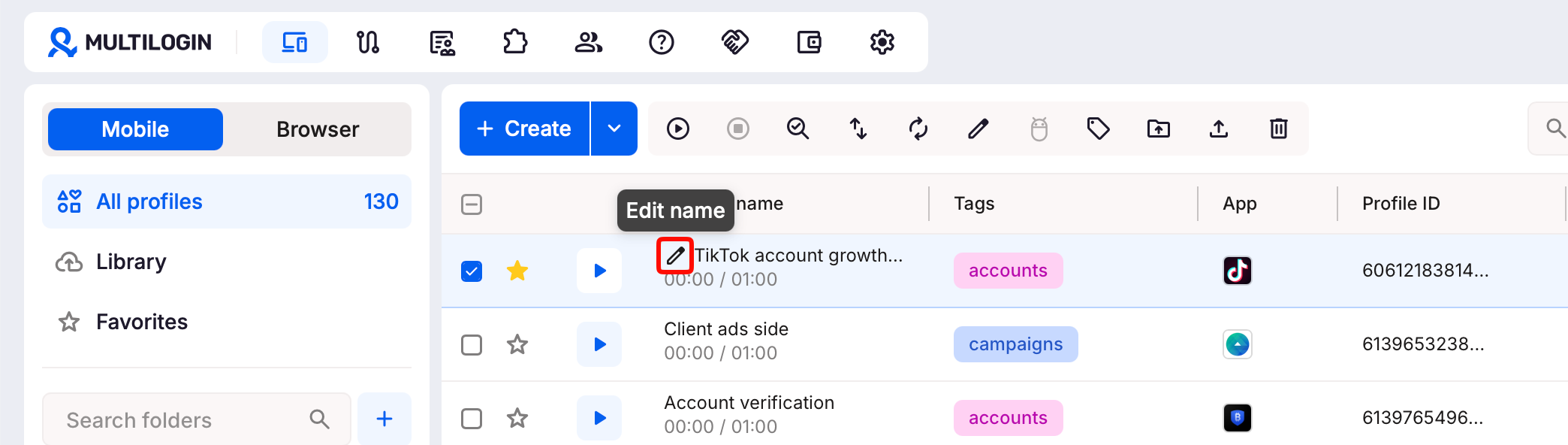
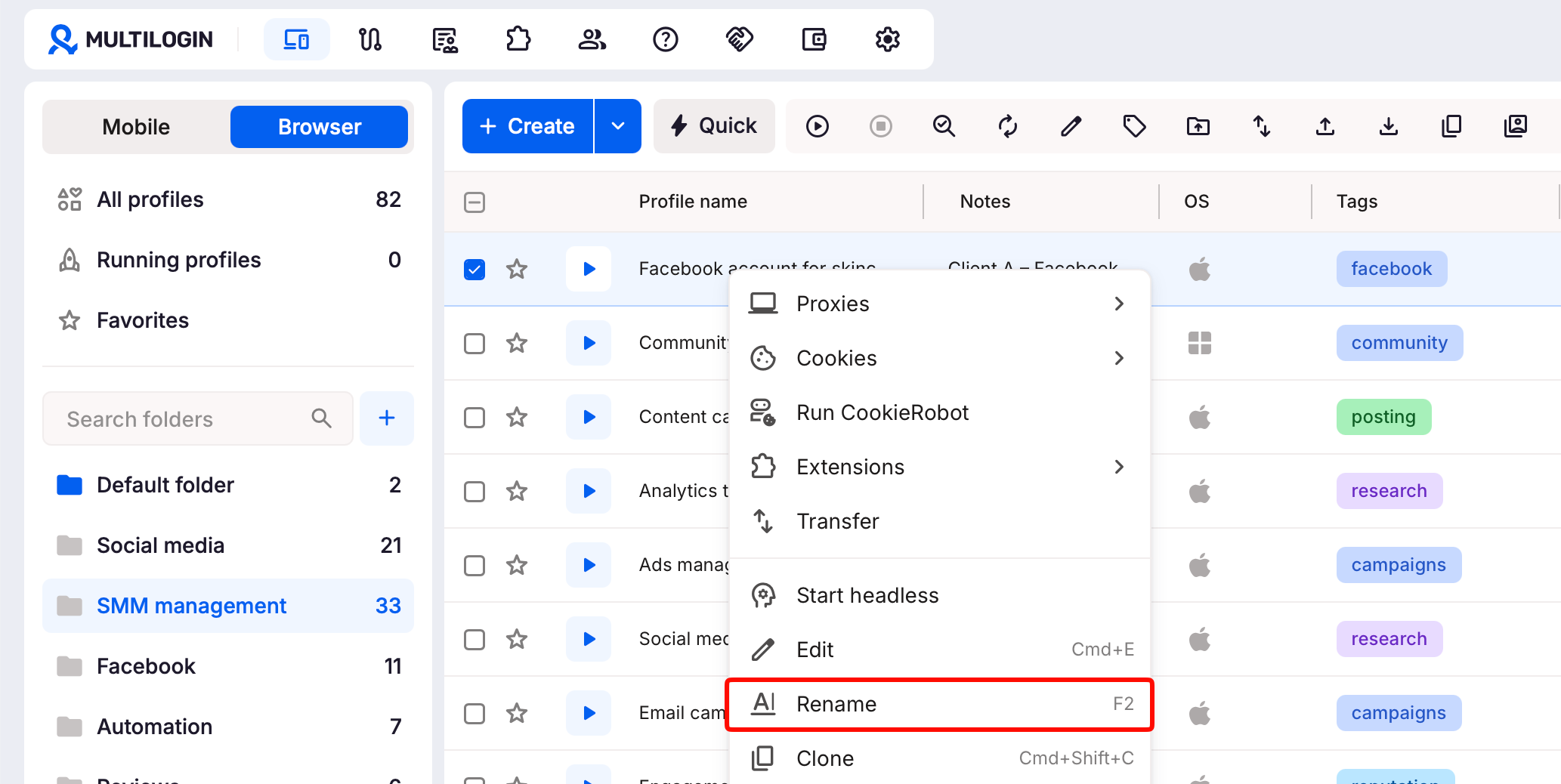
For a quick change, browser profiles have a “Rename” option in the right-click menu, while cloud phones have a pencil icon next to their name.
Who can use this feature?
- 👨💻 Account owner, manager, and operator
- 💰 Available on all plans
How to rename your profiles
You can rename either profile type through its settings. Just right-click the profile → select “Edit” → change the “Profile name” → click “Update” to save.
For a quicker option, you can rename profiles directly from the list. Here's how it works for each type.
Rename a cloud phone
- Go to “Profiles” in the top navigation bar
- Select “Mobile”
- Find the cloud phone you want to rename
- Hover over its name until the pencil icon appears
- Click the pencil icon
- Enter the new name
- Press Enter to save
Rename a browser profile
- Go to “Profiles” in the top navigation bar
- Select “Browser”
- Find the profile you want to rename
- Right-click it and select “Rename”
- Enter the new name
- Press Enter to save
Tips for naming your profiles
Clear names make it easier to find the right profile, especially when you're working with a team.
- 🏷️ Include the platform or purpose: “Amazon Seller UK” instead of “Profile 12”
- 📁 Add a client or project name: “Client A - Facebook Ads” helps keep different accounts apart
- 👥 Stick to one naming format: agree on a simple pattern so everyone on your team can find what they need
- ✏️ Update names when things change: keep names relevant as your projects or account assignments change
FAQs
Can websites see my profile names?
No. Profile names are only visible in Multilogin, so you can name them whatever works best for you and your team.
Why can't I find the “Rename” option for a cloud phone?
Unlike browser profiles, cloud phones don't have a “Rename” option in the right-click menu. Instead, go to “Profiles” → “Mobile”, hover over the cloud phone's name, and click the pencil icon to edit it.


