


Team member's guide to a workspace in Multilogin
 ~7 minWritten by Yelena V
Just got invited to a Multilogin workspace? Jump in with just a click! Hit "Join" in your email, sign in, and switch to your new workspace. Once your role is assigned, you’ll see exactly what you can access.
Managing multiple Instagram accounts? This guide breaks down how to safely use Instagram proxies with Multilogin’s antidetect browser to avoid bans, automate smoothly, and grow your accounts without risk.
How to accept an invitation to a workspace
- Click “Join” in your email invitation and sign in or create an account
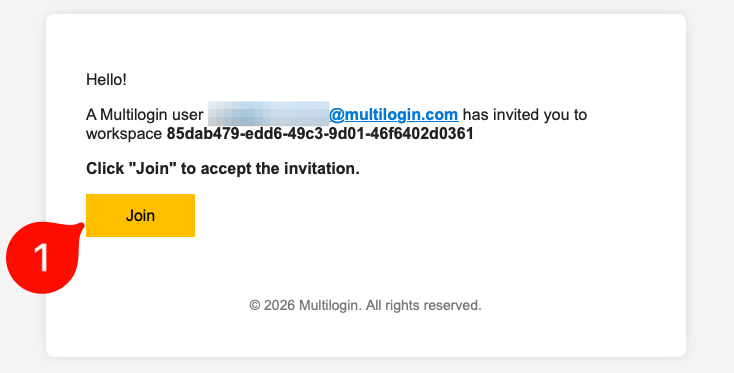
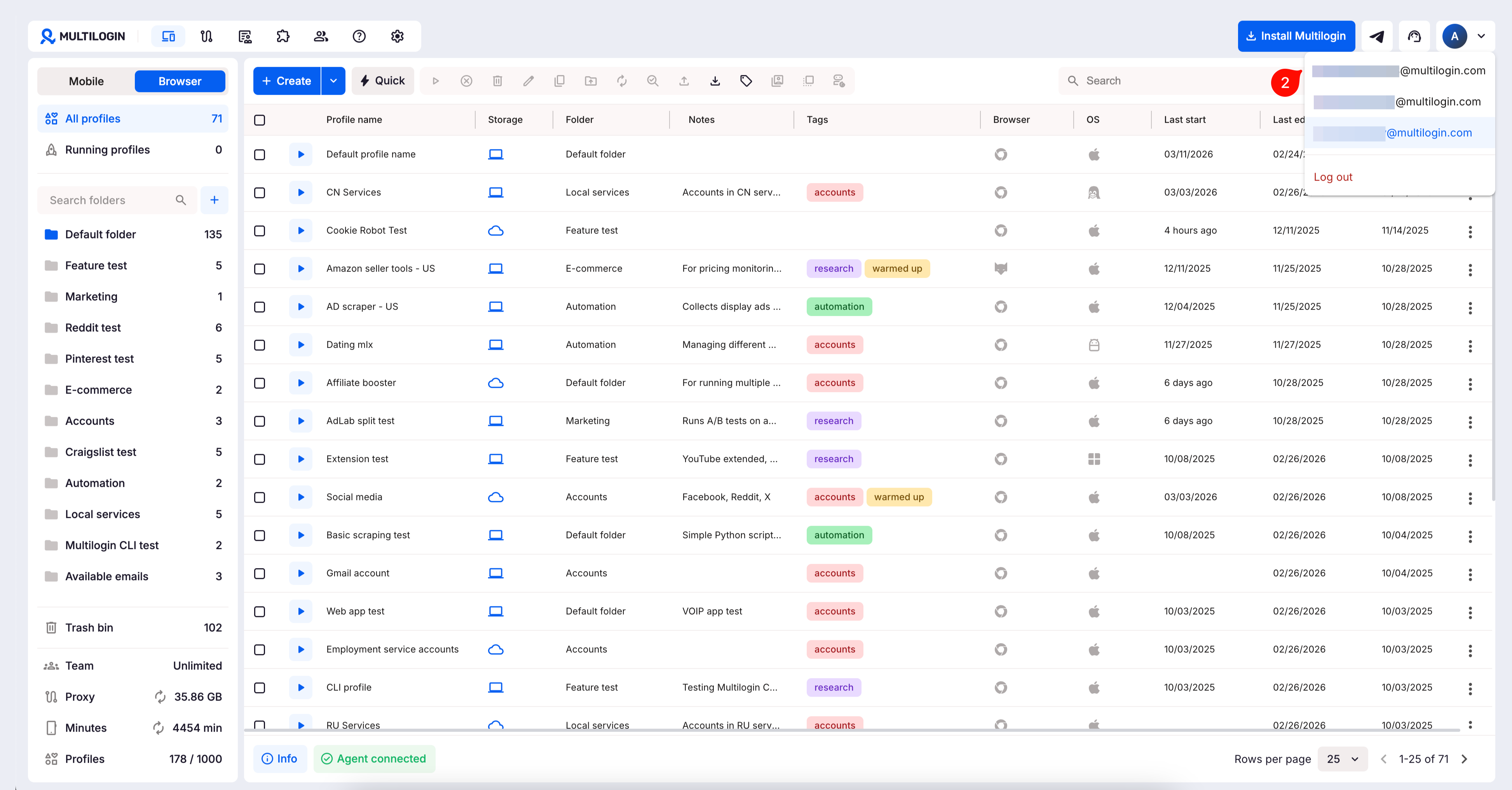
- Switch to the workspace of the person who invited you
- Once the workspace owner assigns you the role, you'll see their profiles and folders
How to check your role in a workspace
Take a look at the status bar in the “Team” menu – this is where you'll see your role in a workspace.
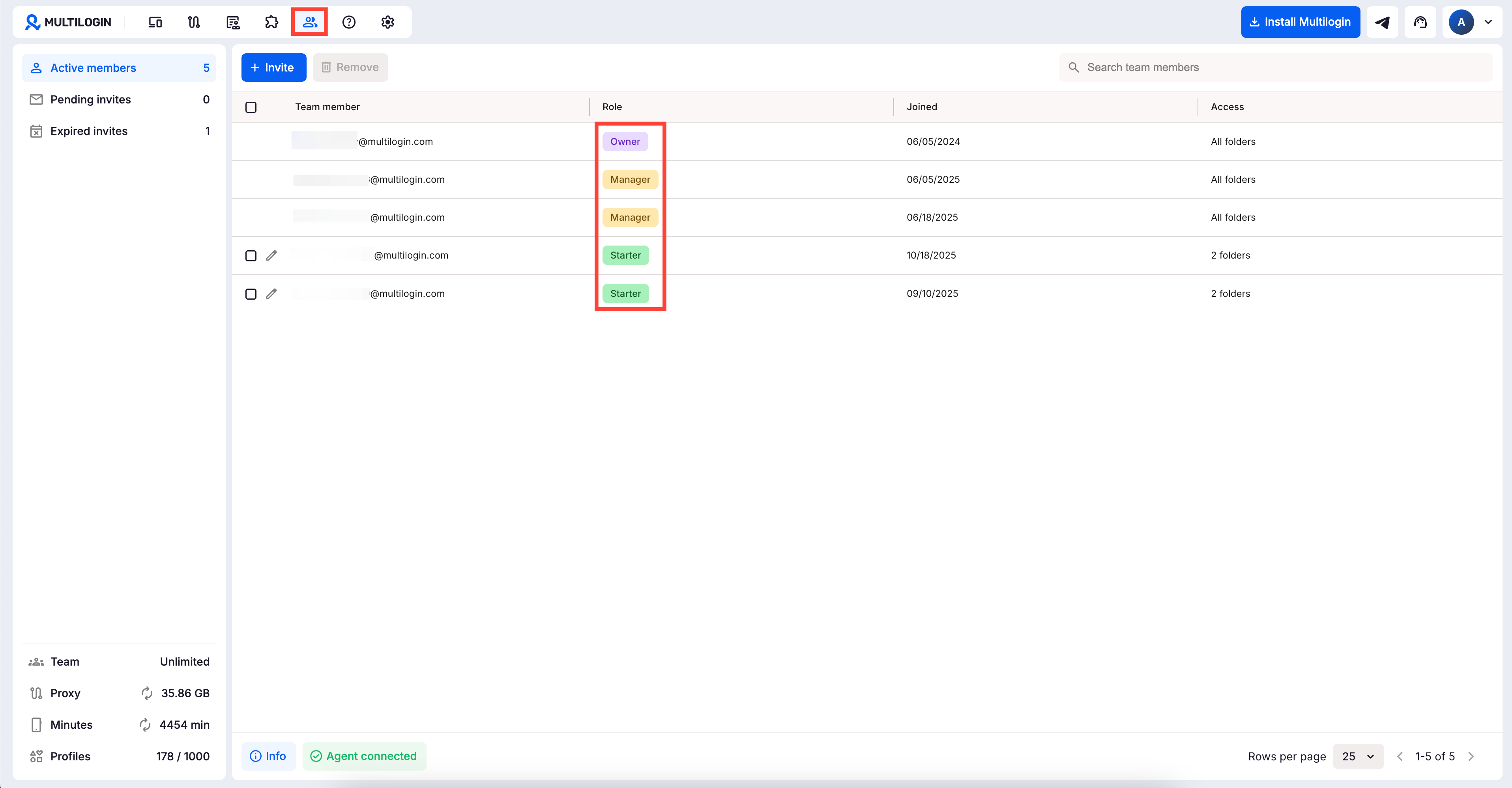
The account owner has full workspace access. Use the tabs below to compare managers, operators, and starters.
All team members have access to Multilogin proxy and automation. Traffic and RPM limits are shared.
Subscription and billing
Nobody wants a team member changing the plan or buying mobile minutes by mistake. These actions affect workspace limits and real costs, so only the account owner can use them.
Folder access
Imagine an agency working with five different clients. Someone working on Client A should not accidentally open, move, or edit Client B’s profiles, so folder access keeps each person focused on the work assigned to them.
- Manager: can access all folders and all profiles in the workspace
- Operator: can access and work with profiles only in assigned folders
- Starter: can access and start profiles only in assigned folders
Team management
When a new team member joins, a freelancer finishes a project, or someone takes on more responsibility, their access should change too. Team management helps you give people enough access to do their job without handing over the whole workspace.
Manager
- ✅ Invite team members
- ✅ Assign and unassign operator and starter roles
Operator
- ❌ Invite team members
- ❌ Assign and unassign roles
Starter
- ❌ Invite team members
- ❌ Assign and unassign roles
Profile actions
This is where the everyday work happens: creating profiles, fixing settings, launching sessions, and removing profiles the team no longer needs. These permissions matter because a wrong setting can disrupt a working profile, while deleting a cloud phone removes it for good.
Manager
- ✅ Create browser profiles and cloud phones
- ✅ Create quick profiles and save them as regular
- ✅ Edit and rename profiles
- ✅ Start and stop profiles
- ✅ Move browser profiles to trash bin
- ✅ Restore browser profiles from trash bin
- ✅ Permanently delete browser profiles
- ✅ Permanently delete cloud phones
- ✅ Configure cloud phone auto-stop
Operator
- ✅ Create browser profiles and cloud phones
- ✅ Create quick profiles and save them as regular
- ✅ Edit and rename profiles
- ✅ Start and stop profiles
- ✅ Move browser profiles to trash bin
- ✅ Restore browser profiles from trash bin
- ❌ Permanently delete browser profiles
- ❌ Permanently delete cloud phones
- ❌ Configure cloud phone auto-stop
Starter
- ❌ Create browser profiles and cloud phones
- ❌ Create quick profiles and save them as regular
- ❌ Edit and rename profiles
- ✅ Start and stop profiles
- ❌ Move browser profiles to trash bin
- ❌ Restore browser profiles from trash bin
- ❌ Permanently delete browser profiles
- ❌ Permanently delete cloud phones
- ❌ Configure cloud phone auto-stop
Bulk actions and transfers
Creating 30 cloud phones one by one is nobody’s idea of a good afternoon. Bulk actions make large jobs much faster, but they also let someone copy, export, or transfer a lot of profile data in a single move.
Manager
- ❌ Import browser profiles
- ❌ Export browser profiles
- ❌ Transfer browser profiles
- ❌ Transfer cloud phones
- ✅ Clone browser profiles
- ✅ Import or bulk-create cloud phones
- ✅ Export cloud phones
Operator
- ❌ Import browser profiles
- ❌ Export browser profiles
- ❌ Transfer browser profiles
- ❌ Transfer cloud phones
- ✅ Clone browser profiles
- ✅ Import or bulk-create cloud phones
- ❌ Export cloud phones
Starter
- ❌ Import browser profiles
- ❌ Export browser profiles
- ❌ Transfer browser profiles
- ❌ Transfer cloud phones
- ❌ Clone browser profiles
- ❌ Import or bulk-create cloud phones
- ❌ Export cloud phones
Profile tools
These tools are useful when support asks for a profile ID, a team needs to move profile data, or someone wants pasted text to look more natural. Most are simple everyday tools, but storage conversion changes where profile data lives, so it needs a little more care.
Manager
- ✅ Convert browser profile storage
- ✅ Copy browser profile IDs
- ✅ Use human typing emulation
Operator
- ✅ Convert browser profile storage
- ✅ Copy browser profile IDs
- ✅ Use human typing emulation
Starter
- ❌ Convert browser profile storage
- ✅ Copy browser profile IDs
- ✅ Use human typing emulation
Productivity tools
If several profiles need the same setup, templates and extensions save the team from rebuilding everything each time. They are great for keeping work consistent, but one bad shared setup can cause problems across many profiles.
Manager
- ✅ Create, assign, edit, and delete profile templates
- ✅ Create, assign, edit, and delete proxy templates
- ✅ Add, assign, unassign, and delete extensions via the extension manager
Operator
- ❌ Create, assign, edit, and delete profile templates
- ❌ Create, assign, edit, and delete proxy templates
- ❌ Add, assign, unassign, and delete extensions via the extension manager
Starter
- ❌ Create, assign, edit, and delete profile templates
- ❌ Create, assign, edit, and delete proxy templates
- ❌ Add, assign, unassign, and delete extensions via the extension manager
Organization
Once a workspace has dozens or hundreds of profiles, it becomes easy to lose track of what belongs to whom. Folders, notes, and tags keep everything clear, while the right permissions stop someone from moving profiles, changing shared notes, or reorganizing another team’s work.
Manager
- ✅ Create, edit, and delete folders
- ✅ Merge cloud phone folders
- ✅ Move profiles between folders
- ✅ Create and edit profile and folder notes
- ✅ Create, edit, and delete tags
- ✅ Assign and unassign tags
Operator
- ❌ Create, edit, and delete folders
- ❌ Merge cloud phone folders
- ✅ Move profiles between folders
- ✅ Create and edit profile and folder notes
- ❌ Create, edit, and delete tags
- ✅ Assign and unassign tags
Starter
- ❌ Create, edit, and delete folders
- ❌ Merge cloud phone folders
- ❌ Move profiles between folders
- ❌ Create and edit profile and folder notes
- ❌ Create, edit, and delete tags
- ❌ Assign and unassign tags
Cookies
Cookies can keep a session active or help a profile continue from existing browsing history instead of starting from zero. They can also contain live sessions and private account data, so sharing or exporting them should be treated with care.
Manager
- ✅ Import cookies
- ✅ Export cookies
- ✅ Use pre-made cookies
- ✅ Use CookieRobot
Operator
- ✅ Import cookies
- ✅ Export cookies
- ✅ Use pre-made cookies
- ✅ Use CookieRobot
Starter
- ❌ Import cookies
- ❌ Export cookies
- ❌ Use pre-made cookies
- ✅ Use CookieRobot
Cloud phone library
Instead of sending the same campaign file through chat every time, teams can keep it ready in the library. This makes sharing much easier, but deleting a shared file can interrupt everyone who depends on it.
Manager
- ✅ Upload files
- ✅ Delete files
- ✅ Use files
Operator
- ✅ Upload files
- ❌ Delete files
- ✅ Use files
Starter
- ❌ Upload files
- ❌ Delete files
- ✅ Use files
Actions inside cloud phones
Workspace roles control who can reach a cloud phone, but not what happens after it starts. Once inside, team members can install apps and use the phone’s built-in tools just as they would on a regular Android device.
Automation
If someone repeats the same 20 clicks every morning, the API, CLI, or ADB can probably do the job faster. Automation can save hours of work, but a mistake in a script can also affect many profiles at once.
Manager
- ✅ Use the API
- ✅ Use the CLI
- ✅ Use ADB with cloud phones
Operator
- ✅ Use the API
- ✅ Use the CLI
- ❌ Use ADB with cloud phones
Starter
- ✅ Use the API
- ✅ Use the CLI
- ❌ Use ADB with cloud phones


