


How to set start URLs for browser profiles
 ~2 minWritten by Yelena V
Start URLs open the pages you use most every time you start a Multilogin browser profile. You can add up to 5 URLs, and each one opens in its own tab.
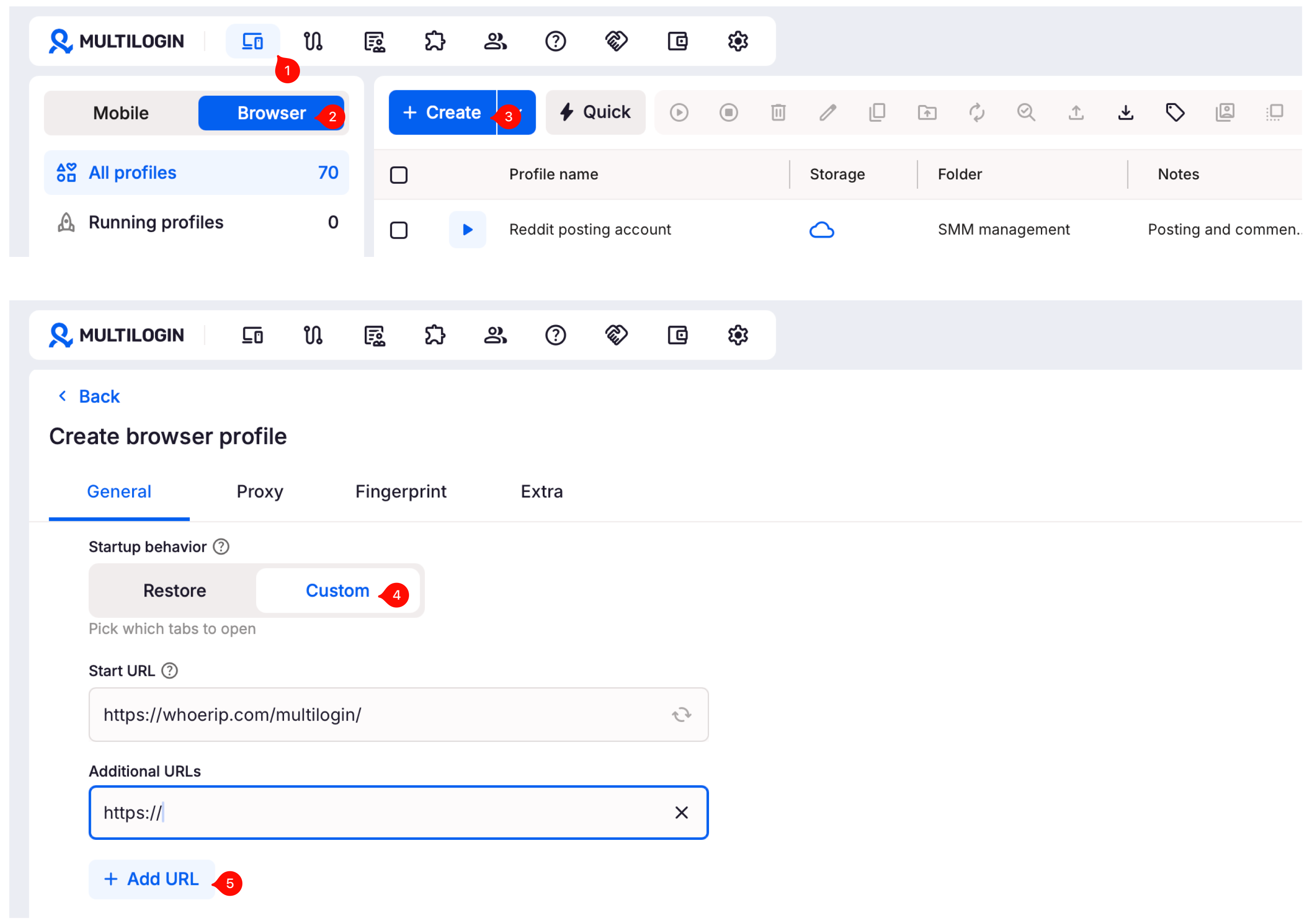
➡️ Go to “Profiles” → “Browser” → create or edit a profile → “Startup behavior” → “Custom” → add your URLs.
Use this when you want login pages, dashboards, tools, or other regular sites ready as soon as the profile opens.
Using Android cloud phones?
Start URLs are a browser profile setting. For mobile app workflows, use Android cloud phones.
Who can use this feature?
- 👨💻 Account owner, manager, and operator
- 💰 Available on all plans
How to change start URL
- Go to the “Profiles” tab in the top menu
- Select “Browser” from the left-side selector
- Click “Create” or “Edit” to open browser profile settings
- Find the “Startup behavior” section and choose “Custom”
- Add one or more URLs – each one will open in its own tab
- Create or update the profile to save your changes
Worried about privacy?
Websites can’t track your use of Multilogin’s checker page. Thanks to the Same-origin policy, sites only have access to their own domain’s cookies and data.
FAQs
Can I choose to restore my previous tabs instead?
Yes – find the “Startup behavior” section in your profile settings and choose “Restore”.
Can I open more than one tab on start?
Yes! Just add multiple URLs – they’ll each open in their own tab.
Can I change this later?
Of course. Edit or remove URLs anytime in the profile settings.
Will start URLs affect my fingerprint or tracking?
Nope. Sites won’t know what tool you’re using thanks to browser security rules.


