


How to refresh proxy IP in Multilogin
 ~2 minWritten by Yelena V
What IP refresh does
When you click “Refresh IP”, it swaps out the current IP address in your proxy with a new one.
- Only works with Multilogin proxies (for now)
- The new IP comes from the same pool (same location + same rotation method you picked)
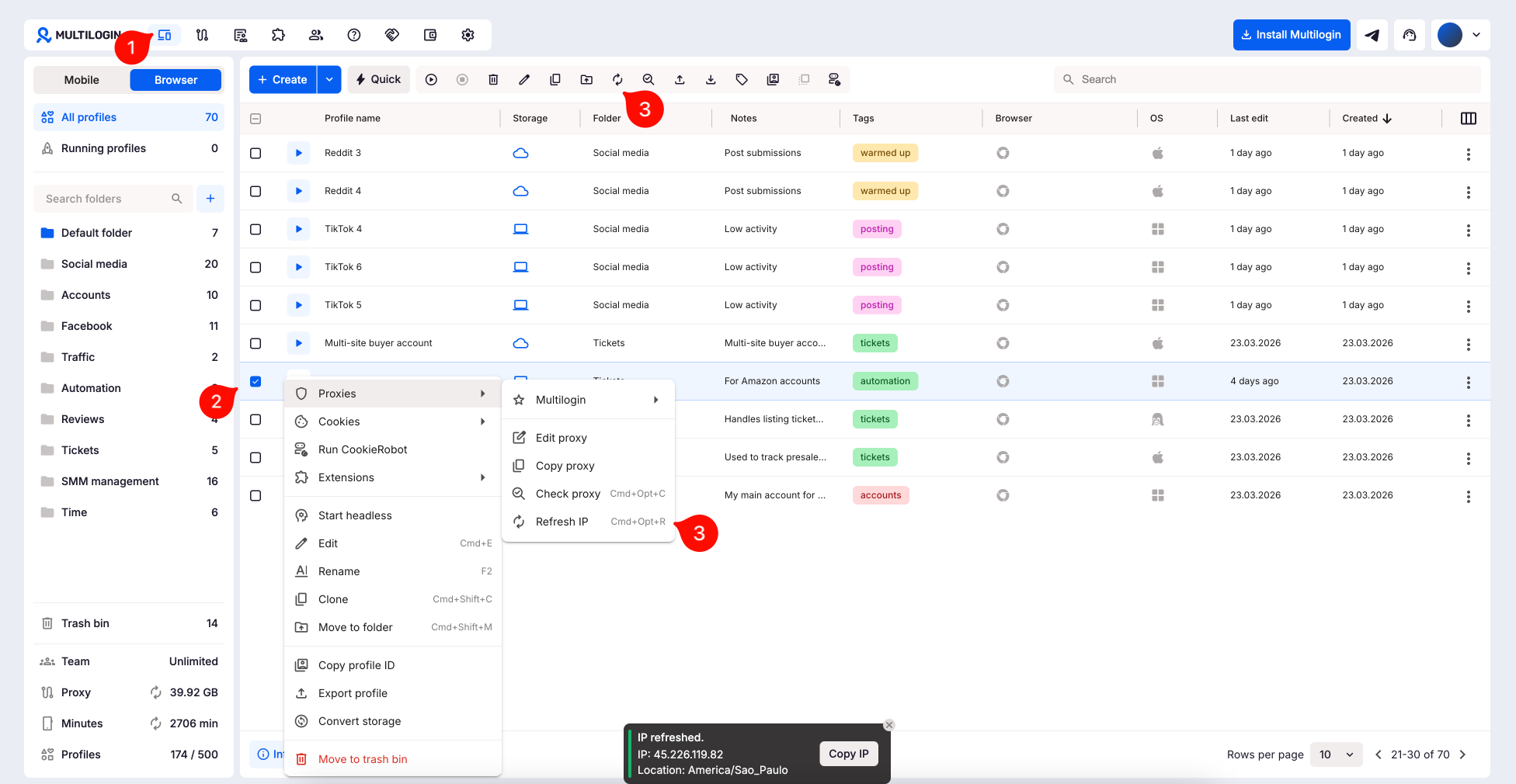
➡️ To refresh a Multilogin proxy IP, stop the profile → select it in the “Profiles” list → click “Refresh IP” in the top toolbar. You can also right-click the profile → “Proxies” → “Refresh IP”.
Proxy IP refresh is currently available for browser profiles only.
How to refresh an IP
Before we begin: make sure the profile is stopped. Can’t refresh a running profile!
- Go to the “Profiles” section in your dashboard
- Select a profile from the list using the checkbox on the left
- Click to refresh:
- Use the top toolbar → Click “Refresh IP”
- Or right-click the profile → Click “Proxies” → Select “Refresh IP”
A notification will pop up saying the IP’s been refreshed. You’ll also see the new IP and can copy it.
Pro tips
- No changes to geo or rotation: your new IP stays in the same region and setup as before
- One refresh at a time: if you need fresh IPs for multiple profiles, do them one by one
FAQs
Can I refresh IPs for other proxy providers?
Not yet – this only works with Multilogin proxies for now.
Will it change my proxy settings?
Nope! Your location and rotation method stay the same.
What if I don’t see the “Refresh IP” option?
Make sure you’ve selected a profile and that it’s not running.


