


How to fix missing browser data issue
 ~4 minWritten by Yelena V
If cookies, history, passwords, bookmarks, or other browser data are missing from a Multilogin browser profile, first check whether the profile uses cloud or local storage.
➡️ Go to “Profiles” → “Browser” → check the “Storage” column. Cloud profiles sync their browser data through Multilogin, while local profiles keep the data on the computer where it is stored.
If the correct storage is selected but data is still missing, follow the checks below before changing or deleting local files.
- When you stop a profile, your session data is saved either on the cloud or your device, depending on the storage type you chose (learn more in our article Cloud and local storage)
- When you start a profile, your data is downloaded back into it
Check storage type
- ☁️ If your profile uses cloud storage, all your data will be accessible every time you launch the profile, even on multiple devices.
- 💻 If your profile uses local storage, your data will only be available on the device where you first launched the profile.
Avoid starting the same profile on multiple devices simultaneously – it can cause syncing issues and even data loss. Stick to one device per profile to keep everything running smoothly!
Sync data
When stopping a profile, make sure to:
- Wait for the loading icon to disappear
- Look for the “Profile data saved” pop-up confirmation
Pro tip: don’t quit the app without properly stopping and saving each profile. It’s the best way to prevent data loss!
Check third-party apps
Some apps on your computer, like antivirus programs, firewalls, VPNs, and proxy tools, can mess with Multilogin. These apps might stop Multilogin from working right or make things run slower.
Here are some quick fixes:
- Uninstall these apps
- If you do need them, disable the apps temporarily or add Multilogin to their whitelist in the settings
This should help resolve the issue and keep everything running smoothly!
How to resolve conflicts with 3rd-party apps on Windows:
Antivirus apps
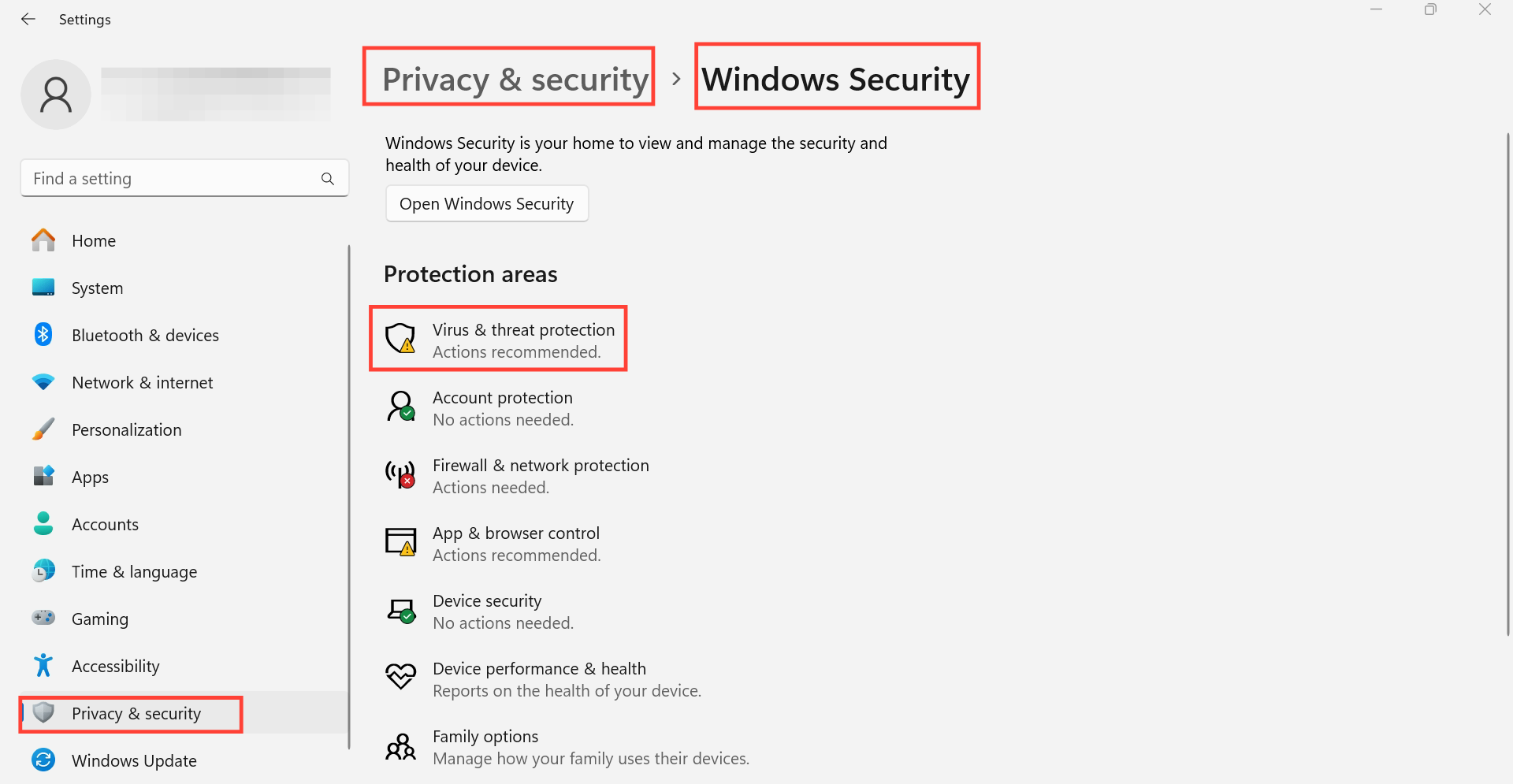
- Go to “Settings” → “Privacy & security” → “Windows Security” → “Virus & threat protection”
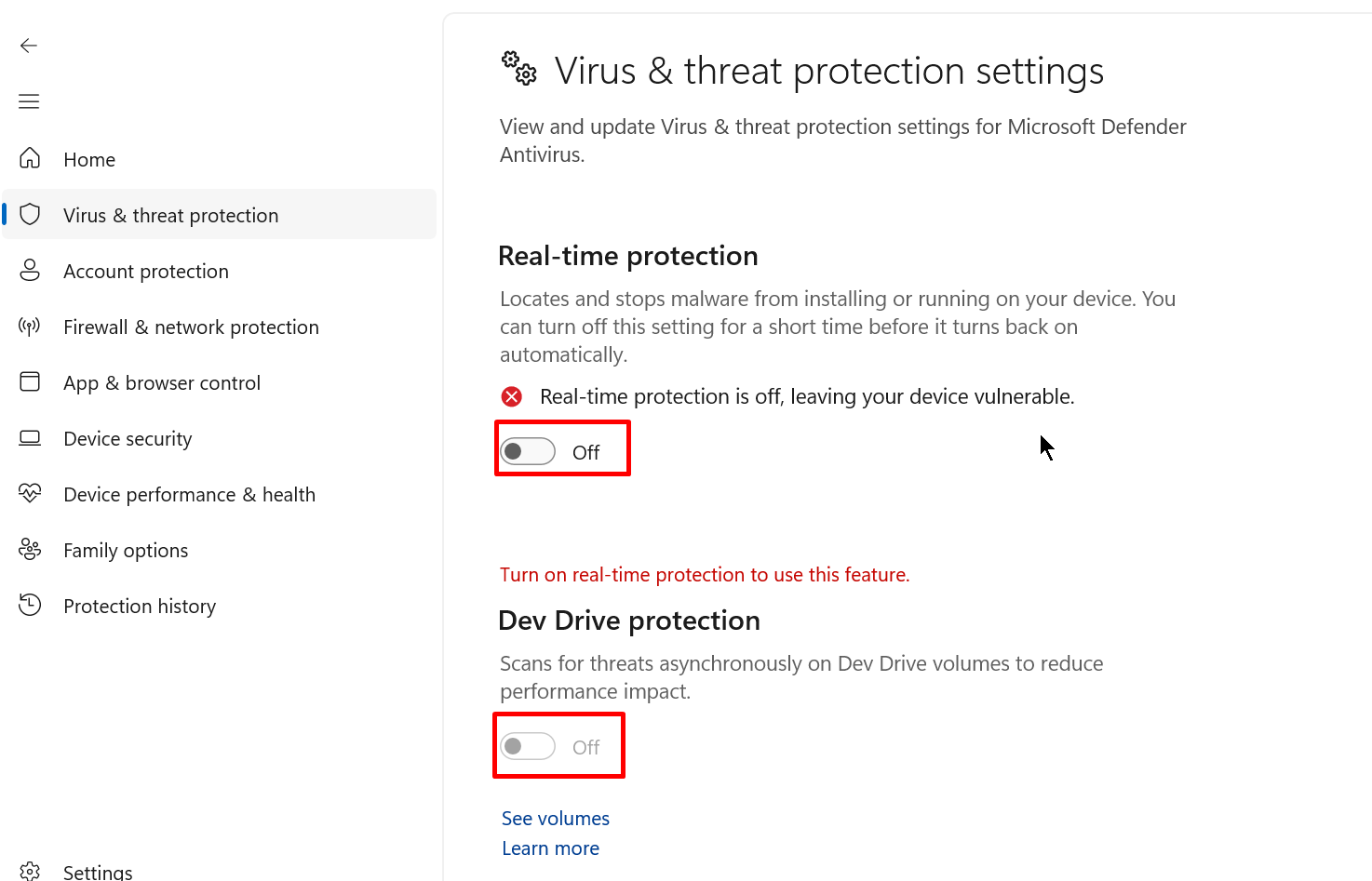
- Choose “Manage settings” and then turn off all the parameters in the displayed window
Firewalls
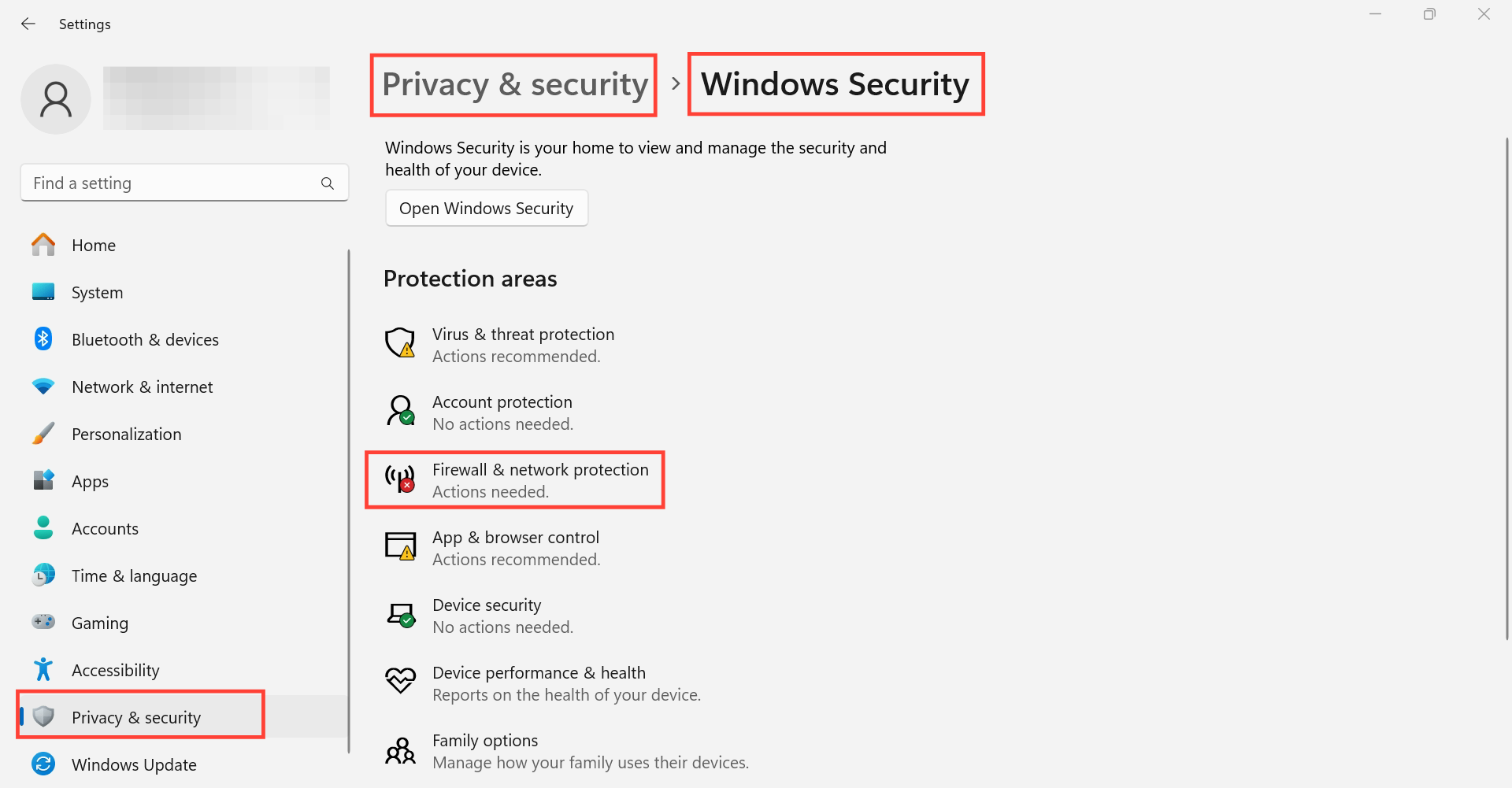
- Go to “Settings” → “Privacy & security” → “Windows Security” → “Firewall & network protection”
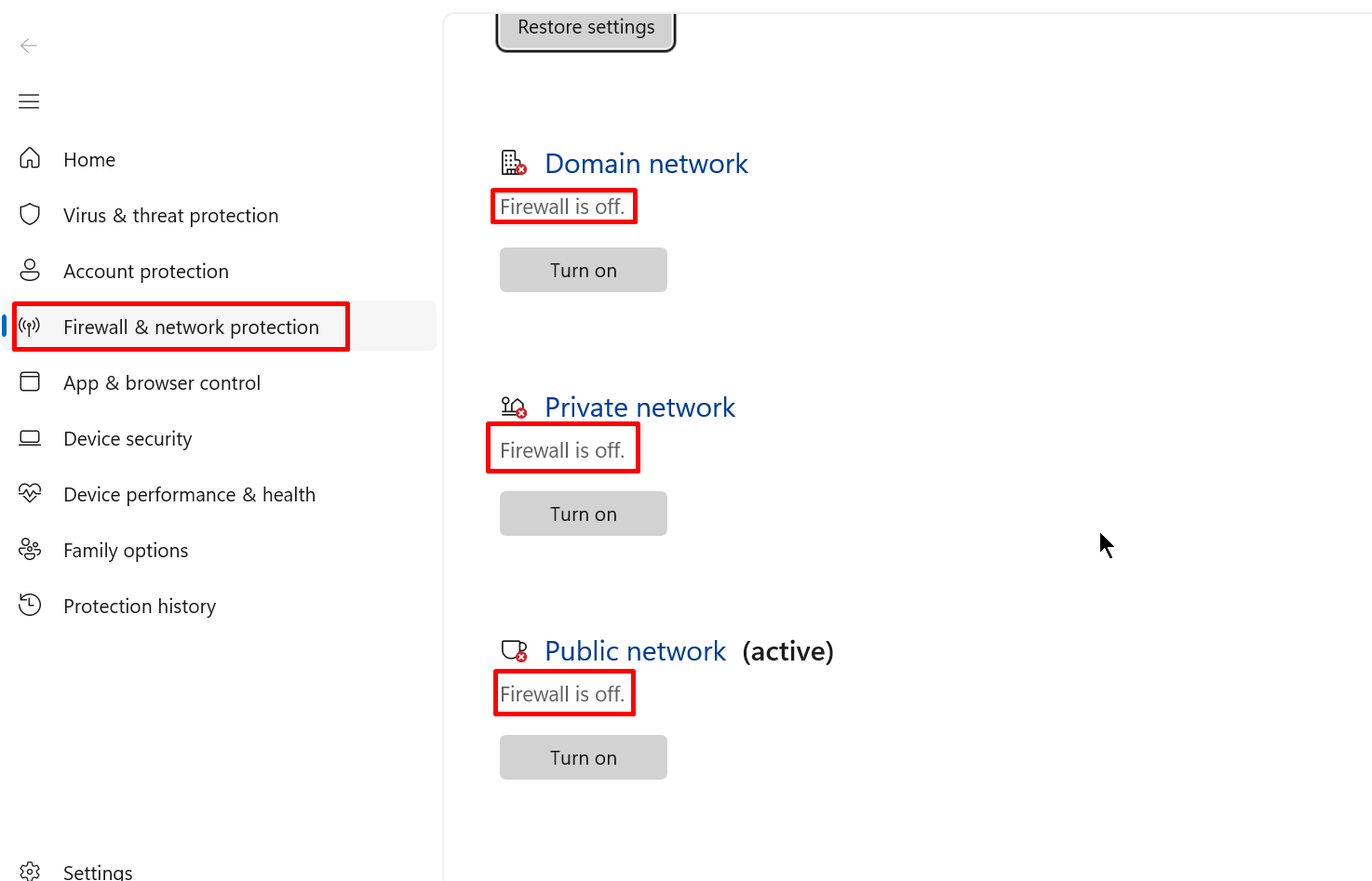
- Turn off all the parameters in the displayed window
VPNs
Uninstall VPN applications:
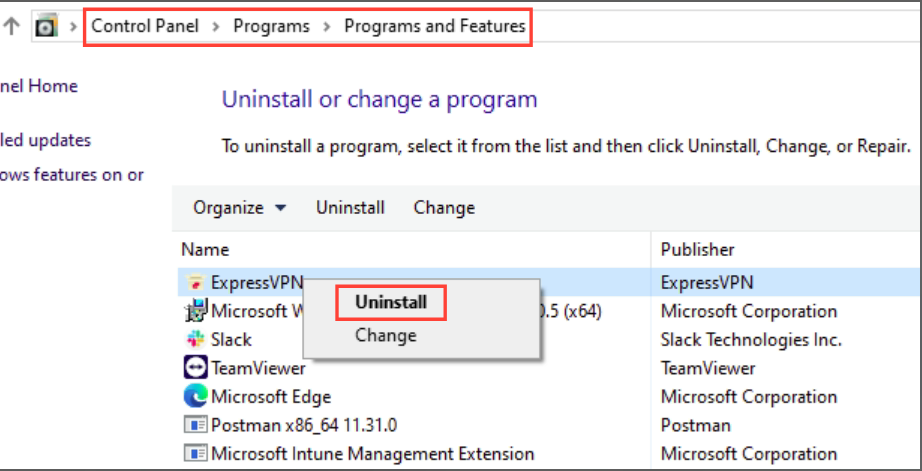
- Open “Control Panel” →” Programs” → “Programs and Features”
- Right-click the VPN applications → “Uninstall”
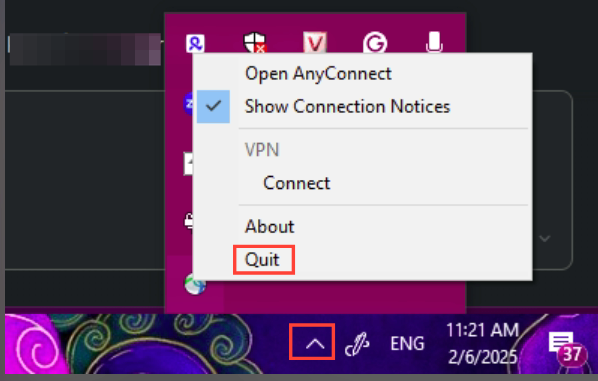
Disable VPN applications: open the menu in the task bar → right-click the VPN apps → click “Quit”
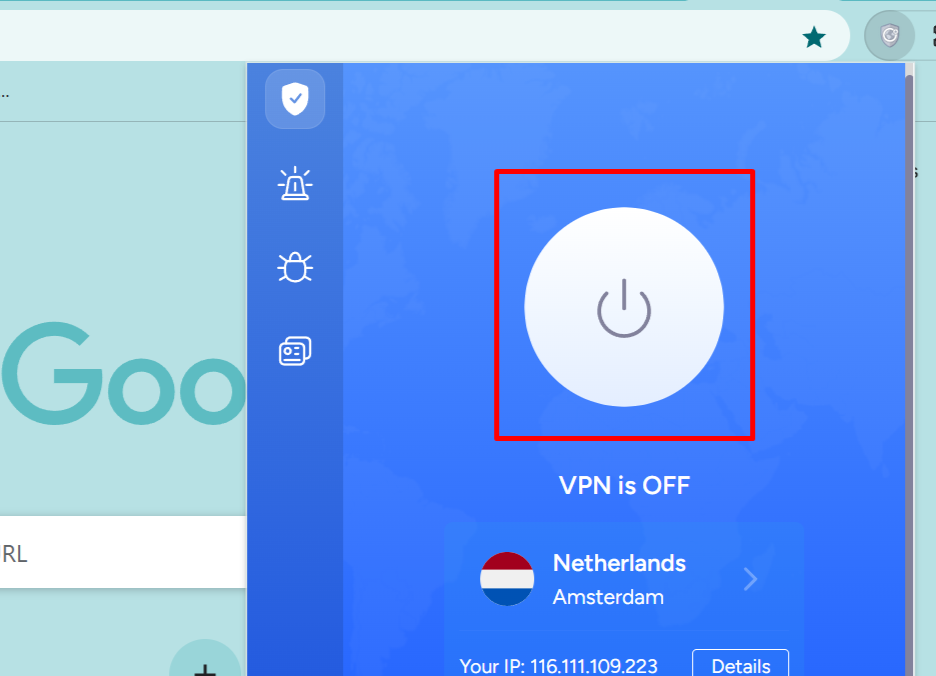
Turn off VPN extensions in browser: don't forget to check and turn off VPN extensions that you installed in your browser, for example, Chrome:
How to resolve conflicts with 3rd-party apps on macOS:
macOS security system
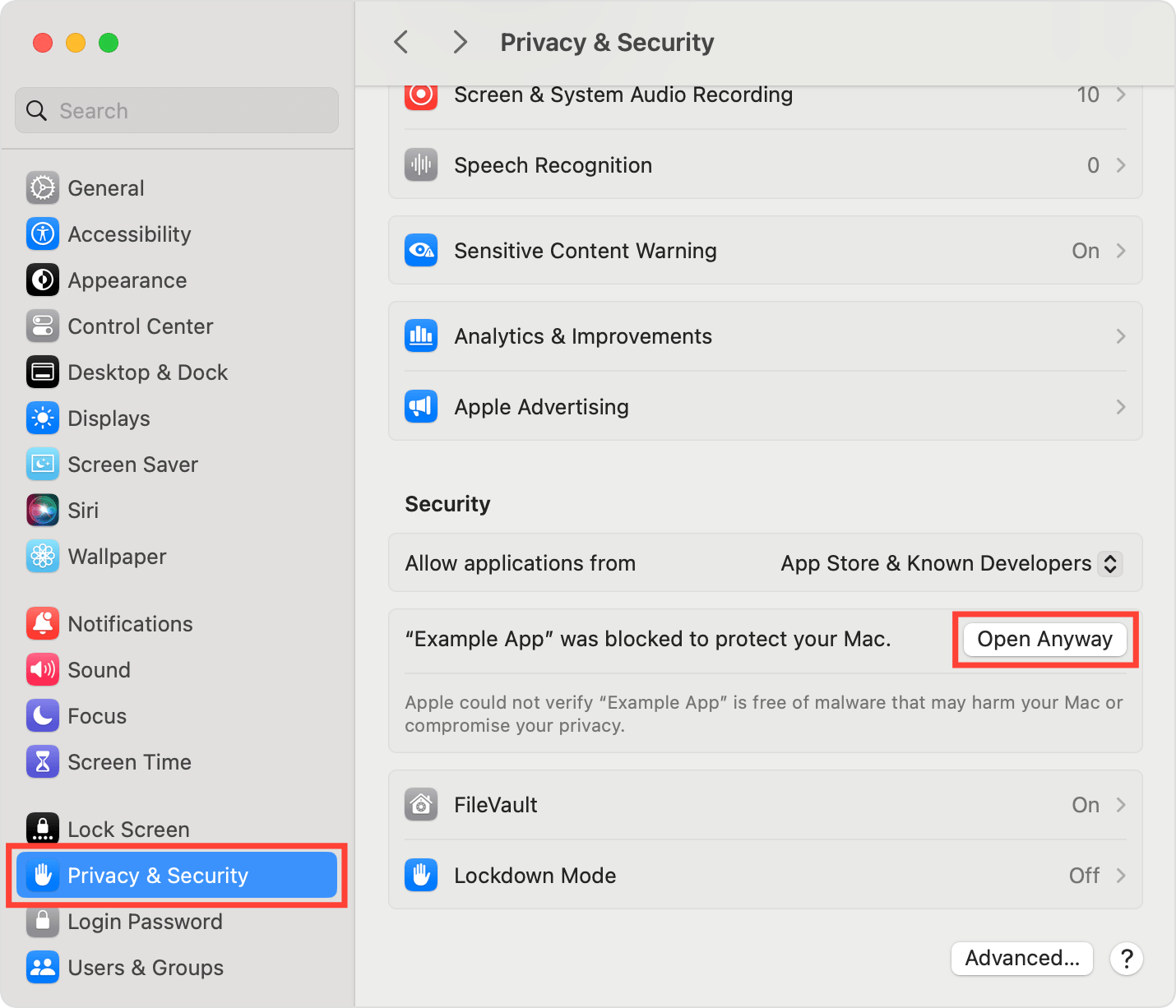
If the application got restricted from the macOS security system, you can access it by the following way:
- Open “System Settings” → “Privacy & Security” → “Security”
- Click “Open anyway” for the apps
We recommend to change “Allow applications from” value to “App Store & Known Developers”.
Antivirus apps
Firewalls
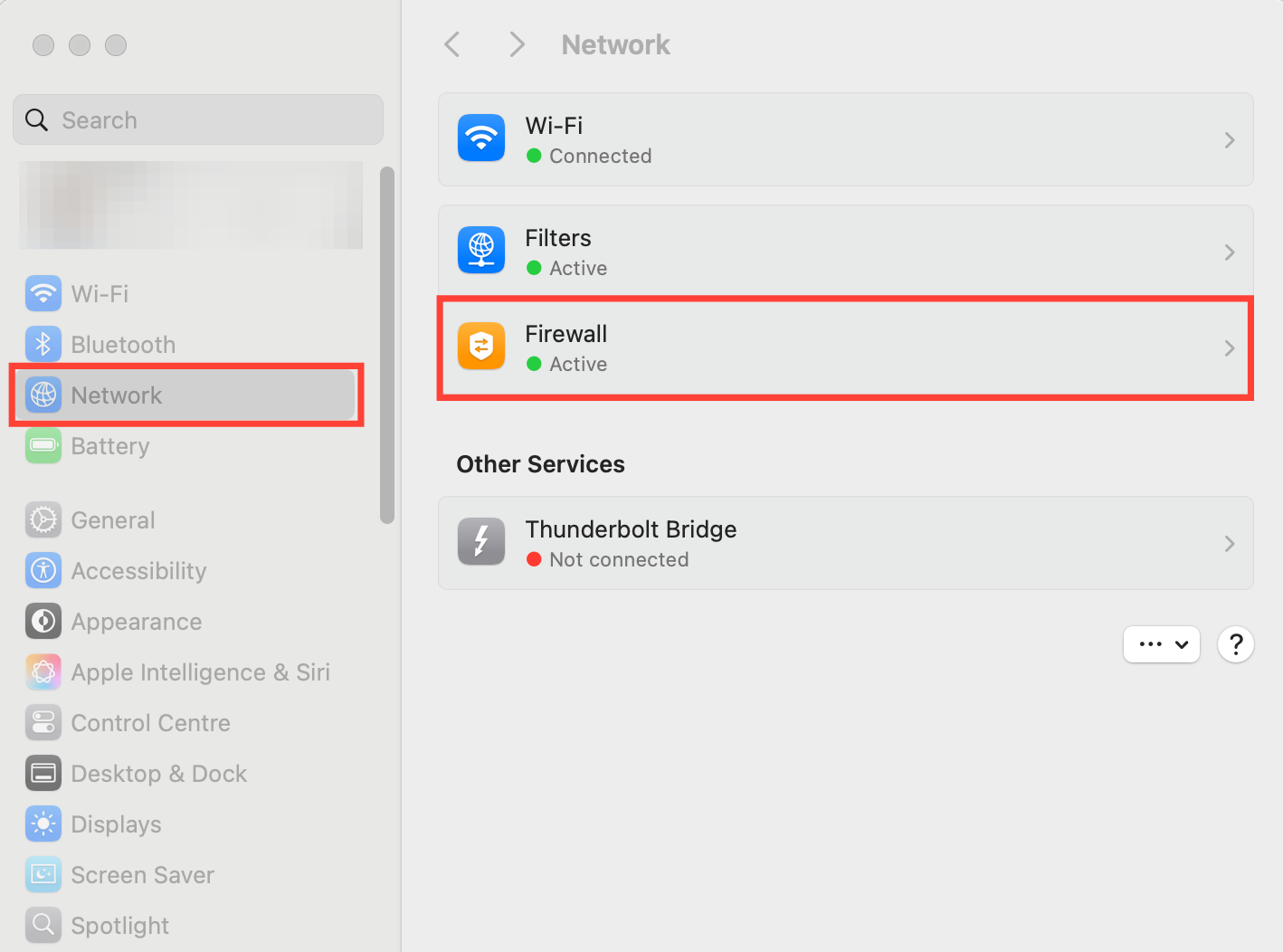
- Open “Apple menu” → “System Preferences” → “Network”
- Go to the “Firewall” tab and turn it off
VPNs
Uninstall VPN applications:
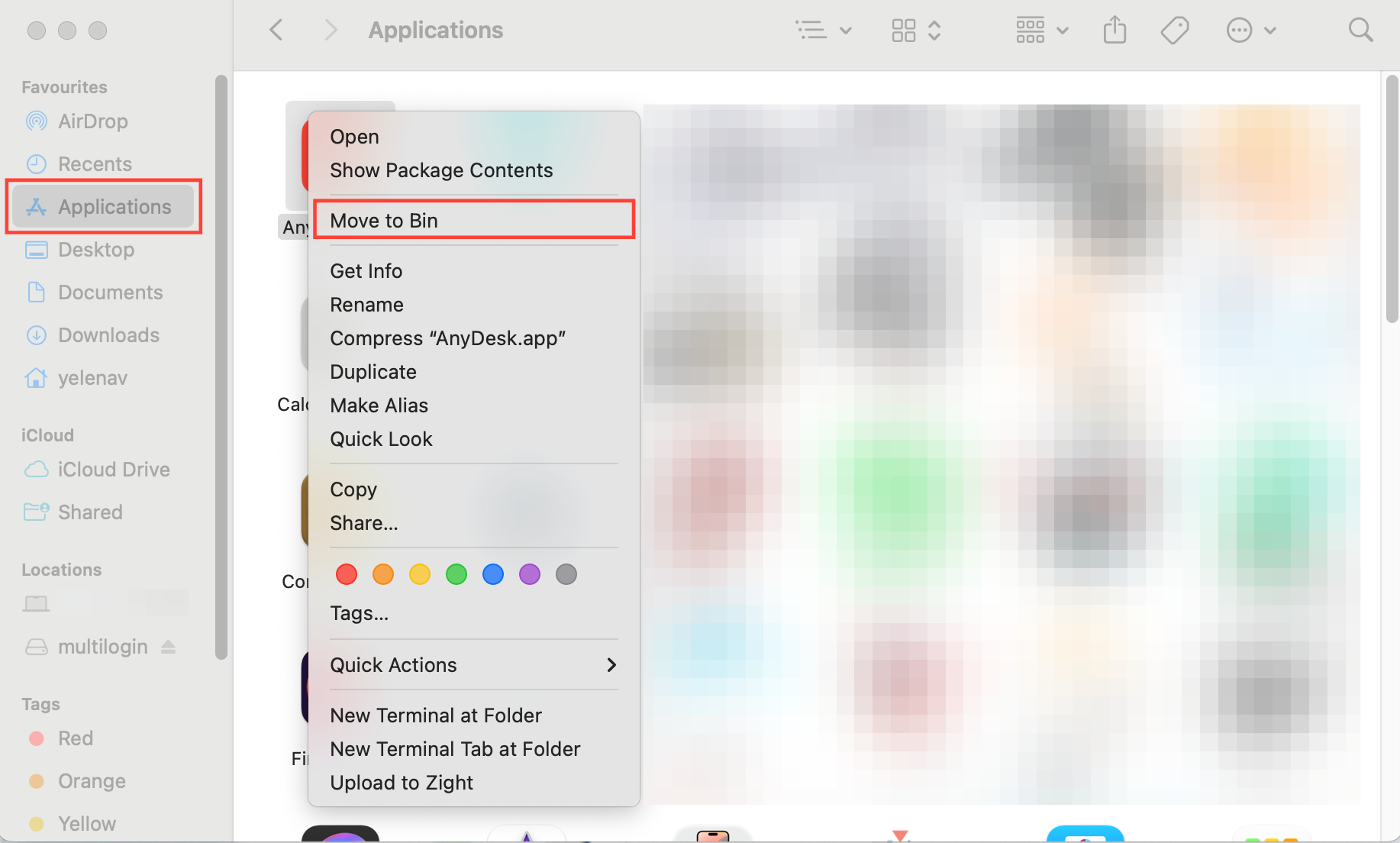
- Go to “Finder” → “Go” → “Application”
- Right-click the VPN apps → “Move to Bin”
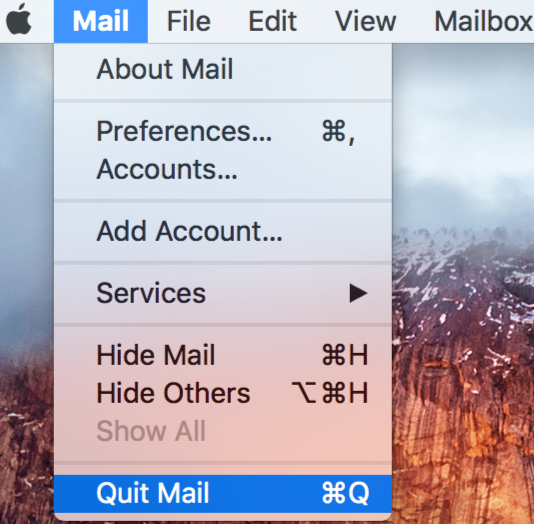
Disable VPN applications: right-click the VPN apps on the menu bar → choose “Quit <name of app>”.
Turn off VPN extensions in browser: don't forget to check and turn off VPN extensions that you installed in your browser. This is an example for Safari browser:
- Choose “Safari” → “Settings” (or “Preferences”) → click “Extensions”
- To turn off an extension, deselect its checkbox
Check the ISP
Sometimes, internet service providers (ISPs) block proxy providers or even Multilogin itself. Here’s how to test and work around it:
- Try connecting through a VPN: this can bypass ISP restrictions
- Switch networks: use a different Wi-Fi, or turn your phone into a hotspot with mobile data
- Check your speed: if your current ISP is slow, changing networks might also improve performance.
If the issue resolves with these steps, it’s likely your ISP causing the trouble.
Refresh components
- Close the desktop app 🖥️ or disconnect the agent if you're using the web interface 🌐
- Go to the
mlxfolder:-
Windows:
C:\Users\%username%\mlx -
macOS:
/Users/%username%/mlx -
Linux:
/home/%username%/mlx
-
Windows:
- Delete the
depsfolder - Reopen the desktop app 🖥️ or reconnect the agent for the web interface 🌐
- Start any profile – this will automatically kick off the components download process
Nothing helps?
If you’re still experiencing data loss after trying everything in this article, send us your logs. We’ll investigate and get to the bottom of it for you!
- Recreate the issue or wait until the error message appears
- Archive the logs folder found in these locations:
-
Windows:
C:\Users\%username%\mlx -
macOS:
/Users/%username%/mlx -
Linux:
/home/%username%/mlx
-
Windows:
- Email support at [email protected] with:
- A clear description of the issue
- The archived logs folder attached


