How to set up NodeMaven proxies for browser profiles
 ~3 minWritten by Yelena V
This article will guide you through the process of setting up Multilogin with NodeMaven. You can find more information about this proxy provider on their official website and in the help center.
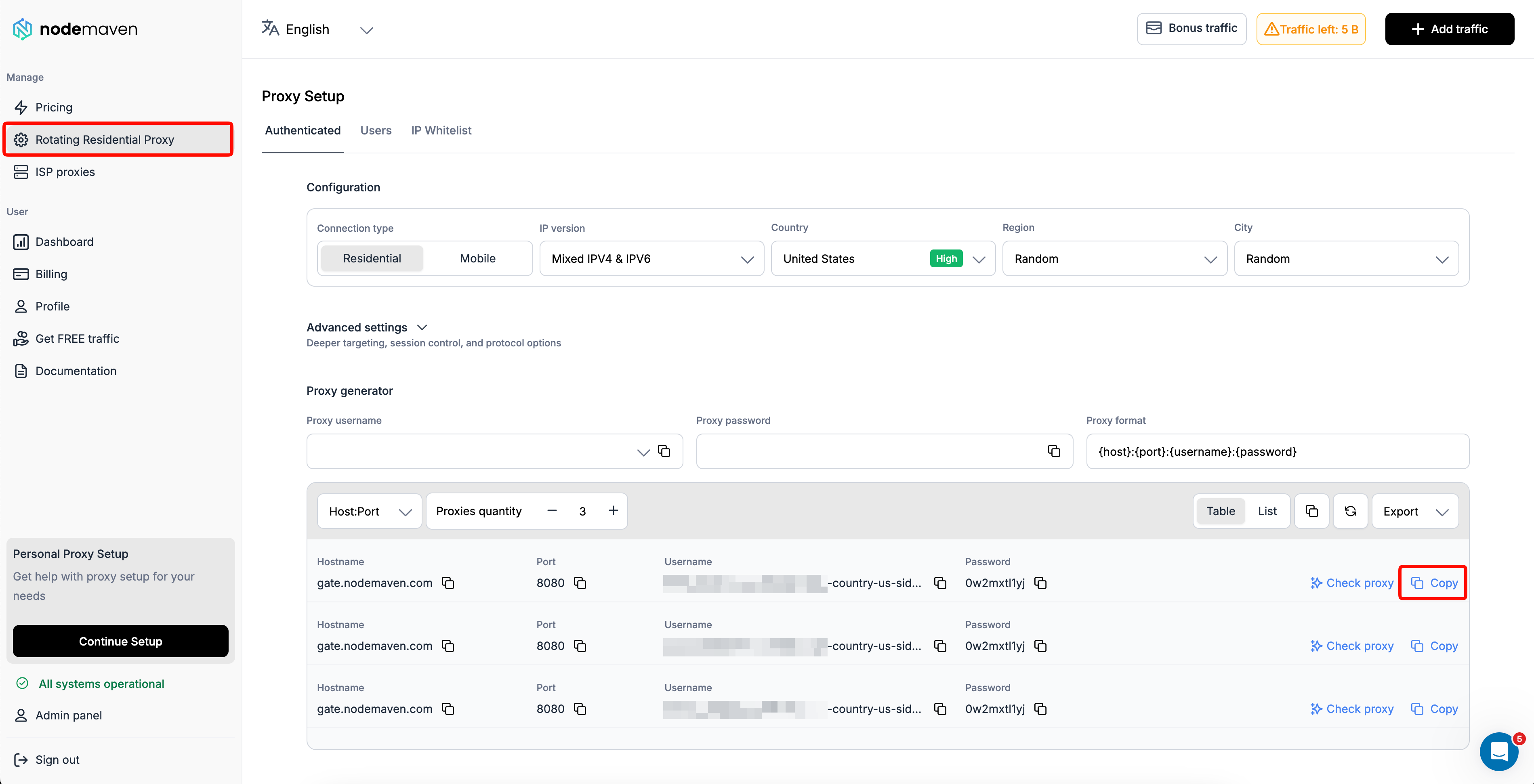
➡️ To use a NodeMaven proxy with a browser profile, generate and copy the proxy in NodeMaven → open the browser profile’s “Proxy” settings → choose “Custom” → select the matching protocol → enter the proxy details → confirm that the proxy check passes.
This guide covers NodeMaven proxy setup for browser profiles. Android cloud phones have their own proxy setup flow.
Before you start
Make sure you have the following proxy details:
- Type (HTTP or SOCKS5)
- Host and Port
- Username and Password
Here's how you can do it:
How to use NodeMaven proxies
Regular browser profiles
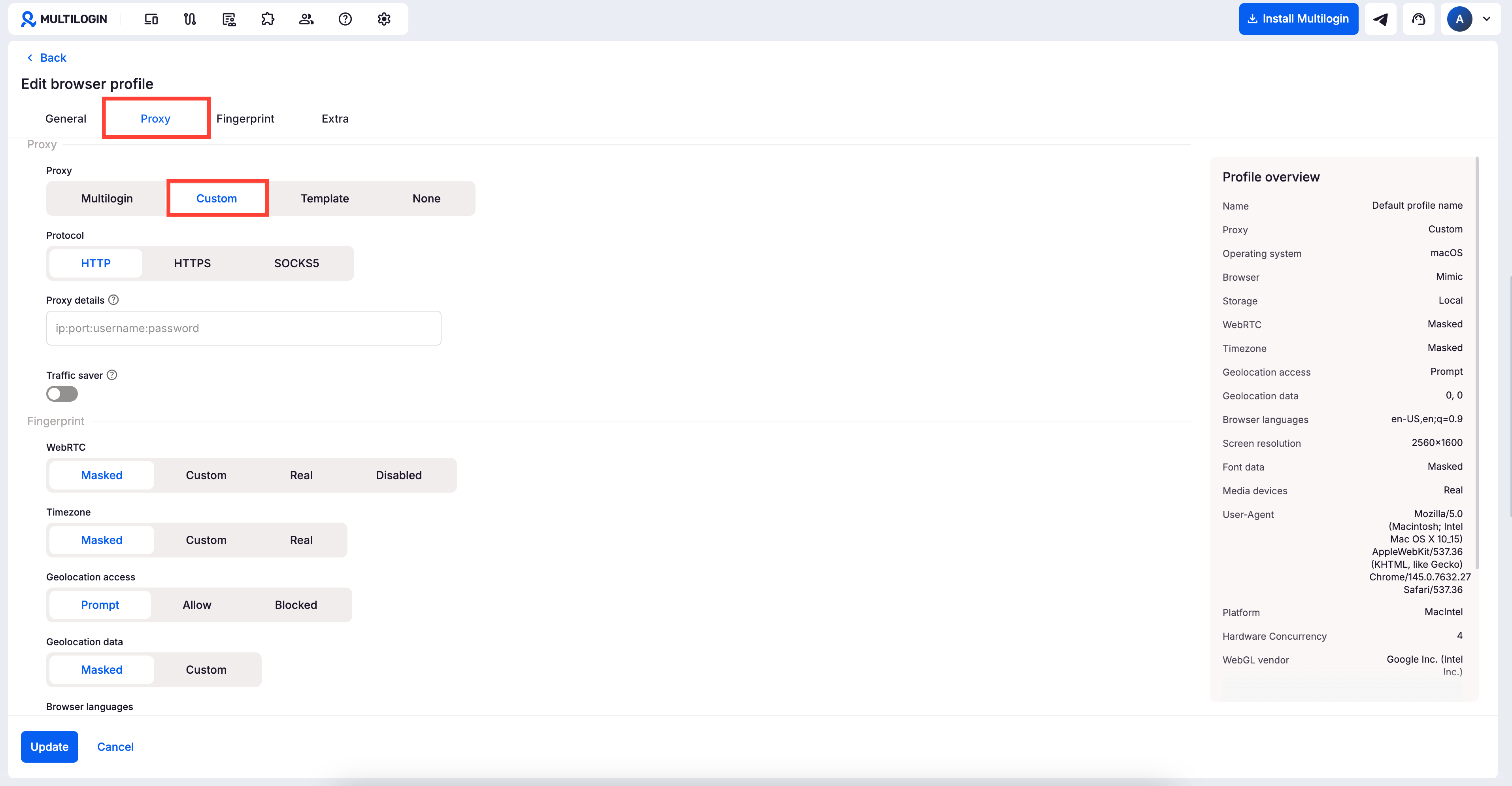
- Open your profile settings and find the “Proxy” section
- Select “Custom” as your proxy type
- Choose a protocol (HTTP, HTTPS, or SOCKS5)
- Enter your proxy details
-
IP or host:
gate.nodemaven.com -
Port:
8080or1080(check NodeMaven dashboard) - Login and Password: get them in your NodeMaven dashboard under "Proxy Setup"
-
IP or host:
- The system will check the proxy automatically:
- "Proxy check passed" means that Multilogin successfully connected to your proxy and got the required IP-dependent data
- "Proxy check failed" means that Multilogin couldn't connect to your proxy – check this article to learn why: How to fix profile start or proxy connection issues
Quick profiles
One proxy
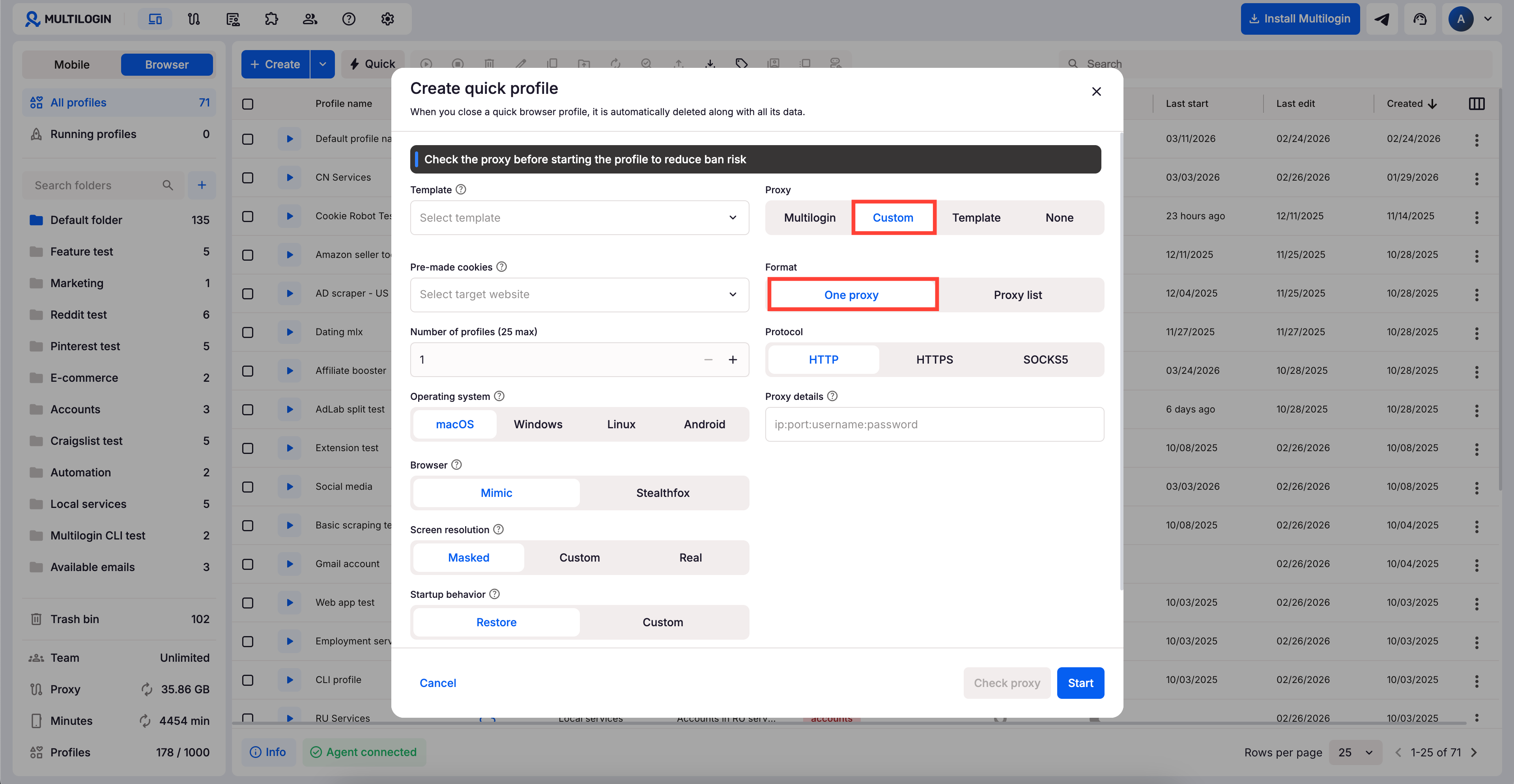
- Click “Quick” in the main dashboard
- Choose “Custom” in the "Proxy" section
- Choose “One proxy” in the “Format” section
- Choose a protocol (HTTP, HTTPS, or SOCKS5)
- Enter your proxy details
-
IP or host:
gate.nodemaven.com -
Port:
8080 - Login and Password: get them in your NodeMaven dashboard under “Proxy Setup”
-
IP or host:
Proxy list
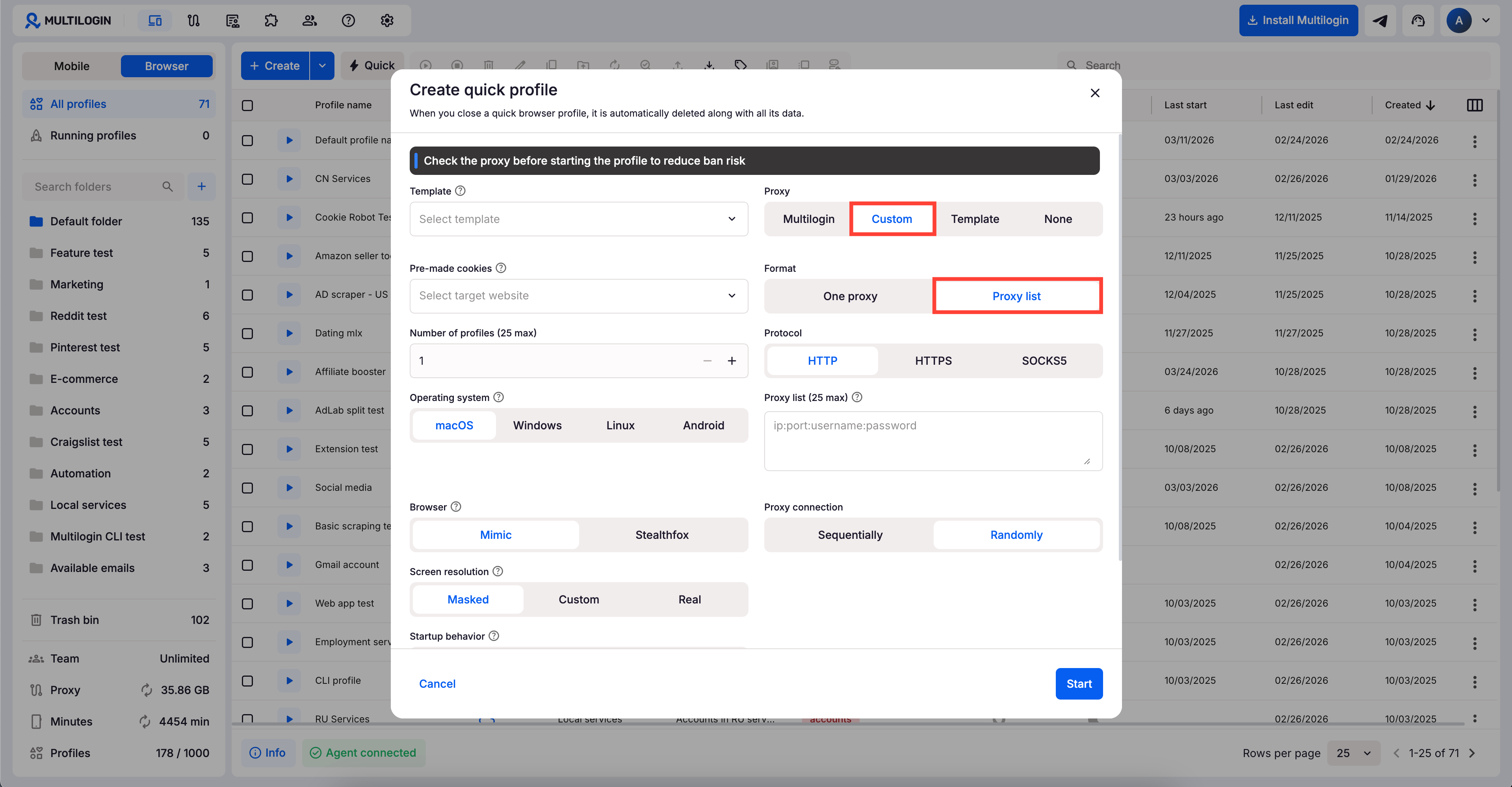
- Click “Quick” in the main dashboard
- Choose “Custom” in the “Proxy” section
- Choose “Proxy list” in the “Format” section
- Choose a protocol (HTTP, HTTPS, or SOCKS5)
- Add a maximum of 25 proxies in the format
IP:portorIP:port:login:password - Choose how the system should use proxies:
- Sequentially – from top to bottom
- Randomly – in random order without repetition
How to check your IP
Ready to see if your setup is airtight? Checking your fingerprint is like running a quick vibe check for your browser. Let’s make sure everything looks smooth and legit!
Use these tools to inspect your browser fingerprint:
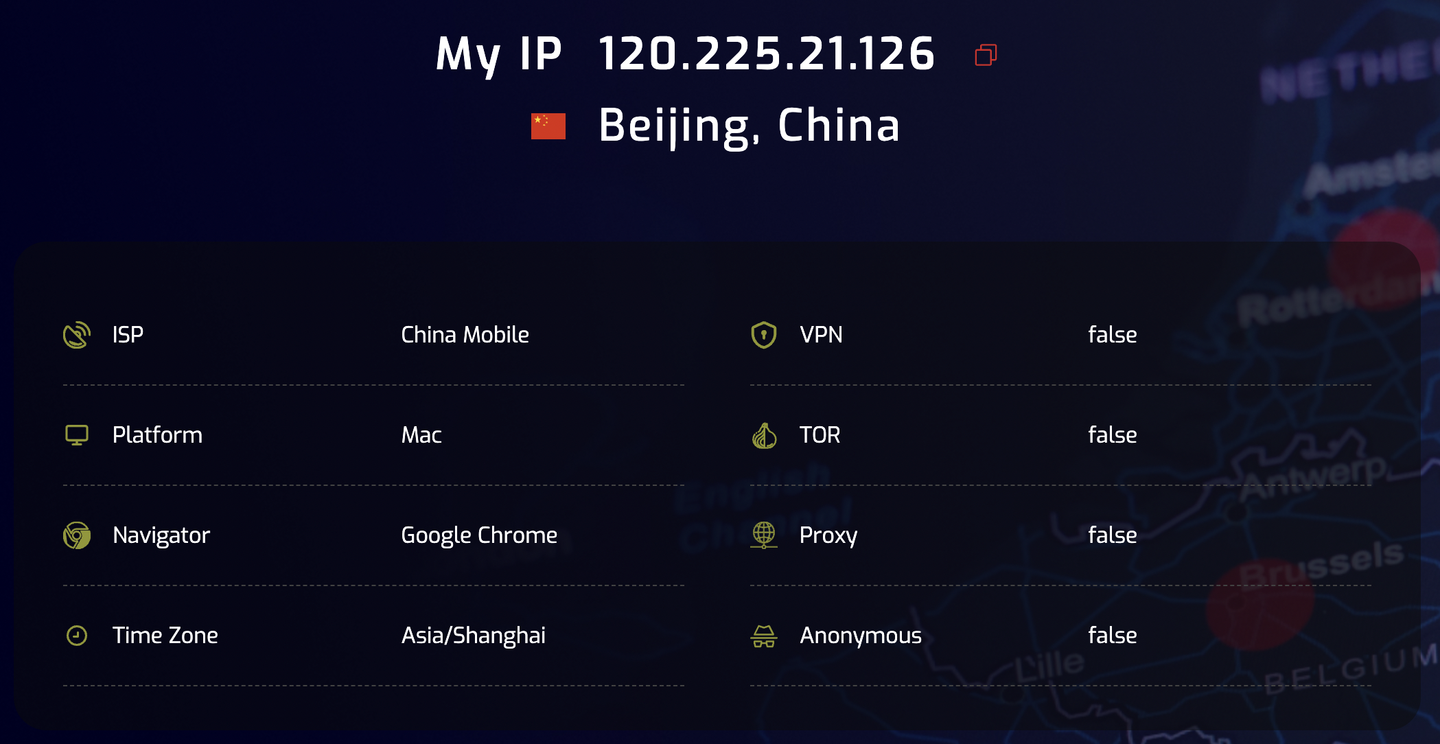
- Whoer IP: check your IP address and make sure it matches your intended location (default Multilogin checker)
- MaxMind: use for the most accurate IP geolocation details
- Pixelscan: get a detailed view of your browser fingerprint
- BrowserLeaks: spot any fingerprint inconsistencies that might expose your real identity
Can websites see I've visited the Whoer IP page or other checkers?
No. If you are worried that websites will read its cookies and find out that you are a Multilogin user, we've got good news for you!
Websites can only access cookies associated with their own domain. In other words, Multilogin cookies are visible only to Multilogin, while Facebook recognizes solely its own cookies. This principle is known as the "Same-origin policy" (SOP), a foundational concept dating back to the creation of the first browsers.
Here's how to check your fingerprint:
- Open your Multilogin profile
- Use one of the tools above to test your fingerprint
- Look for inconsistencies in IP address, browser version, or OS
- Adjust your settings in Multilogin to fix any mismatches