
Xiaohongshu, known globally as RedNote or Little Red Book, is one of the fastest-growing social platforms in the world. Brands, agencies, and creators are racing to claim their space before competition locks in. The real question is how to operate on Xiaohongshu at scale without losing accounts to bans.
The challenge is simple. Manage two or three accounts from the same browser, and the platform will link them in days. Cookies, fingerprints, IP addresses, and time zones all leave a trail. One ban often turns into five.
That is where Multilogin comes in.
Each account gets its own isolated browser profile with a unique Chromium-based fingerprint, its own residential proxy, and its own session data. No shared signals. No linked accounts. Just clean, separate environments you control from one dashboard.
Let’s walk through exactly how to do it.
What You Need Before You Start
Before opening Multilogin, gather these three things:
- A Multilogin account. A 3-day trial costs €1.99 and includes 5 browser profiles plus 200 MB of residential proxy traffic, which is enough to set up and test your first batch.
- A phone number for SMS verification. RedNote requires phone verification to create an account. You can use a virtual number service like smspool.net, where a one-time number costs around 15 cents. Plenty of similar services exist; pick one you trust.
- A phone with the RedNote app installed. You’ll need it once at the end to scan a QR code and confirm the desktop login. This is your phone, not anything you set up inside Multilogin.
That’s it. No emulators, no extra tools, no complicated setup.
Step 1: Launch Multilogin and Create a New Browser Profile
Open the Multilogin desktop app on Windows, macOS, or Linux. Log in to your account.
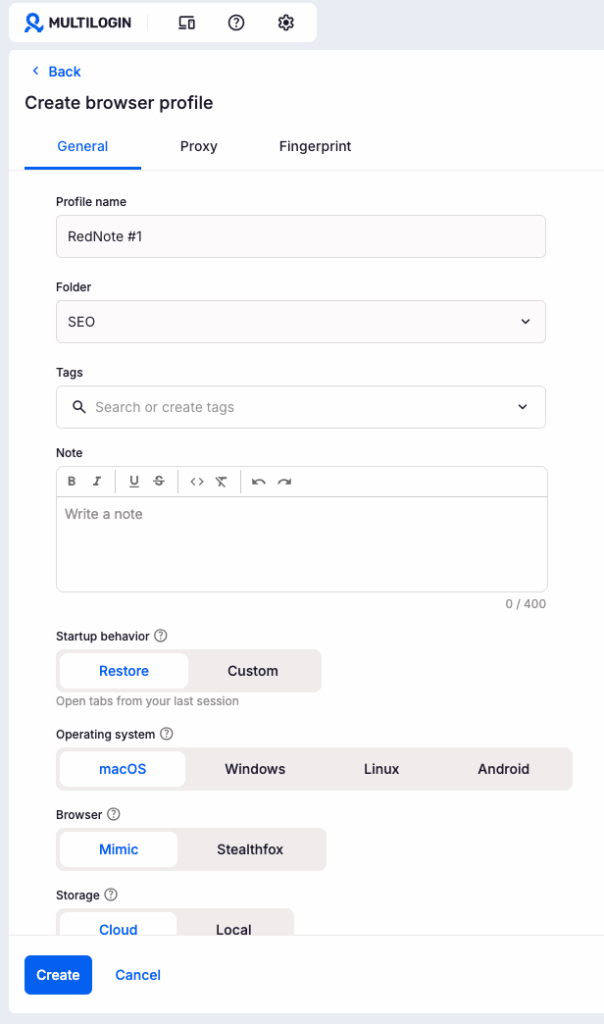
In the dashboard, click New profile to start setting up your first RedNote account.
Here’s what to configure:
- Browser: Pick Mimic (Chromium-based) for best compatibility with RedNote’s web platform.
- Operating system: Choose Windows or macOS depending on the device fingerprint you want to present.
- Proxy: Select a built-in residential proxy. For RedNote, set the location to your target region. China gives you native results, but the platform also works from other regions if you’re targeting the international audience.
- Profile name: Use something simple you’ll recognize later, like “RedNote_01.”
Save the profile. You’ll see it appear in your dashboard, ready to launch.
Why this matters: Each profile carries its own unique fingerprint with browser fingerprinting parameters. To RedNote, every profile looks like a different real person on a different real device. That’s the whole point.
Step 2: Open RedNote in Your New Profile
Click Start next to your new profile. A fresh Chromium-based browser window opens, fully isolated from anything else on your computer.
In the address bar, go to xiaohongshu.com.
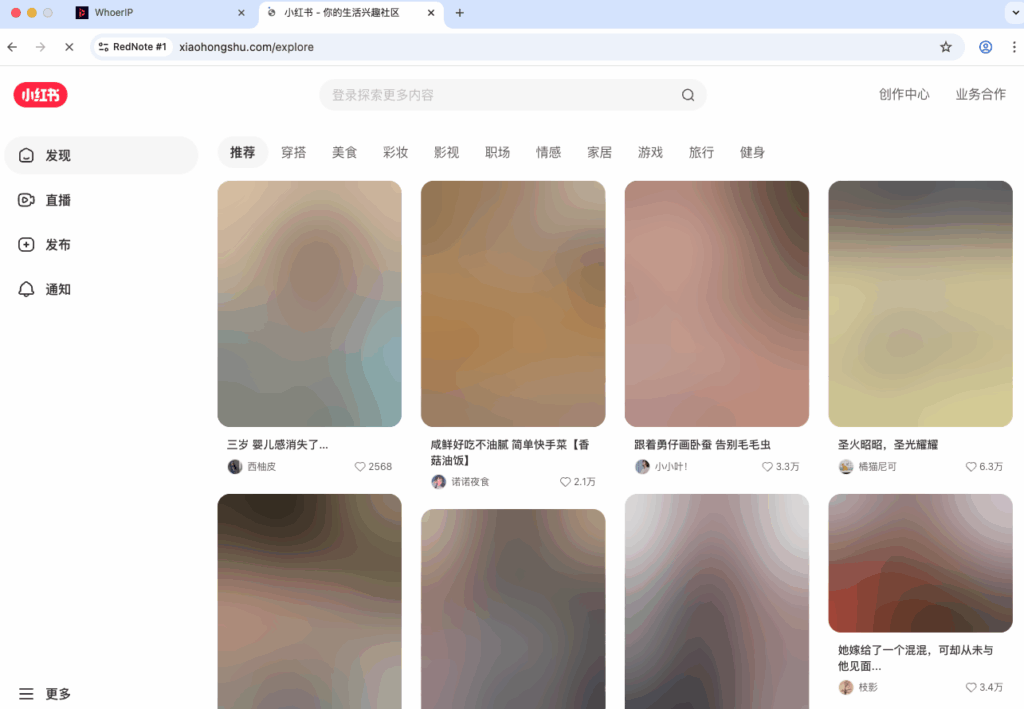
You’ll land on the RedNote homepage with a login prompt. The interface is mostly in Chinese; if you need English, your browser’s built-in translation will handle it well enough to follow along.
Now click Log in in the top right corner. A login window will pop up asking you to enter a phone number.
Here’s where most people get stuck.
The desktop login form only accepts Chinese phone numbers (+86). You cannot change the country code from the browser.
There’s a simple way around it, and most users don’t know about it.
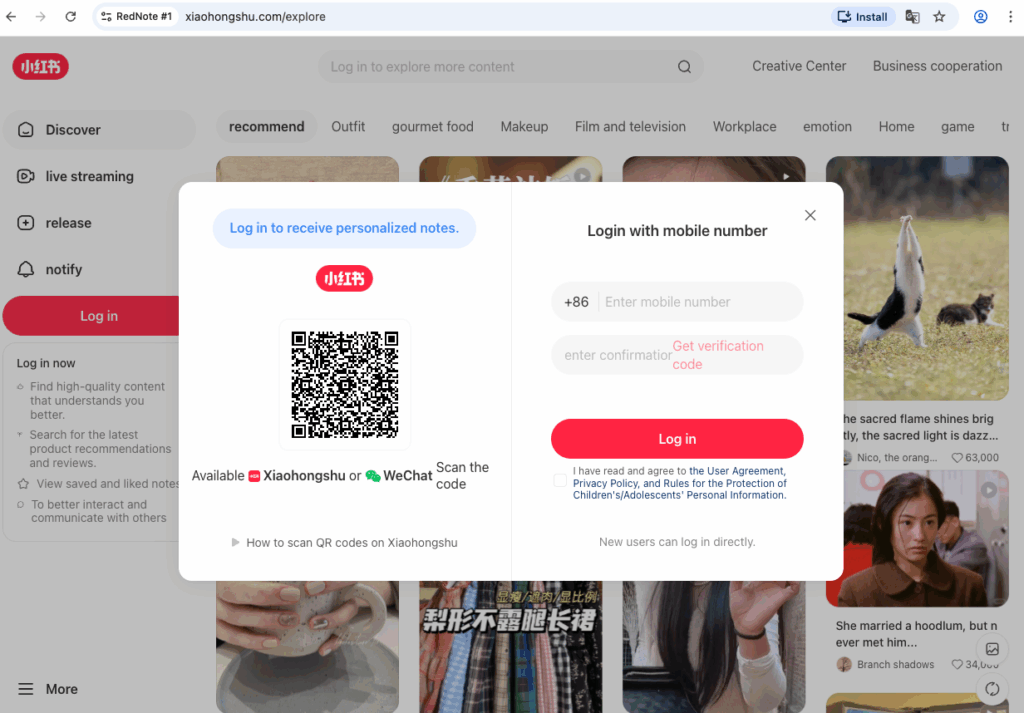
The trick: register through the mobile app first, then sync to desktop.
The RedNote (Xiaohongshu) mobile app accepts phone numbers from any country, not just China. So instead of fighting the desktop just download the RedNote app on your physical phone (available on the App Store and Google Play in most regions; if it’s blocked in yours, install via APK from a trusted source).
Step 3: Get a Phone Number for SMS Verification
Open the app and sign up with the phone number from your SMS service. Any country code works here.
Go to your chosen SMS provider (for example, smspool.net). Buy a one-time number for Xiaohongshu. The price is usually around 15 cents per number.

A few practical points:
- Pick a number from a country that matches your proxy location when possible. Mismatched signals can trigger extra checks.
- One number per account. Reusing the same phone number across multiple RedNote accounts is the fastest way to link them.
- Keep the SMS service tab open. You’ll need to grab the verification code in a moment.
Step 4: Register Your RedNote Account
Back in your Multilogin profile window, on the RedNote login screen:
This time choose the QR code login option on the desktop.

Scan the QR code with the RedNote app on your phone, and the desktop session signs in instantly.
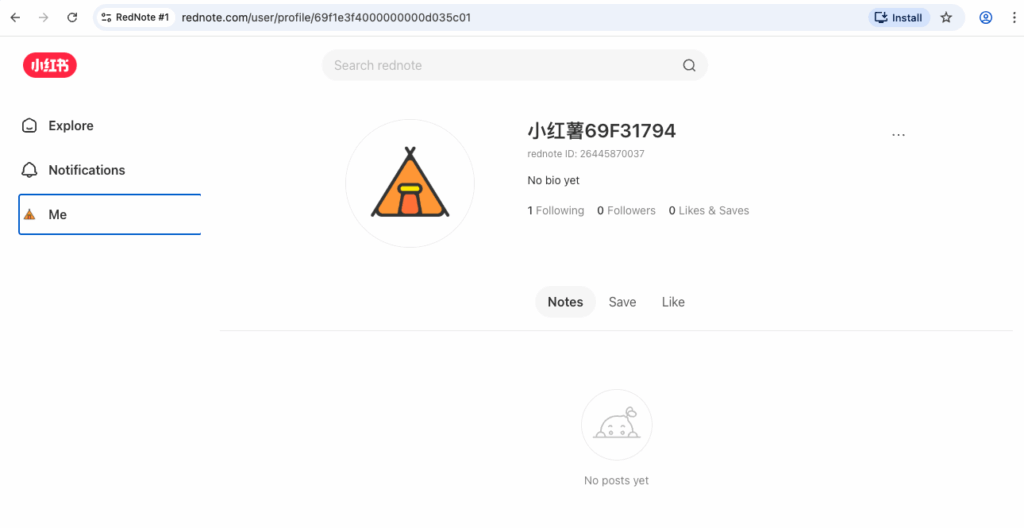
You’ll be asked to pick a gender, age range, and a few interests. These only shape your feed, so don’t overthink it. Pick whatever fits the persona you want for this account.
Your account is now active.
Step 5: Set Up Your Profile Basics
Take five minutes to finish the basics before you start posting:
- Upload a profile picture from your local files.
- Set a proper username instead of the random default one.
- Add a short bio and fill in your profession if it fits the account’s purpose.
A complete profile looks more legitimate to the algorithm and reduces the chance of early restrictions. It’s a small step that pays off in account longevity.
Step 6: Manage Privacy Settings
RedNote gives you solid control over who sees your content and activity. What you choose depends on your goal.
- For organic growth: Keep everything open. Allow public comments, visible activity, and open mentions. Restrictions hurt your reach.
- For a quieter setup: Limit who can comment, hide your active status, and restrict mention visibility.
One important point: avoid linking your RedNote account to WeChat. If anything happens to your WeChat account, you could lose access to your RedNote account too. Phone number login keeps things simple and independent.
Step 7: Scale to Multiple Accounts
This is where Multilogin really earns its place.
Want to manage five accounts? Ten? A hundred? Just create a new browser profile for each one. Every profile is fully isolated with its own fingerprint, its own residential proxy, and its own session data. One account’s activity never touches another.
The workflow stays the same every time:
- Create a new browser profile in Multilogin.
- Buy a fresh phone number from your SMS service (around 15 cents per number).
- Open RedNote inside the profile.
- Verify with the SMS code.
- Set up the profile basics.
That’s it. One profile, one phone number, one account. Repeat as many times as you need.
Cookies, login states, and browsing history stay saved inside each profile thanks to Multilogin’s profile storage. You log in once, and the next time you launch the profile, you’re already signed in and ready to work.
And because everything lives in one dashboard, you’re not jumping between browsers, incognito tabs, or separate computers. You open the profile, the browser launches, and you’re in.
Things Worth Knowing Before You Start
A few practical points from working with RedNote:
- It’s a Chinese-first platform. Most users and content are in Chinese. English and other languages work, but reach is much smaller. If your goal is the Chinese market, plan for at least some Chinese-language content.
- Content moderation is strict. Political topics, sensitive geographies, and commercial content without proper disclosure can get flagged. Start with personal-style content while you warm up new accounts.
- Save your access details. Your phone number was a one-time SMS, so account recovery depends on staying logged in. Keep your Multilogin profiles backed up to cloud storage so you don’t lose access if something happens to your local machine.
- Warm up before posting. A brand-new account that immediately posts ten times and follows fifty people looks suspicious. Spend the first few days browsing, liking, and following naturally.
Why Multilogin Works Well for This
Managing RedNote accounts without crossing signals is exactly the kind of problem Multilogin was built to solve.
Isolated browser profiles with unique Chromium-based fingerprints mean platforms treat each account as a separate person. Built-in residential proxies handle location matching automatically, with around 30M+ IPs in the pool. And the whole setup runs from a single dashboard on your desktop, on Windows, macOS, or Linux.
No second laptop. No third-party proxy juggling. No browser-switching gymnastics. Just launch a profile, open the website, and get to work.
Ready to get started? Try Multilogin with a 3-day trial for €1.99 — includes 60 mobile minutes and everything you need to set up your first cloud phone.