





Snapchat has always been more restrictive about multiple accounts than Instagram. The native app only supports one logged-in account at a time, and the platform’s detection systems are fairly aggressive about identifying accounts that share the same device. That doesn’t mean a second Snapchat account is impossible — it just means doing it right matters more here than on other platforms.
This guide covers the exact steps for creating a second Snapchat account on iPhone, Android, and desktop, how to handle phone verification without your personal number, and the right setup if you’re managing multiple Snapchat accounts professionally and need them to stay genuinely unlinked.

Does Snapchat Allow Multiple Accounts?
Yes. Snapchat’s Terms of Service allow users to have multiple accounts. There’s no rule against running a personal and a business account, or separate accounts for different purposes.
What Snapchat doesn’t allow is using multiple accounts to harass people, evade a ban, or engage in coordinated inauthentic behavior. Multiple legitimate accounts for different purposes? Completely fine.
The practical limitation is that Snapchat’s native app only supports one account at a time. Switching requires logging out and back in, which makes rapid switching between accounts inconvenient.
How to Make a Second Snapchat Account on iPhone
Step 1: Open Snapchat on your iPhone.
Step 2: Tap your profile icon in the top left corner, then tap the gear icon to open Settings.
Step 3: Scroll all the way down and tap “Log Out.” Confirm you want to log out.
Step 4: On the login screen, tap “Sign Up” rather than “Log In.”
Step 5: Enter a new name, a new email address or phone number, and a date of birth. Each Snapchat account needs a unique email address.
Step 6: Choose a username. This is permanent on Snapchat — unlike display names, usernames cannot be changed after 24 hours.
Step 7: Set a password. Complete phone verification if prompted (options for handling this without your real number below).
Step 8: Finish profile setup.
You now have a second Snapchat account. To switch between accounts, log out of one and log into the other. There’s no native multi-account switcher the way Instagram has.
How to Make a Second Snapchat Account on Android
The steps are identical to iPhone. Log out of your current account, tap “Sign Up” on the login screen, and complete registration with a fresh email address.
Android users have an additional option: some Android manufacturers (Samsung, for example) include Dual Messenger or Parallel Space features that can run two instances of an app simultaneously. These let you use two Snapchat accounts at once without logging in and out.
The significant limitation of parallel space apps: they don’t change your device’s hardware fingerprint. Both Snapchat instances still share the same IMEI and Android ID. Snapchat can detect that both accounts originate from the same physical device.
For personal use where account linking isn’t a concern, parallel space apps are convenient. For professional use where accounts need genuine separation, they’re not sufficient.
How to Create a Second Snapchat Account Without a Phone Number
Snapchat asks for phone verification during account creation and periodically afterward. If you don’t want to use your personal number, virtual phone numbers are the solution.
Services that work reliably for Snapchat verification in 2026:
SMS-Activate: One of the most widely used SMS reception services. Supports Snapchat with numbers from multiple countries. Per-use pricing, typically under $0.50 per verification.
SMSPool: Strong reputation for non-VoIP numbers with automatic refunds if a code doesn’t arrive. A good choice for Snapchat verification. See the full breakdown in the SMSPool guide.
Hushed or Burner: Monthly subscription virtual numbers that remain active over time, useful if Snapchat prompts re-verification weeks later.
For the most reliable approach, entering a virtual number directly into a Multilogin Cloud Phone’s device settings (rather than just entering it into a registration form on your laptop) produces the best results. Snapchat’s detection sees a complete mobile device with a matching phone number — not a browser on a desktop with an external SMS code.
The Better Solution: Multilogin Cloud Phones for Multiple Snapchat Accounts
The fundamental problem with all same-device approaches — including parallel space apps, logging in and out, and multiple accounts on the same iPhone — is device fingerprinting.
Snapchat’s app reads hardware identifiers at launch. The IMEI on Android is a permanent, hardware-level identifier burned into the device. The equivalent identifiers on iOS serve the same function. When multiple Snapchat accounts share the same hardware fingerprint, Snapchat’s systems know they’re on the same device, regardless of different emails, different usernames, or different phone numbers.
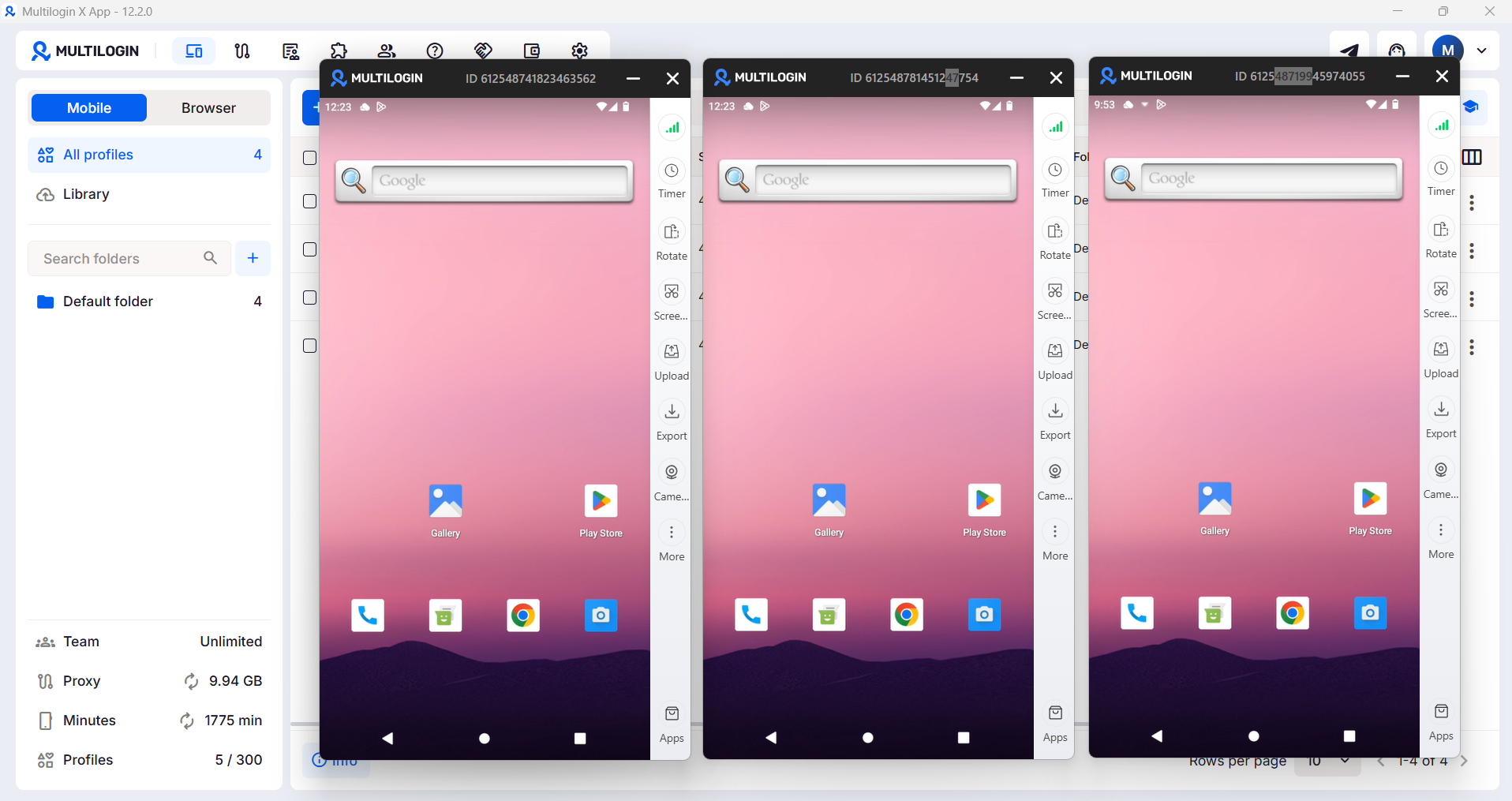
Multilogin Cloud Phones fix this at the device level. Each Cloud Phone is a real physical Android device hosted in a data center — not an emulator. It has its own IMEI, its own Android ID, its own hardware profile, and its own residential IP address. When you run a Snapchat account on Cloud Phone A, Snapchat sees Device A with its unique hardware identity. Cloud Phone B is a completely different device with completely different hardware. There is no shared fingerprint because there genuinely is no shared hardware.
Setup for a second Snapchat account on a Cloud Phone:
- In Multilogin, create a new Cloud Phone profile. Choose a device model (vary models across accounts — Samsung for one, Google Pixel for another, etc.). Select Android 12 or 13. Configure the residential proxy to your target country.
- In the “Extra” section of the Cloud Phone setup, switch the Phone Number setting from “Auto-generated” to “Custom.” Enter a virtual number from SMSPool or another provider. This integrates the number at the device level, not just as a code you paste into a form.
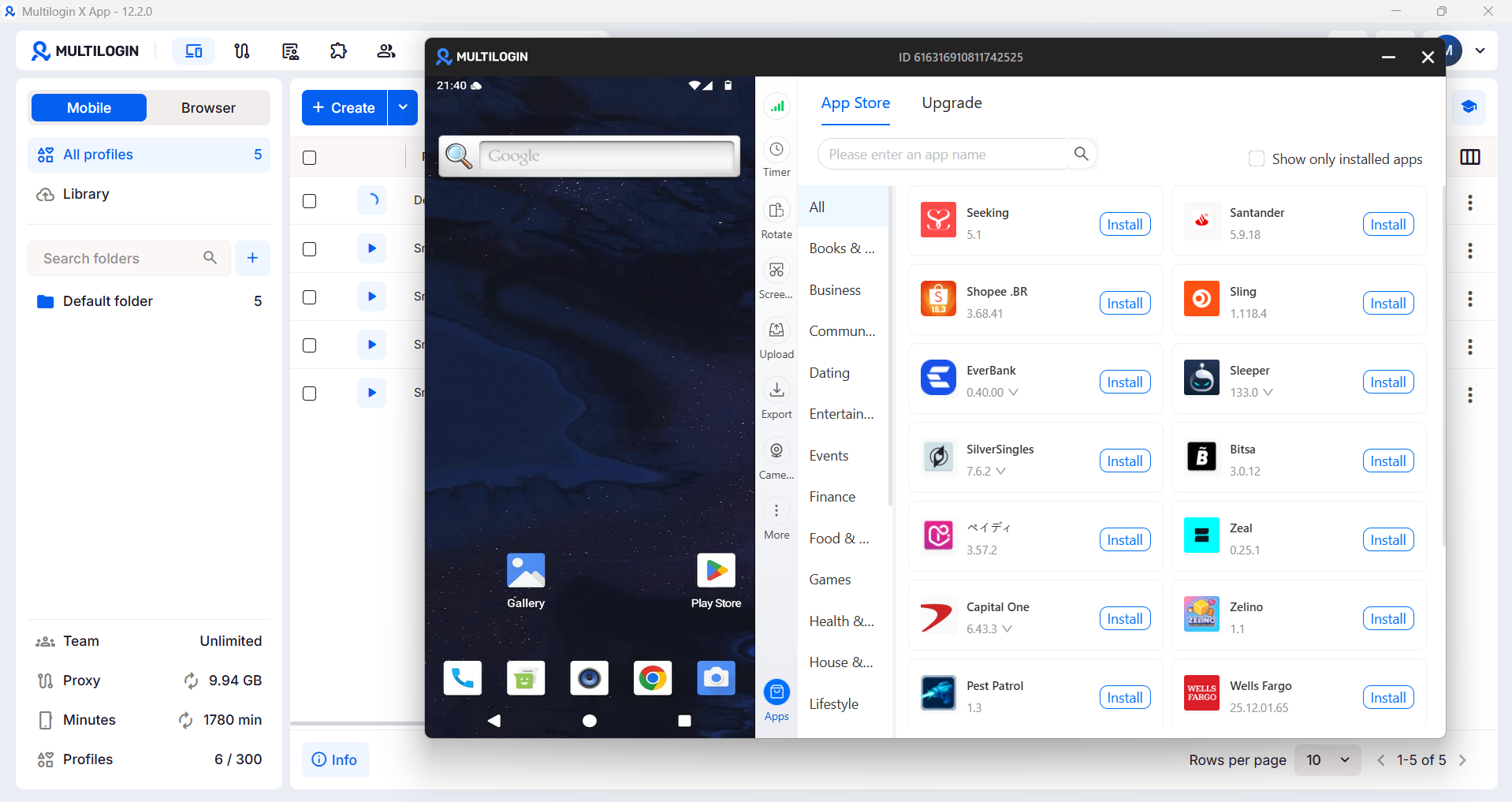
- Launch the Cloud Phone and install Snapchat from the App Marketplace.
- Register a new Snapchat account using the number configured in the device settings. Verification is handled through the virtual number provider.
- Use this Cloud Phone for all activity on this Snapchat account going forward. Never access this account from another device.
For managing multiple Snapchat accounts — for clients, for different brand personas, or for separate content projects — each account gets its own Cloud Phone. See the full setup guide on creating multiple Snapchat accounts.
Can Snapchat Detect Cloud Phones?
Snapchat’s detection systems look for emulators, virtualization artifacts, and device fingerprints associated with previous policy violations. Cloud Phones are genuine physical Android devices — there are no emulation artifacts to detect. The IMEI is from a real manufactured device. The hardware profile matches real consumer hardware from brands like Samsung, Google, and OPPO.
When Snapchat’s app reads the device signals from a Cloud Phone, it sees exactly what it would see on any real phone. Because a Cloud Phone is a real phone.
Managing Multiple Snapchat Accounts Long-Term
A few operational best practices once you have multiple accounts running:
Match your proxy region to your account’s registration location. A Snapchat account registered with a US phone number connecting through a Southeast Asian IP creates a geographic mismatch. Configure each Cloud Phone’s residential proxy to match the account’s registration country.
Keep accounts active at natural intervals. Snapchat accounts that are only opened during registration and then accessed again weeks later for commercial purposes look inactive and suspicious. Brief regular sessions — checking snaps, opening the app, even briefly — maintain the behavioral history of an active account.
Never log one account’s credentials into another account’s Cloud Phone. The isolation only holds if you maintain it consistently. One cross-device login is enough to create a connection Snapchat’s system can detect.
Document your setup. Which Cloud Phone runs which Snapchat account. Which virtual number is linked to each account. Which email. When a team member leaves or something goes wrong, documentation makes recovery manageable.


