How to enable web camera in Multilogin browser profiles
 ~1 minWritten by Yelena V
If a website cannot use your webcam in a Multilogin browser profile, first check that “Media devices” is set to “Real”.
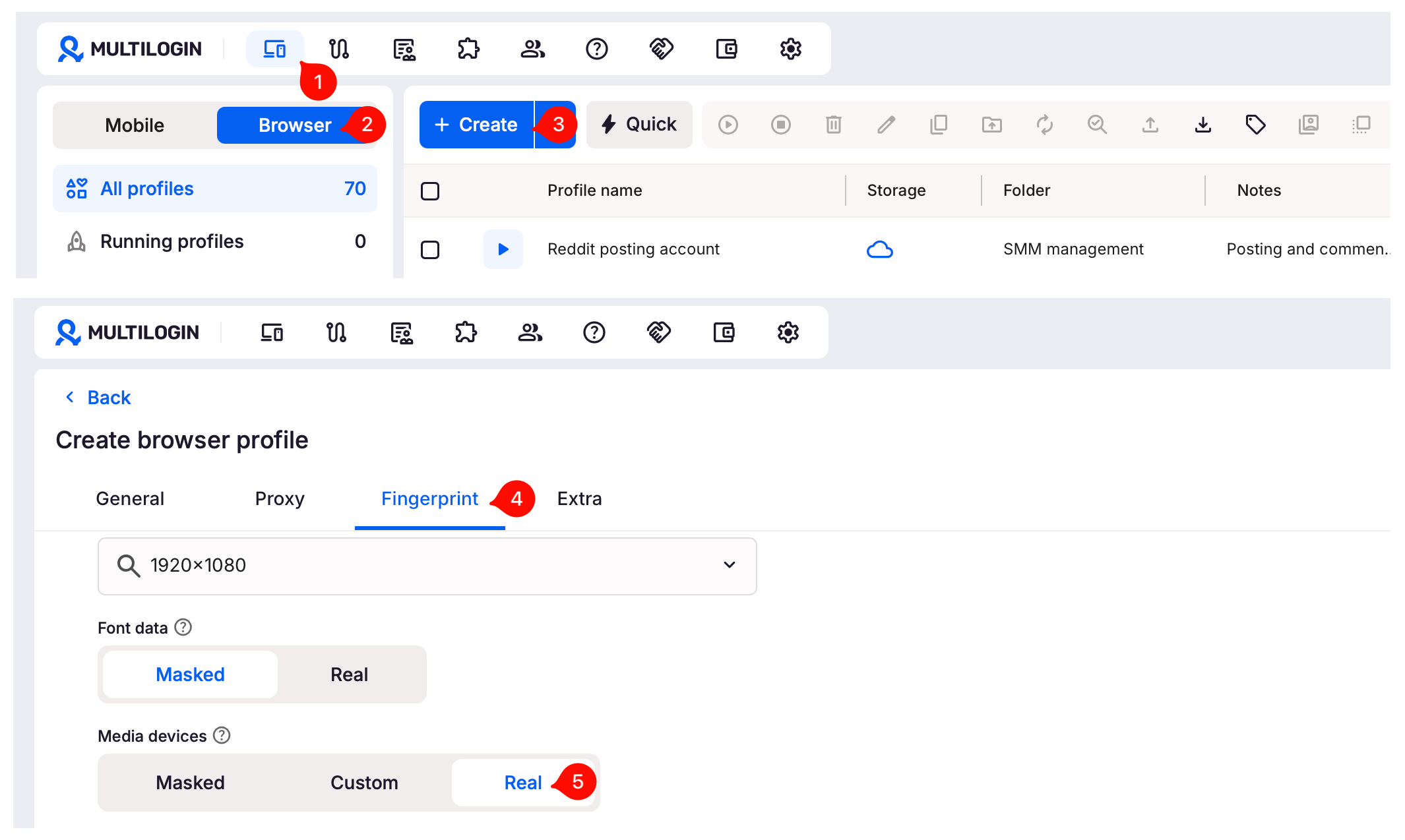
➡️ Stop the browser profile → right-click it → click “Edit” → open “Fingerprint” → “Media devices” → select “Real”.
“Real” lets websites see the cameras and microphones available on the computer running the browser profile. If it is already selected, check the website and operating-system camera permissions next.
Here’s how to fix it:
- Go to the “Profiles” tab in the top menu
- Select “Browser” from the left-side selector
- Create or edit a profile to view its settings
- Open the “Fingerprint” section in your browser profile settings
- Find the “Media devices” parameter and set it to “Real”
That’s it! Now the website will detect your actual webcam, and you’re good to go.