


How to manage columns in Multilogin
 ~2 minWritten by Yelena V
Use “Manage columns” to choose which information appears in your Multilogin profile list and change the order of the columns.
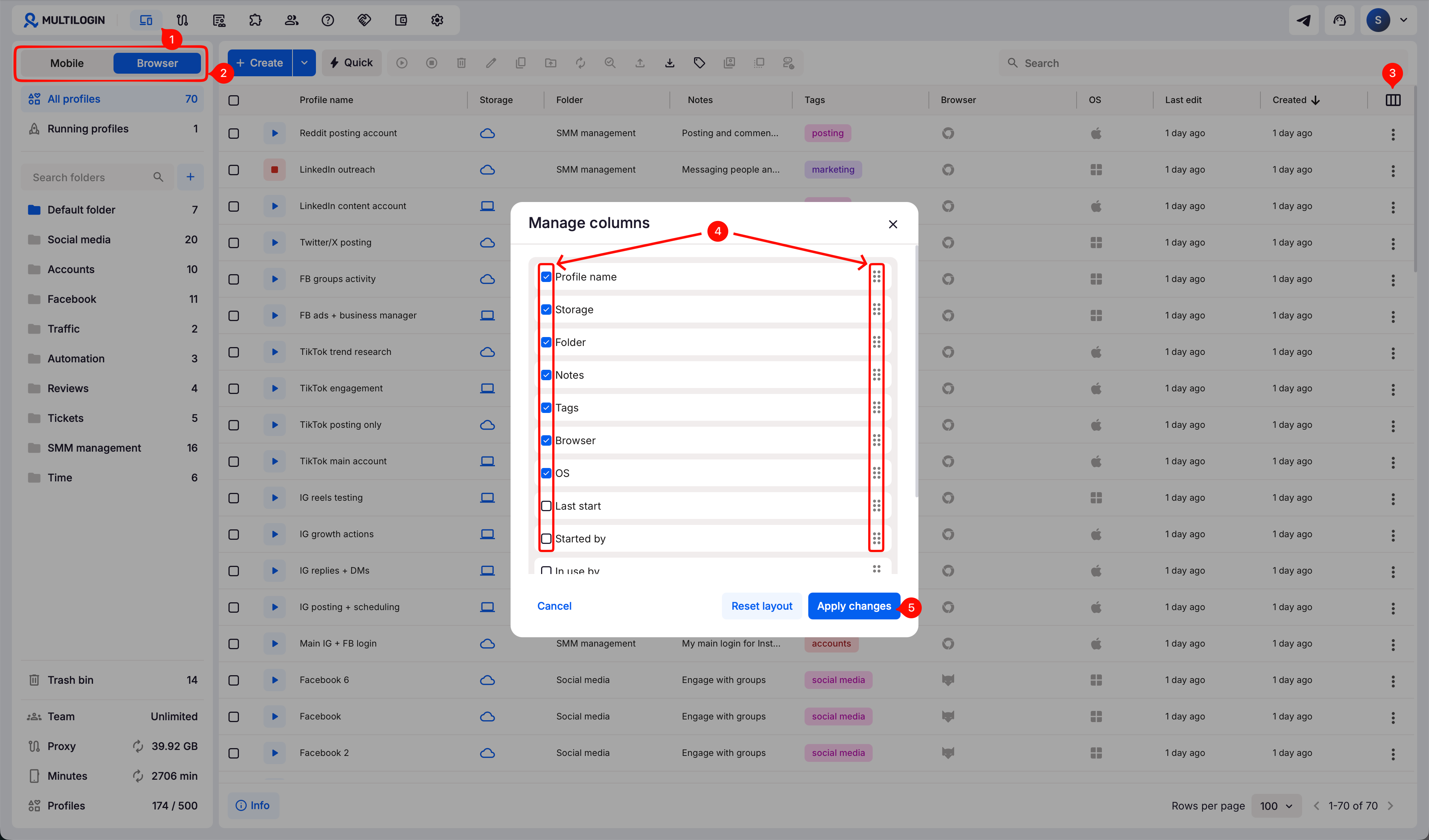
➡️ Go to “Profiles” → choose “Browser” or “Mobile” → click “Manage columns” in the top-right corner → show, hide, or reorder columns → click “Apply changes”.
Your layout stays saved until you change it or use “Reset layout”.
Who can use this feature?
- 👨💻 Account owner and all team members
- 💰 Available on all plans
What column management does
The manage profile columns feature lets you personalize how your profile list looks. You can choose which columns show up and in what order – like rearranging your desktop or favorite app layout.
- See what matters first: put the most important info – like profile name, OS type, or creation date – right where your eyes go first
- Declutter your view: hide columns you don’t need so you can focus on what you actually use
- Work smarter: customize the list for specific tasks, like QA testing, client management, or profile cleanup
How to manage columns
- Go to the “Profiles” tab in the top menu
- Select “Browser” or “Mobile” from the left-side selector
- Click the “Manage columns” icon in the top-right corner
- A column editor will pop up:
- Check/uncheck the boxes to show or hide specific columns
- Drag and drop column names to rearrange their order
- Click “Apply changes”
Column manager also works for proxy templates, profile templates, and extensions. Use the top navigation menu to open each section and customize its columns.
Our tips
Customize your view by adjusting column widths – just drag the edge of any column to resize it so everything fits the way you like.

FAQs
Will this layout save if I close the app?
Yes – your column setup stays the same until you change it.
Can I reset it back to default?
Yes – use the “Reset layout” button to restore the default column setup instantly.


