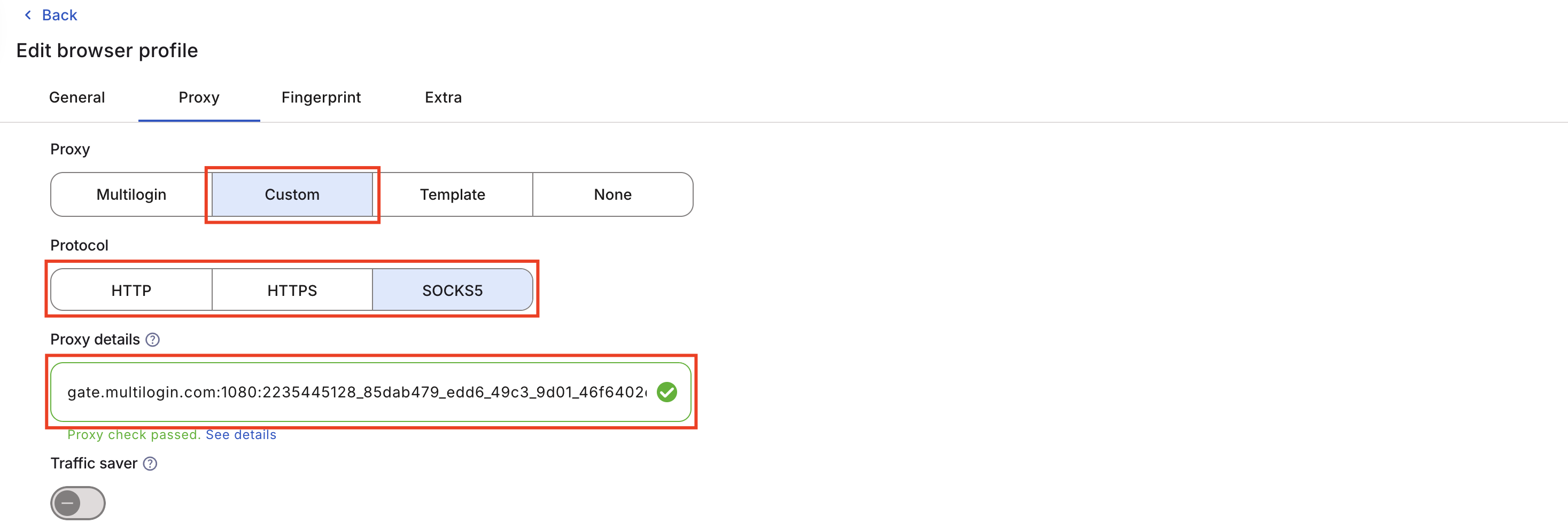
How to fix error “ERR_SOCKS_CONNECTION_FAILED”
 ~2 minWritten by Yelena V
What causes the error
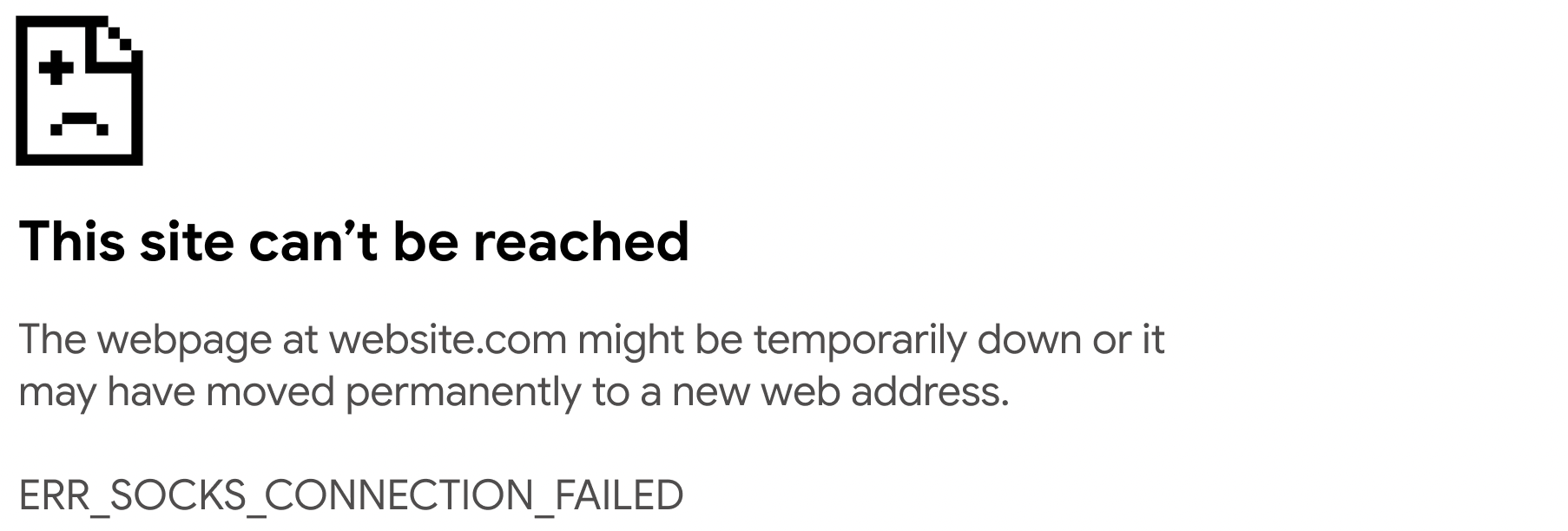
If you’re seeing the “ERR_SOCKS_CONNECTION_FAILED” error, it usually means something’s up with your SOCKS5 proxy. For example, it could be misconfigured or offline.
Don’t stress – there’s a simple fix: switching to HTTP can often solve the problem.
How to fix it
This error may happen both with Multilogin proxy and custom proxies. Just follow the steps below depending on your setup.
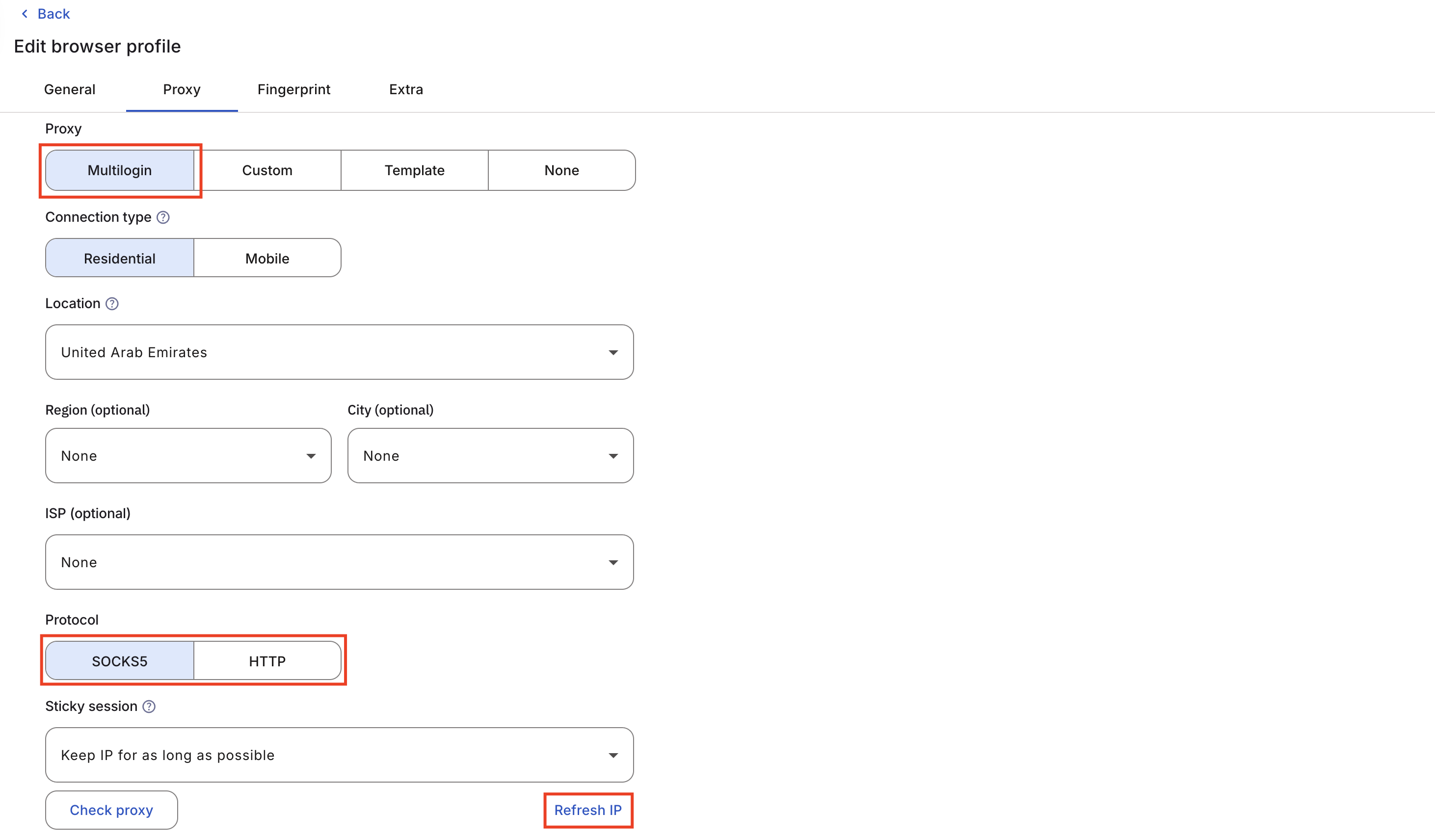
Multilogin proxy
- Stop your profile where you’re seeing the error
- Go to your profile settings and find the “Proxy” section
- Change the “Protocol” to “HTTP”
- Save your changes and start your profile again
Want to stick with SOCKS5? No problem! Just click “Refresh IP” instead.
Custom proxy
- Stop your profile where you’re seeing the error
- Open your profile settings and go to the “Proxy” section
Now, you have three options to troubleshoot:
- Check your proxy details: go to your proxy provider’s dashboard and make sure the proxy details match exactly with what you’ve set in your Multilogin profile
- Switch to HTTP: switch your proxy to HTTP in your provider’s dashboard – keep in mind that this will likely change the port number, so make sure to update that in your Multilogin profile settings
- Test the proxy: to confirm whether the issue is with the proxy or Multilogin, test the proxy connection