


How to use OpenClaw skill for Multilogin
 ~2 minWritten by Yelena V
You can use the official Multilogin OpenClaw skill to control Android cloud phones and browser profiles with AI prompts.
With the Multilogin skill, you can ask your AI assistant to work with Multilogin browser profiles and cloud phones. You do not need to create your own automation scripts.
OpenClaw connects an AI assistant with apps and tools, while the Multilogin skill connects it with Multilogin CLI.
Official OpenClaw skill is available on Clawhub: Multilogin – ClawHub
Before you start
Make sure you have:
- A Multilogin account
- OpenClaw installed on your computer
- Access to a supported AI provider
- Multilogin running and logged in
Install OpenClaw
Install OpenClaw for your operating system using its quick start guide:
- Follow the OpenClaw setup instructions
- Connect a supported AI provider when prompted
- Make sure the setup finishes successfully before installing the Multilogin skill
Install the Multilogin skill
OpenClaw supports different AI providers. Check the provider directory to see the available options:
- After connecting everything, go to Home – Message assistant
- Insert the command from the Multilogin skill on ClawHub to the assistant:

openclaw skills install @multilogincom/multiloginThis installs the official Multilogin skill from ClawHub.
After installation, make sure the Multilogin launcher is running and you are logged in. Then return to OpenClaw and open "Home" → "Message assistant".
Once the skill is connected, you can send supported Multilogin requests in the OpenClaw chat. For example, you can ask it to list your browser profiles or cloud phones.
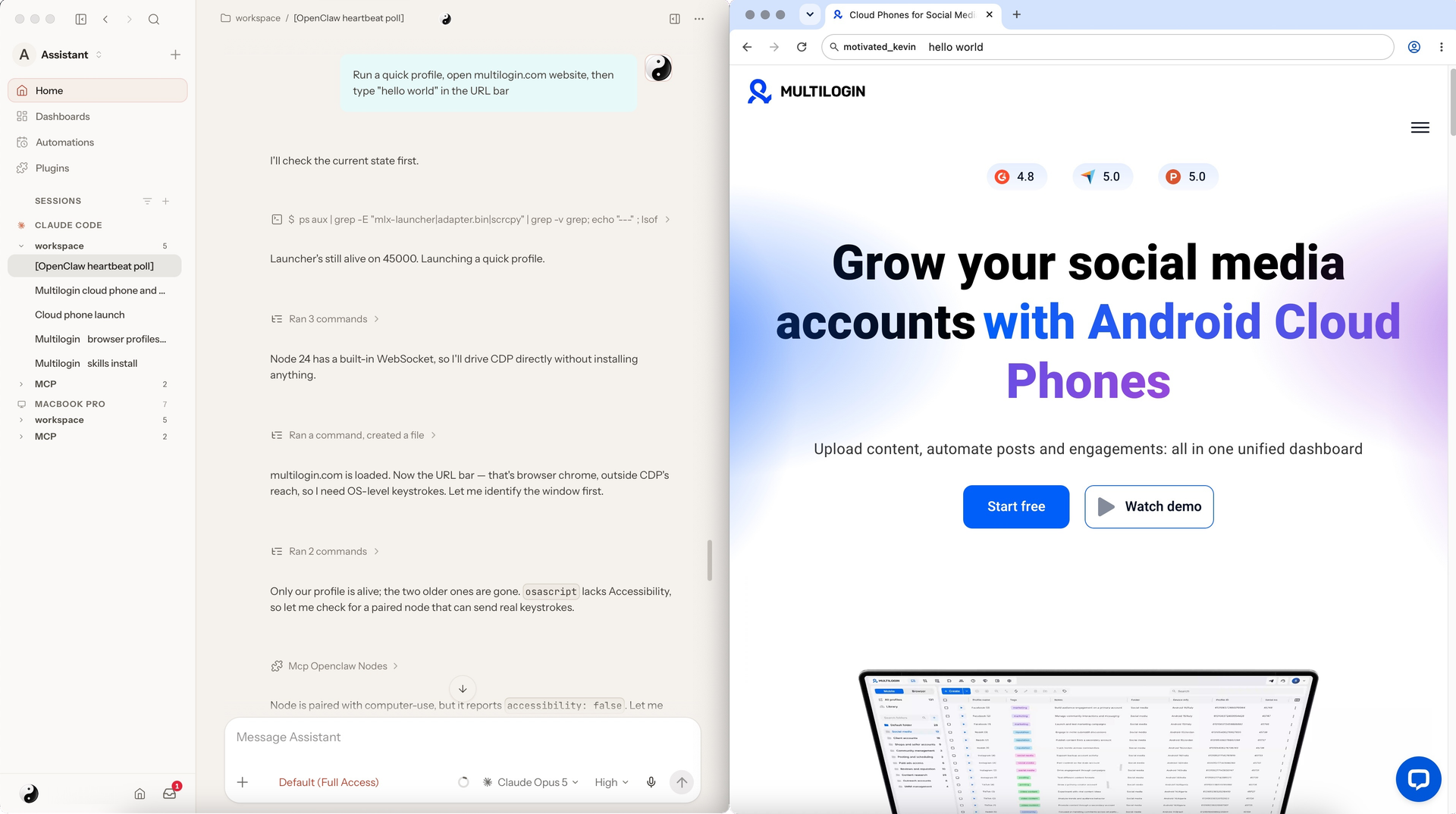
Try your first Multilogin prompt
You can now ask the assistant to perform supported Multilogin actions.
For example, try:
List my Multilogin browser profilesYou can also try prompts such as:
Start my [profile name] browser profileShow my cloud phonesStart my [cloud phone name]OpenClaw will use the Multilogin skill to pass supported actions to the Multilogin CLI.
If it does not work
First, check these basics:
- Multilogin is running
- You are logged in to Multilogin
- Your AI provider is connected to OpenClaw
- The Multilogin skill installed successfully
- Your Multilogin CLI session is authenticated if you are using cloud phones
If OpenClaw itself is not working correctly, you can also check its status from the terminal:
openclaw doctoror:
openclaw gateway status

