How to delete .lock files in Multilogin
 ~2 minWritten by Yelena V
Delete stale .lock files when Multilogin still thinks a profile or app resource is in use after a crash or incorrect shutdown.
➡️ Stop all running profiles → close the Multilogin desktop app or disconnect the agent → open the mlx folder → delete the .lock files → reopen Multilogin and try again. On Windows, the folder is C:\Users\%username%\mlx; on macOS, it is /Users/%username%/mlx.
Use this when a profile is no longer running but still appears locked, or when leftover .lock files are blocking normal startup or recovery.
.lock files are temporary files apps make to show a file or resource is in use. Here's why you can delete them:
-
Fix stuck apps: if an app crashes, leftover
.lockfiles can trick the system into thinking it’s still running - Stop errors: these files might block your app from starting or working properly
-
Clear update problems: if an update or sync gets interrupted,
.lockfiles can block future attempts
Deleting .lock files is like hitting reset – it clears up the mess and lets your app run smoothly again!
Windows
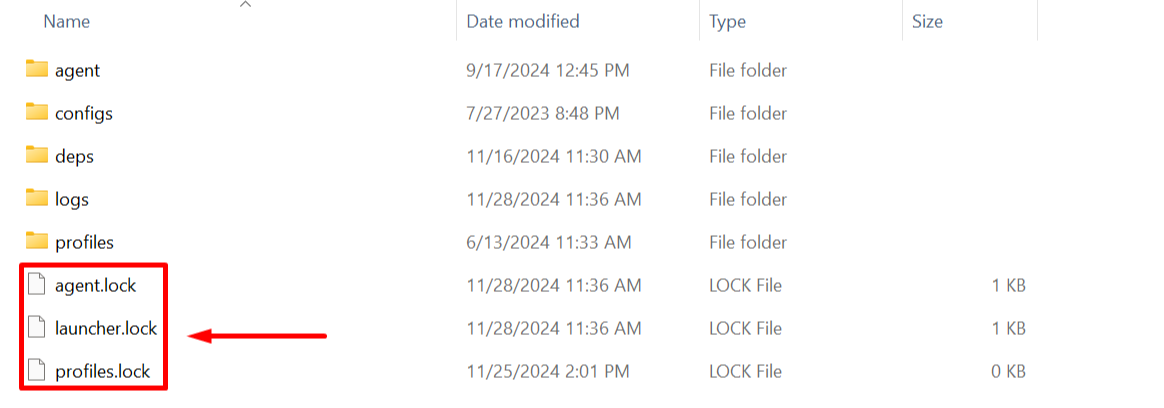
- Stop all running profiles
- Close the desktop app 🖥️ or disconnect the agent if you're using the web interface 🌐
- Go to the mlx folder in your user folder: C:\Users\%username%\mlx
- Delete all the
.lockfiles
macOS
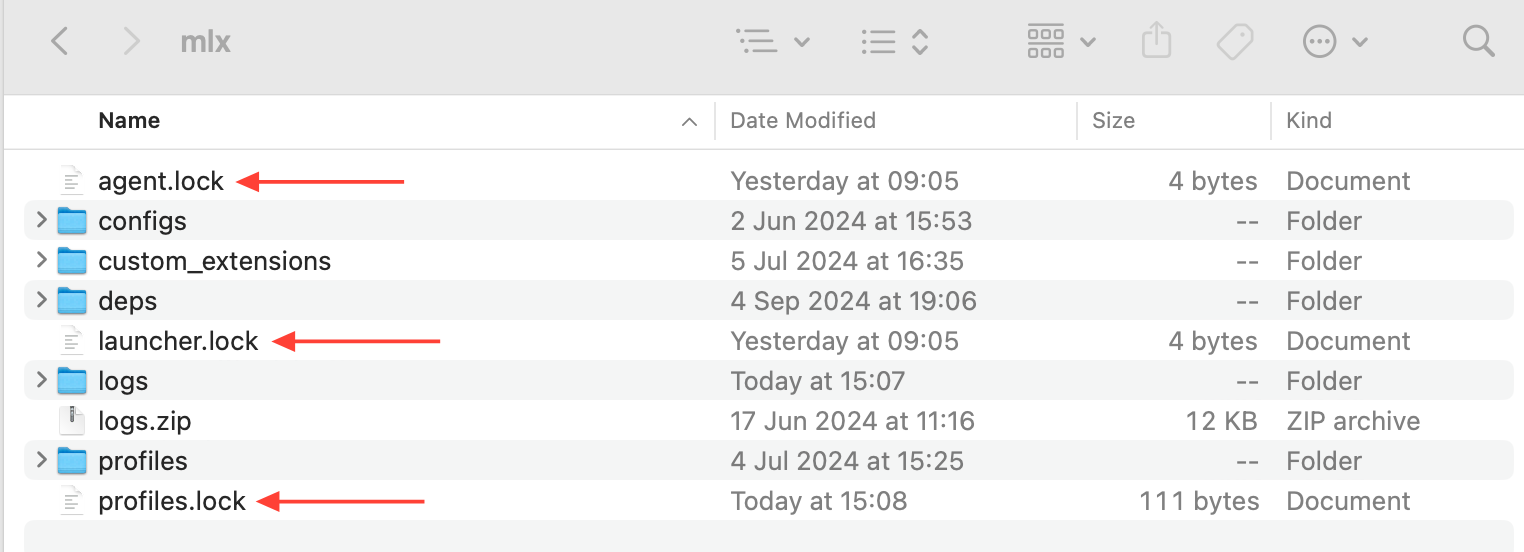
- Stop all running profiles
- Close the desktop app 🖥️ or disconnect the agent if you're using the web interface 🌐
- Go to the mlx folder in your user folder:
/Users/%username%/mlx - Delete all the
.lockfiles