


My app or profile is slow: how to fix performance issues
 ~5 minWritten by Yelena V
First, identify what is slow:
- Multilogin interface: tabs, profile lists, or workspace actions respond slowly
- Browser profile: the profile starts slowly, websites load slowly, or the browser window lags
- Cloud phone: use the dedicated cloud phone troubleshooting guide
For browser profile slowness, check how many profiles and tabs are running, then test the proxy. For interface slowness, check for updates and review your system resources first.
Slow profile speed
If your profile takes more than 20 seconds to start, websites load slowly, or the browser profile feels laggy, don’t stress. These are common issues, and there are simple steps to fix them. Keep reading to learn how to speed things up!
Check the proxy
First, create and launch a new profile without any proxy:
- If it works well, keep reading
- If it runs slowly, skip to the section “Slow interface speed”
If your browser profile slows down after adding a proxy, the proxy might be the problem. Here’s what you can do to fix it:
- Try a different proxy: Pick a proxy from another provider or switch up the location or protocol type. Proxies can slow down for reasons like distance from websites or too much traffic on the server. Testing a new one could solve it.
- Test your proxy in another browser: If the connection is slow in another browser with your proxy, the issue is with the proxy, not Multilogin. Follow our detailed guide on testing it. If the connection remains slow, contact your proxy provider for further assistance.
If this step doesn't help, have a look at the solutions below.
Slow interface speed
Experiencing delays in the app, such as slow tab switching or longer times when organizing profiles into groups? These performance hiccups can be resolved with a few simple steps. Let’s look at how to tackle this issue.
Check the system
Multilogin doesn’t support older operating systems like:
- macOS versions before Sonoma 14
- Windows versions before 10
- Linux versions before Ubuntu 22
What to do:
Make sure your system meets the minimum requirements. You can quickly check the hardware and software specs in the article Will Multilogin X work on your device? Stay updated to avoid compatibility issues!
If your setup meets the requirements, move on to the next step ⬇️
Check the ISP
Sometimes, internet service providers (ISPs) block proxy providers or even Multilogin itself. Here’s how to test and work around it:
- Try connecting through a VPN: this can bypass ISP restrictions
- Switch networks: use a different Wi-Fi, or turn your phone into a hotspot with mobile data
- Check your speed: if your current ISP is slow, changing networks might also improve performance.
If the issue resolves with these steps, it’s likely your ISP causing the trouble.
Everything looks good here? Time to check the next possible cause.
Check third-party apps
Some apps on your computer, like antivirus programs, firewalls, VPNs, and proxy tools, can mess with Multilogin. These apps might stop Multilogin from working right or make things run slower.
Here are some quick fixes:
- Uninstall these apps
- If you do need them, disable the apps temporarily or add Multilogin to their whitelist in the settings
This should help resolve the issue and keep everything running smoothly!
How to resolve conflicts with 3rd-party apps on Windows:
Antivirus apps
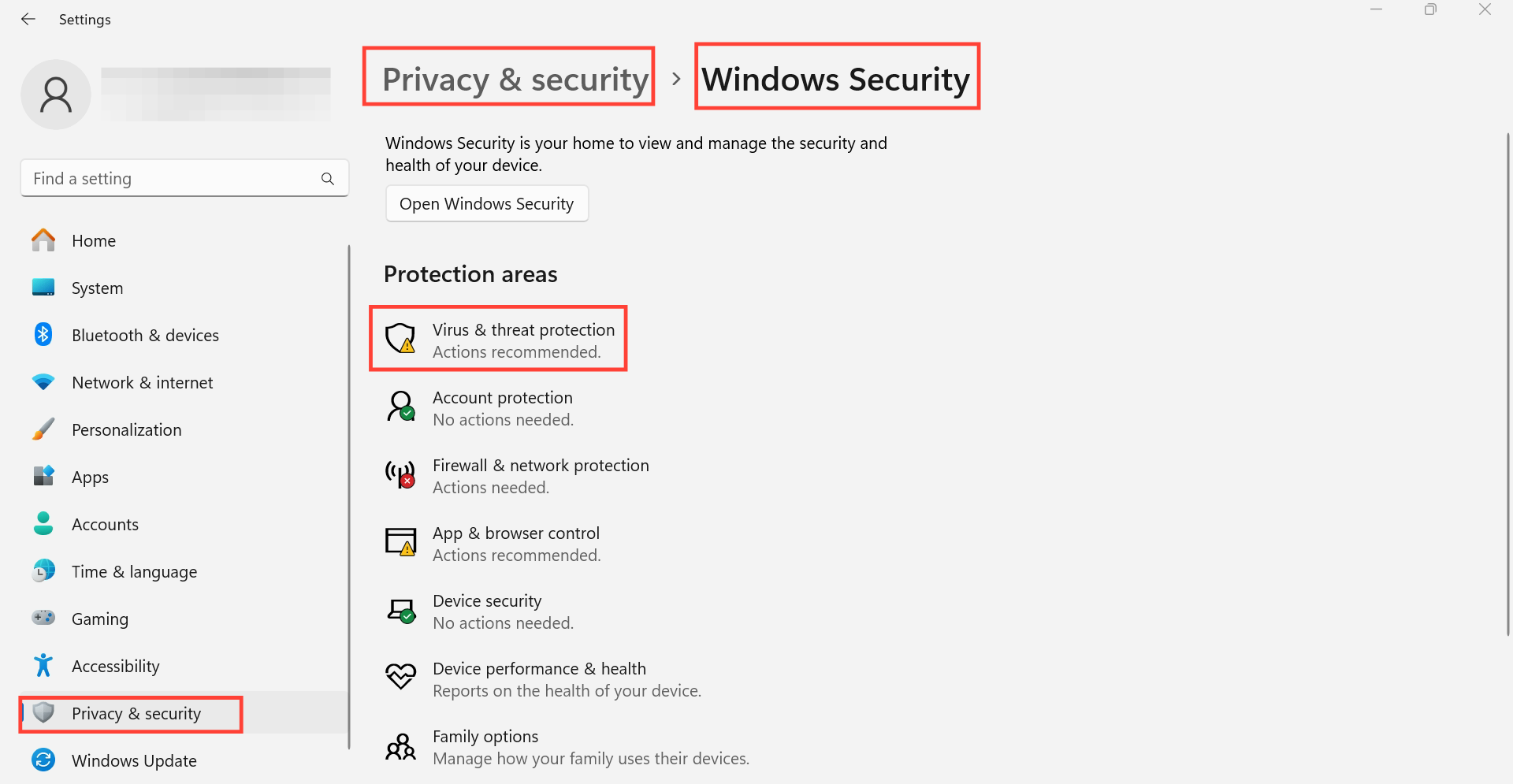
- Go to “Settings” → “Privacy & security” → “Windows Security” → “Virus & threat protection”
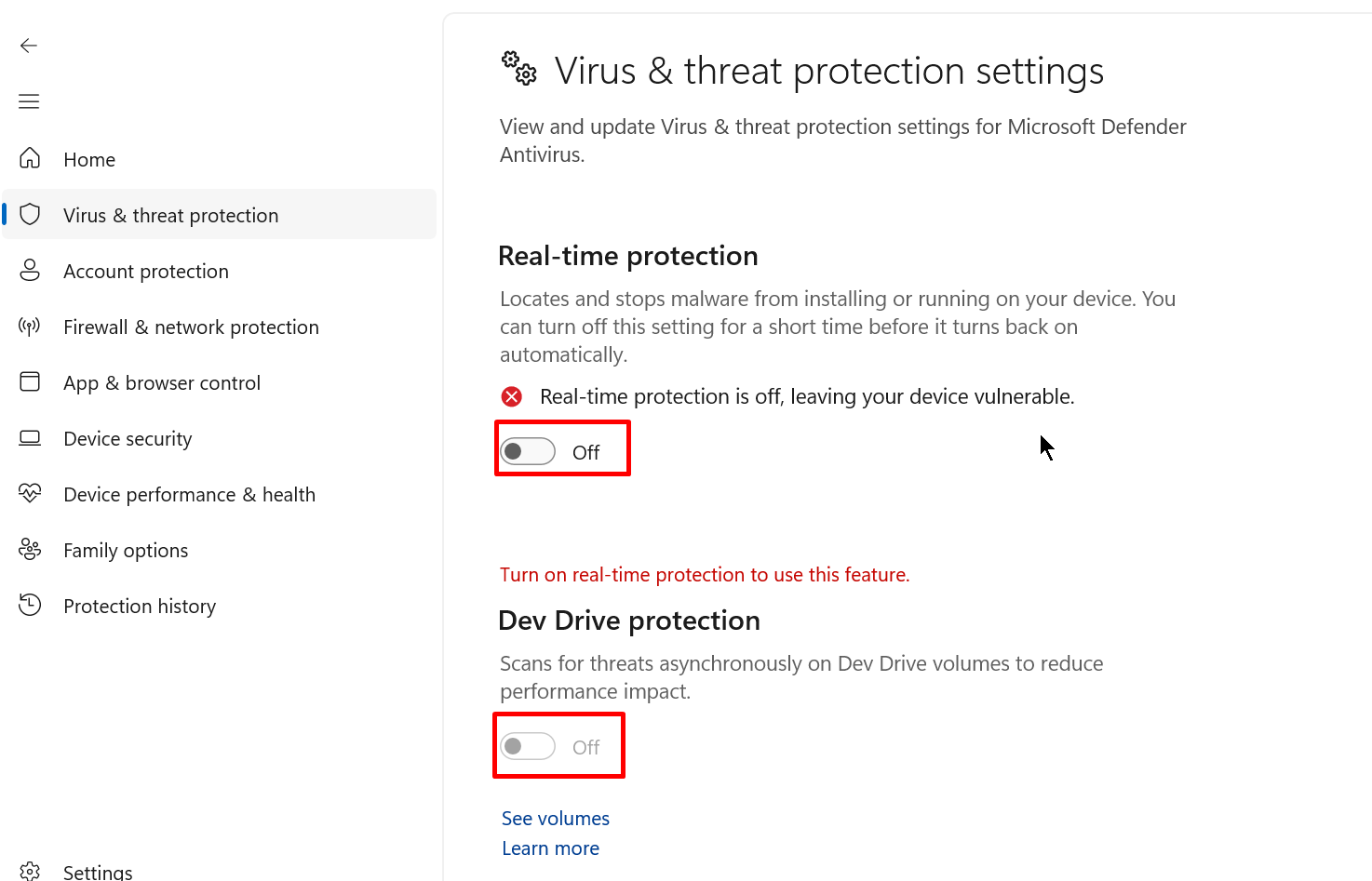
- Choose “Manage settings” and then turn off all the parameters in the displayed window
Firewalls
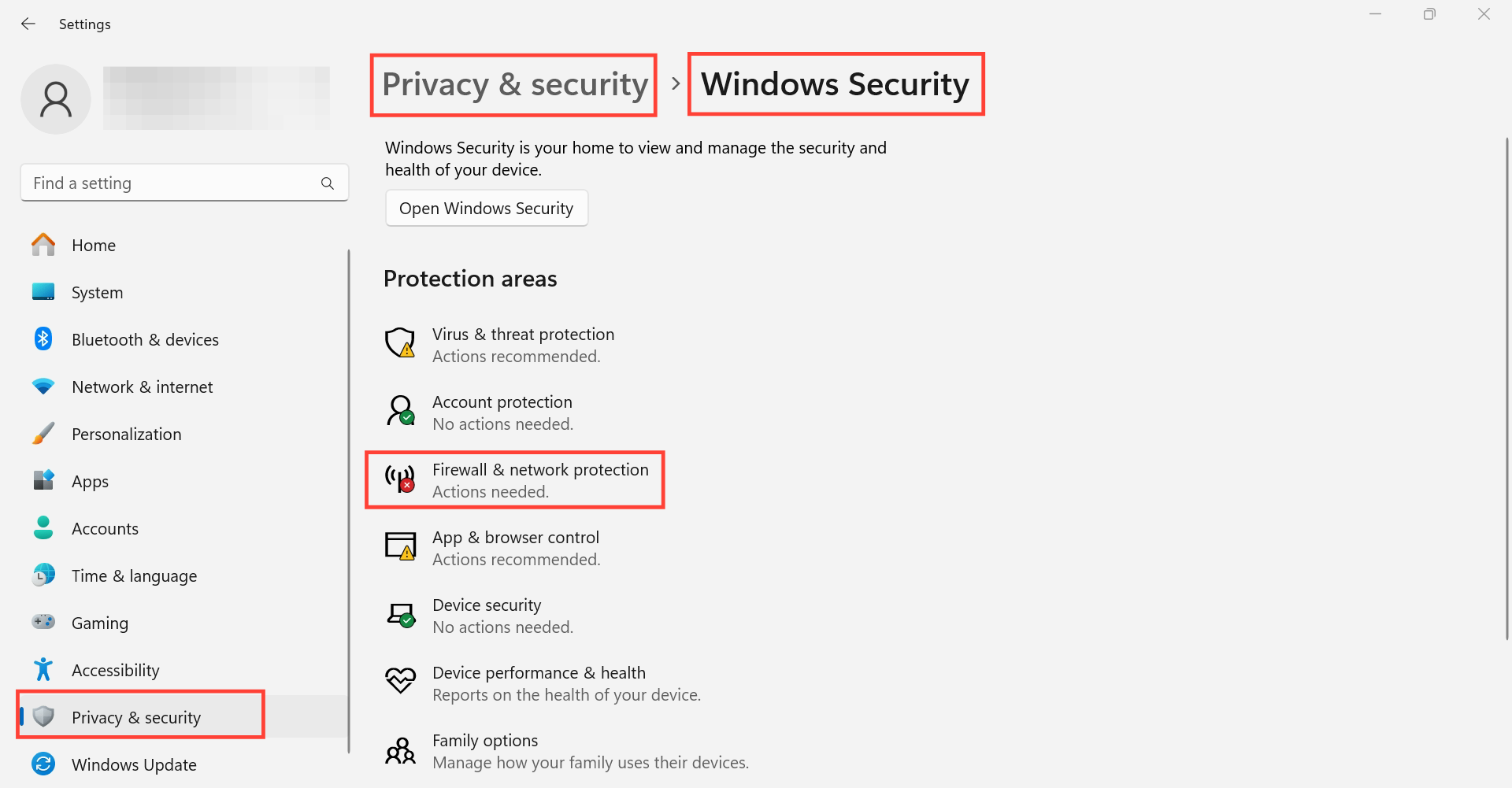
- Go to “Settings” → “Privacy & security” → “Windows Security” → “Firewall & network protection”
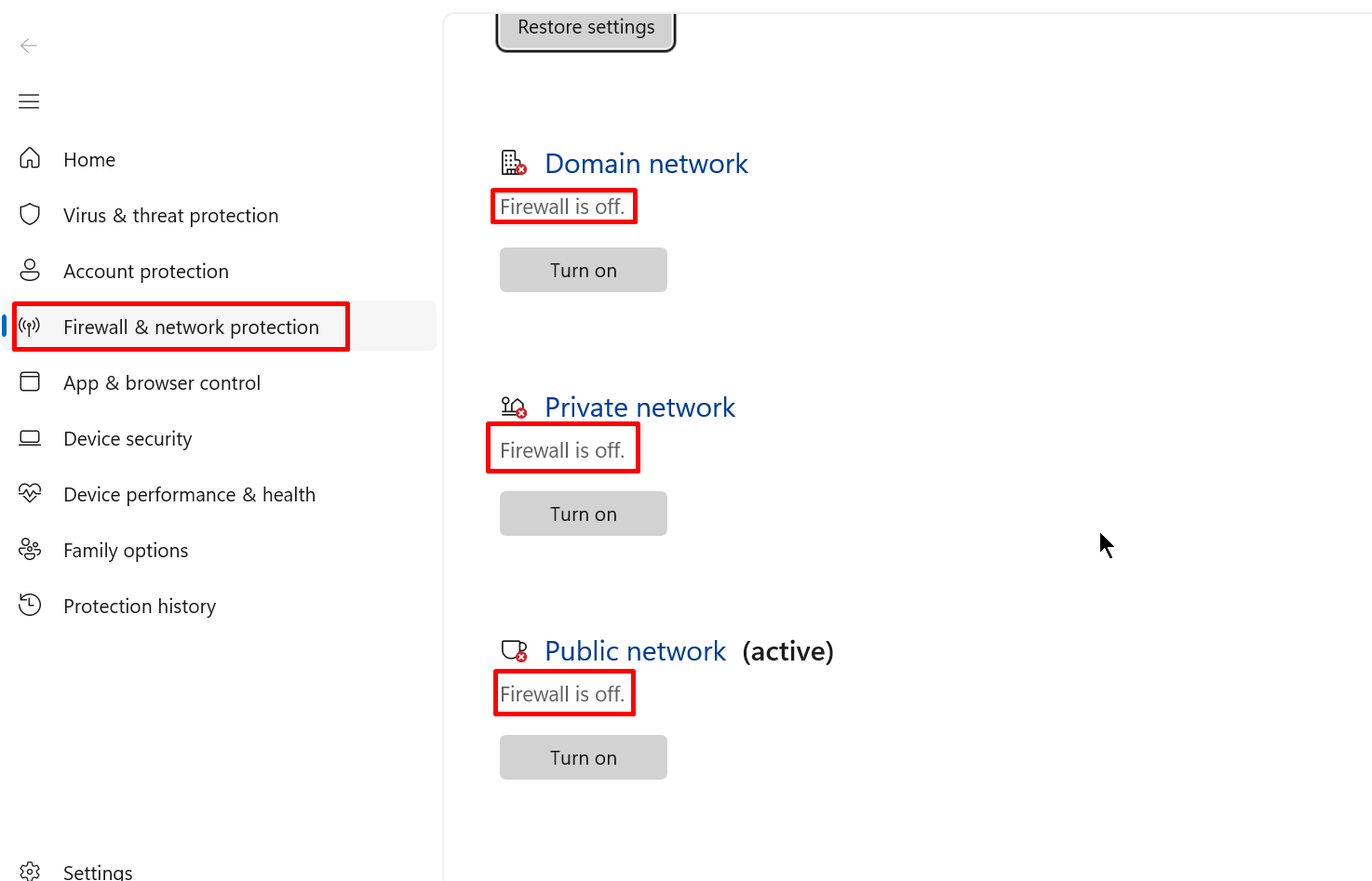
- Turn off all the parameters in the displayed window
VPNs
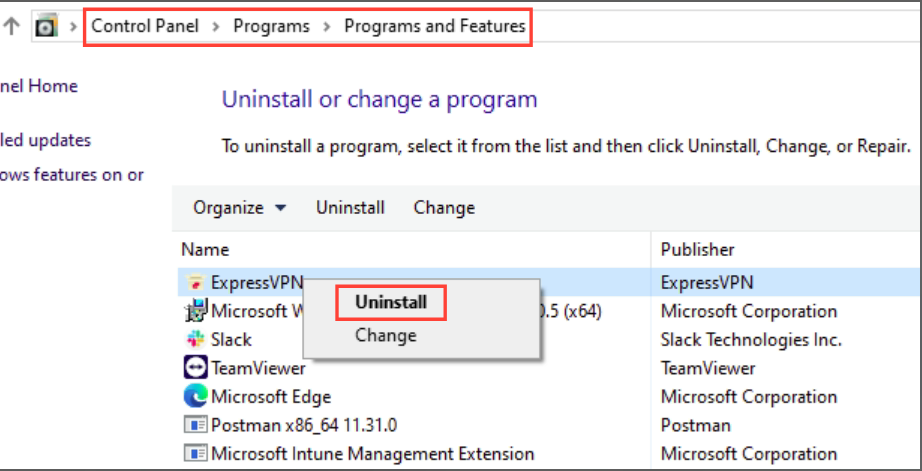
Uninstall VPN applications:
- Open “Control Panel” →” Programs” → “Programs and Features”
- Right-click the VPN applications → “Uninstall”
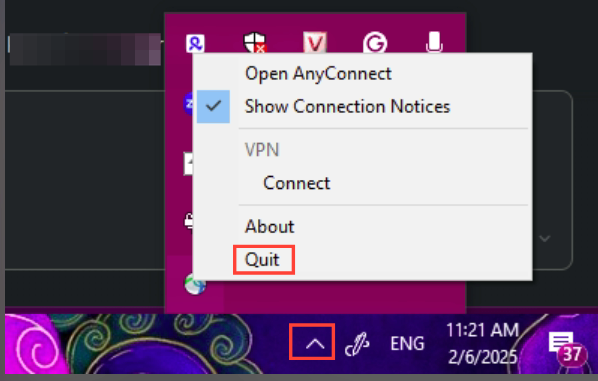
Disable VPN applications: open the menu in the task bar → right-click the VPN apps → click “Quit”
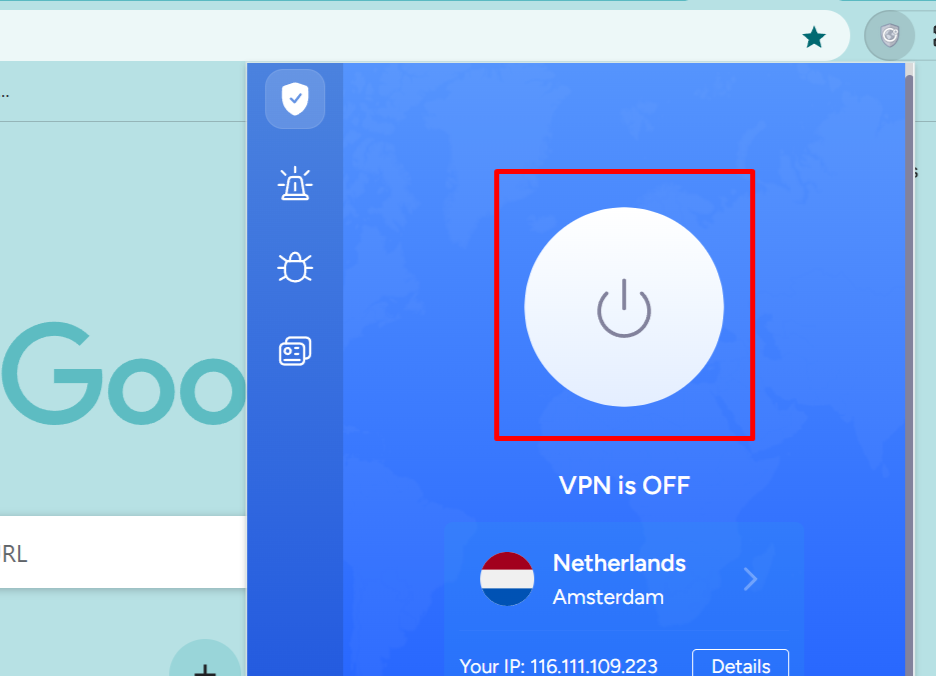
Turn off VPN extensions in browser: don't forget to check and turn off VPN extensions that you installed in your browser, for example, Chrome:
How to resolve conflicts with 3rd-party apps on macOS:
macOS security system
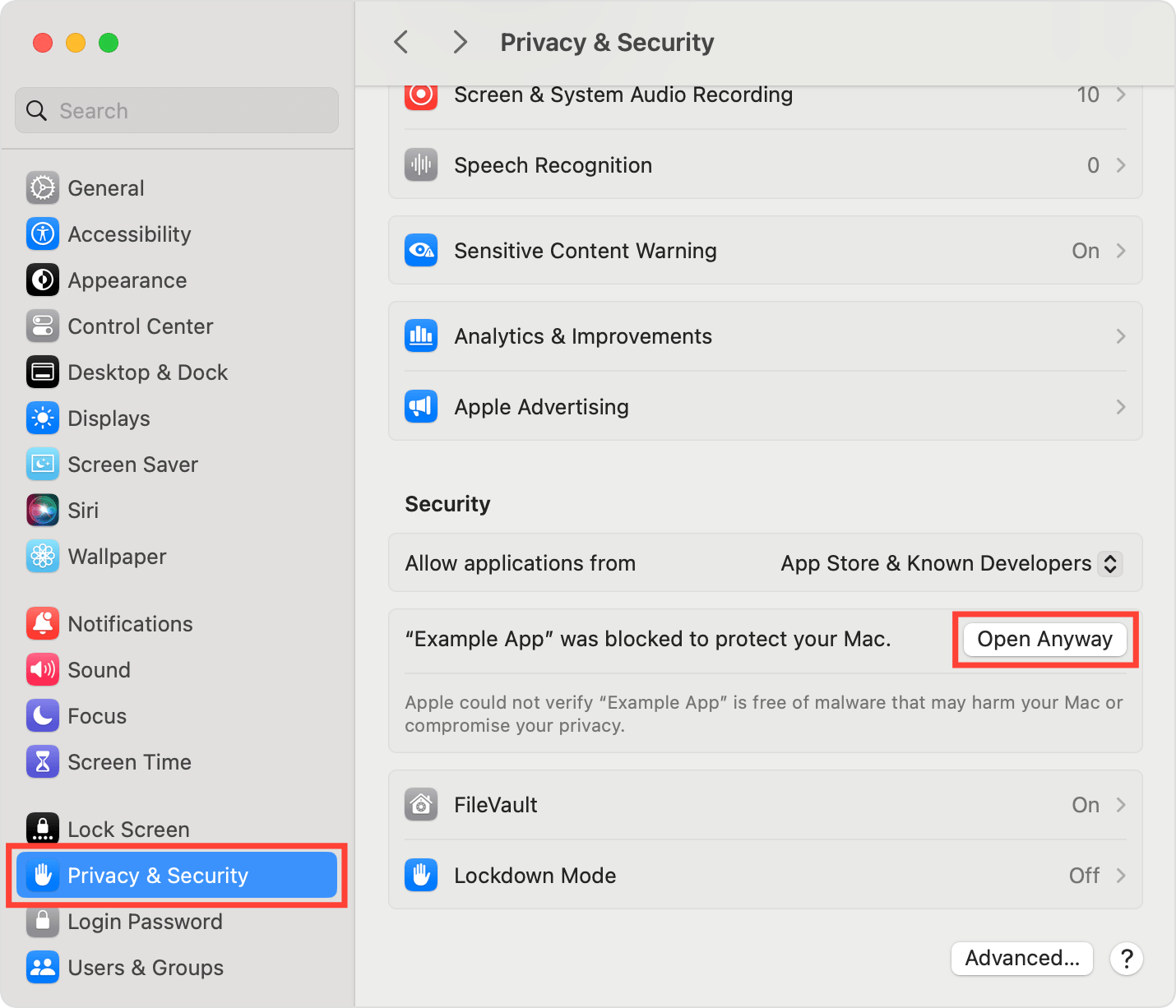
If the application got restricted from the macOS security system, you can access it by the following way:
- Open “System Settings” → “Privacy & Security” → “Security”
- Click “Open anyway” for the apps
We recommend to change “Allow applications from” value to “App Store & Known Developers”.
Antivirus apps
Firewalls
- Open “Apple menu” → “System Preferences” → “Network”
- Go to the “Firewall” tab and turn it off
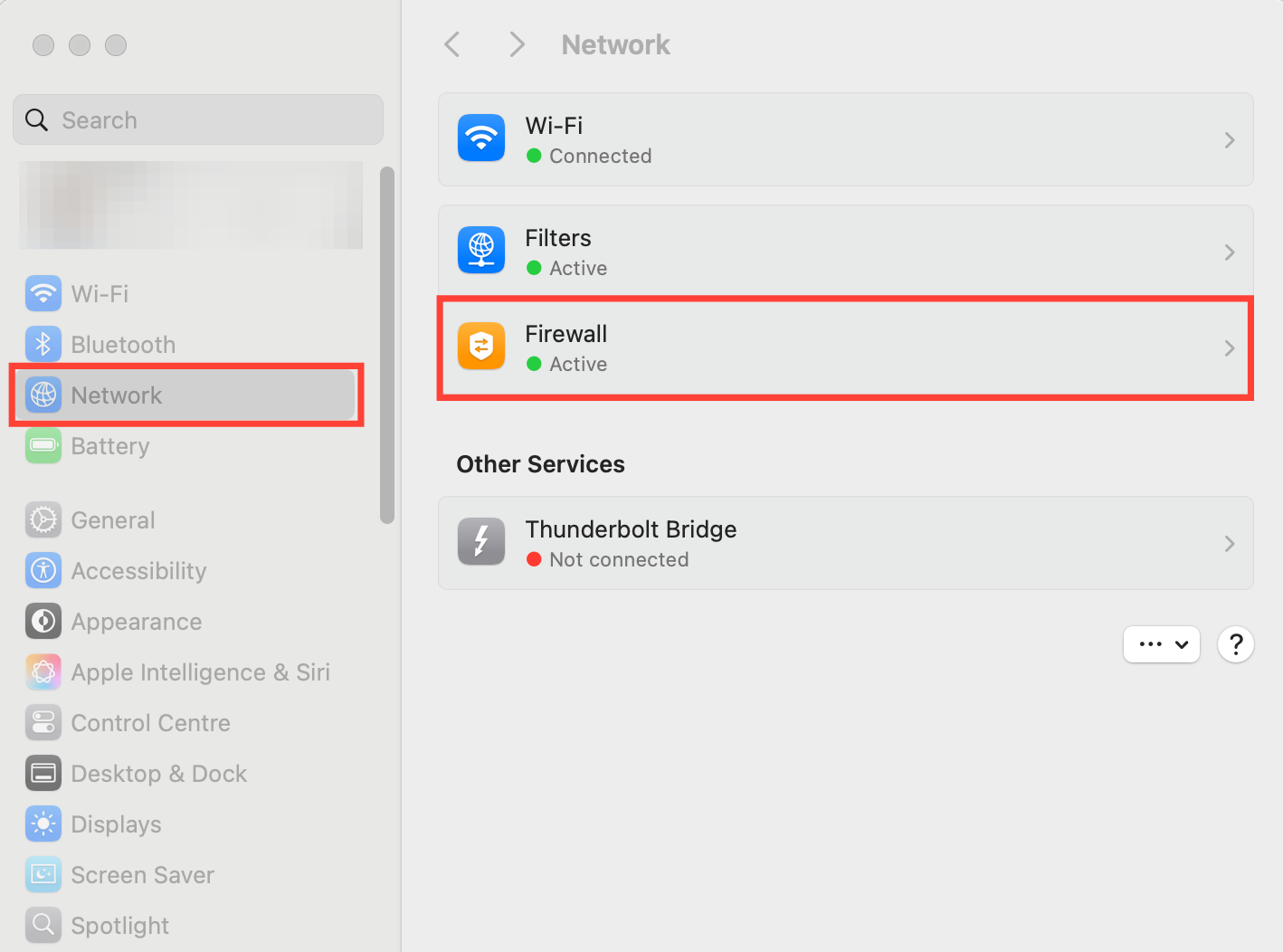
VPNs
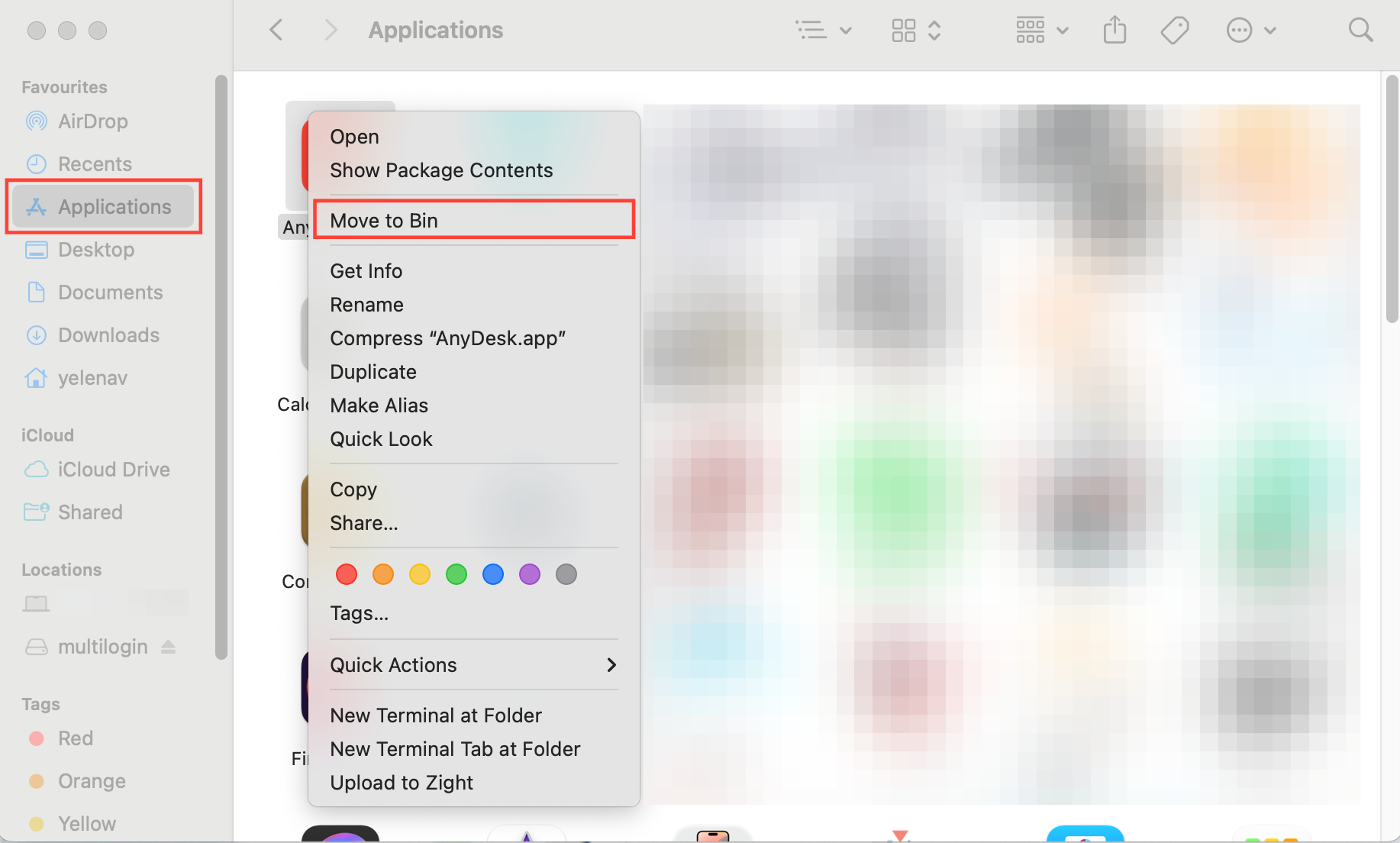
Uninstall VPN applications:
- Go to “Finder” → “Go” → “Application”
- Right-click the VPN apps → “Move to Bin”
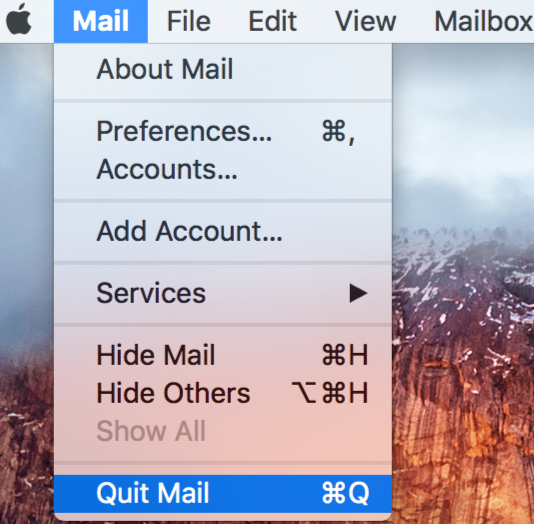
Disable VPN applications: right-click the VPN apps on the menu bar → choose “Quit <name of app>”.
Turn off VPN extensions in browser: don't forget to check and turn off VPN extensions that you installed in your browser. This is an example for Safari browser:
- Choose “Safari” → “Settings” (or “Preferences”) → click “Extensions”
- To turn off an extension, deselect its checkbox
Nothing's blocking the connection? There's one more thing you can check!
Refresh components
- Close the desktop app 🖥️ or disconnect the agent if you're using the web interface 🌐
- Go to the
mlxfolder:-
Windows:
C:\Users\%username%\mlx -
macOS:
/Users/%username%/mlx -
Linux:
/home/%username%/mlx
-
Windows:
- Delete the
depsfolder - Reopen the desktop app 🖥️ or reconnect the agent for the web interface 🌐
- Start any profile – this will automatically kick off the components download process
Nothing helps?
Still dealing with slowness? No problem! Just send us your proxy details (IP or hostname, port, login, and password) along with your logs. This will help us figure out what’s going on and get things fixed for you ASAP!
- Recreate the issue or wait until the error message appears
- Archive the logs folder found in these locations:
-
Windows:
C:\Users\%username%\mlx -
macOS:
/Users/%username%/mlx -
Linux:
/home/%username%/mlx
-
Windows:
- Email support at [email protected] with:
- A clear description of the issue
- The archived logs folder attached


