





Bluesky doesn’t have a native download button for videos. If you’ve found a clip you want to save, whether for reference, archiving, or reposting with credit, you need an external tool or workaround to do it.
The good news is that Bluesky’s open AT Protocol architecture makes this more straightforward than platforms like Instagram, which actively work to prevent third-party downloads. There are several reliable methods that work in 2026, across desktop and mobile.
Why there’s no built-in download button
Bluesky is built on the AT Protocol, an open decentralized framework designed for content portability. The irony is that despite the platform being more technically open than most, a dedicated video download feature hasn’t been added to the native app yet.
This is common with growing platforms. Twitter/X didn’t have one either for years. The gap gets filled by third-party tools until the platform adds native functionality.
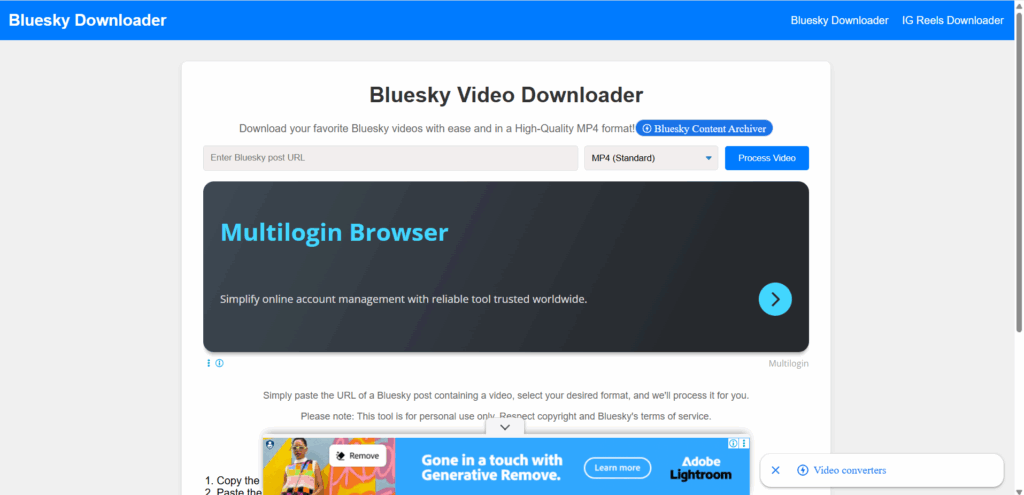
Method 1: Web-based video downloaders
The simplest option and the one that requires nothing to install. Web-based downloaders let you paste a Bluesky post URL and download the video directly to your device.
How to do it:
First, get the post URL. On desktop, it’s in your browser address bar when you open the specific post. On mobile, tap the three-dot menu on the post and select Share or Copy link.
Then go to a web-based Bluesky video downloader. Search “Bluesky video downloader” in your browser for current options. Tools in this space update frequently, so checking recent availability is better than relying on a static list.
Paste the URL, select video quality if the option appears, and download.
What to watch out for: Stick to tools that don’t ask for your Bluesky login credentials. A legitimate video downloader works from the public post URL alone. Any tool asking you to log in to Bluesky through their interface is a red flag and should be avoided.
Method 2: Browser extensions
Browser extensions add a download button or right-click option directly to Bluesky while you’re browsing, which is more convenient if you regularly want to save videos.
Search your browser’s extension store for “Bluesky video downloader” or “Bluesky downloader” to find currently maintained options. Extensions that work today may stop working as Bluesky updates its interface, so checking the last updated date and recent reviews before installing is worth doing.
What to look for before installing:
Check the permissions. A video downloader extension needs access to the current tab to work. It doesn’t need access to your passwords, your full browsing history, or data from all websites. If an extension requests those permissions, don’t install it.
Look for an extension that’s been updated recently (within the last few months) and has specific, detailed reviews rather than generic praise. Extensions that haven’t been maintained tend to break on platform updates.
Method 3: Browser developer tools (the reliable fallback)
This method works regardless of what third-party tools are currently available. It extracts the video file directly from the page source without relying on any external service.
Steps on desktop:
- Open the Bluesky post containing the video in a browser
- Press F12 to open developer tools (or right-click anywhere on the page and select Inspect)
- Click the Network tab in developer tools
- Play the video on the page
- In the Network tab, filter by “media” or search for “mp4” or “m3u8”
- Find the video file request that appears when the video loads
- Right-click the request URL and open it in a new tab
- Right-click the video in the new tab and save the file
This method consistently gets you the original file at full quality. It takes a few more steps than a dedicated downloader, but it works reliably and doesn’t depend on any third-party service being maintained.
Method 4: Screen recording (universal backup)
If nothing else is working, screen recording captures whatever is playing on your screen. Every major device has a built-in option.
On iPhone or iPad: swipe down from the top right corner to open Control Center and tap the screen record button (the circle icon). Start the video on Bluesky, then stop recording when it ends. The recording saves to your Photos app automatically.
On Android: swipe down twice from the top of your screen to access quick settings. Look for a Screen Record tile. If it’s not there, you may need to add it through the tile editing option. Once recording, play the video and stop when done.
On Mac: press Command + Shift + 5 to open the screenshot toolbar and choose the screen recording option.
On Windows: press Win + G to open Xbox Game Bar, which has a built-in screen recorder.
The trade-off with screen recording is quality. You’re capturing what’s displayed on screen rather than the original video file, so the result may show some compression. For archiving or reference purposes, it’s usually fine.
Downloading on mobile: what works
Mobile has more limitations than desktop because mobile browsers have restricted extension support and developer tools aren’t available.
Your best mobile options are: use a web-based downloader in your mobile browser (same process as desktop), use iOS Shortcuts if you’re on iPhone (there are community-built Shortcuts specifically for Bluesky video downloading, shared in the iOS Shortcuts gallery and on Reddit), or use screen recording as a fallback.
On Android, some third-party download manager apps work for extracting video from URLs. Search for current options in the Play Store, as availability changes.
A note on reposting and copyright
Downloading a video doesn’t mean you’re free to repost it or use it commercially. The creator of the content retains copyright regardless of how open the platform’s infrastructure is.
Saving a video for personal viewing, reference, or archiving is generally reasonable. Reposting it without credit or permission, using it in commercial projects, or redistributing it in ways the creator wouldn’t want is a separate matter.
If you want to share content you found on Bluesky, quoting the post or linking to the original is almost always the better choice. It credits the creator and directs attention where it belongs.
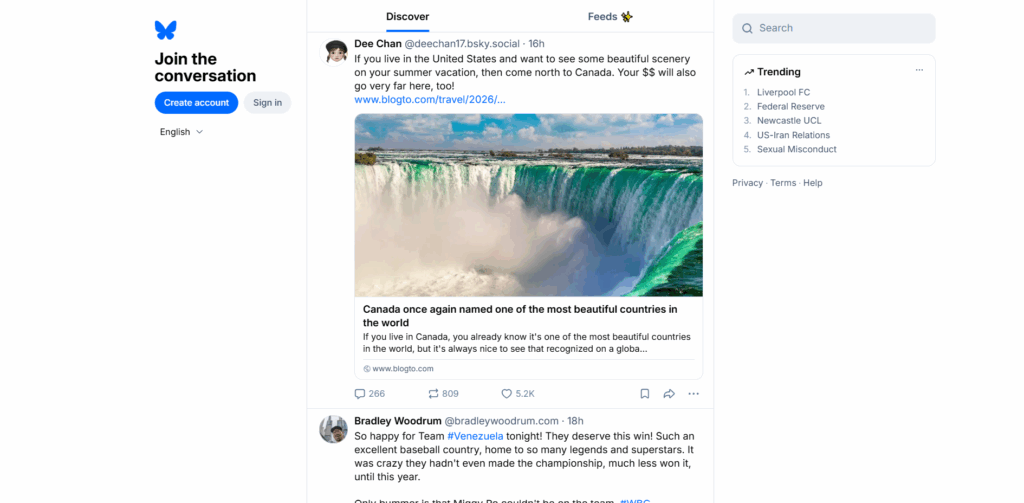
How Bluesky handles video differently from other platforms
Bluesky’s AT Protocol architecture is publicly documented and designed around open access. Video files are stored in a content-addressable format linked to post records, which means the underlying file is technically accessible in ways that Instagram or TikTok’s closed infrastructure actively prevents.
This is why Bluesky video downloading is more consistently achievable than on other platforms. Instagram regularly changes its video delivery methods specifically to break third-party download tools. TikTok adds authentication layers to video streams. Bluesky’s open design means these barriers are much lower, which is why the developer tools method works so reliably when dedicated tools break.
The trade-off for this openness: if you post publicly on Bluesky, the content is technically accessible in ways it wouldn’t be on a closed platform. Worth knowing as a creator. Worth respecting as a downloader.
Downloading for specific use cases
- Archiving and research: Journalists, researchers, and community archivists regularly save social media content for documentation purposes. The developer tools method is the most reliable for this use case because it doesn’t depend on any external service staying online.
- Reposting with credit: If you want to share a video you found on Bluesky to another platform (your own Instagram, YouTube Shorts, etc.), downloading and reposting with clear credit and a link back to the original is generally accepted in creator communities. The key is attribution. Download without attribution and share as if it’s your own content, and you’re in different territory legally and ethically.
- Personal offline viewing: Saving a video to watch without an internet connection, or to keep a local copy of content you want to reference later, is the most straightforward use case. No controversy here.
- Business social media management: Content managers who monitor Bluesky for brand mentions, competitor activity, or industry news sometimes need to save video clips as evidence or reference material. Tools that work reliably for this purpose are the web-based downloaders and developer tools, since they’re not dependent on extension store availability.
What to do when no tool is working
Platform updates occasionally break all the commonly available downloaders simultaneously. If you’re hitting a wall, try these in order:
Start with the developer tools method. It’s the most reliable because it works from first principles rather than depending on any tool’s implementation. If you can see the video playing in your browser, the Network tab will show you where it’s coming from.
Try a different browser. Sometimes a video download tool works in Firefox but not Chrome, or vice versa, due to how each browser handles network requests in developer tools.
If the video is truly inaccessible through all standard methods (rare, but possible with certain streaming formats), screen recording is the universal fallback. Quality will be slightly lower but the content is preserved.
Check Reddit and relevant tech forums for current working tools. Communities around Bluesky development and social media tools tend to update quickly when existing methods break and new ones are found.
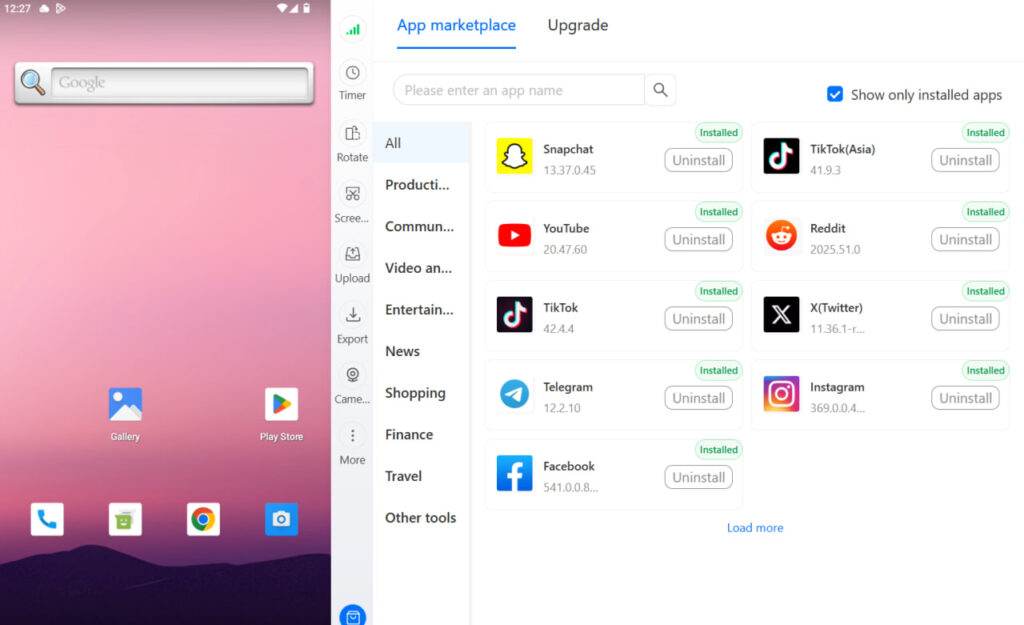
Need to make extra money online? Try Multilogin Cloud Phones.
Frequently asked questions About Bluesky video downloader
No. As of 2026, Bluesky doesn’t have a built-in video download feature. Third-party web tools, browser extensions, or the developer tools method are your options.
Paste the post URL into a web-based Bluesky video downloader. No installation required, works on any device with a browser.
Yes. Use a web-based downloader in your mobile browser, an iOS Shortcut built for Bluesky video downloading, or screen recording as a fallback.
It depends on scale. For 2–3 accounts, the native app’s account-switching feature works fine. For agencies or operators managing 5+ accounts, cloud phones give each account its own isolated Android environment — separate device identity, persistent sessions, and built-in proxies — all controlled from one desktop dashboard.
Bluesky doesn’t explicitly restrict agency use or multi-account management for professional purposes. Its current policy environment is more permissive than X or Instagram on this point. That said, best practice for agency operations is to keep each client account in its own isolated environment regardless of platform policy — it protects both you and your clients.
The key is genuine environment isolation. If multiple accounts share the same device, IP address, or app session, they share detectable signals that can link them — even if the content and handles are completely different. Cloud phones solve this by giving each account its own real Android device identity, its own proxy-matched IP, and persistent session data that doesn’t cross between accounts.
Yes, but each domain handle requires a domain you control. You can use subdomains — @personal.yourdomain.com and @work.yourdomain.com — as handles for different accounts on the same root domain. Each subdomain needs its own DNS TXT verification. Custom handles are worth setting up for professional accounts as they provide built-in identity verification on Bluesky.
Managing multiple Bluesky accounts
For social media managers and agencies running multiple Bluesky accounts for different clients or brands, account isolation matters here just as it does on any other platform.
Multilogin’s isolated browser profiles give each account its own fingerprint, cookies, and session storage. Each profile can be paired with its own residential proxy for complete account separation. For mobile management through the Bluesky app, Multilogin cloud phones provide real Android environments with genuine hardware identifiers.
Account setup requiring phone verification uses third-party virtual number providers that Multilogin supports.
Read more: Bluesky multiple accounts guide and the multi-account management overview.


