





Making a second Instagram account is one of the most common things people want to do on the platform. Maybe you want to keep your personal photos separate from your business content. Maybe you run multiple brands. Maybe you manage social media for clients and each one needs their own Instagram presence.
Whatever the reason, the process itself is pretty simple. What gets complicated is managing multiple accounts without Instagram linking them — especially when you’re operating professionally.
This guide covers exactly how to make a second Instagram account on every device, what Instagram’s actual limits are, how to avoid the linking problem, and the right setup for anyone doing this professionally.
Does Instagram Allow Multiple Accounts?
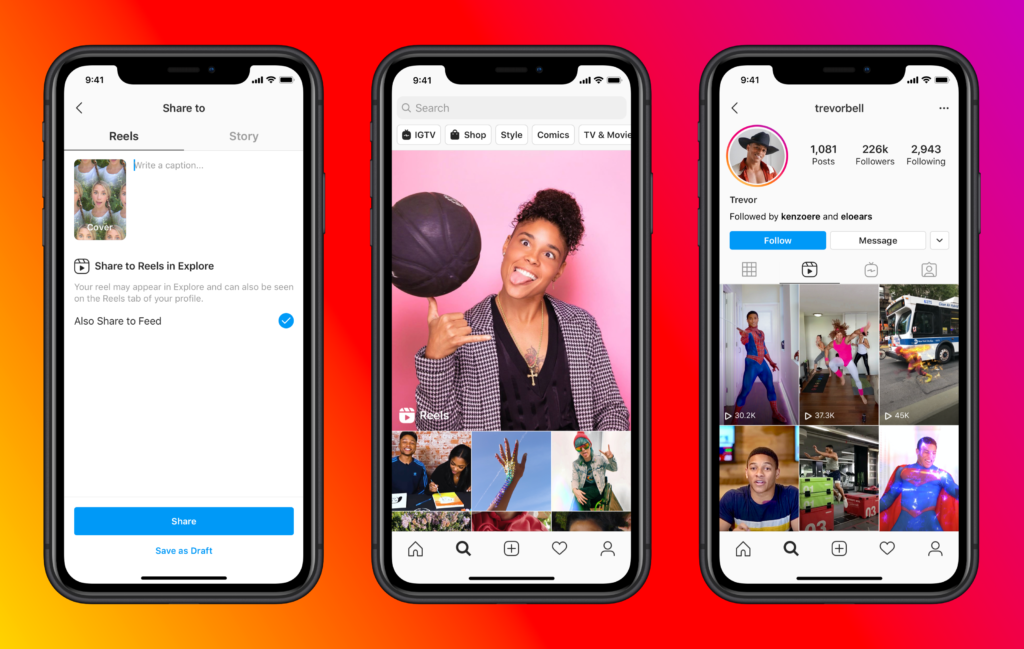
Yes, and Instagram builds this into the app natively. You can have up to five Instagram accounts connected in the app’s account switcher at any one time, and you can create more beyond that by logging out and back in.
Instagram’s policies restrict one account per identity for personal accounts, but allow multiple accounts for legitimate separate purposes — a personal account, a business account, a content project, a client’s brand. The platform itself added the account switcher feature because multi-account use is common and legitimate.
How to Make a Second Instagram Account on iPhone
Method 1: Add an account inside the Instagram app (quickest)
- Open Instagram on your iPhone
- Tap your profile photo in the bottom right corner
- Tap your username at the top of the screen — a dropdown appears showing your accounts
- Tap “Add account” at the bottom of the list
- Tap “Create new account” (not “Log in to existing account”)
- Enter a new email address or phone number, create a password, choose a username
- Complete the verification and profile setup steps
Once added, you can switch between accounts instantly by tapping your profile photo and selecting the account you want. No logging in or out required.
Method 2: Log out and register fresh
If you don’t want the accounts linked in the switcher, log out completely first (Settings > Log out), then register fresh. This is cleaner if you want the accounts to feel fully separate to you.
Note: even with this approach, Instagram’s app still reads your iPhone’s hardware identifiers and can detect that both accounts were created on the same device. For basic personal use this isn’t a problem. For professional use where accounts need genuine isolation, see the Cloud Phones section below.
How to Make a Second Instagram Account on Android
The steps on Android are identical to iPhone:
- Open Instagram
- Tap your profile icon (bottom right)
- Tap your username to open the account switcher
- Tap “Add account” then “Create new account”
- Enter a fresh email, set a password, choose a username
- Verify and complete setup
Android users also have the option of parallel space or dual app features on certain devices (Samsung’s Dual Messenger, for example, lets you run two instances of Instagram simultaneously). These work for basic use but don’t isolate device fingerprints — both instances share the same Android IMEI and hardware profile.
How to Make a Second Instagram Account on PC or Laptop
Instagram’s web version at instagram.com supports full account creation from a browser:
- Go to instagram.com
- Click “Log in” then “Sign up” at the bottom
- Enter a new email address, set a full name, username, and password
- Complete phone or email verification
- Finish profile setup
To run two Instagram accounts simultaneously on PC without logging out, use Chrome’s built-in profile system — one browser profile per account. This works for basic use but all Chrome profiles on the same browser installation share the same underlying browser fingerprint. Instagram can detect this.
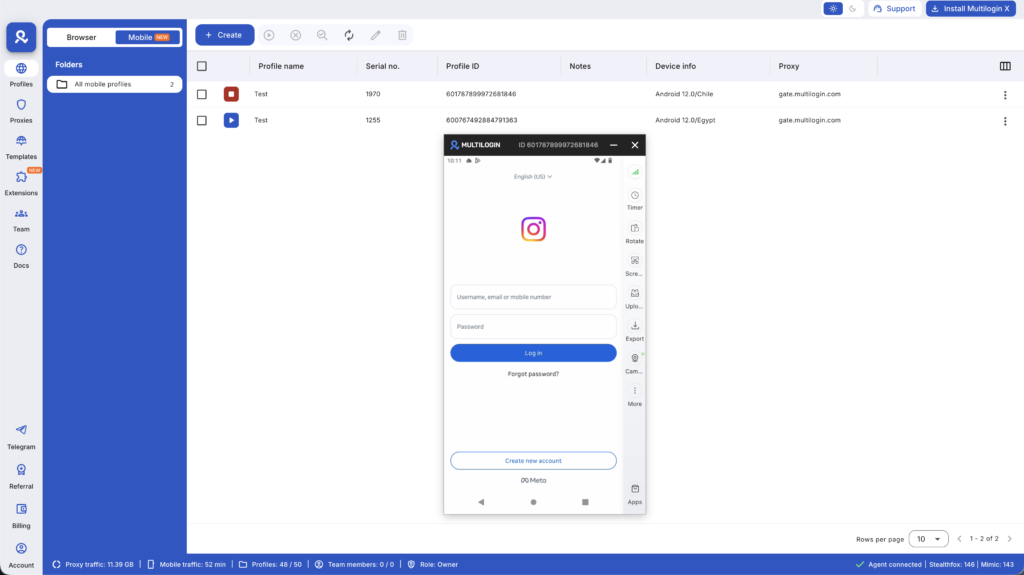
For genuinely isolated sessions on desktop, Multilogin’s browser profiles provide each account with completely separate cookies, local storage, and browser fingerprint. Instagram sees each session as a distinct user on a distinct device.
How to Make a Second Instagram Account on iPad
The process on iPad is the same as iPhone — Instagram’s iOS app is identical across both. Open Instagram, tap your profile photo, tap your username, tap “Add account,” then “Create new account.”
If you’re using Instagram through Safari on iPad (not the app), follow the same steps as the PC/laptop section above.
How to Create a Second Instagram Account Without a Phone Number
Instagram increasingly asks for phone verification, especially when creating new accounts from IPs that have recently been used for account creation. A few options:
- Try skipping if the option appears. Some account creation flows offer a “Skip” option on the phone verification step. This is more likely to work from a fresh residential IP that hasn’t had recent account creation activity.
- Use email verification instead. Instagram sometimes offers email verification as an alternative to SMS. If the option appears, use it.
- Use a virtual phone number. Services like Google Voice, SMSPool, or SMS-Activate provide numbers that receive Instagram’s verification codes without using your personal number. This works in most cases, though Instagram has gotten better at detecting widely-used virtual number ranges. For more detail on this, see the full guide on virtual phone numbers for Instagram.
- Use a Multilogin Cloud Phone. The most reliable method for professional multi-account creation. A Cloud Phone is a real Android device in the cloud with its own hardware identity and residential IP. You enter a virtual number directly into the device’s phone number settings, then create the Instagram account on the Cloud Phone. Instagram sees a genuine mobile device on a real residential network — because it is one. Details below.
How Many Instagram Accounts Can You Have?
Instagram doesn’t publish an absolute account limit. The native app supports five accounts in the switcher at once, but you can create and maintain more by logging in and out manually, or by using separate browser profiles or devices.
In practice, the constraint is operational, not technical. Managing more than a handful of accounts from a single device starts creating the account-linking problems covered in the next section.
Why Instagram Links Accounts — and How to Prevent It
For personal use, accounts being linked in Instagram’s switcher is a feature. For professional use — agency work, managing brand accounts, running multiple content channels — it’s a problem.
Instagram tracks far more than login credentials. Every time you open the app, it reads:
- Device identifiers. Your device’s IMEI (Android) or equivalent identifier. The Android ID. The device model and manufacturer. These are hardware-level signals that don’t change when you create a new account.
- IP address and network type. Your IP address, whether you’re on Wi-Fi or cellular, and your carrier. Multiple accounts created from the same IP in quick succession are a flag.
- Behavioral patterns. How you navigate the app, session timing and length, interaction cadence. Accounts that behave identically because they’re operated by the same person show correlated patterns.
- Cookie and session history. Even after logging out, residual data in browser cache and local storage can persist and link new sessions to old ones.
When multiple accounts share these signals, Instagram links them. This means a flag on one account can trigger review on others managed from the same environment. And for agencies managing client accounts alongside their own, the linking risk is real.
The solution for professional multi-account Instagram management is Multilogin Cloud Phones.
Each Cloud Phone is a real Android device hosted in the cloud. It has its own unique IMEI, its own Android ID, its own device model, and its own residential IP address from Multilogin’s pool of 30M+ IPs across 150+ countries. When you create and manage an Instagram account on Cloud Phone A, and a different account on Cloud Phone B, Instagram sees two completely separate phones in two different locations — because that’s exactly what they are.
Best Practices for Managing Multiple Instagram Accounts
- Use unique emails per account. Instagram tracks email patterns. Multiple accounts using the same domain or obvious naming variations are easier to link.
- Use unique phone numbers per account. Each account should have a different phone number for verification and 2FA purposes. Virtual numbers handle this at low cost.
- Warm new accounts before high-volume activity. New accounts that immediately start following hundreds of people or posting heavily get flagged. Spend a few days on normal activity first.
- Never mix client accounts in the same session. Log out between clients, or use isolated environments so there’s no risk of accidentally posting on the wrong account.
- Document everything. Which account uses which email, which phone number, which Cloud Phone or browser profile. When you’re managing ten accounts, documentation prevents mistakes.
Need to manage multiple social media accounts? Try Multilogin Cloud Phones.
Frequently asked questions
No hard limit. Instagram’s native switcher supports five at once. You can maintain more by using separate browser profiles, devices, or Multilogin Cloud Phones.
No. Each Instagram account requires a unique email address. For multiple accounts, use separate email addresses.
Instagram links phone numbers to accounts. Using the same number for multiple accounts creates a connection between them. Use separate numbers (virtual numbers work) for accounts you want to keep separate.
Instagram can detect multiple accounts operated from the same device through hardware fingerprinting. For casual personal use where linking isn’t a concern, the native switcher works fine. For professional management where genuine isolation matters, Cloud Phones are the right solution.
Tap your profile photo in the bottom right, then tap the account name you want to switch to. If you have up to five accounts in the switcher, switching is instant with no login required.


