
If you are trying to figure out how to create a YouTube channel and make money on YouTube, the official playbook sounds simple enough: set up your channel, upload content, hit the milestones, apply for the YouTube Partner Program (YPP) in YouTube Studio, and link an AdSense account to get paid.
But that clean, step-by-step logic falls apart the moment you are managing three, five, or fifty channels for different clients or brands.
This is where the real headaches begin. A teammate accidentally logs into the wrong Google account. Someone tries to create a brand-new AdSense profile when the agency already has one, triggering an automatic rejection. A browser keeps a rogue session alive, or a password gets shared over Slack just so a freelancer can upload a video. Suddenly, your day isn’t consumed by content strategy or growth—it’s consumed by trying to un-mix identities, sign-ins, and payout flows.
To scale a multi-profile operation, you need to understand exactly where these monetization workflows break, why basic workarounds fail, and how to build a clean, bulletproof setup.
The Real Problem With Multi-Channel Monetization
YouTube actually accommodates multi-channel management quite well on a structural level. A single Google account can manage multiple Brand Accounts, and those Brand Accounts can have multiple managers. You can grant specific channel permissions to team members without ever handing over your master password.
The actual bottleneck isn’t YouTube’s architecture; it’s that operators constantly blur three completely separate layers:
- The Channel Layer: Where your Brand Accounts and manager permissions live.
- The Revenue Layer: Where YouTube requires exactly one active AdSense for YouTube account linked via YouTube Studio.
- The Operational Layer: Where a real human logs in daily, switches tabs, uploads videos, replies to comments, and switches between client environments.
When these layers bleed into each other on a single computer, things break. And getting locked out or flagged matters because hitting YouTube’s monetization thresholds is hard enough.
For standard ad revenue, you need 1,000 subscribers and either 4,000 valid public watch hours within the past year or 10 million Shorts views within 90 days. The lower tier for fan funding (Super Chats, Shopping) requires 500 subscribers, 3 public uploads in 90 days, and either 3,000 watch hours or 3 million Shorts views.
Hitting those numbers doesn’t mean instant approval. A real human at YouTube reviews your channel to ensure it complies with all policies. If your operational setup looks messy or suspicious from a security standpoint, you are asking for delays.
Ultimately, multi-channel monetization is an identity and workflow problem, not a sign-up problem. If you don’t control the environment used for each channel, your business remains fragile.
Why Common Fixes Usually Fail
Stacking channels under a single Google login
While this makes creating channels easy, it does absolutely nothing to separate daily operations. It doesn’t give you isolated workspaces or independent saved sessions for different clients. It solves your ownership structure but leaves your daily workflow completely exposed to human error.
Trying to set up AdSense before YouTube tells you to
This is a classic misstep. The official flow requires you to initiate AdSense for YouTube directly from the Earn tab inside YouTube Studio. If you already have an approved AdSense account, you simply link that existing account. Attempting to create duplicate AdSense accounts under the same payee name is a fast track to a swift disapproval. Remember: YouTube allows you to link multiple channels to a single AdSense account. Your goal is clean association, not mass creation.
Relying entirely on a VPN or proxy
A proxy only changes your network identity (your IP address). It does not isolate your browser cache, separate your active Google logins, or stop cookies from tracking your cross-channel activity. A proxy is just one layer of an environment, not a complete solution.
Jugging incognito windows or basic Chrome profiles
Incognito tabs are built to destroy data when closed, but digital agencies need the exact opposite: persistence. Re-logging into client accounts every single day creates a massive footprint and triggers constant security verification alerts.
Standard Chrome profiles help with basic separation, but they fall short when you need to assign unique proxies, manage team access, organize folders, or hand off workflows to remote employees.
Collecting old phones and cheap emulators
Managing a literal pile of physical devices or buggy emulators adds massive operational overhead. They are difficult to standardize, impossible to automate, and clunky to integrate with standard desktop workflows.
The Workflow That Actually Solves the Problem
A scalable agency workflow relies on keeping channel structure, payment structure, and the physical operating environment completely isolated from one another.
- Clean Channel Structure: Use Brand Accounts and YouTube’s built-in permissions. Never share master passwords with freelancers or employees.
- Clean Payout Structure: Link your channels back to your primary, verified AdSense for YouTube account. Avoid creating duplicate payee profiles.
- Clean Operating Environments: Give every single channel its own persistent, isolated digital workspace.
This is where a tool like Multilogin becomes necessary. It allows you to build completely isolated environments from a single dashboard.
For standard desktop tasks ike using YouTube Studio, managing browser extensions, and uploading content you use a Browser Profile. For mobile-first tasks, you use an Android Cloud Phone. Because each profile retains its own cookies, session data, and specific proxy settings, you never have to rebuild your workspace or log back in from scratch.
Step-by-Step Setup Guide
Step 1: Map your workspaces
Decide how your channels will be distributed. Give each profile a short, descriptive name and organize them into folders or tags by client, brand, or management stage.
Step 2: Pick your environment
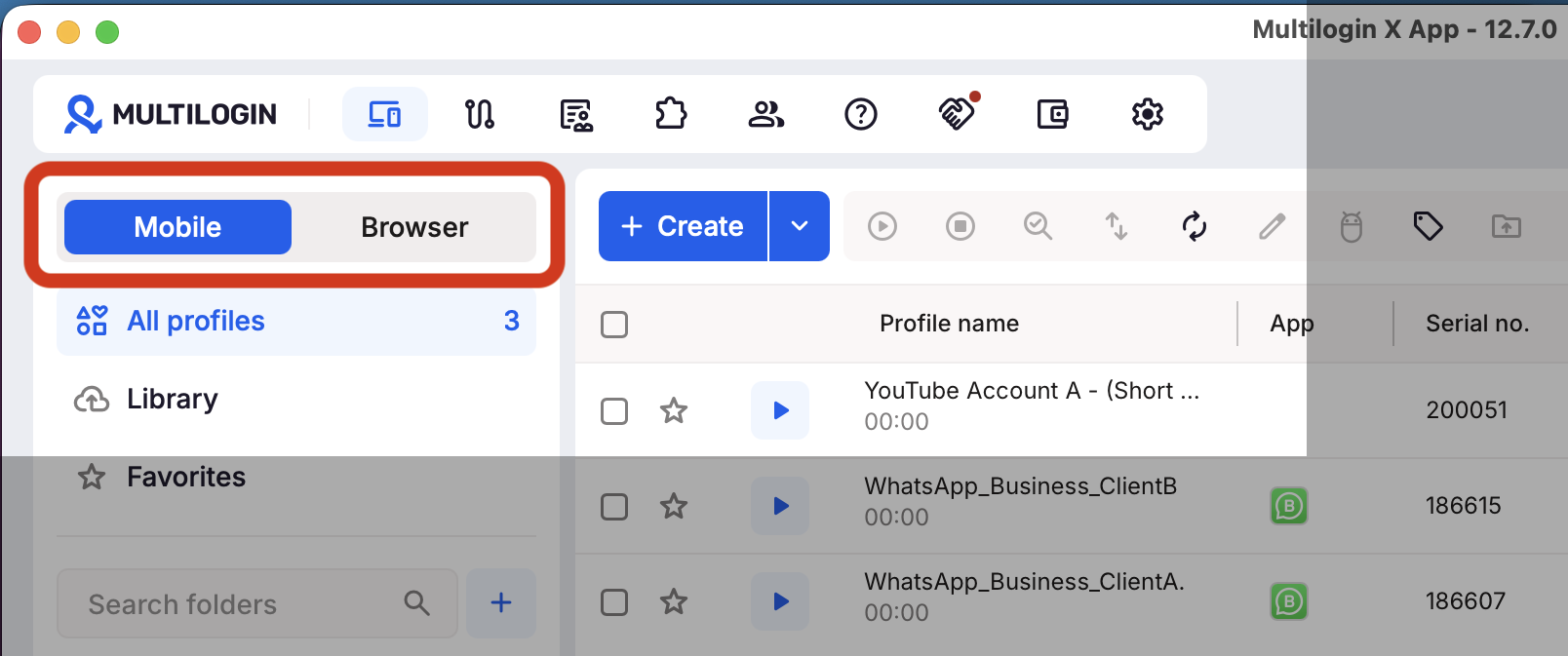
Before launching, choose the environment that fits the task. If your team is uploading and managing content via desktop, create a Browser Profile. If they are interacting with mobile apps or testing mobile-first features, opt for an Android Cloud Phone.
Step 3: Assign a dedicated proxy
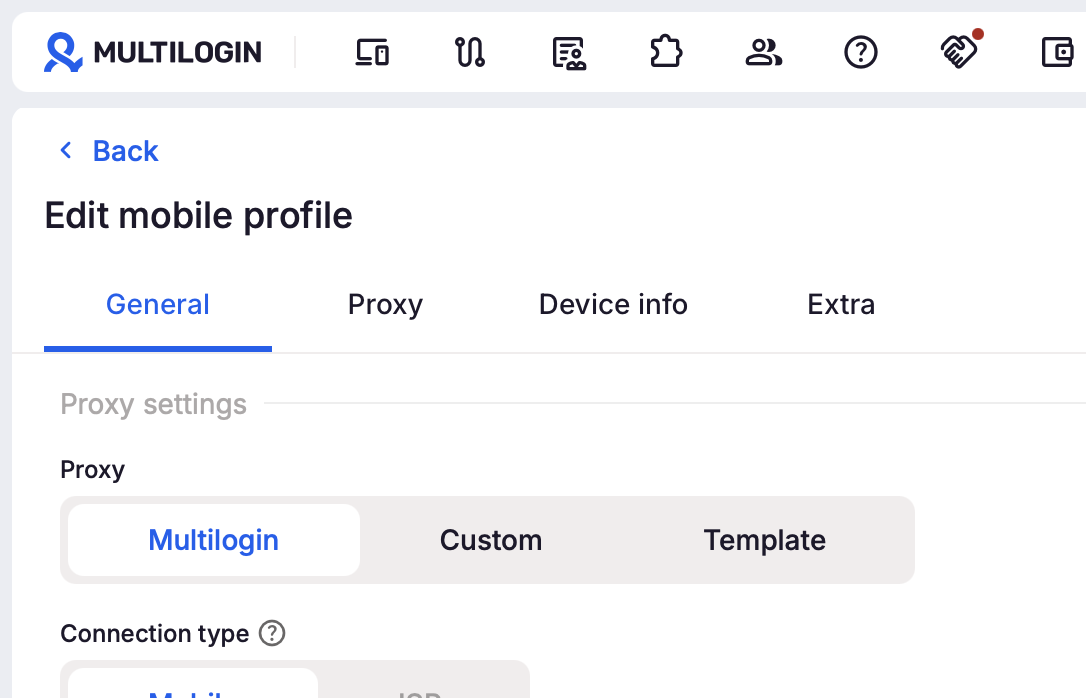
Whether you are creating a Mobile or Browser profile, after naming it, defining your use case as YouTube, and configuring other optional settings, you need to set up the Proxy settings (e.g., using Multilogin’s built-in proxy or a custom one), including the connection type, protocol, location, etc., to ensure that your location and IP address match your requirements.
Step 4: Launch and sign in
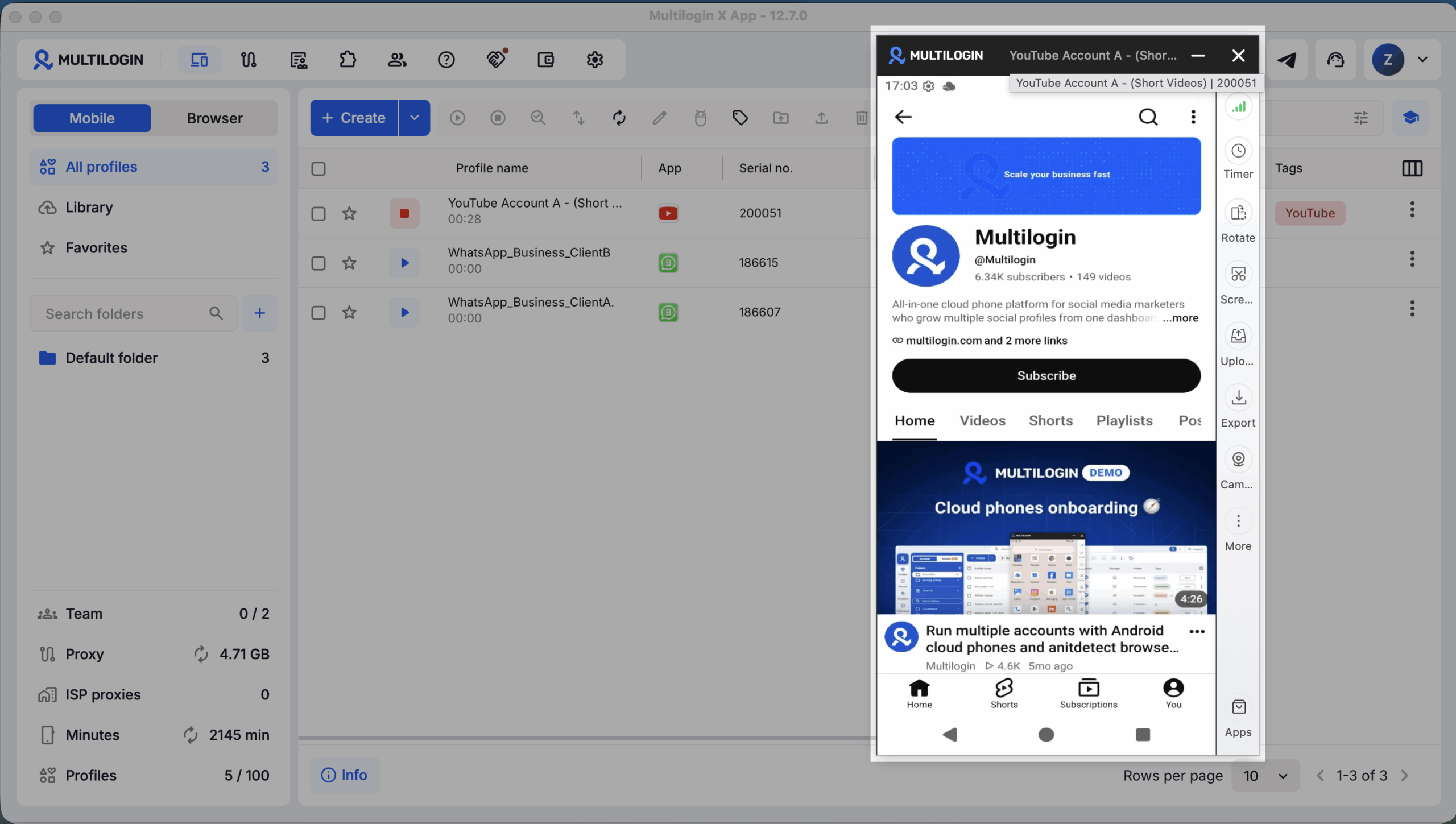
Launch the isolated environment and sign in to the Google identity tied to that channel. For Browser Profiles, use the dedicated browser window; for Android Cloud Phones, access the YouTube app within the mobile environment. If it’s a Brand Account, switch to the correct channel profile and verify that you are in the right workspace before starting any activity.
Step 5: Delegate team roles safely
Instead of passing around Google credentials, use YouTube’s internal channel permissions to grant access securely. For teams managing multiple channels, a YouTube multi-account management tool can help centralize access control and streamline collaboration. Within your management platform, assign workspace roles (such as Manager or Operator) and securely share the relevant browser profile or cloud phone session with team members without exposing account credentials.
Step 6: Trigger monetization from YouTube Studio
Once your channel clears the eligibility hurdles, navigate directly to the Earn tab in YouTube Studio. Accept the terms, and follow the prompts to link your existing, active AdSense for YouTube account.
Step 7: Maintain session persistence
Once everything is set up, don’t jump between different browsers or devices. Always return to the exact same dedicated profile for that specific channel. The persistent cookies and app data will keep you logged in safely, simulating a natural, single-user setup.
Best Practices for Agencies and Creator Businesses
The Golden Rule: One channel, one persistent environment, one clear payout path. Following this eliminates almost all common operational errors.
- Match tools to the task: Don’t use a desktop browser to spoof mobile behavior. Use actual cloud-hosted Android environments for mobile workflows, and dedicated browser profiles for desktop Studio work.
- Separate compliance from organization: Keeping your workspace organized protects you from security flags and operational mix-ups, but it doesn’t give you a pass on YouTube’s content rules. Your videos must still be fully compliant, original, and advertiser-friendly to pass human review.
- Don’t forget post-approval verification: Landing YPP approval is only half the battle. Be ready to complete identity checks, tax documentation, and address verification (PIN mailers) for your payout accounts.
Common Mistakes to Avoid
- Creating a new AdSense account for every channel: You don’t need to. Connecting multiple channels to one established AdSense account is perfectly acceptable and prevents duplication flags.
- Treating thresholds like a guarantee: Hitting 4,000 watch hours simply unlocks the review phase. It does not mean instant monetization.
- Constantly resetting your environments: Wiping your cookies and starting with a “fresh” browser every week looks highly unnatural to platform security algorithms. Lean into persistence.
- Mixing web and mobile tasks indiscriminately: Desktop uploads belong in desktop browsers; mobile app management belongs on mobile devices. Mixing them carelessly under the same footprint creates inconsistent tracking data.
Conclusion
The real bottleneck to scaling a YouTube business isn’t clicking the “Create Channel” button. It’s building a system that keeps ownership, payouts, active sessions, and team access completely segregated when managing dozens of brands simultaneously.
YouTube gives you the policy rules, but you have to build the operational guardrails. By utilizing isolated browser profiles for web management, cloud-hosted Android environments for mobile tasks, and proper team role delegation, you can run a complex multi-channel agency without turning your daily workflow into a technical crisis.