


How to check and change browser profile storage
 ~2 minWritten by Yelena V
Profile storage decides where your browser profile data is saved and where you can use the profile.
- Choose cloud storage when you need access across supported devices or team workflows
- Choose local storage when the profile stays on one computer and you want its data saved there.
➡️ Go to “Profiles” → “Browser” → create or edit a profile → “General” → “Storage”.
You can switch between cloud and local storage later with “Convert storage”.
Android phones always use cloud storage
Local and cloud storage options in this article apply only to browser profiles.
Who can use this feature?
- 👨💻 Account owner and roles starting from Operator
- 💰 Available on all plans
What profile storage does
Multilogin gives you two ways to store your browser profiles:
Cloud storage |
Local storage |
|
|
How to set storage type
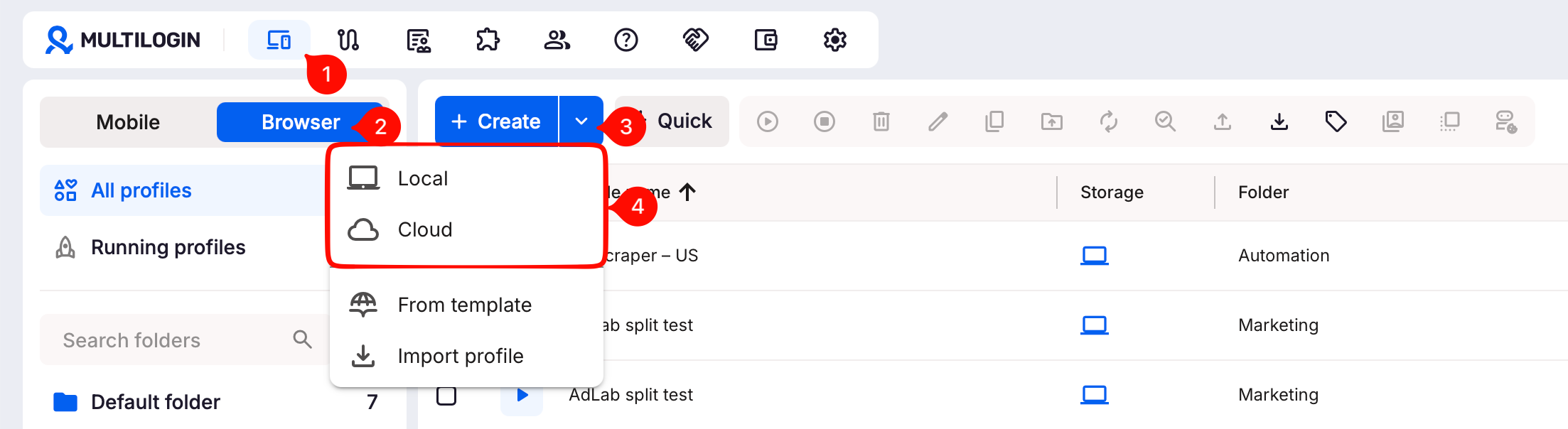
Storage selector method
- Go to the “Profiles” tab in the top menu
- Select “Browser” from the left-side selector
- Click the arrow next to the “Create” button
- Select the storage type to start creating a profile
Profile settings method
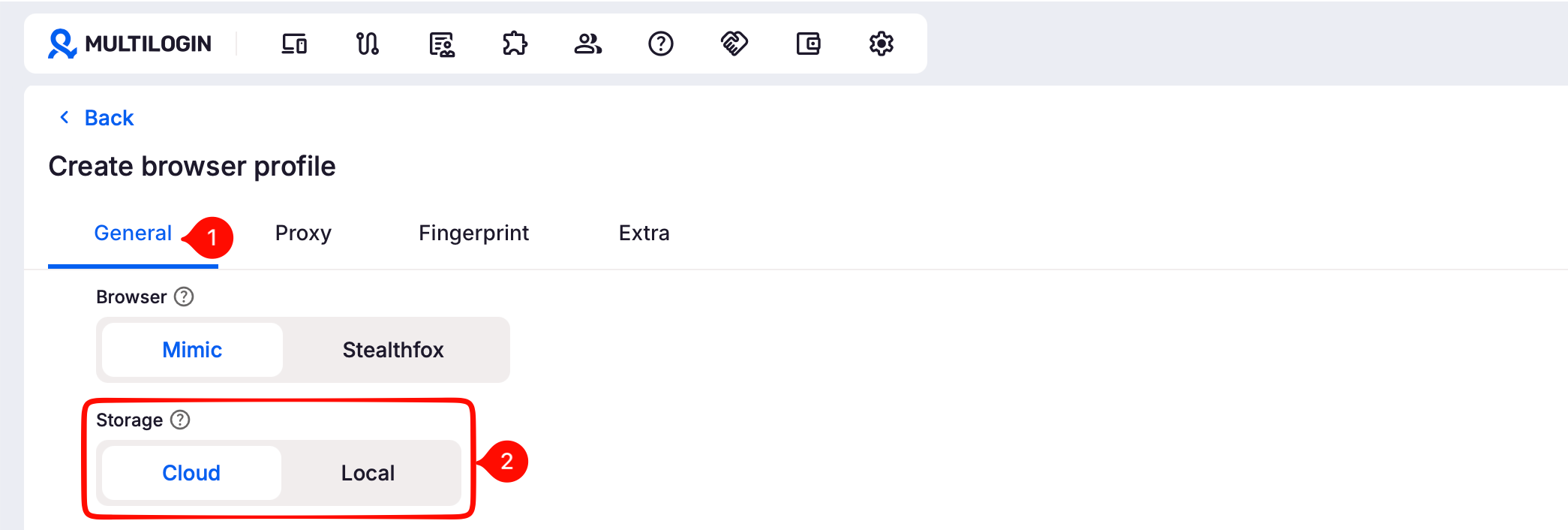
- Open the “General” section in browser profile settings
- Choose between cloud or local in the “Storage” selector
How to check storage type
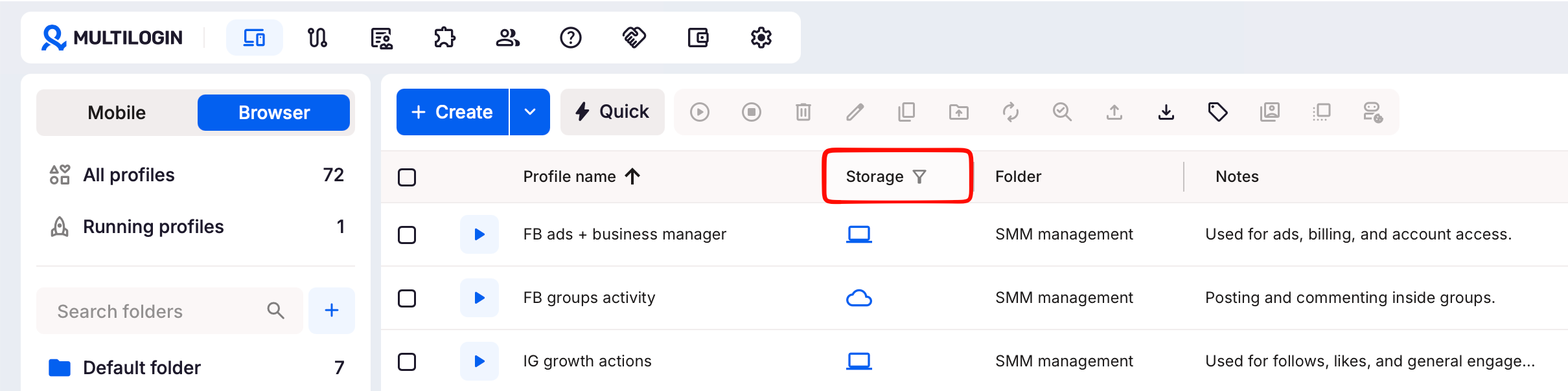
To check the current storage type, go to the browser profile list and look at the icon in the “Storage” column:
- ☁️ Cloud = stored online
- 💻 Device = stored on your device
How to find profile data
Want to check where local profile files live? Here’s the path in your system:
-
Windows:
C:\Users\%username%\mlx\profiles -
macOS:
/Users/%username%/mlx/profiles -
Linux:
/home/%username%/mlx/profiles
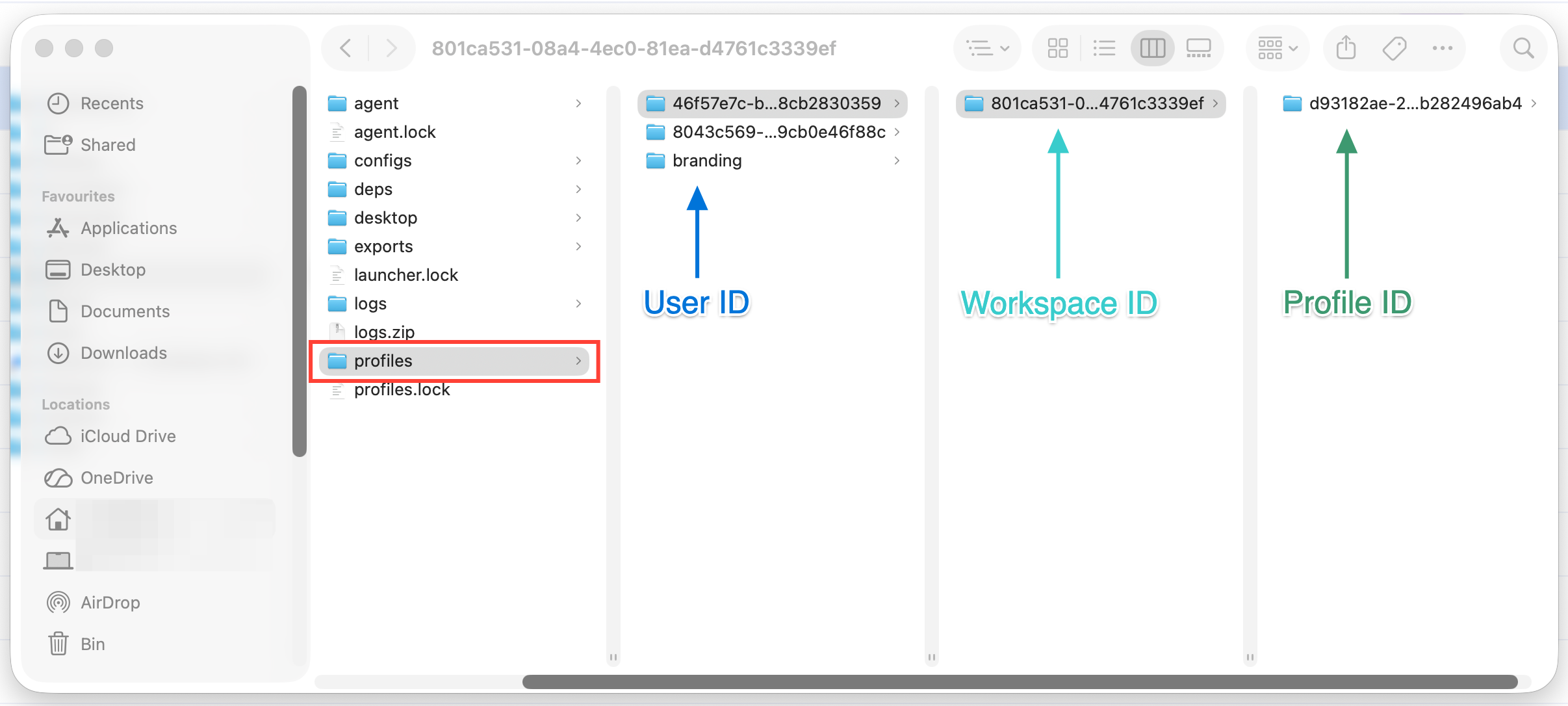
The “profiles” folder has its hierarchy:
- Inside the “profiles” folder, you’ll see folders named with your User ID
- Inside the User ID folder, you’ll see folders named with your Workspace ID
- Inside the Workspace ID folder, you’ll see folders named with your Profile ID
FAQs
Can I switch a profile’s storage type later?
Absolutely! Use the “Convert storage” feature to change from cloud to local or vice versa.
Is there a size limit for local storage?
It depends on your device’s free space – but no hard limit is set by Multilogin.
Will local profiles sync if I move to a new device?
Nope. Local profiles stay on that machine unless you export and import them manually.


