
- Home
-

- Explore features
-
- Browser profiles & web accounts
-
- Browser profile tools
-
- How to install browser extensions
How to install browser extensions
 Written by
( Updated on October 14th, 2026 )
Written by
( Updated on October 14th, 2026 )
Updated on October 14th, 2026
Browser extensions let you add tools to Multilogin browser profiles, just like in Chrome or Firefox. For the easiest setup, save extensions in “Extensions” and assign them to the profiles that need them in one click.
➡️ Go to “Extensions” → “Add” → choose storage → paste the extension URL → click “Add”.
Use Chrome extensions with Mimic. Firefox extensions work with Stealthfox, which is now a legacy browser and stays on core version 146.
Using Android cloud phones?
This guide is for browser profiles only. Install Android apps directly inside cloud phones.
Who can use browser extension manager?
- 👨💻 Account owner and manager
- 💰 Available on Pro 20 and higher
Choose how to install an extension
There are three main ways:
- Extension manager: save an extension once and assign it to one or more browser profiles
- Browser store: install an extension directly inside a running profile
- Folder method: manually load extension files into Multilogin for advanced or custom setups
Need to install extensions through the API instead?
See How to install browser extensions with Postman.
How to install browser extensions
Install with extension manager
Use this method when you want to save an extension and reuse it across browser profiles.
- Go to the “Extensions” tab in the top menu
- Click “Add” to begin the installation process
- Select either local or cloud storage
- Enter the extension URL:
- For Chrome/Mimic extensions, enter the URL from the Chrome Web Store
- For Firefox/Stealthfox extensions, enter the URL from Firefox Add-ons
- Once you've entered the URL, click “Add” to install the extension

Install from the browser store
Use this when you only need the extension inside one running profile.
- Launch your browser profile
- Visit Chrome Web Store if you use Mimic or Firefox Add-ons if you use Stealthfox
- Choose an extension and click “Add to Chrome” or “Add to Firefox”
- You will see the installed extension in the top-right corner of the browser profile window


Install extension files manually
Mimic
The extensions placed in the mimic folder are available in all Mimic profiles: new and old, regular and quick.
Preparing the file (method 1)
- Visit Chrome web store and install an extension of your choice
- Go to
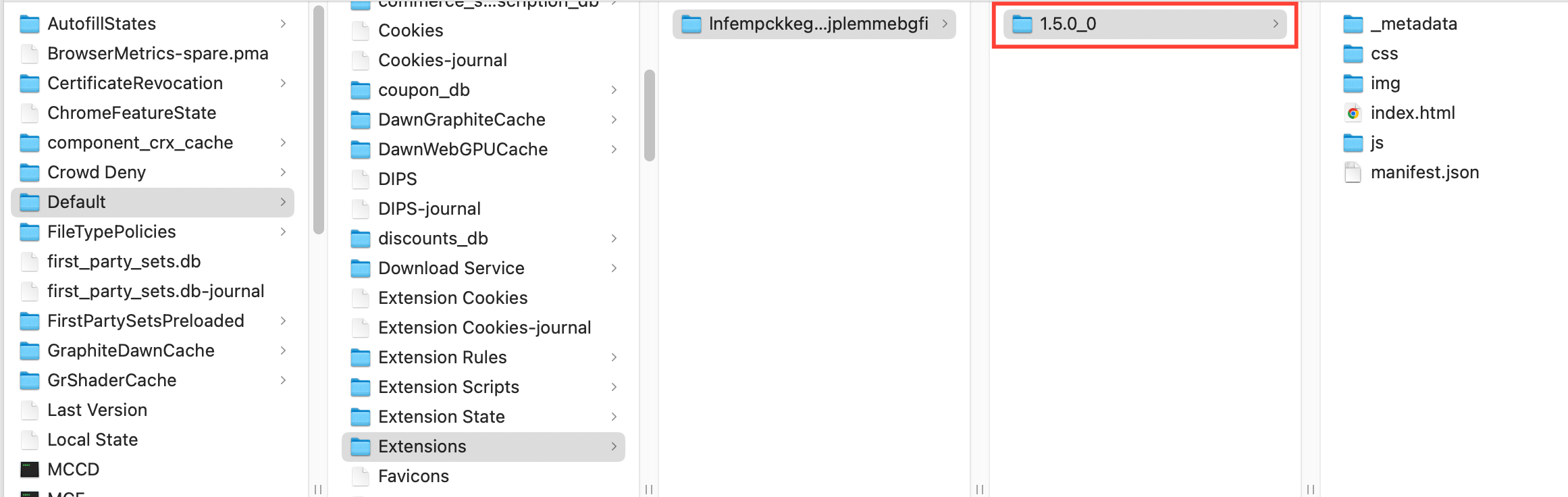
chrome://version/and check the “Profile path”, for example:/Users/username/mlx/profiles/46f57e7c-b80a-371e-9a1e-568cb2830359/391670f2-9c19-4279-9a3b-5a9fcc1f1793/065a29da-a68a-4c56-bf33-3d5019abfe60/Default - Open this path in your file explorer and go to the
Extensionsfolder, where you will see a folder named with anextension ID - Once you open it, you'll see a folder named with an
extension version– this is the one that you'll need further (see “Using the file”)
Preparing the file (method 2)
- Visit Chrome web store
- Choose an extension and copy its ID from the address bar:
https://chromewebstore.google.com/detail/extension-name/extension-id - Paste the ID into CRXViewer and select "Download as ZIP"
- Extract your ZIP file into a new folder
Note that a .crx file won't work on its own. Instead, you need to have a folder with your extension files, including manifest.json. Each extension must have a separate folder.
Using the file
- Go to the
mlxfolder in your file system:- Windows:
C:\Users\%username%\mlx - macOS:
/Users/%username%/mlx - Linux:
/home/%username%/mlx
- Windows:
- Create a new folder called
custom_extensionsand a foldermimicinside of it - Place your extension folder from step 4 above into the
mimicfolder
Stealthfox
The extensions placed in the stealthfox folder are available only in new Stealthfox profiles, regular and quick.
Preparing the file
- Visit the Firefox browser add-ons page
- Choose your extension and right-click the "Add to Firefox" button, then choose "Save Link As"
- An
.xpifile will be downloaded to your computer
Using the file
- Go to the
mlxfolder in your file system:- Windows:
C:\Users\%username%\mlx - macOS:
/Users/%username%/mlx - Linux:
/home/%username%/mlx
- Windows:
- Create a new folder called
custom_extensionsand a folderstealthfoxinside of it - Place your
.xpifile from step 3 above into thestealthfoxfolder
Need to access local ports for your extension?
Right-click the profile → click “Edit” → open “Fingerprint” → find “Port scan protection” → select “Custom” → enter the required port numbers in “Whitelisted ports (comma-separated)” → click “Save”.
Only add ports your extension actually needs. For more details, see Port scan protection.
How to assign extensions to profiles
Mimic profiles can use Chrome extensions. Stealthfox profiles can use Firefox extensions.
From the extensions menu
- Click “Extensions” in the top menu
- Select the extension you want to assign
- Click “Manage assigned profiles”
- Choose the profile where you want to add the extension
- Click “Confirm” to finalize the assignment

From the right-click menu
- Go to the “Profiles” tab in the top menu
- Select “Browser” from the left-side selector
- Right-click on a profile (or multiple profiles) in your list
- From the right-click menu, choose “Extensions”
- Select the extensions you want to add to the chosen profiles

From profile settings
- Go to the “Profiles” tab in the top menu
- Select “Browser” from the left-side selector
- Click “Create” or “Edit” to open browser profile settings
- Navigate to the “Extra” section on the profile settings page
- Choose which extensions you want to add to the profile
- Create or update the profile to save your changes

FAQs
Can I install multiple extensions?
Yup – just make sure they don’t conflict with each other.
Will the extensions stay after I close the profile?
Yes, extensions stay saved to that profile until you remove them.
Can I use the same extension in several profiles?
Yes. Extensions saved in the extension manager can be assigned to multiple compatible browser profiles.
Can I use a Chrome extension in Stealthfox?
No. Mimic uses Chrome extensions, while Stealthfox uses Firefox extensions.
Should I still use Stealthfox extensions?
Only when an existing workflow specifically needs Firefox or a Firefox extension. Stealthfox is legacy, stays on core version 146, and no longer receives browser core updates.
