


How to use ADB (Android Debug Bridge) in cloud phones
 ~3 minWritten by Yelena V
ADB lets you control a cloud phone from your computer with terminal commands instead of doing everything manually on the screen. It’s useful when you want to install apps, run scripts, move files, collect logs, or take screenshots faster.
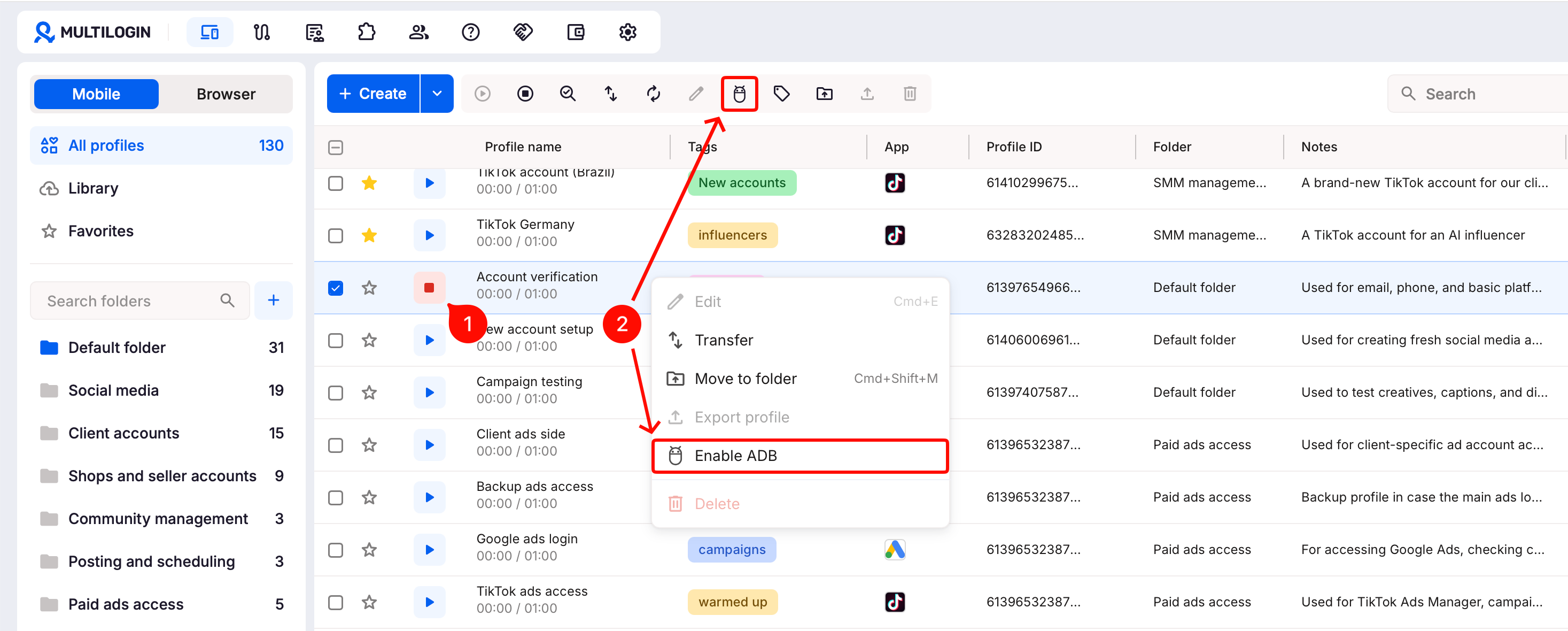
➡️ Start the cloud phone → right-click it and click “Enable ADB”, or select it with the checkbox and click “Enable ADB” in the top menu → click the green Android icon to copy the connection and authentication commands.
Once connected, you can run standard ADB commands directly against that cloud phone. Keep the phone running while you work because stopping it also turns ADB off.
Android 11 or later is required
ADB works with cloud phones running Android 11 or later. Android 10 isn’t supported.
Who can use this feature?
- 👨💻 Account owner and manager
- 💰 Available on all paid plans
Why use ADB?
ADB in cloud phones helps you:
- Install APK files without opening Google Play
- Control a cloud phone with automation scripts
- Move files in or out without opening folders manually
- Collect logs after something breaks
- Take screenshots through commands
Step 1: get your environment ready
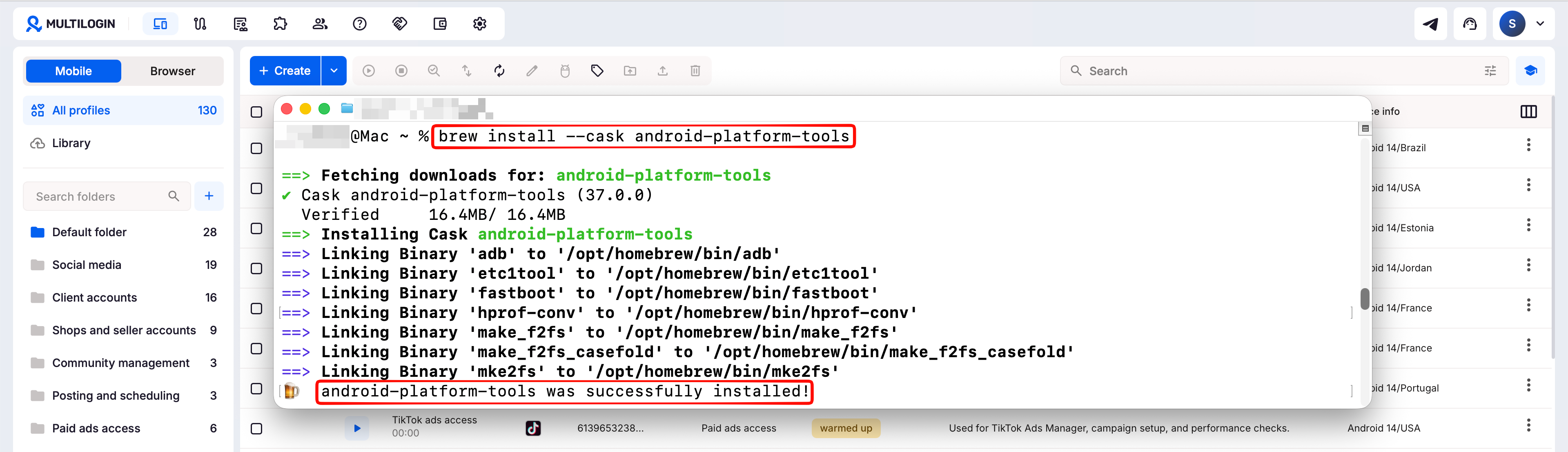
Before you start, make sure ADB is installed on your computer.
ADB connection commands work the same on Windows, macOS, and Linux. The only difference is where you run them:
- macOS or Linux: use Terminal
- Windows: use Command Prompt or PowerShell
To run ADB commands from any folder, add Android SDK Platform-Tools to your system PATH. If you have not done that, open the “platform-tools” folder first and run the commands there.
Step 2: start your cloud phone
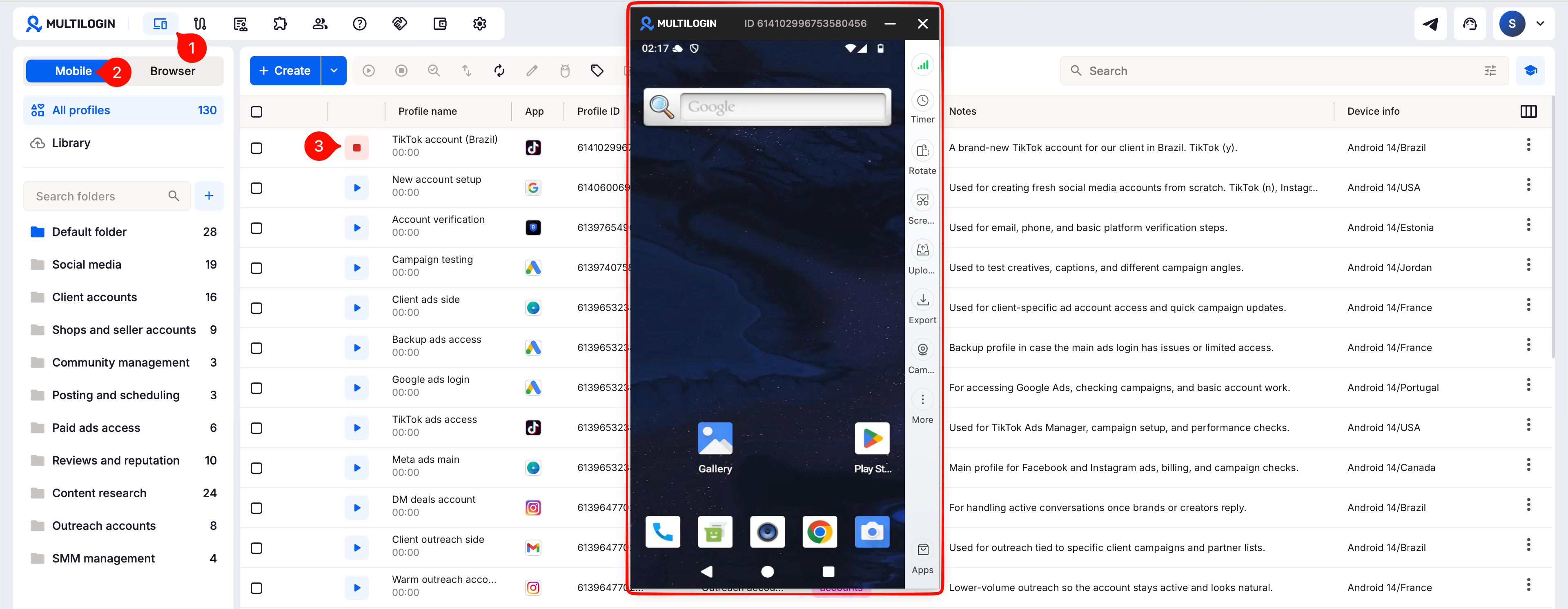
Start the cloud phone first and wait for it to load fully.
- Go to the “Profiles” tab in the top menu
- Select “Mobile” from the left-side selector
- Find the cloud phone you want to use and click “Start”
Step 3: enable ADB
You can enable ADB from the profile list:
- Right-click a profile in the list, or select up to 50 running profiles using checkboxes and use the top menu
- Click “Enable ADB”
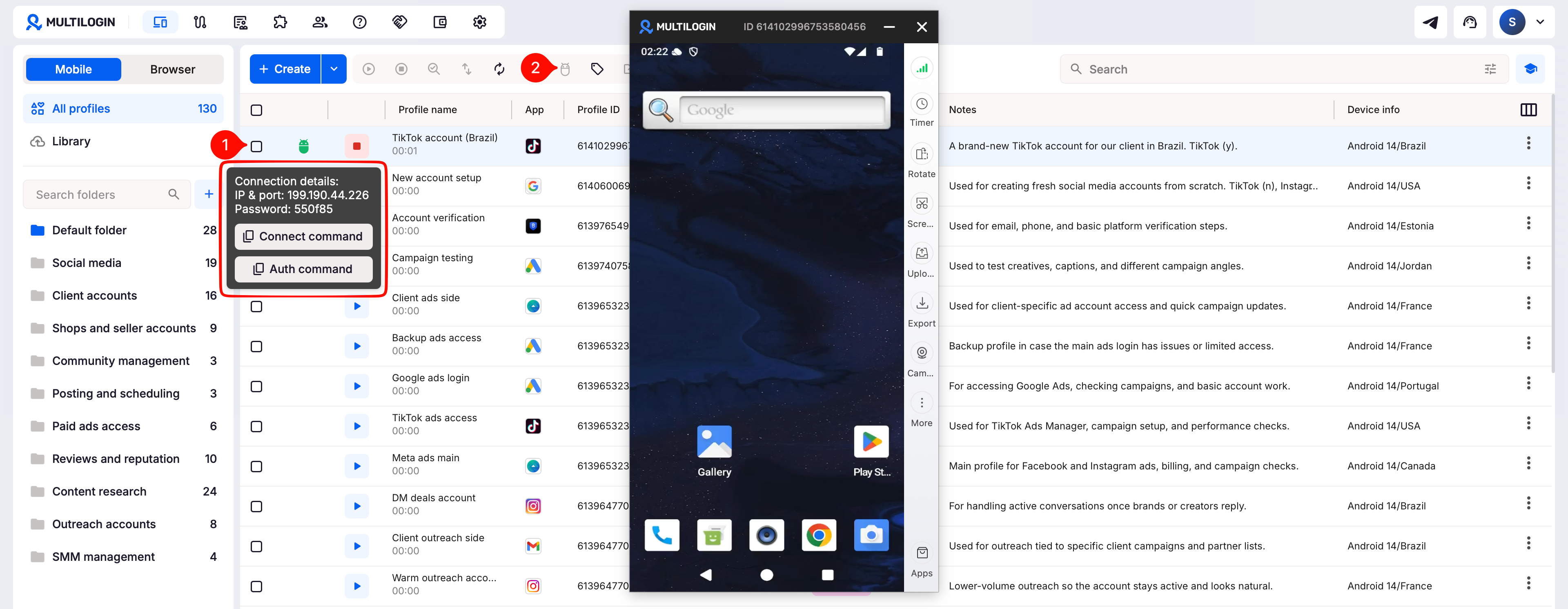
When ADB is ready, you'll see a green Android icon in the profile list:
- Hover over the icon to see everything you need to connect: IP address, port, and password
- Click to copy the connection and authentication commands to use in your terminal
Step 4: connect from your terminal
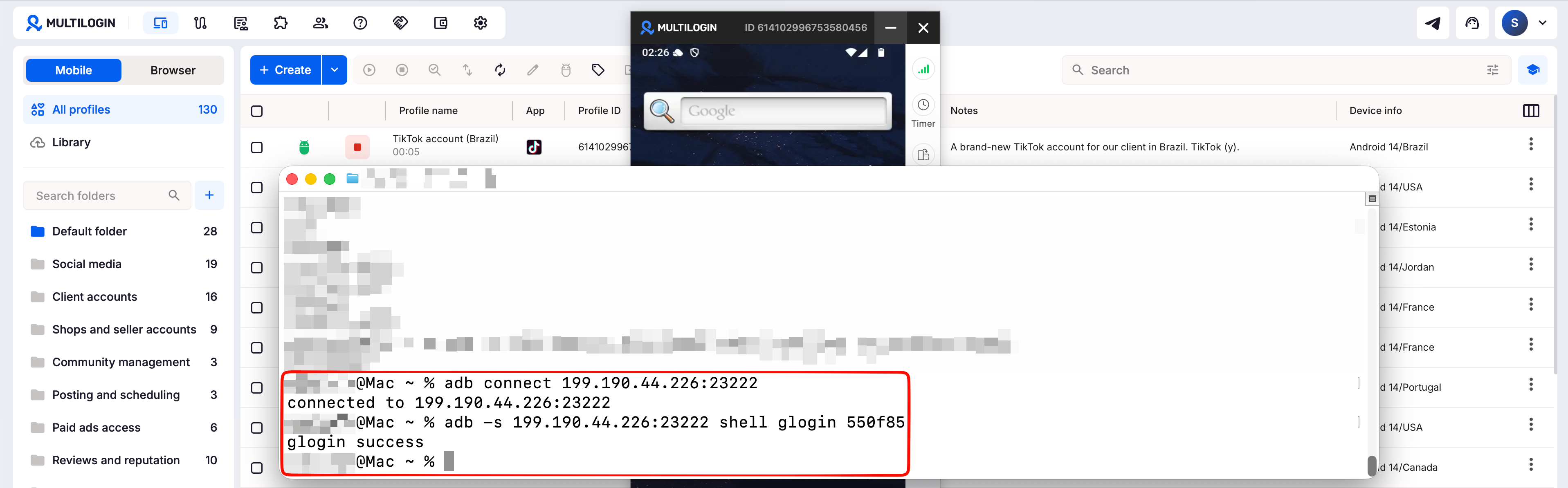
Hover over the green Android icon next to a profile and use the “Copy” buttons to get the commands.
- Copy the connection command – it'll look like this:
adb connect IP:PORT - Run the command in the terminal – you’ll see a message:
connected to IP:PORT - Copy the authentication command – it'll look like this:
adb -s IP:PORT shell glogin PASSWORD - Run the command in the terminal – you’ll see a message:
glogin success
After authentication, you can run ADB commands for this cloud phone. If you work with several cloud phones at the same time, always include this part: -s IP:PORT.
Keep the cloud phone running while you use ADB. If you stop the cloud phone, ADB turns off automatically, and the old connection command will stop working.
FAQs
Do I need to start the cloud phone first?
Yes. Start the cloud phone before you enable ADB.
Where do I find the IP, port, and password?
Hover over the green Android icon in the profile list. You will see the connection details and copy buttons there.
Can I enable ADB for many cloud phones?
Yes. Select up to 50 running cloud phones, then click “Enable ADB” in the top menu.
What happens when I stop the cloud phone?
ADB turns off automatically. Any old connection command will stop working.


