

- Home
-

- Multilogin 6 (legacy)
-
- Troubleshooting tips
-
- How to fix error “Profile is not created/updated” in Multilogin 6
How to fix error “Profile is not created/updated” in Multilogin 6
 Written by
( Updated on March 11th, 2026 )
Written by
( Updated on March 11th, 2026 )
Updated on March 11th, 2026
⚠️ Still using Legacy Multilogin 6? You are missing the good stuff!
The new Multilogin lets you run browser profiles and Android cloud phones in one workspace – manage desktop and mobile accounts without extra tools or devices.
⚡ Want to join the migration queue? Download the latest Multilogin 6 version (scroll to the bottom of the page), open it and click “Migrate”.
- 🖥️ Better workspace: Web interface • Desktop app • Dark mode • 2FA
- 🧑💻 Mobile + browser accounts together: Android cloud phones • Mimic and Stealthfox browsers
- 🌐 Faster setup: Profile and proxy templates • Extension manager
- 💾 Flexible profile storage: Local profiles • Cloud profiles • Storage converter
- ⚡ Productivity tools: Profile folders & tags • Column manager • Running profiles manager • Trash bin • Copy profile ID
- 🤖 Automation ready: API access in all plans • Selenium / Puppeteer / Playwright support • CLI tool • Script runner
👉 Curious what else changed? Read New Multilogin version: how is it different from Multilogin 6.
Running into the “Profile is not created/updated, unknown error” message?

Don’t worry – this error typically has a straightforward fix. It's often tied to your subscription plan or profile settings. Let’s walk through what might be causing it and how to resolve it!
Follow these tips to avoid this issue:
- Keep your subscription active and aligned with your needs
- Regularly monitor your profile and team member limits
- Restart the app whenever you make significant changes to your plan or settings
How to fix it
Option 1: check your subscription plan
If you see “Expired” in the bottom-left corner of the app:
- Go to your billing dashboard
- Open the “Subscription” tab
- Click “Renew subscription”
- Open the “Invoices” tab and select “Pay now” to settle any unpaid bills
Option 2: remove exceeding profiles or team members
If you’ve reached the limit for profiles or team members:
- Delete extra profiles or team members that exceed your plan’s allowance
- Restart the Multilogin application to refresh the settings
If you’re on the Solo plan, avoid adding team members or enabling active session lock. Upgrade to a plan that supports these features if you need them.
Nothing helps?
With these steps, you’ll have the “Profile is not created/updated” error sorted in no time. If you need more help, the Multilogin team is always here to assist! 😊 Just send us your logs files, and we'll fix it ASAP.
Logs MLA
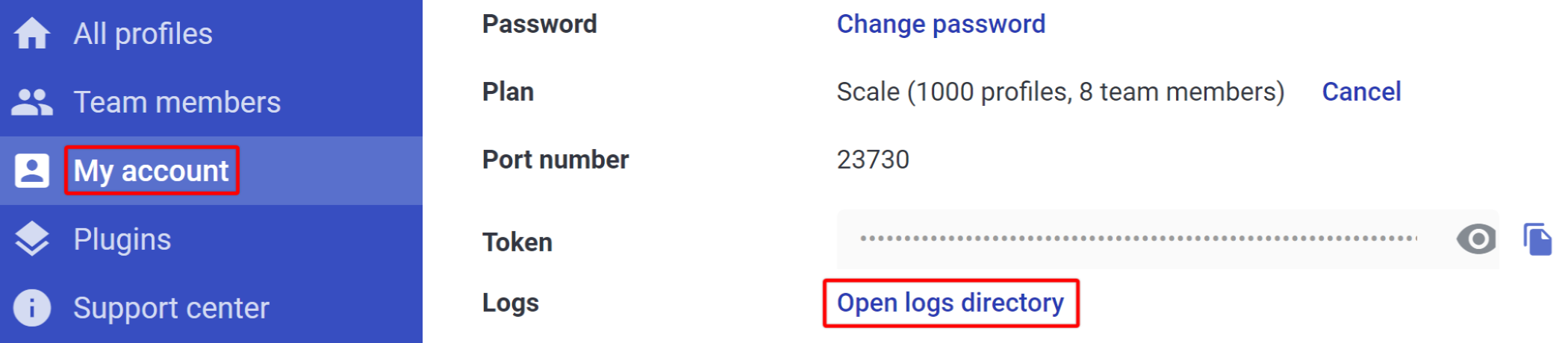
If you can log in
- Restart Multilogin
- Recreate the issue and try to reproduce the error message received
- Go to "My account"
- Click "Open logs directory"
- Archive all log files in the folder
- Send the ZIP or RAR file to [email protected]
If you can't log in
Windows
- Close Multilogin
- Go to the
C:\Users\%username%\.multiloginapp.com\logdirectory
- Archive all log files in the folder
- Send the ZIP or RAR file to [email protected]
macOS
- Close Multilogin
- Open your user directory in Finder
- Press
Cmd + Shift + .(period) to show hidden files - Go to the folder .multiloginapp.com → log
- Archive all log files in the folder
- Send the ZIP or RAR file to [email protected]
Linux
- Close Multilogin
- Go to the
/home/%username%/.multiloginapp.com/logdirectory - Archive all log files in the folder
- Send the ZIP or RAR file to [email protected]
