

- Home
-

- Multilogin 6 (legacy)
-
- Troubleshooting tips
-
- How to fix error “Fingerprint composition failed” in Multilogin 6
How to fix error “Fingerprint composition failed” in Multilogin 6
 Written by
( Updated on March 11th, 2026 )
Written by
( Updated on March 11th, 2026 )
Updated on March 11th, 2026
⚠️ Still using Legacy Multilogin 6? You are missing the good stuff!
The new Multilogin lets you run browser profiles and Android cloud phones in one workspace – manage desktop and mobile accounts without extra tools or devices.
⚡ Want to join the migration queue? Download the latest Multilogin 6 version (scroll to the bottom of the page), open it and click “Migrate”.
- 🖥️ Better workspace: Web interface • Desktop app • Dark mode • 2FA
- 🧑💻 Mobile + browser accounts together: Android cloud phones • Mimic and Stealthfox browsers
- 🌐 Faster setup: Profile and proxy templates • Extension manager
- 💾 Flexible profile storage: Local profiles • Cloud profiles • Storage converter
- ⚡ Productivity tools: Profile folders & tags • Column manager • Running profiles manager • Trash bin • Copy profile ID
- 🤖 Automation ready: API access in all plans • Selenium / Puppeteer / Playwright support • CLI tool • Script runner
👉 Curious what else changed? Read New Multilogin version: how is it different from Multilogin 6.
If you see this error while creating browser profiles, don’t worry – it’s usually easy to resolve.

Here are the three most common causes and how to fix them ⬇️
You've clicked “Get new fingerprint” too many times
If you’ve hit the button multiple times in a short period, the app may need a moment to process.
Fix: wait for a minute and restart the app.

App components are still downloading
You might see a green bar at the top of the app window, indicating the download is still in progress.
Fix: wait until the components are fully downloaded and the green bar disappears.

Ongoing server-side issues
Sometimes, the problem is on our end.
Fix: check our Status page or join our Telegram channel for updates.
Nothing helps?
If none of these steps work, send us your log files, and we’ll investigate for you.
Logs MLA
If you can log in
- Restart Multilogin
- Recreate the issue and try to reproduce the error message received
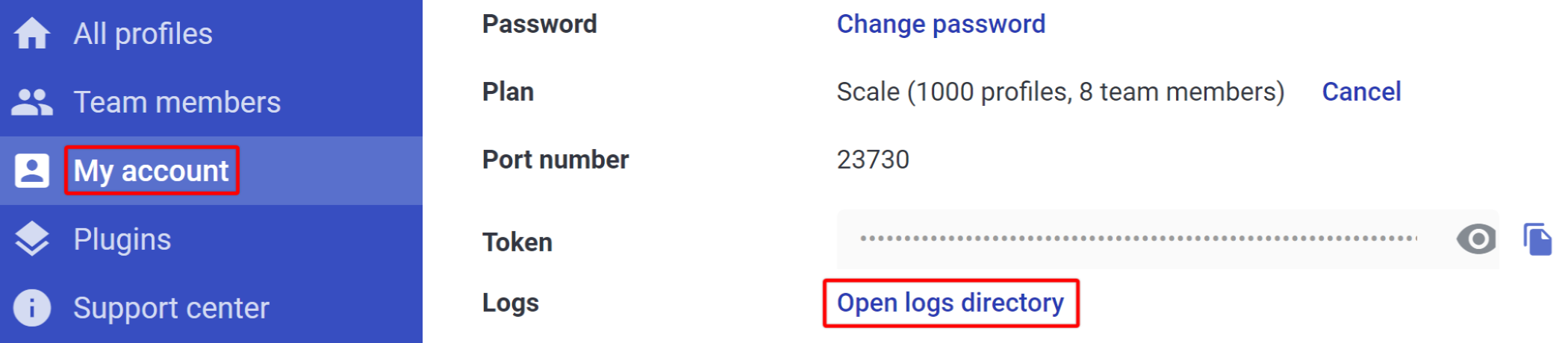
- Go to "My account"
- Click "Open logs directory"
- Archive all log files in the folder
- Send the ZIP or RAR file to [email protected]
If you can't log in
Windows
- Close Multilogin
- Go to the
C:\Users\%username%\.multiloginapp.com\logdirectory
- Archive all log files in the folder
- Send the ZIP or RAR file to [email protected]
macOS
- Close Multilogin
- Open your user directory in Finder
- Press
Cmd + Shift + .(period) to show hidden files - Go to the folder .multiloginapp.com → log
- Archive all log files in the folder
- Send the ZIP or RAR file to [email protected]
Linux
- Close Multilogin
- Go to the
/home/%username%/.multiloginapp.com/logdirectory - Archive all log files in the folder
- Send the ZIP or RAR file to [email protected]
