

- Home
-

- Multilogin 6 (legacy)
-
- Troubleshooting tips
-
- How to send logs to support in Multilogin 6
How to send logs to support in Multilogin 6
 Written by
( Updated on March 11th, 2026 )
Written by
( Updated on March 11th, 2026 )
Updated on March 11th, 2026
⚠️ Still using Legacy Multilogin 6? You are missing the good stuff!
The new Multilogin lets you run browser profiles and Android cloud phones in one workspace – manage desktop and mobile accounts without extra tools or devices.
⚡ Want to join the migration queue? Download the latest Multilogin 6 version (scroll to the bottom of the page), open it and click “Migrate”.
- 🖥️ Better workspace: Web interface • Desktop app • Dark mode • 2FA
- 🧑💻 Mobile + browser accounts together: Android cloud phones • Mimic and Stealthfox browsers
- 🌐 Faster setup: Profile and proxy templates • Extension manager
- 💾 Flexible profile storage: Local profiles • Cloud profiles • Storage converter
- ⚡ Productivity tools: Profile folders & tags • Column manager • Running profiles manager • Trash bin • Copy profile ID
- 🤖 Automation ready: API access in all plans • Selenium / Puppeteer / Playwright support • CLI tool • Script runner
👉 Curious what else changed? Read New Multilogin version: how is it different from Multilogin 6.
Having trouble with the app? Sending us your logs can be a game-changer! Think of logs as the app’s “black box” – they record what’s happening behind the scenes.
By checking your logs, we can:
- Pinpoint what caused the issue (like errors or crashes)
- Understand what was happening right before the problem
- Quickly find the best fix for you
Good to know: logs don’t contain personal info, just technical details about the app’s performance.
Ready to share them? Follow these steps:
Logs MLA
If you can log in
- Restart Multilogin
- Recreate the issue and try to reproduce the error message received
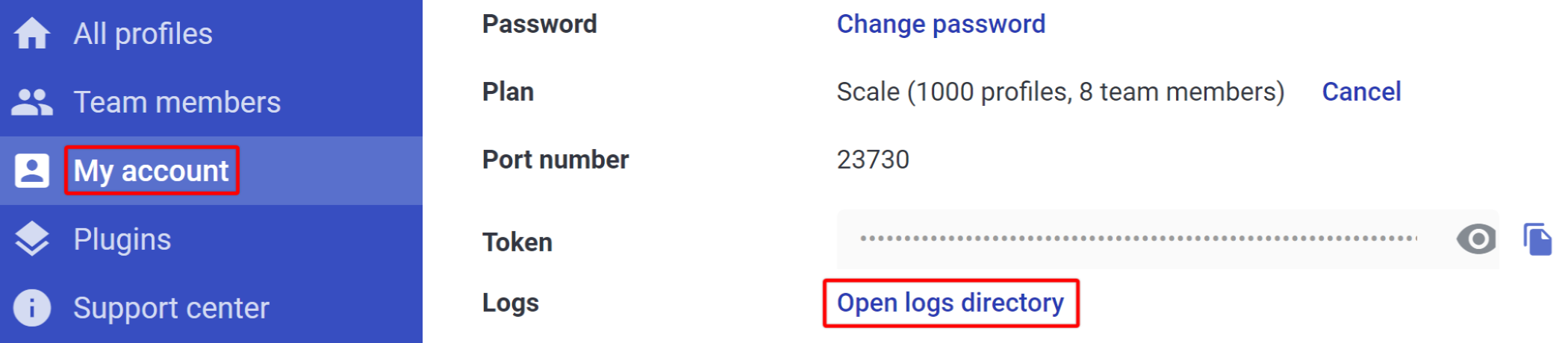
- Go to "My account"
- Click "Open logs directory"
- Archive all log files in the folder
- Send the ZIP or RAR file to [email protected]
If you can't log in
Windows
- Close Multilogin
- Go to the
C:\Users\%username%\.multiloginapp.com\logdirectory
- Archive all log files in the folder
- Send the ZIP or RAR file to [email protected]
macOS
- Close Multilogin
- Open your user directory in Finder
- Press
Cmd + Shift + .(period) to show hidden files - Go to the folder .multiloginapp.com → log
- Archive all log files in the folder
- Send the ZIP or RAR file to [email protected]
Linux
- Close Multilogin
- Go to the
/home/%username%/.multiloginapp.com/logdirectory - Archive all log files in the folder
- Send the ZIP or RAR file to [email protected]
