


How to export browser profiles
 ~2 minWritten by Yelena V
Browser profile export lets you save selected browser profiles as .zip files so you can move them to another device, account, or workspace.
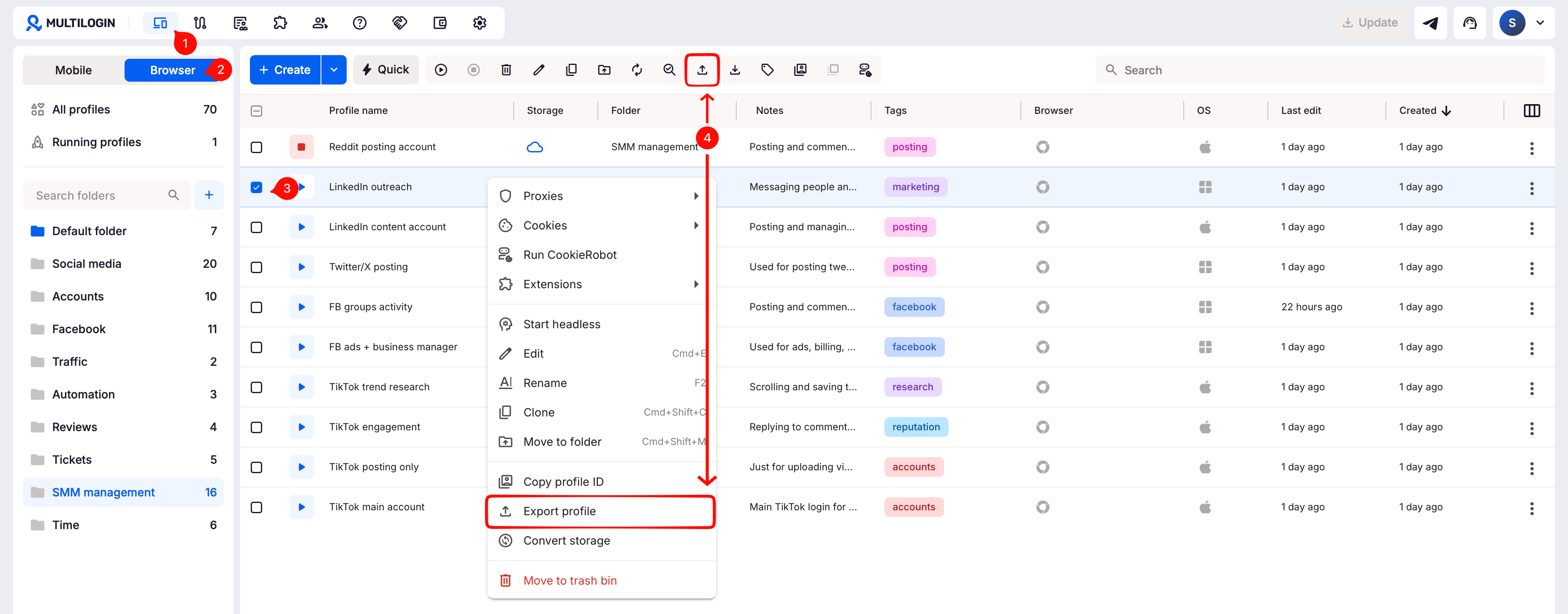
➡️ To export browser profiles, go to “Profiles” → “Browser”. From there, select one or more profiles and click “Export”.
With browser profile export, you can back up and move browser data like cookies, extensions, saved logins, fingerprint settings, and other profile files back into Multilogin later.
This feature is for browser profiles only
To export or import Android cloud phones, use the separate export and bulk creation flow.
Who can use this feature?
- 👨💻 Account owner
- 💰 Available on Pro 50 and higher
Feature limitations
Before you export, keep these limits in mind:
- Only the account owner can export browser profiles
- You can export up to 10 browser profiles at a time
- Browser profiles are exported as encrypted
.zipfiles - Cloud-stored browser profiles can be up to 100 MB when imported later
- Local browser profiles can be up to 2 GB when imported later
What happens to exported data
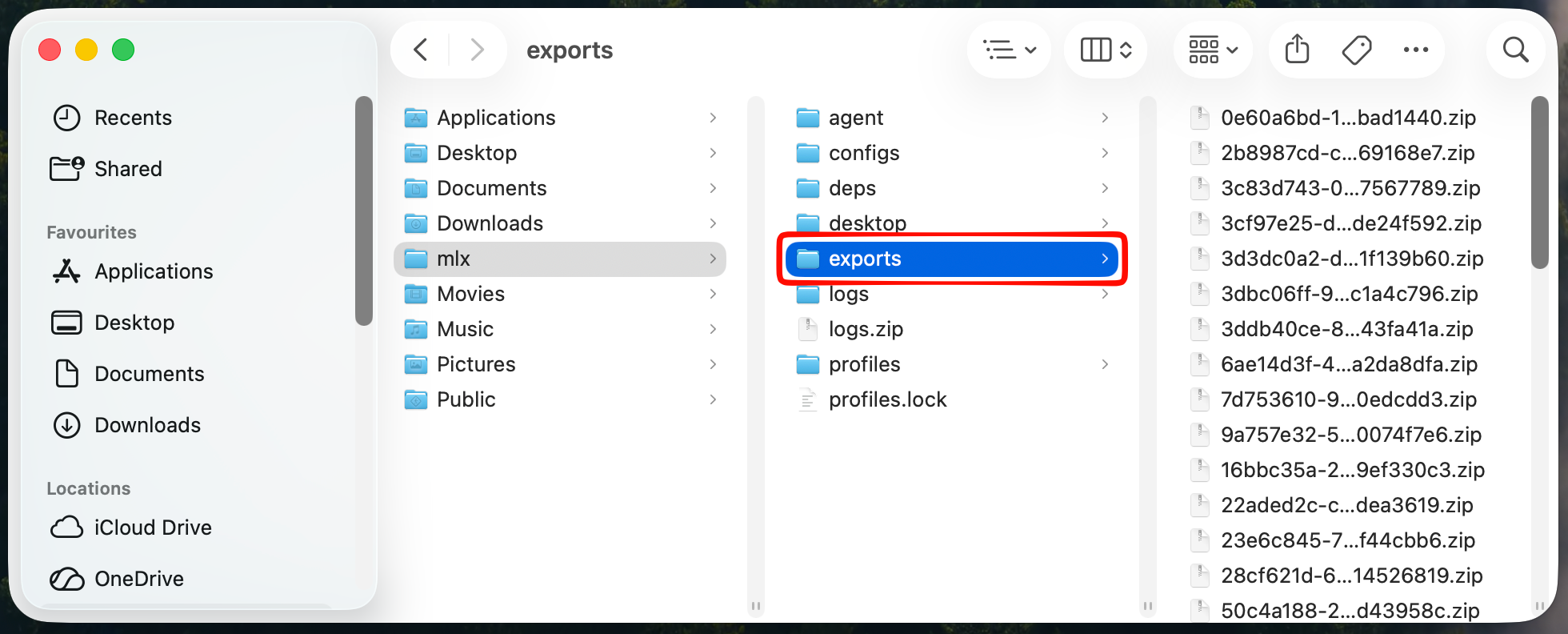
Exported browser profile data is encrypted and saved as .zip files on your computer.
Default export folders:
-
Windows:
C:\Users\%username%\mlx\exports -
macOS:
/Users/%username%/mlx/exports -
Linux:
/home/%username%/mlx/exports
Each file's name has the respective export ID.
Keep the original file name
Exported .zip files need their original names to work. Renaming a file will prevent Multilogin from importing it.
What’s included in the export
- Browser fingerprints
- Metadata (fingerprint settings)
- Browser data (cookies, extensions, saved logins, etc.)
- Binary data (cached files, downloads, etc.)
How to export browser profiles
- Go to the “Profiles” tab in the top menu
- Select “Browser” from the left-side selector
- Right-click a profile in the list, or select profile(s) using checkboxes and use the top menu
- Click “Export profile”
- Confirm with “Export”
Wait until the import is complete before deleting anything
Keep the original browser profiles in place until you’ve confirmed the exported files were imported successfully into the new workspace.
FAQs
Can I transfer profiles to another workspace?
Yes – just share the exported .zip files, and the account owner can import them on their end.
Should I extract the files from the archive?
No. Keep the .zip file as it is.
Will tags be exported too?
Yes! Once imported back, they will appear in your profile list.
Can I use exported data outside Multilogin?
No. Exported browser profile files are encrypted and can only be imported back into Multilogin.


