


How to use tags in Multilogin
 ~3 minWritten by Yelena V
Use tags to group and filter Multilogin browser profiles and Android cloud phones by client, task, status, or another workflow label.
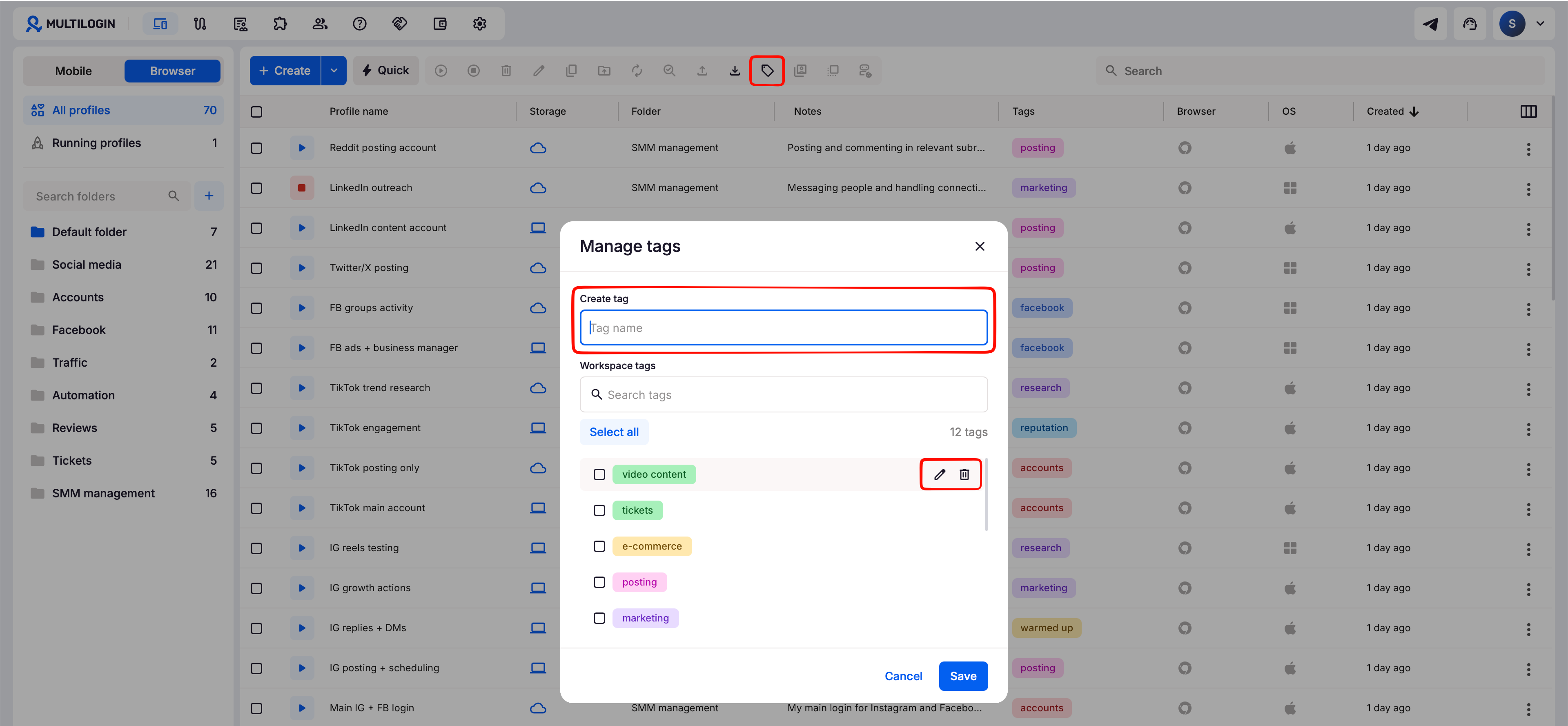
➡️ To create or manage tags, click “Manage tags” in the top menu. To assign tags, click the pencil icon in the “Tags” column or add them from profile settings.
You can create up to 100 tags per workspace and add up to 10 tags to each profile.
What tags are
Tags are like digital sticky notes for your profiles. They’re color-coded, and you can reuse them across your workspace to keep everything tidy and easy to navigate.
- Find things faster: search and filter instead of scrolling endlessly
- Stay organized: group profiles and phones by client, task, or status
- Use color to your advantage: quickly spot what’s what at a glance
How to manage tags
Tags are saved at the workspace level, so they’re available across all mobile and browser profiles in that workspace. You can create up to 100 tags, giving you plenty of room to organize things your way.
Click “Manage tags” in the top menu: from there, you can create, edit, or delete tags.
If you delete a tag, it’s removed from all profiles that were using it.
How to add tags
You can add up to 10 tags per profile to help organize them by client, purpose, workflow, or anything else that makes sense to you.
From profile list
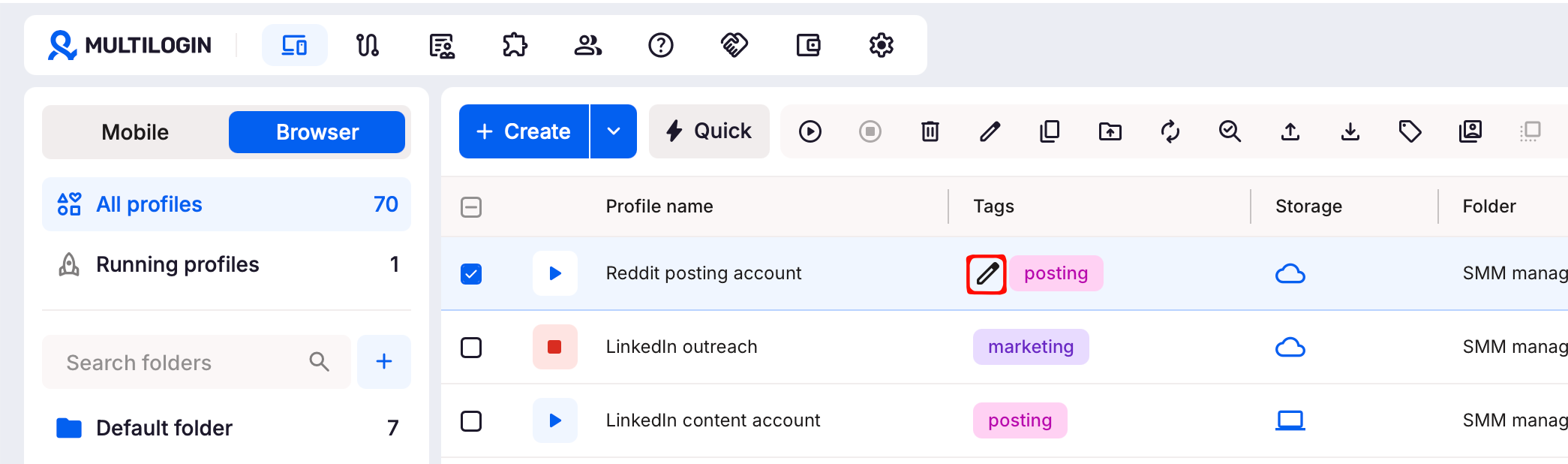
- Click the pencil icon in the “Tags” column
- Type in your tags in the pop-up window and hit Enter to add
From profile settings
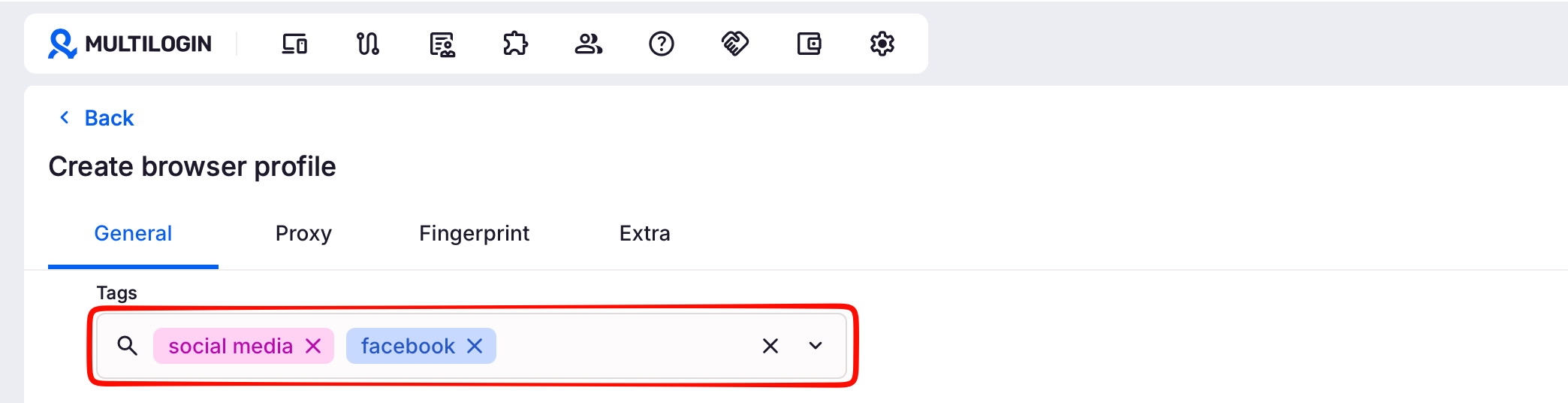
- Open profile settings and scroll to the “Tags” section
- Type in your tags and hit Enter to add
How to filter profiles by tags
Want to narrow down your profiles quickly? Use filters: they work on a match-any basis, meaning profiles with any of the selected tags will show up.
- Click the filter icon in the “Tags” column
- Select the tags you want to filter by
- Click “Filter” to view the profiles with the selected tags

Pro tips
- Combine tags with filters for custom profile views
- Stick to a naming pattern (e.g., “Client-A”, “Test-01”) to stay consistent
- Use color-coded tags for fast recognition across large sets
FAQs
Can I delete or edit tags later?
Absolutely! Just click the pencil icon again next to the tag, and you can make changes whenever you need to.
Are tags shared with my team?
If you’re in a team, yes – others can see the tags too.
Can I use emojis in tags?
Of course! Emojis are allowed, but remember – keep them clear and simple.


