


How to fix IP leaks when using a proxy
 ~2 minWritten by Yelena V
If a browser profile shows an IP different from the proxy you configured, first check the proxy connection and WebRTC settings. VPN apps, browser extensions, or other system-level network tools can also affect which IP the browser profile uses.
➡️ If a browser profile shows the wrong IP, stop the profile → check its “Proxy” settings → run “Check proxy” → review its “Fingerprint” → “WebRTC” setting → restart the profile and check the public IP again.
Check out the Multilogin vs. Proxyium comparison – get stronger proxies, better anti-detect, and full multi-account control.
Check WebRTC
Stop the browser profile → right-click it → “Edit” → “Fingerprint” → check “WebRTC”.
For a browser profile using a proxy, keep “WebRTC” set to “Masked” unless your workflow requires another setting.
Result: the WebRTC IP information stays aligned with the profile proxy.
Sync your system timezone
Windows
- Click “Start” → “Settings”
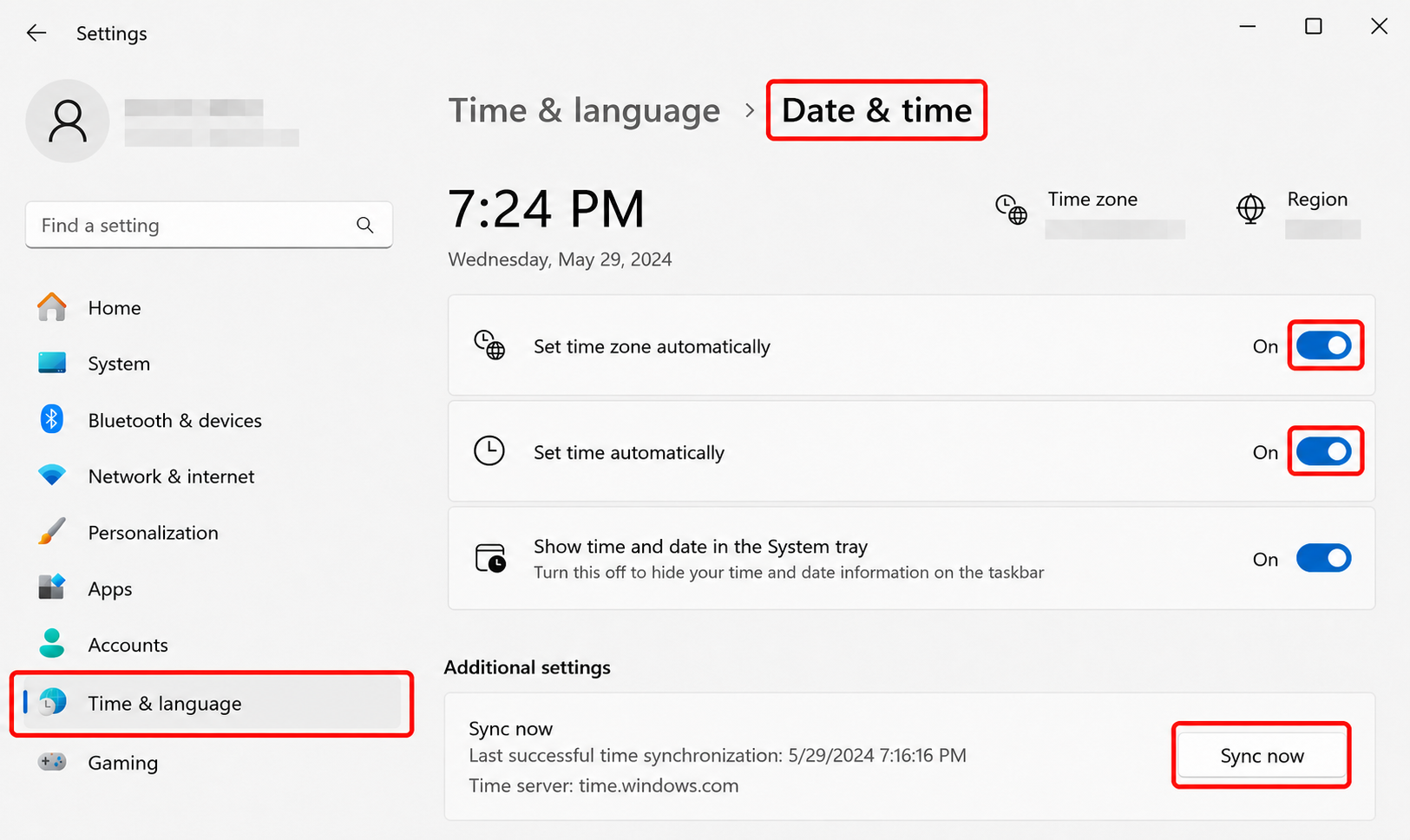
- Go to “Time & language” → “Date & time”
- Enable “Set time zone automatically” and “Set time automatically”
- Click “Sync now”
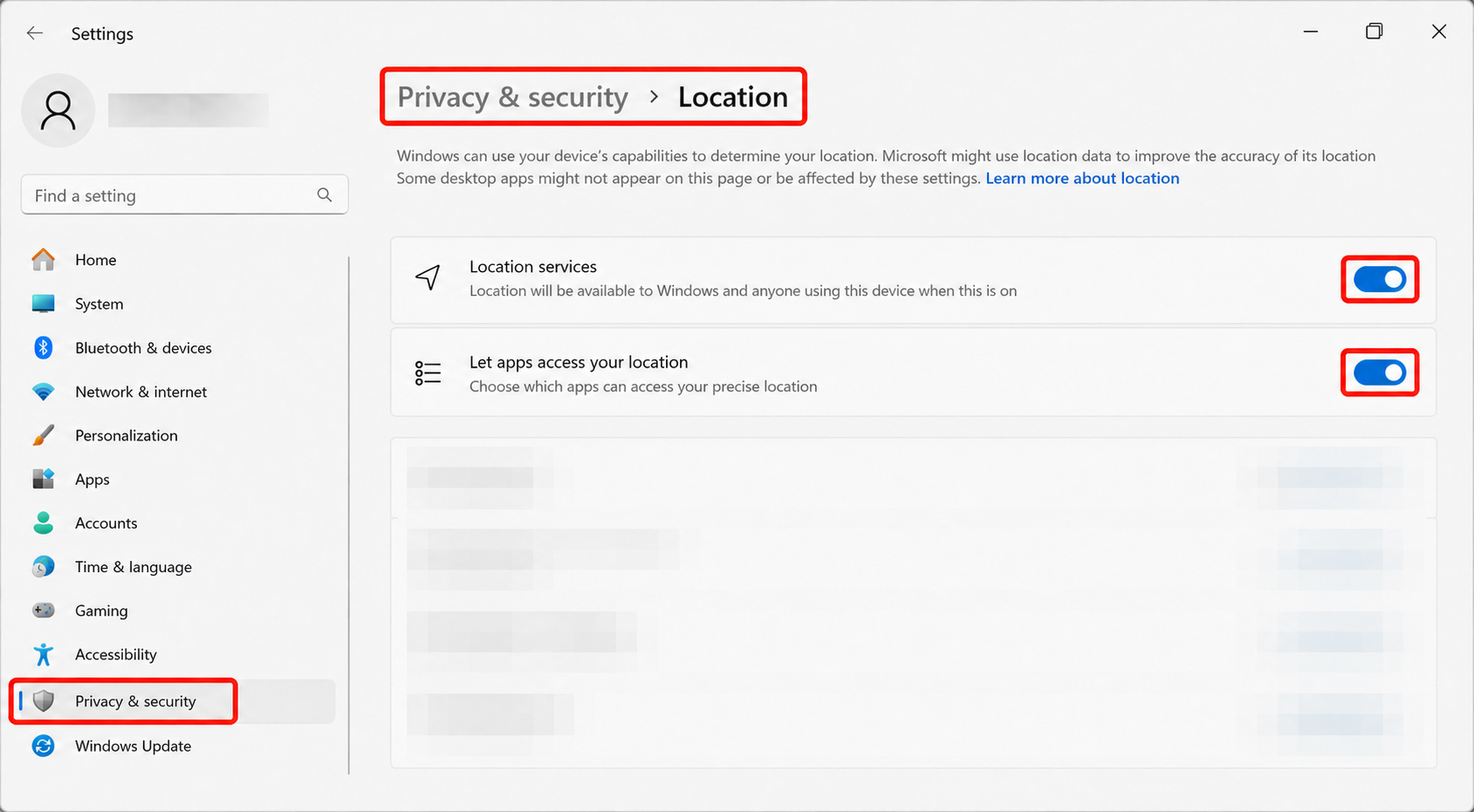
Can’t enable “Set time zone automatically”? Turn on location services:
- Go to “Settings” → “Privacy & security” → “Location”
- Enable “Location services”
- Enable “Let apps access your location”
macOS
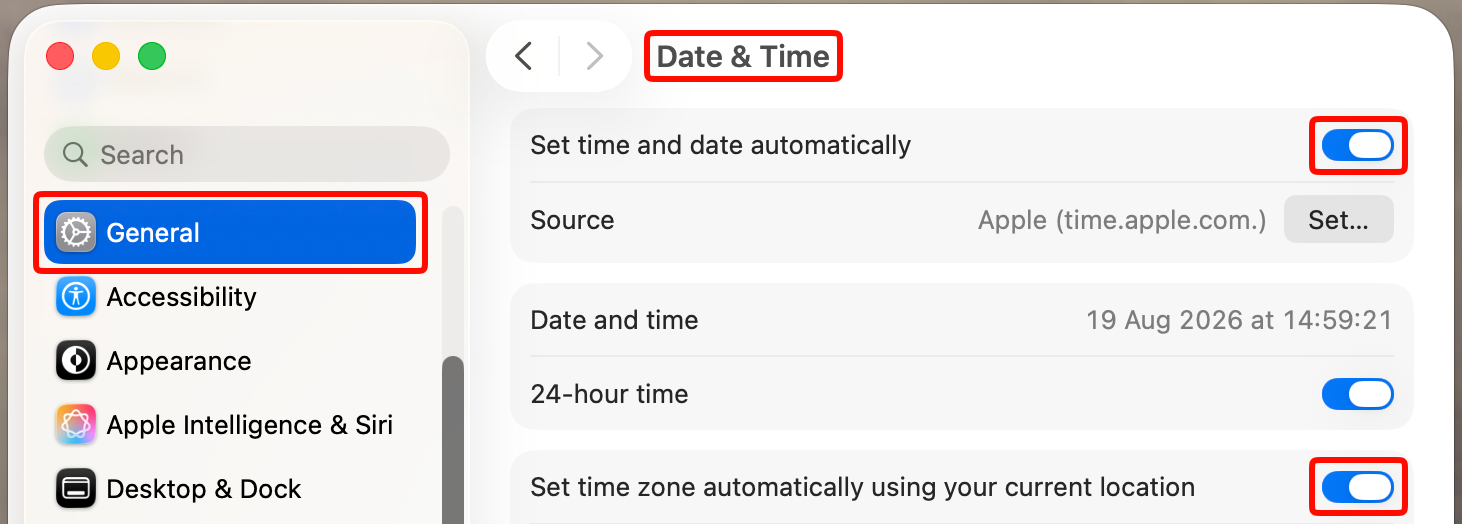
- Go to “System Settings” → “General”
- Choose the “Date & Time” section
- Enable the “Set time and date automatically” and “Set time zone automatically using your current location” settings
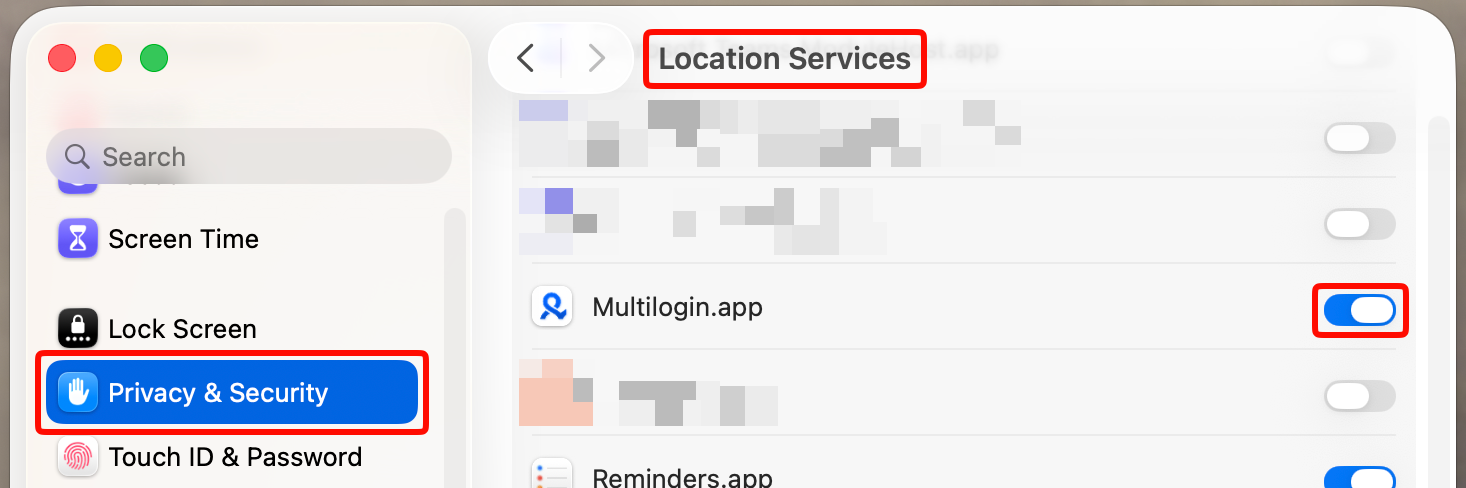
Can’t enable automatic timezone detection? Turn on location services:
- Go to “System settings” → “Privacy & Security”
- Pick “Location services”
- Turn on this feature for Multilogin
Disable NordVPN’s Threat Protection feature
What’s happening?
The Threat Protection feature in NordVPN has system-level priority, meaning it overrides settings and forces all browsers (yes, even your regular ones) to use NordVPN's IP. This happens even if the VPN connection is turned off.
If you’re using Multilogin with a proxy, this feature can prevent your proxy IP from working properly, showing NordVPN’s IP instead.
How to fix it?
Here’s the good news – it’s a super easy fix!
- Open NordVPN on your device
- Navigate to the settings and disable “Threat Protection”
- Restart your Multilogin browser profile and check that the proxy IP is now showing correctly.
Got questions or need help? Don’t hesitate to reach out. Multilogin has your back! 😊


