


How to fix error “Something went wrong”
 ~2 minWritten by Yelena V
The “Something went wrong” error can appear when you try to start a local browser profile on a different computer from the one where its data is stored.
Start the browser profile on the original computer, or convert its storage from local to cloud before using it on another device.
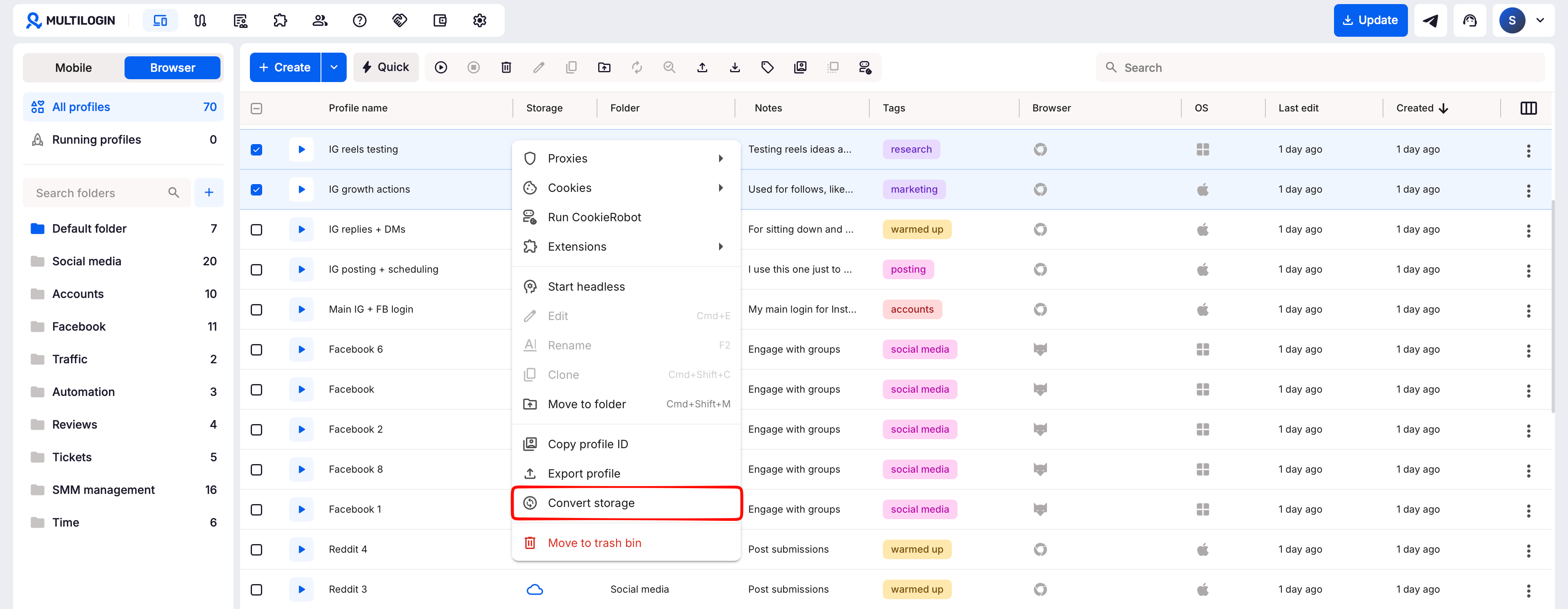
➡️ Go to “Profiles” → “Browser” → select the profile → right-click → “Convert storage”.
If the browser profile already uses cloud storage, continue to the Support section below.

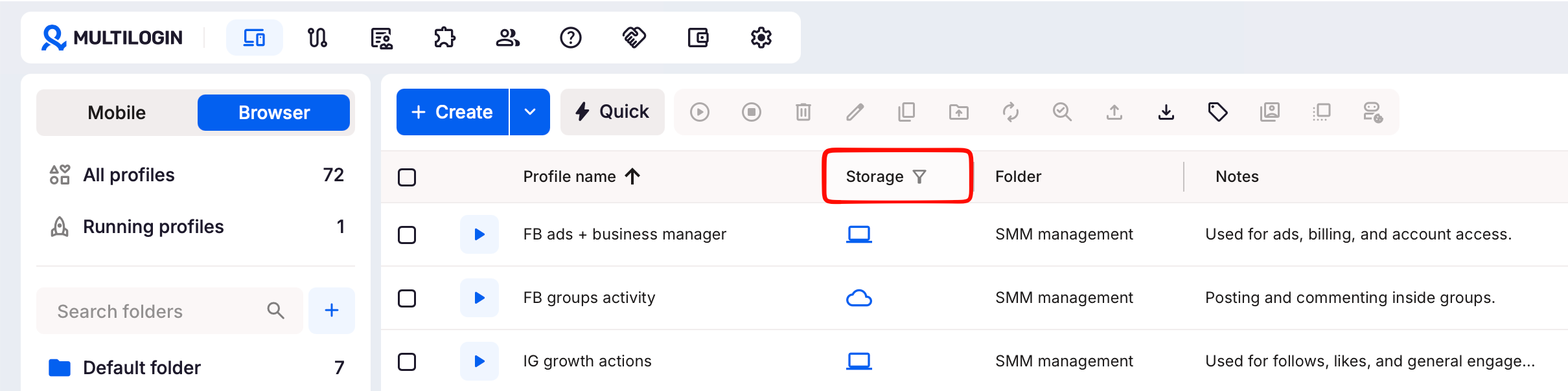
Check storage type
Check if your browser profile uses local or cloud storage:
- Local storage: profiles can only be accessed on the device they were created on – you can’t launch them elsewhere
- Cloud storage: the browser profile data is stored online and can be accessed from another supported device
If you created the profile on device X and are trying to launch it on device Y, that’s likely causing the error. The easiest fix is to launch the profile on the same computer where it was created.
Convert to a cloud profile
Want to be able to use your profiles on any device? Cloud profiles are the way to go. Here’s how to make it work: convert your local profile to a cloud profile. This makes it accessible from any device.
Set new profiles to cloud
To avoid this issue in the future, make sure to create all new profiles as cloud browser profiles from the start. This way, you can work seamlessly across multiple devices.

Nothing helps?
We will be more than happy to look into the issue further! Send us logs so that we can take a closer look.
- Recreate the issue or wait until the error message appears
- Archive the logs folder found in these locations:
-
Windows:
C:\Users\%username%\mlx -
macOS:
/Users/%username%/mlx -
Linux:
/home/%username%/mlx
-
Windows:
- Email support at [email protected] with:
- A clear description of the issue
- The archived logs folder attached


