


How to replace the Mimic icon on Windows
 ~2 minWritten by Yelena V
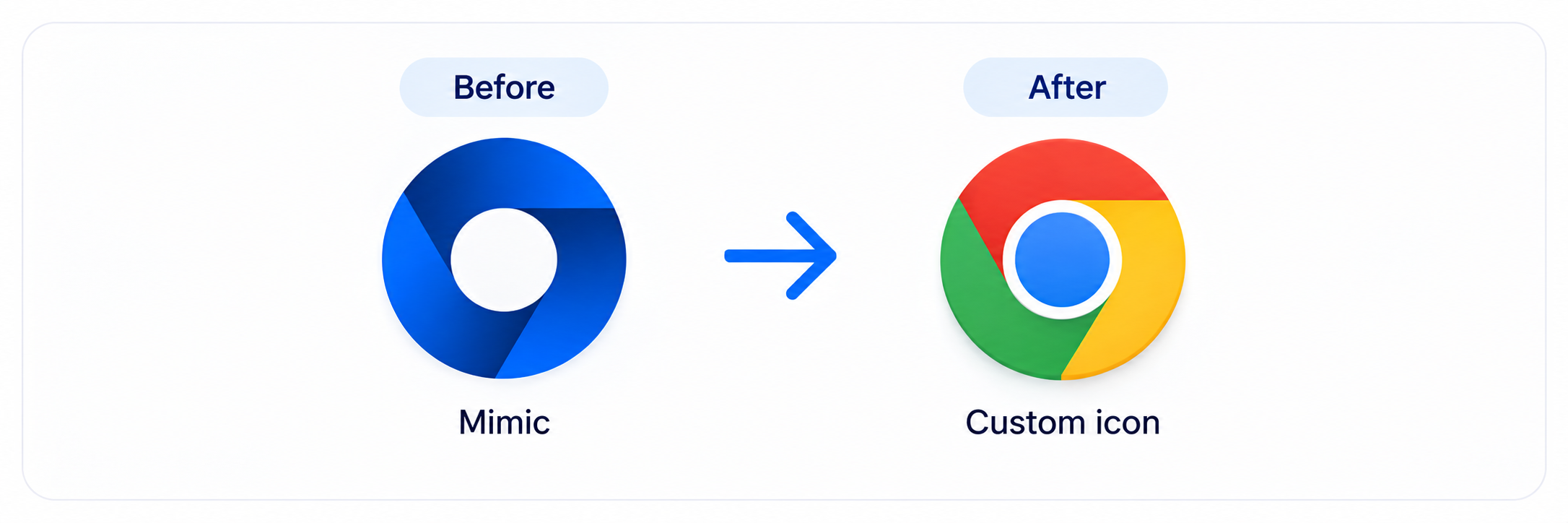
You can replace the Mimic icon shown in Windows when you want a different browser icon in screenshots or your taskbar. This is a local Windows change and only applies to Mimic browser profiles.
➡️ Open the latest Mimic files in Resource Hacker → replace the icon in chrome.exe and chrome.dll → save the changes → restart your computer.
This guide is for Windows only. It doesn’t apply to Android cloud phones.
Before you start
You’ll need Resource Hacker, a free Windows tool for editing resources inside .exe and .dll files.
- Download Resource Hacker from the official website
- Install and open it
Step 1: find the latest Mimic files
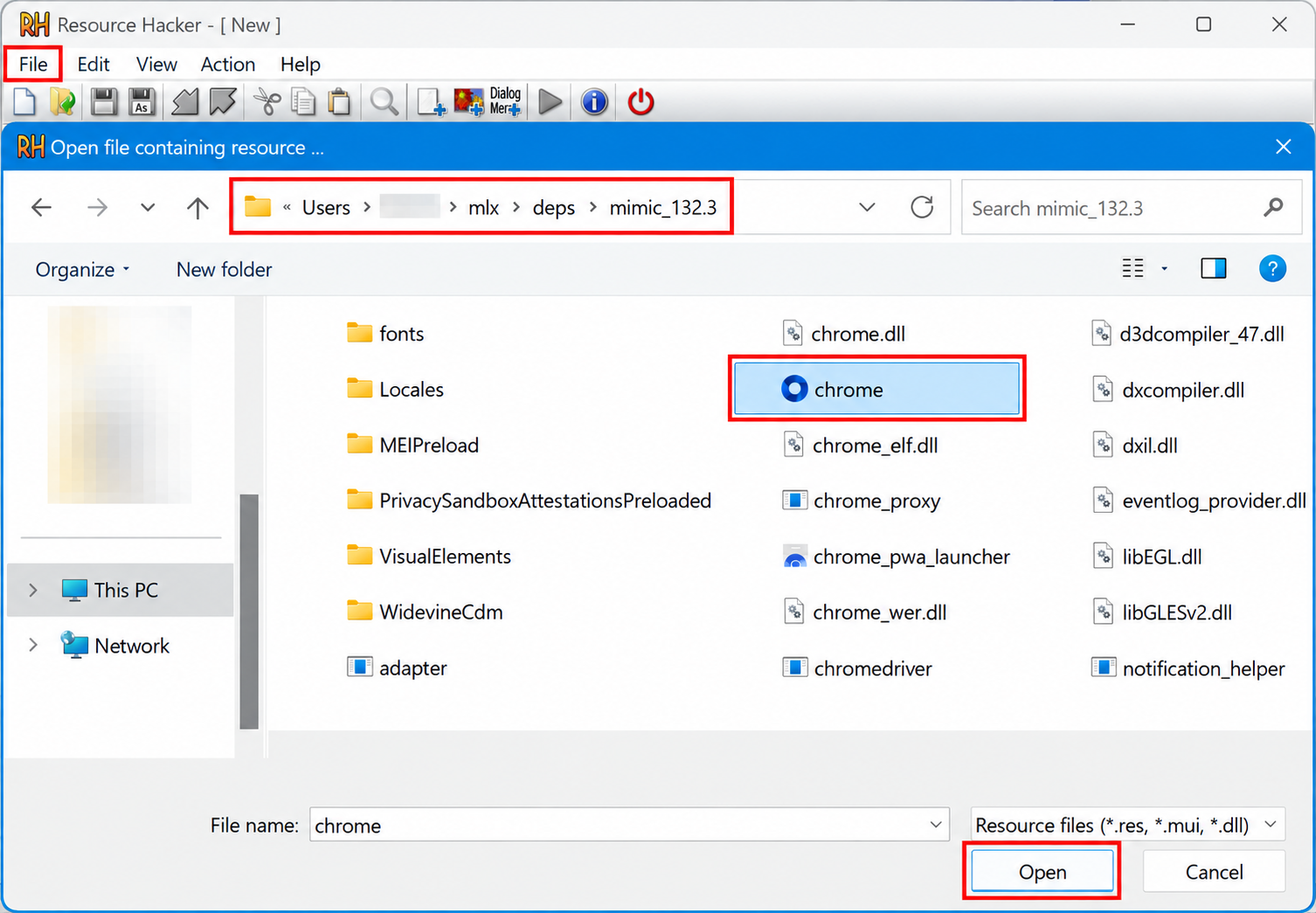
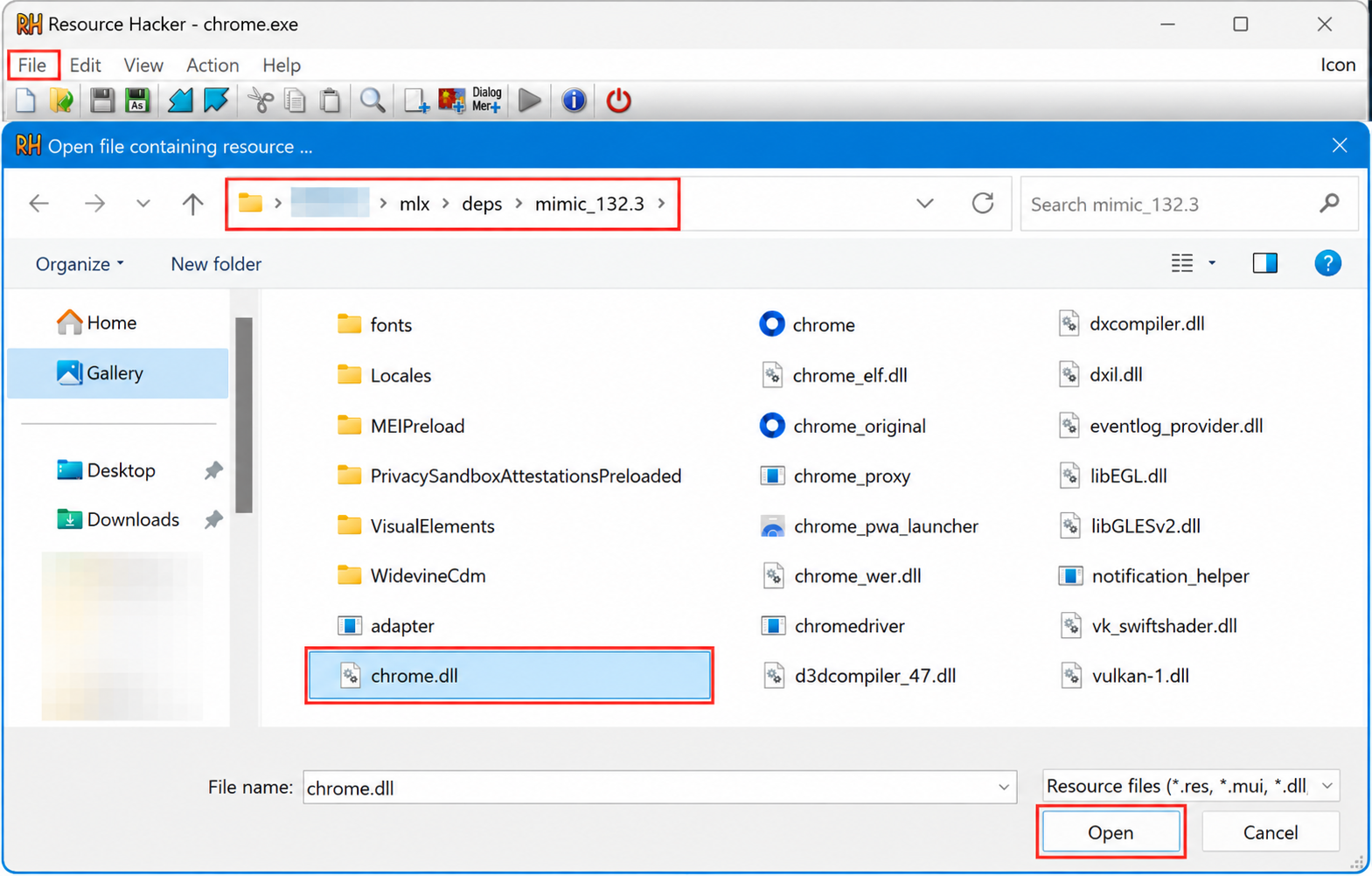
- In Resource Hacker, click “File” → “Open”
- Go to
C:\Users\%USERNAME%\mlx\depsand open the folder for the latest Mimic version - Select
chrome.exe - Click “Open”
The deps folder stores downloaded Multilogin browser cores.
Step 2: replace the icon in chrome.exe
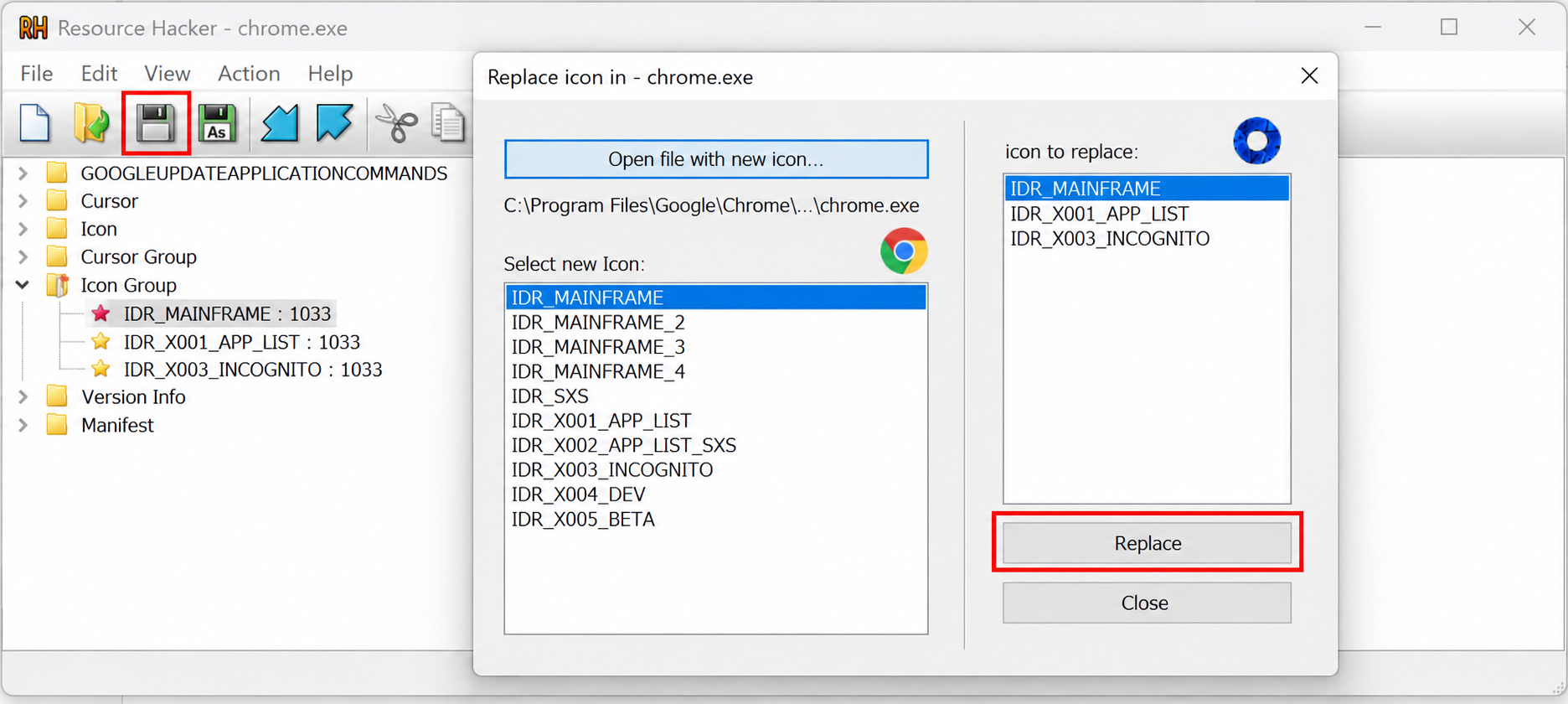
- Find the “Icon” folder in Resource Hacker
- Right-click it and select “Replace icon”
- Click “Open file with new icon”
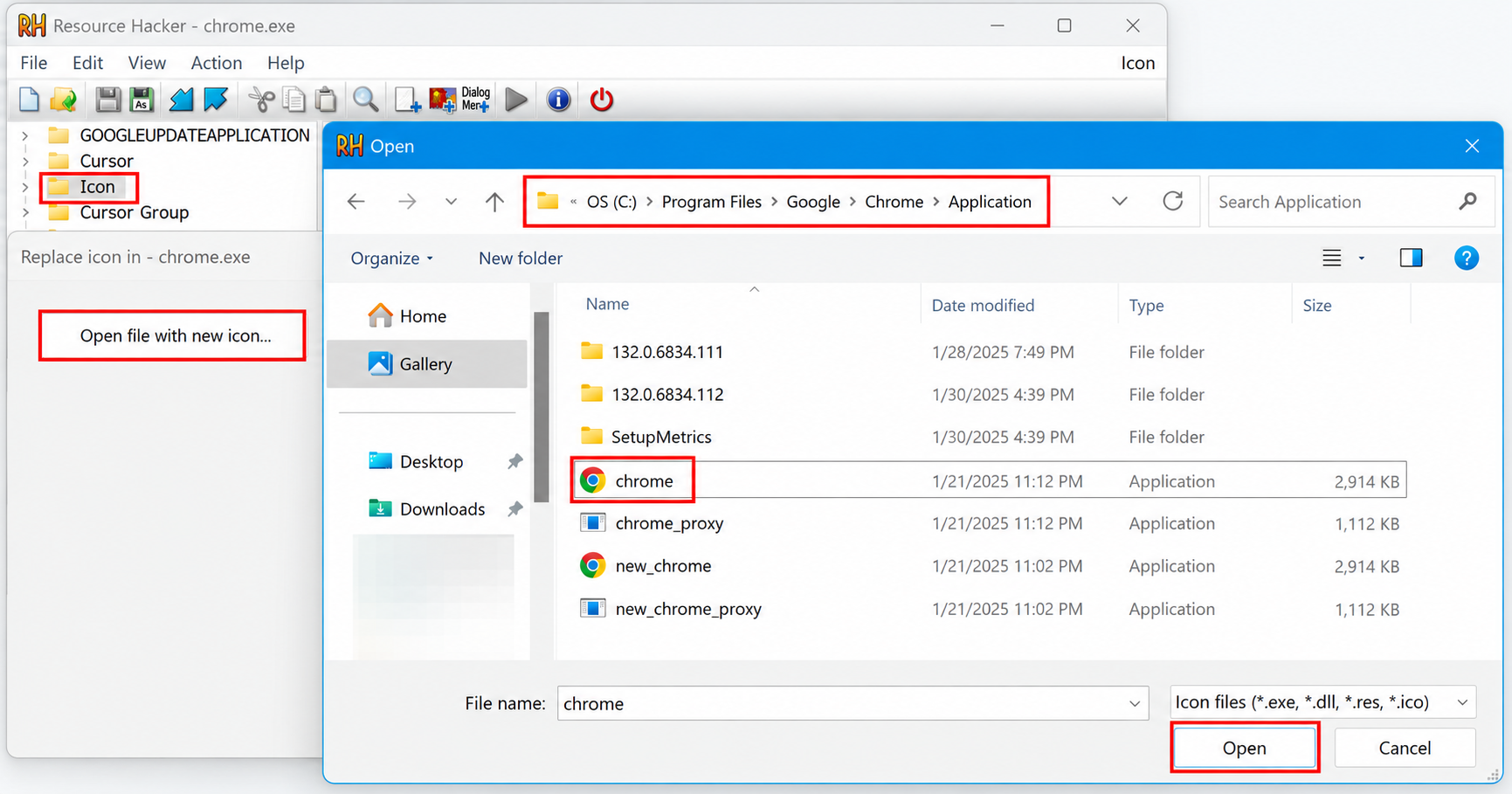
- Select the icon you want to use and click “Open”
- Click “Replace”
- Click “Save”
You can find the chrome.exe icon under C:\Program Files\Google\Chrome\Application.
Step 3: replace the icon in chrome.dll
- Open
chrome.dllfrom the same Mimic version folder - Replace the icon using the same steps
- Save the changes
Step 4: restart and check the icon
- Restart your computer
- Open Multilogin
- Start a Mimic browser profile
The new icon should now appear for the running Mimic browser.


