


How to uninstall the agent in Multilogin
 ~1 minWritten by Yelena V
Sometimes, uninstalling the Multilogin agent is the best way to fix persistent issues, perform a clean reinstall, or remove it from a device you no longer use.
➡️ To uninstall the Multilogin agent, disconnect it first → remove it from Windows “Apps”, macOS “Applications”, or Linux Terminal using the steps below.
Whether you're troubleshooting, upgrading, or switching setups, here’s how to properly uninstall the agent on Windows, macOS, and Linux.
This guide applies to the legacy agent used with the Multilogin web interface.
Using the desktop app? You do not need to connect the separate legacy agent.
Windows
- Disconnect the agent
- In the Start menu, click the cogwheel icon ⚙️
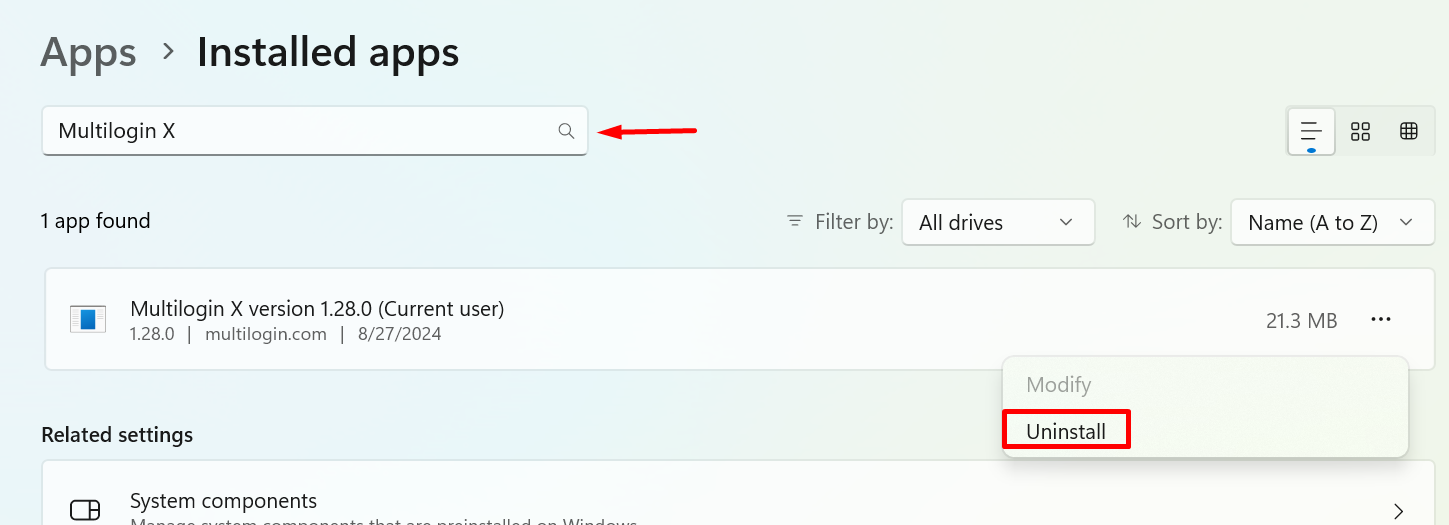
- In Windows settings, select “Apps”
- Type “Multilogin” into the search bar
- Click the app name and select “Uninstall”
macOS
- Disconnect the agent
- Go to Finder and select “Applications”
- Right-click the Multilogin icon and select “Move to Bin”
Linux
- Disconnect the agent
- Run this command in the Terminal:
apt remove mlx


