


How to navigate Multilogin interface
 ~4 minWritten by Yelena V
You can handle most everyday tasks right from the main workspace, from launching profiles to managing your team.
- Use the top menu to move between main sections like "Profiles", "Team", "Billing", and “Account settings”
- Use the left sidebar for folders, running profiles, and tools related to the section you’re in
- View and manage your cloud phones and browser profiles in the profile table
- Quickly access actions for individual profiles in the right-click menu
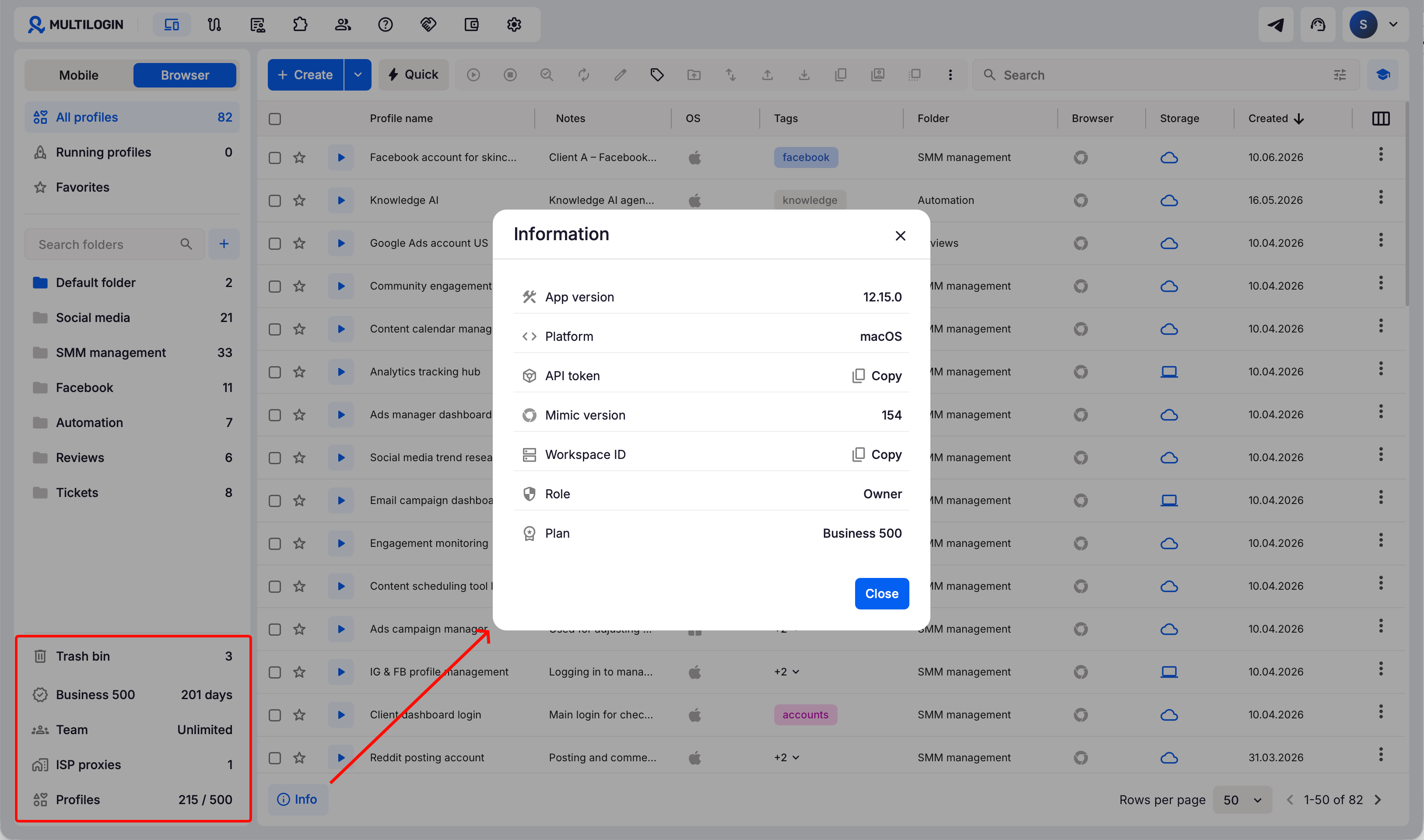
- Check the bottom panel for profile, team member counts, and workspace details
To check your remaining proxy traffic and mobile minutes or top up, go to “Billing” in the top menu and scroll down to “My resources”.
Learning center: your shortcut to getting started
Want to get comfortable in Multilogin faster? Open the Learning center in the top-right corner to watch bite-sized video guides and onboarding tips without leaving your workspace. You can access tutorials in these sections:
- Profiles
- Profile templates
- Team
- Account settings
Each section includes several videos, so you can learn step by step, solve questions faster, and keep moving.
For a quick intro, hover over the question mark in the top menu and select “Tutorial”. You'll see a dashboard overview.
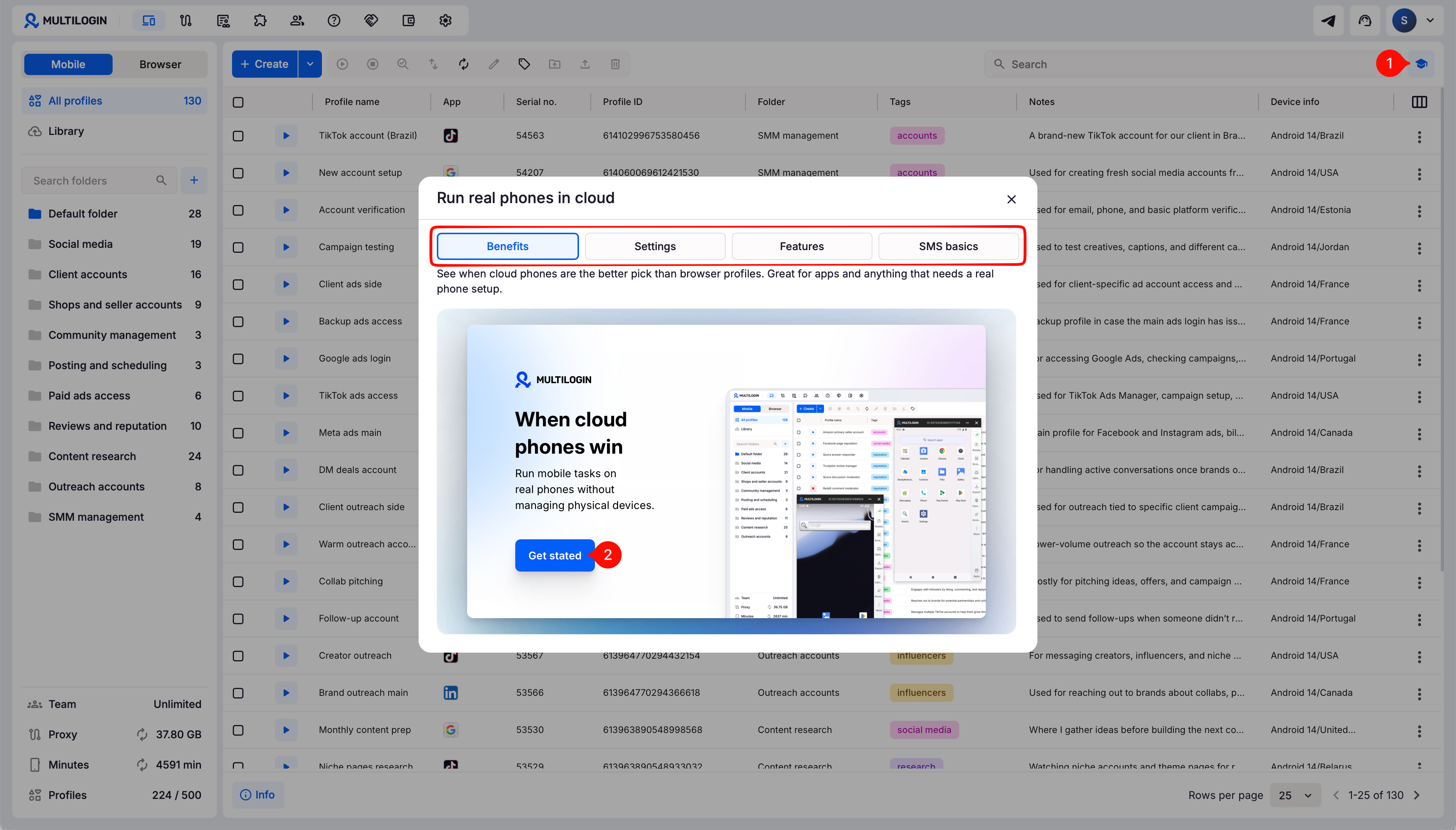
Top menu: your navigation hub
The top menu is your command center for jumping between all the major sections. Each icon has a specific function that’ll save you time:
- Profiles: this is where all your mobile and browser profiles live – basically, your digital crew
- Proxy templates: set up proxies by type, protocol, and location, then assign them to profiles with one click
- Profile templates: skip the repetitive stuff – reuse pre-set profile settings whenever you need them
- Extensions: add your favorite extensions from Chrome/Firefox and assign them directly to profiles in one click
- Team: bring your squad together and manage who can access what in your workspace
- Referral: share your link to earn credits when friends sign up
- Billing: manage your subscription, top up proxy traffic and minutes, change payment methods, and grab invoices
- Account settings: adjust your workspace to fit your style – language, date format, security settings, and all that good stuff
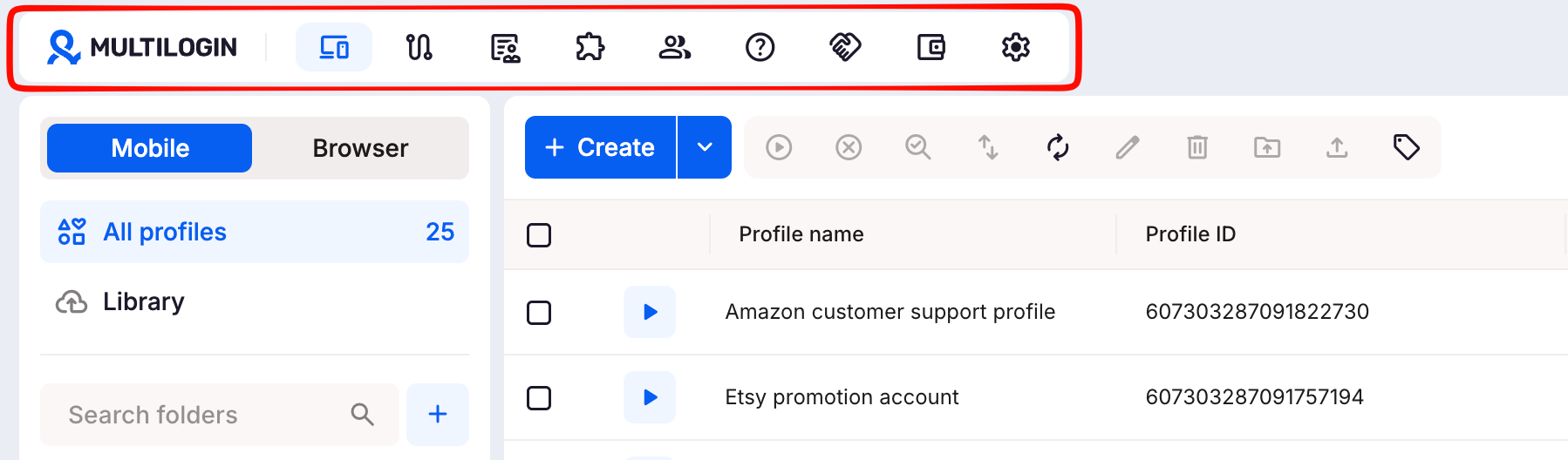
Left sidebar: your quick-access menu
The sidebar gives you quick access to key elements in your workspace. It’s dynamic and adapts depending on where you are.
You’ll see your folders, running profiles, library, team invites, and all your other tools for staying organized. Oh, and you can collapse it for more screen space when you don’t need it.
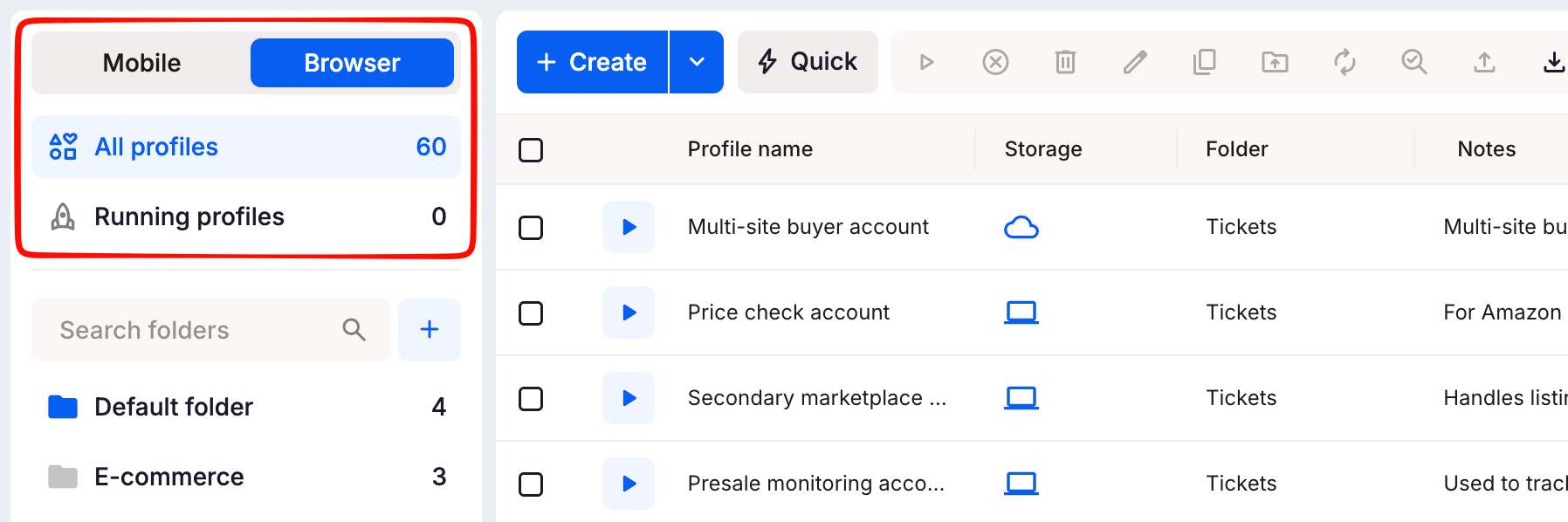
Right-click for faster actions
Right-clicking on any item – like a profile – gives you a full list of actions you can take right from the menu. It’s the quickest way to manage your items without needing to dig into different tabs or pages.
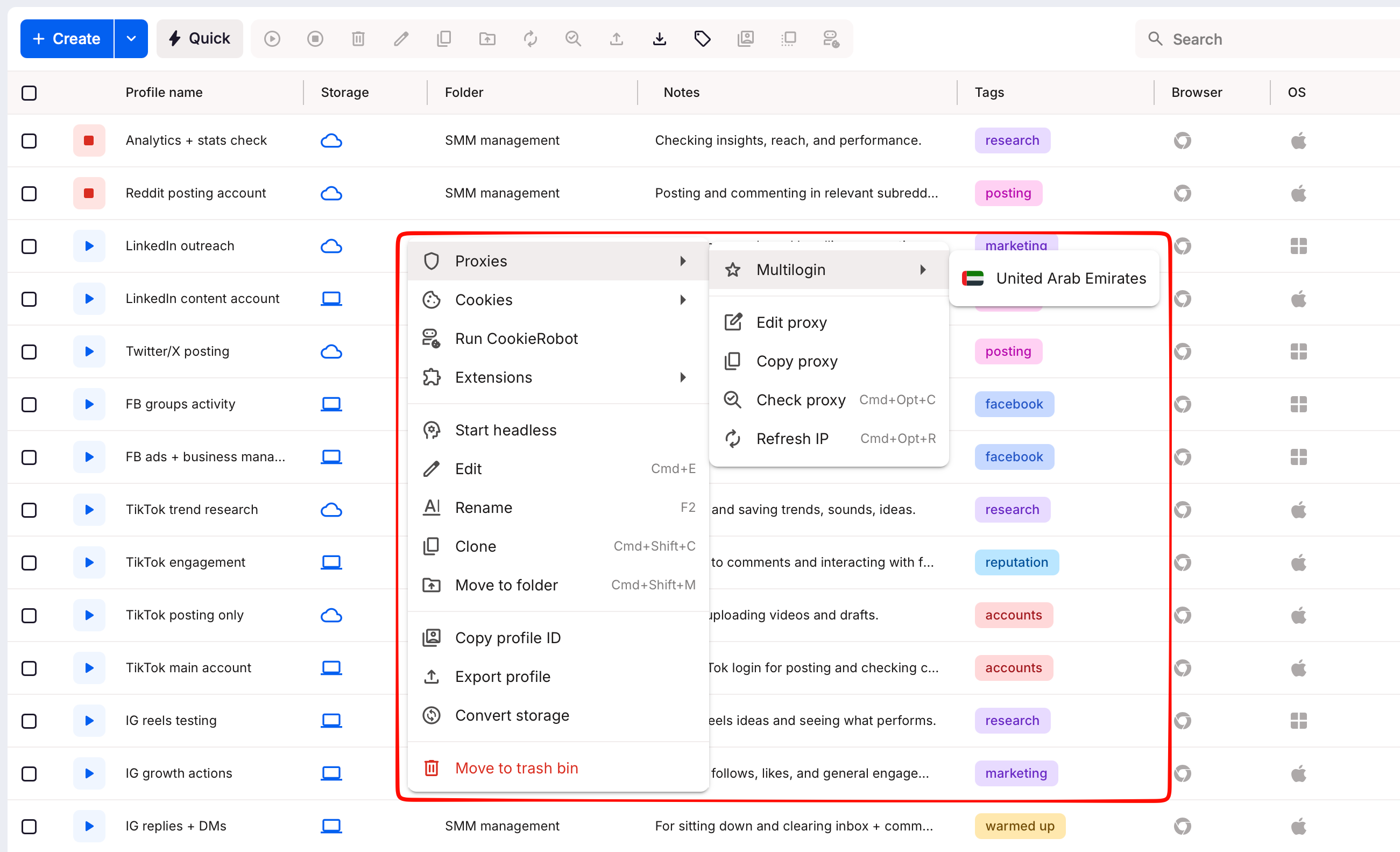
Bottom panel: quick stats and workspace info
At the bottom of the left sidebar, you can quickly check:
- Current plan: your subscription and how many days are left
- Team: your available team seats
- ISP proxies: how many ISP proxies you have
- Profiles: how many profiles you've created and your plan limit
Need more details? Click “Info” at the bottom-left of the profile table to see your app version, platform, Mimic version, API token, workspace ID, role, and current plan.
Make the workspace work for you
Multilogin gives you a lot of ways to make the interface feel like your workspace. Here’s how you can personalize it:
- Profile table columns: customize the table to show the data you actually care about. If you only need to see profile names, tags, and storage, keep it simple
- Profile behavior: choose when Multilogin auto-stops mobile profiles, and hide the confirmation pop-up before closing quick profiles
- Theme: switch between light or dark mode depending on your preference
- Language: work in your preferred language for a smoother experience
- Date format: choose the date format you’re used to, whether it’s day/month/year or month/day/year
These small tweaks can make a big difference in how comfortable and efficient you feel using the platform.


