Remote phone
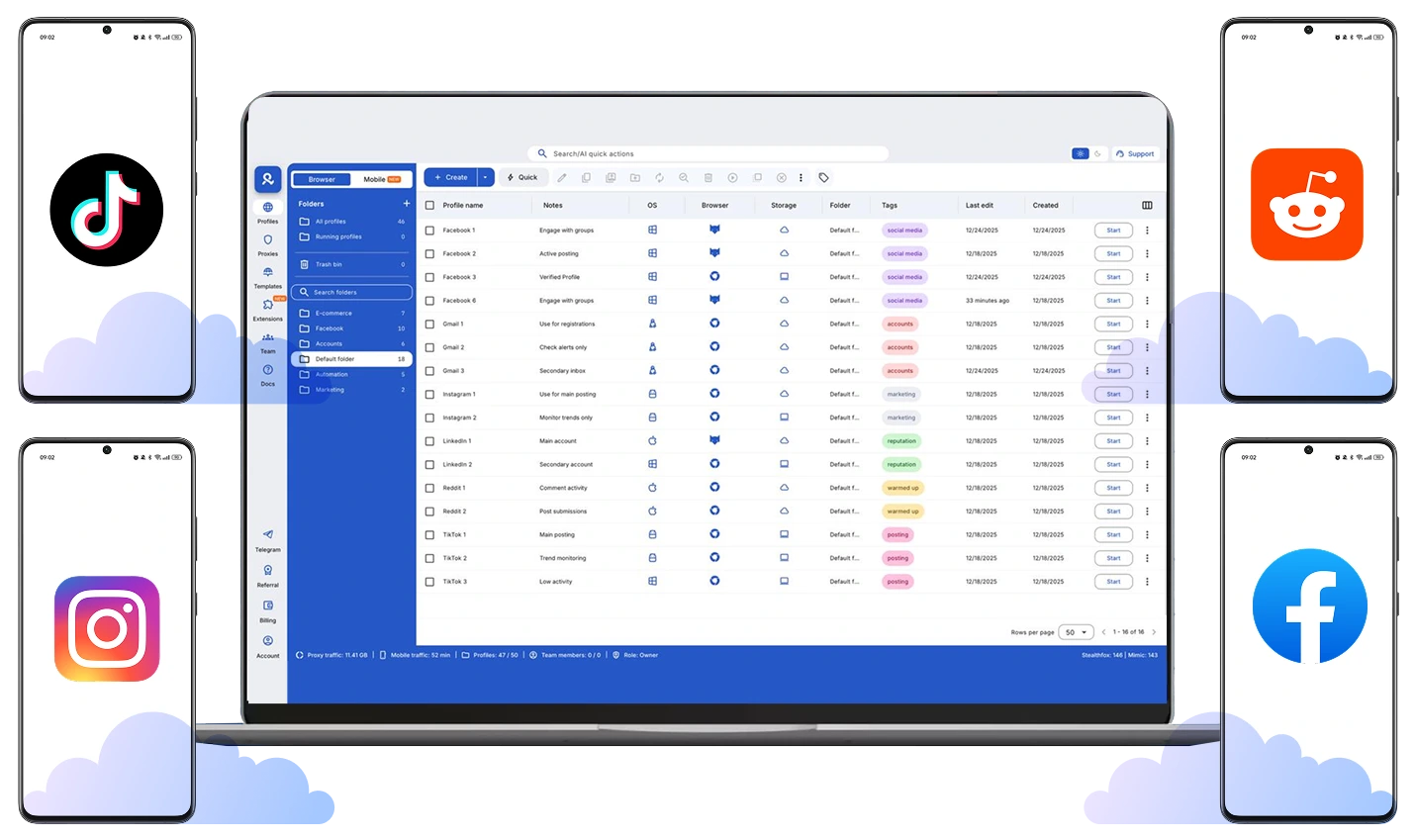
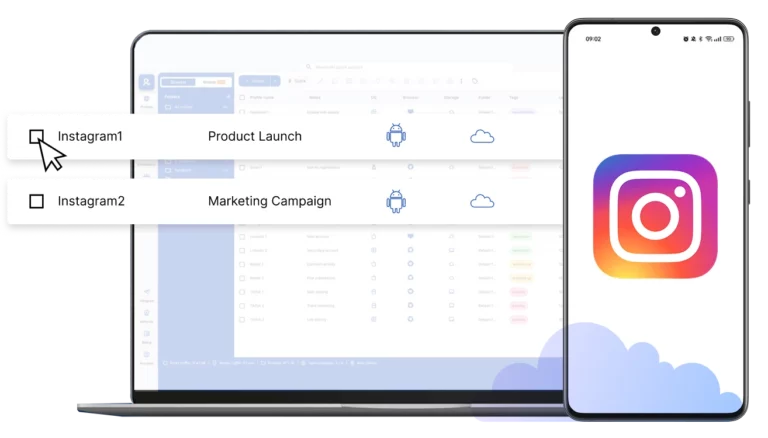
Log in to your mobile accounts with Multilogin remote phones. Control multiple Android phones from one dashboard, without physical devices or extra tools.
Run multiple accounts with remote phones
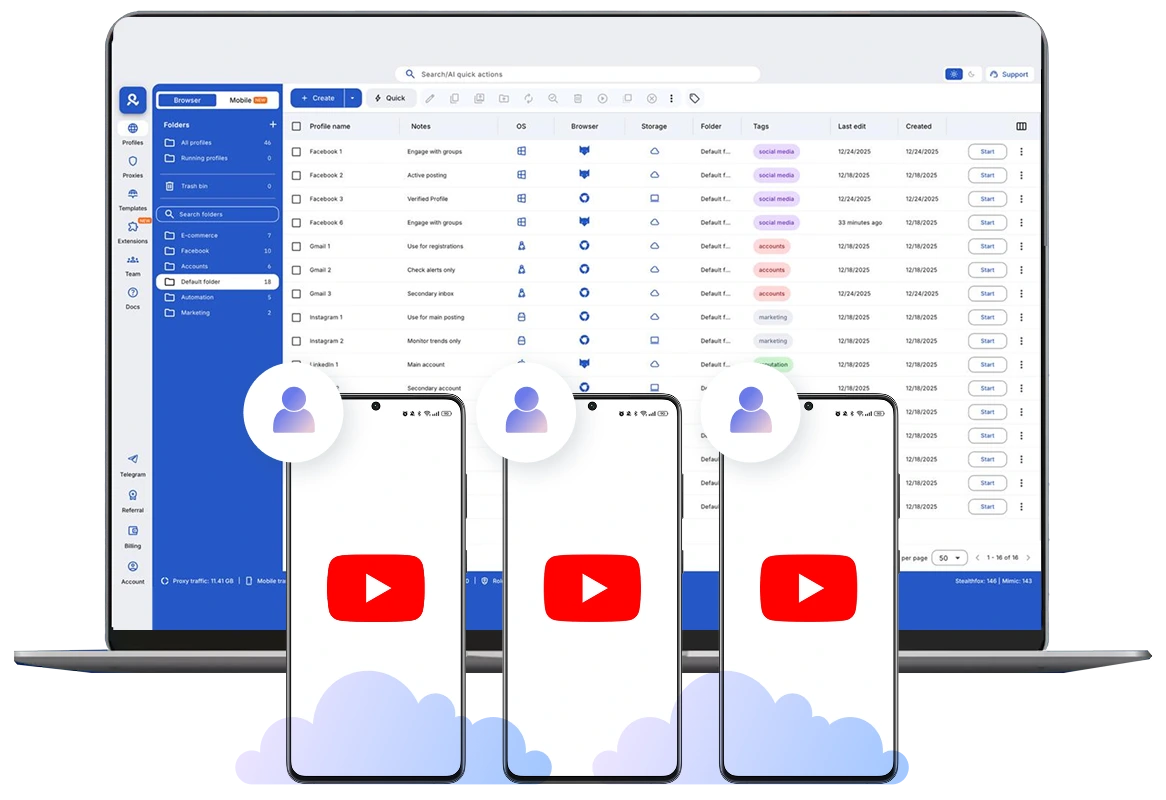
Switch between remote phones in seconds, keep sessions saved, and continue where you left off. Organize multiple accounts using folders, tags, and notes, and manage everything comfortably from one dashboard without switching physical devices.
Control network and location for each remote phone
Choose the country, region, and network for each remote phone, and Multilogin runs it accordingly. Each remote phone connects through its own network using residential IPs, with access to 150+ countries.
Share remote phones across your team
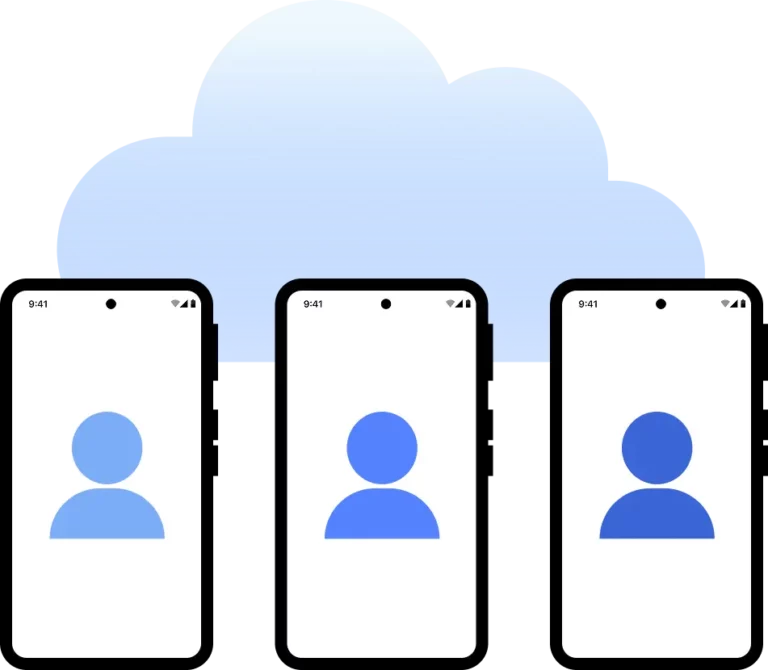
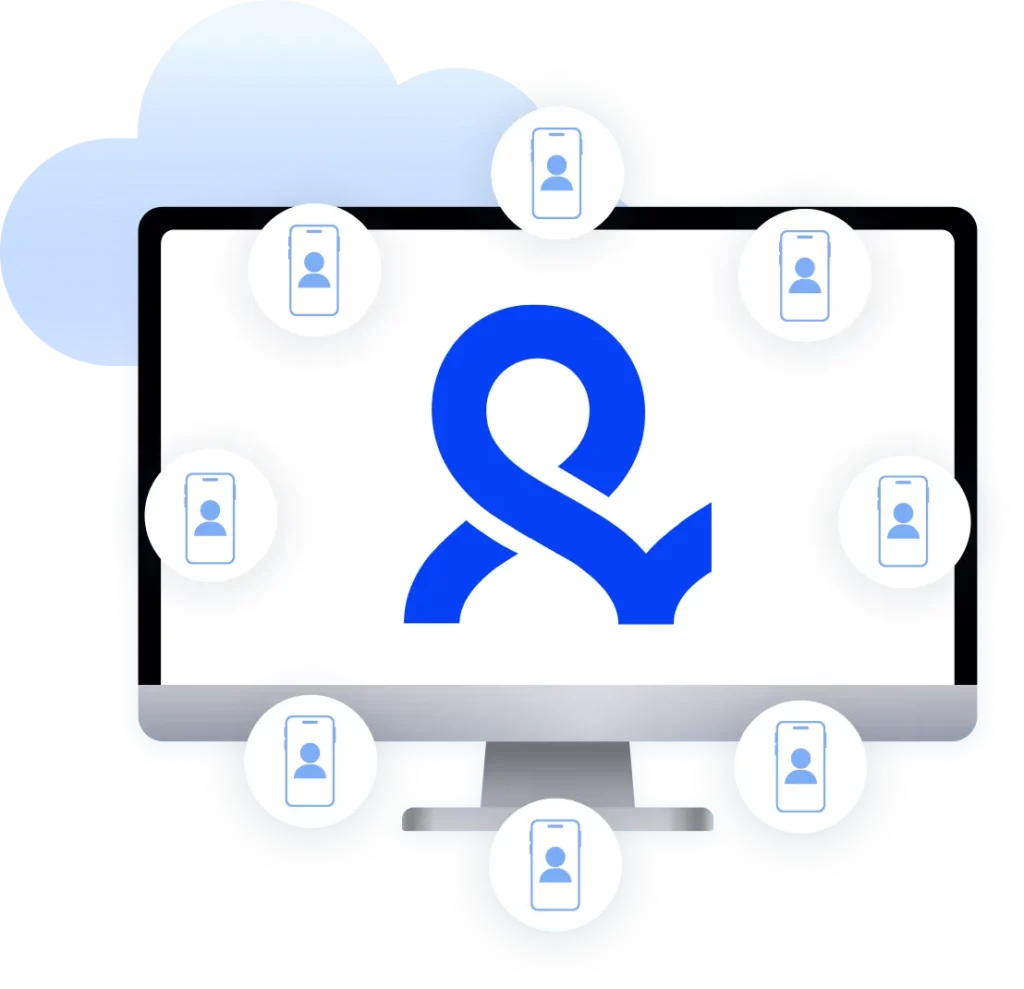
Share remote phones with your team, assign access, and control who can do what from one dashboard. Keep work organized as your team grows, without sharing logins or managing physical devices.
Boost marketing results using remote phones
Use remote phones to organize mobile campaigns and manage multiple accounts more efficiently. Share access with your team, assign responsibilities, and keep marketing work structured as operations grow, all from one dashboard.
Looking for all-in-one antidetect browser with built-in proxies?
-
3-day access to Multilogin
-
5 cloud or local profiles
-
200 MB proxy traffic included
-
3-day access to Multilogin
-
5 cloud or local profiles
-
200 MB proxy traffic included
What are cloud phones?
Cloud phones are Android devices that run in the cloud and are accessed remotely from your desktop. Each cloud phone works as an independent phone, with its own Android system, apps, saved sessions, and network setup, letting you use mobile apps without relying on physical devices.
Why choose Multilogin remote phone?
Multilogin gives you remote phones and browser profiles in one beginner-friendly dashboard, built for teams managing multiple mobile accounts. Each remote phone runs as its own Android device with saved sessions, built-in proxies, and controlled network and location settings. You can work in native mobile apps or switch to the browser when needed, all without physical phones, extra tools, or complicated setup.
Multilogin features for remote phone management
Multilogin 2-in-1
Anti-detect browser profiles and cloud phones in one ecosystem. One app, one dashboard, full control.
Built-in proxy integration
Residential IPs are included by default. 150+ countries and 1,400+ cities with daily quality testing.
Up-to-date Android versions
Stable Android versions 10–15, fully compatible with modern mobile apps.
Real brands and devices
Support for 12 real Android device brands with unique IMEI and system-level digital fingerprints.
App repository
Install TikTok, Instagram, Reddit, and other popular apps without Google Play. APK uploads are also supported.
Folders, tags and access control
Organize profiles using folders, tags, and role-based access. Manage team workflows with ease.
Enterprise-grade security
Profile encryption, 2FA, access control, and compliance-ready security for safe operations.
One-Click Remote Phone Launch
Launch remote phones and install Android apps instantly!
Multilogin competitive advantages
Fast and intuitive interface
Everything at your fingertips: drag-and-drop, hotkeys, and smooth multitasking without losing speed.
Browser built for multi-accounting
Advanced engine effectively avoids multi-account detection by creating unique browser fingerprints.
Created for team collaboration
Proxies included in every plan
24/7 support in 5 languages
How to start using Multilogin
Start collecting data effortlessly with the industry leading antidetect browser.

Sign up
Register using a verified email address

Choose your plan
Select from various subscription plans tailored to your business needs.

Download the Multilogin agent
Install Multilogin X on Windows, macOS, or Linux to access browser profiles and cloud phone management from one place.

Access the Multilogin dashboard
Create antidetect browser profiles or launch cloud phones to manage your accounts in isolated environments.

Create and manage multiple accounts
Set up and manage multiple your accounts using separate browser profiles, all from one secure platform
Watch the Multilogin demo
Learn how Multilogin enhances your anonymity for robust multi-account management and data scraping activities. Just fill in your name, last name and email below, and we’ll deliver the demo video directly to your inbox.
How can a remote phone help you manage multiple accounts more reliably
Anyone who needs to manage multiple accounts on mobile platforms eventually runs into the same wall. Accounts start behaving differently. Sessions reset. Locations don’t line up. Switching between devices turns into daily friction. At first, it feels like a workflow issue. Over time, it becomes a control problem.
A remote phone changes that dynamic. Instead of juggling physical devices or unstable setups, each account runs on its own Android phone hosted in the cloud. You access it from your desktop, but it behaves like a real phone, with its own apps, storage, and network signals. That separation is what brings consistency back into mobile account management.
This is why remote phones have become a practical choice for social media managers, growth teams, and agencies that need stability without expanding their hardware footprint.
What is a remote phone and how does it actually work
A remote phone is an Android device running on cloud phone infrastructure rather than in your hand. It has its own operating system, device parameters, storage, and network identity. You log into it through a desktop interface, but inside the session, everything behaves like a normal phone.
You install apps, stay logged in, and return to the same state every time you reconnect. Nothing resets unless you choose to change it. That persistence is what separates a remote phone from temporary or simulated environments.
Platforms see activity coming from a real mobile device, not a shared or recycled setup. For anyone running more than a few accounts, this difference shows up quickly in daily reliability.
Why do traditional mobile setups break down at scale
Most teams start with physical phones or basic mobile emulators because they are familiar. That works for a while, then small issues begin stacking up. Devices need charging. Apps update at different times. Accounts overlap. One misstep connects environments that were supposed to stay separate.
Emulators remove hardware costs but introduce other limits. They often reuse system signals, struggle with newer apps, or behave inconsistently over time. When an account starts acting differently, it’s hard to tell whether the issue is the platform or the environment itself.
Remote phones remove both problems by giving each account its own long-term mobile environment without physical upkeep.
How does a remote phone keep accounts isolated over time
Account isolation is not about hiding activity. It’s about consistency. When each account lives on its own remote phone, nothing leaks across sessions.
A proper remote phone setup keeps the following separate:
Device identifiers and system settings
App data, cache, and login state
Network and location signals
Session history over weeks or months
If one account runs into trouble, you can pause it, review activity, and continue working on others without disruption. This isolation becomes critical as account volume grows.
Platforms pay attention to long-term behavior patterns. A remote phone supports that by staying stable instead of rebuilding the environment every time you log in.
How do network and location work with remote phones
A remote phone is not just about the device. Network and location are part of the identity. Each phone can run through its own proxy connection, aligned with the region you choose.
This means the device settings, IP address, and app behavior point to the same place over time. You are not rotating signals randomly or relying on temporary fixes.
In platforms like Multilogin, network handling is built into the remote phone workflow. You select the location, and the system takes care of matching the connection to the device environment in the background. That removes guesswork and reduces manual setup errors.
How do social media managers use a remote phone in daily workflows
For social media managers, daily work is rarely about one account or one platform. Social media management means switching between clients, campaigns, and regions while keeping context intact. A remote phone gives each account its own mobile environment, so work stays structured instead of scattered across devices, logins, and temporary setups.
In day-to-day use, social media managers rely on remote phones to run native mobile apps exactly as platforms expect them to be used. You open the app, stay logged in, and return to the same session later without re-authenticating or rebuilding anything. Accounts can be grouped by client or campaign, notes can be added for context, and phones can be paused or resumed as work priorities change.
When something needs attention, you do not start from scratch. You go back to the same remote phone with the same app data, settings, and history. That continuity makes daily management calmer and more predictable, especially when handling multiple brands or regions at the same time.
Final verdict
The biggest shift is mental. You stop fighting your setup and start trusting it. A remote phone gives each account a place to live, grow, and behave naturally over time.
When environments stay consistent, decisions become clearer. Work becomes calmer. Scaling stops feeling fragile.
That is why remote phones are no longer a workaround. They are becoming the standard way serious teams manage mobile accounts.

FAQs about remote phone
What is a remote phone and how is it different from a physical phone?
A remote phone is a real Android device that runs in the cloud instead of in your hand. It behaves like a normal smartphone: you install apps, log in, keep data between sessions, and use mobile features exactly as you would on a physical phone. The difference is that you access and control it from your computer, without carrying, charging, or maintaining physical devices.

Why do social media managers use remote phones instead of real devices?
Managing multiple Social Media accounts on physical phones becomes unmanageable fast. Devices get mixed up, sessions are lost, and switching accounts wastes time. Remote phones give each account its own dedicated mobile environment, so accounts stay separated, sessions remain consistent, and everything is accessible from one dashboard.

Can you manage multiple accounts on one remote phone?
No, and that is actually the point. Each remote phone is meant to represent one mobile account or identity. When you need to manage multiple accounts, you run multiple remote phones. This keeps app data, device signals, and sessions separate, which is essential for long-term account stability and clean workflows.
How do proxies and network settings work with remote phones?
Remote phones can be connected to dedicated proxy connections so each phone runs from its own network and location. This means the device location, IP address, and network behavior stay aligned instead of changing randomly. Platforms see a consistent mobile environment, not a phone that appears to jump between regions.
Can remote phones be shared with team members safely?
Yes. In platforms like Multilogin, remote phones can be assigned to team members with controlled access. Each person works on their own phones without sharing passwords or devices. This keeps collaboration organized while maintaining account separation and security as teams grow.
Are remote phones the same as Android emulators?
No. Android emulators simulate Android behavior on your computer and often reuse system signals. Remote phones run real Android environments in the cloud with genuine device parameters. Apps interact with them as real phones, which makes a difference for platforms that monitor mobile behavior over time.