


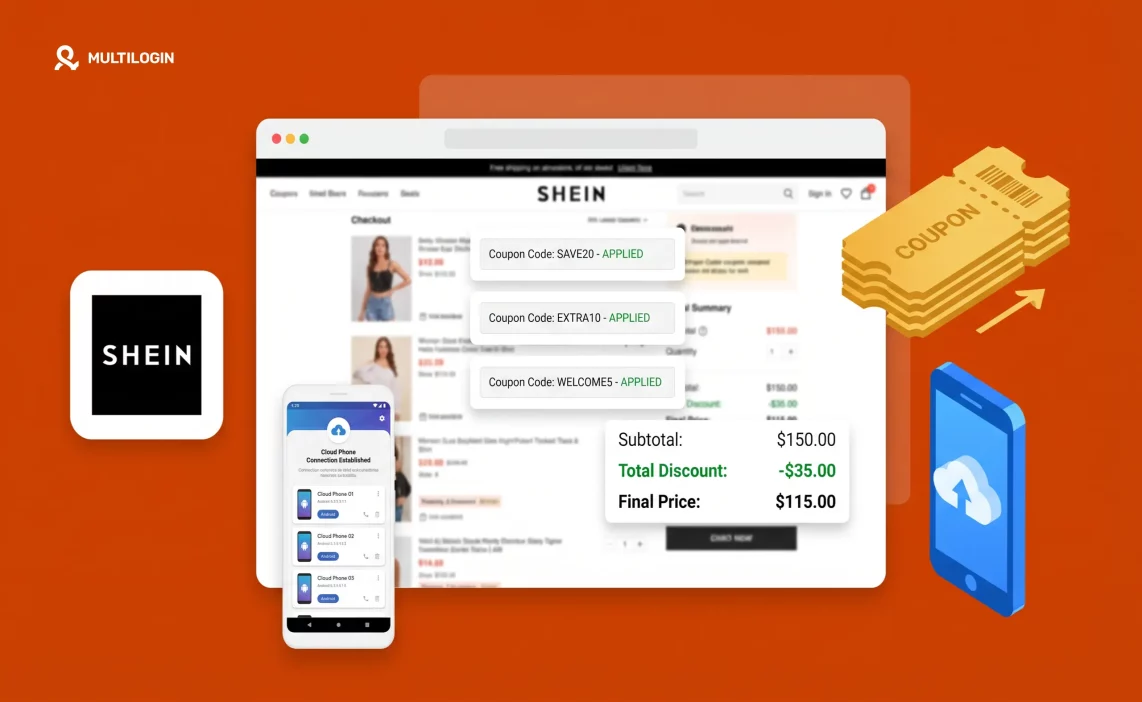

Shein already sells clothes at some of the lowest prices in fast fashion. But if you know how its discount system actually works, you can push those prices even lower — significantly lower.
The problem most shoppers run into is this: Shein’s best discounts are reserved for new users. A first-time customer gets a welcome coupon worth 15–25% off, free shipping, and sometimes additional app-exclusive bonuses that stack on top. You use it once, the account ages, and those offers disappear. The standard returning-customer experience is noticeably less generous.
What if you could access those new-user benefits more than once?
The answer lies in understanding two things: how Shein actually tracks accounts and devices, and how Multilogin Cloud Phones give each account a completely independent mobile identity. When those two things are understood properly, stacking Shein coupon codes across multiple accounts becomes a systematic process rather than a one-time event.
This guide teaches you the complete method — from Shein’s discount architecture to setting up Cloud Phones and executing the full stacking workflow, step by step.
Why One Shein Account Limits Your Savings
How Shein’s Discount System Is Structured
Shein uses multiple discount layers, and they are not all created equal. Understanding which ones combine with each other — and which ones are locked to account status — is the foundation of any effective stacking strategy.
Here is how the discount hierarchy works:
- New-user welcome coupon. This is the highest-value single discount Shein offers. New customers receive a welcome voucher automatically upon registration, typically 15–25% off the first order, often with a minimum spend requirement of around $29–$49. Some regions offer a tiered welcome package: a primary percentage-off coupon plus additional free-shipping codes and a points bonus. This discount is tied to account status — it fires once per new account and does not regenerate.
- App-exclusive coupons. The Shein app delivers discounts that the desktop site does not show. First-time in-app purchases often trigger a separate coupon. Daily check-in bonuses, push notification codes, and flash-sale access are all app-only. This is why the Shein mobile app is the right environment for discount stacking — the web version misses an entire category of offers.
- Shein Points. Points are earned through purchases (roughly 1 point per dollar), writing product reviews, daily app check-ins, participating in in-app games, and completing profile tasks. 100 Shein Points equals $1 in discount value. Points can be redeemed alongside a promo code on the same order — this is one of the legitimate native stacking mechanisms Shein allows.
- Site-wide and flash sale pricing. These are discount reductions baked into the listed item price, not applied at checkout. Because they affect the item price before any coupon is entered, they stack automatically with promo codes and points. Shopping during a site-wide sale with a coupon code and points active is the maximum discount combination on a single account.
- Free shipping codes. These waive the delivery fee and can often be combined with a percentage-off promo code in the same transaction. Check whether your active code explicitly excludes free shipping combinations — some category-specific codes restrict this.
- Category and influencer codes. Influencer affiliate codes typically offer 10–20% off and are broadly applicable. Some are globally valid; most are region-specific. These can be used by any account, but their value is lower than the new-user welcome coupon.
What can be combined on a single order:
- One promo code (new-user, influencer, or site-wide) + Shein Points + sale pricing = maximum single-order savings
- Free shipping code + percentage-off code (check terms for compatibility)
- Points can always be redeemed alongside a promo code
What cannot be combined on a single order:
- Two promo codes simultaneously — Shein enforces a one-code-per-order limit at checkout
- The new-user welcome code on an account that has already made a purchase
The single-account ceiling is real. Once the welcome coupon is used and your points are spent, you are left with influencer codes and whatever the current site-wide sale offers — a significantly smaller discount than the first-order experience.
How Shein Tracks Accounts and Devices
This is the part most shoppers do not realize: changing your email address is not enough to get a new-user coupon again.
Shein’s fraud detection system tracks multiple identity signals beyond the account credentials themselves:
- Device fingerprint. Every device that accesses Shein has a unique combination of hardware and software signals — screen resolution, GPU model, operating system version, installed fonts, audio context signature, and others. These combine into a fingerprint that identifies the device independently of the login credentials. If you register a new Shein account on the same phone you used for your previous account, Shein’s system recognizes the device.
- IP address. Multiple new account registrations from the same IP address in a short period are flagged as suspicious. Even with a new email, the same home IP linking back to a previous account reduces the chance that new-user offers fire correctly.
- Behavioral history. Shein’s system also tracks session behavior — how you navigate, what you browse, how long you spend on pages. Behavioral similarity between sessions on the “same” device is a linking signal even when fingerprint spoofing is attempted.
- Cookie and local storage data. Browser-based cookies and local storage persist across sessions if the same browser is used. Clearing cookies helps but does not clear all traces — local storage data can survive cache clears in standard browsers.
The result: creating a new email address and trying to register a fresh Shein account on the same phone, in the same browser, from the same IP will often not trigger a genuine new-user experience. Shein sees the device history and either suppresses the welcome offer or flags the account during purchase.
The solution is genuine device-level isolation — not a different email, not incognito mode, not a VPN. A completely independent device identity for each account.
The Solution — Why Multilogin Cloud Phones Work
What a Cloud Phone Is
A Multilogin Cloud Phone is a real Android device running in the cloud. Not an emulator. Not a virtual machine running Android software on your desktop. A physical Android handset with its own hardware, hosted on a server and accessed remotely through the Multilogin desktop application.
Each Cloud Phone has:
- A unique IMEI — the hardware identifier that identifies every Android device at the manufacturer level. Shein’s mobile app reads IMEI during session initialization. Genuine IMEI values, not spoofed ones, pass Shein’s device check because they are from actual hardware.
- A unique Android ID — a per-device software identifier that is distinct from the IMEI and persists across app reinstalls on the same device.
- A distinct device model — you choose from approximately 30 real Android device brands including Samsung, Google Pixel, Xiaomi, OPPO, OnePlus, Motorola, Redmi, and others. Running multiple accounts on different device models adds additional authenticity.
- Its own operating system instance — Android versions 10 through 15 are available. Each Cloud Phone runs a separate OS instance with no shared data between phones.
- A built-in residential proxy — each Cloud Phone connects to a location-matched residential IP from Multilogin’s pool of 30M+ IPs across 150+ countries and 1,400+ cities. This is a real home network IP, not a datacenter address or a known VPN range.
- Persistent session storage — every time you reopen a Cloud Phone, it is exactly where you left it. Login state, app data, Shein account session, points balance, and browsing history all persist between sessions.
When Shein’s detection system evaluates the device accessing a new account, it sees a real, distinct Android device with its own hardware identity, on its own residential network, with no overlap with any other account’s device history. That is because it genuinely is a separate device.
Why This Matters for Shein Specifically
Shein is a mobile-first platform. The discount offers that matter most — the new-user welcome coupon, app-exclusive flash sales, daily check-in points, push notification codes — are all delivered and claimed through the Shein mobile app. The desktop website does not provide the same breadth of offers.
Shein’s detection also operates at the app level, reading device signals that a desktop browser does not expose. A VPN on your existing phone changes one signal — the IP address — while leaving the IMEI, the Android ID, the device model, and the app-level hardware fingerprint unchanged. Shein’s system can still link the device to its previous account history.
A Cloud Phone addresses the detection at the device level. You are not tricking Shein’s system with spoofed values — you are presenting a genuinely different device because that is what a Cloud Phone is.
What You Need Before You Start
Before running through the step-by-step guide, make sure you have the following in place.
- A Multilogin account with Cloud Phone access. Cloud Phones are available on all Multilogin paid plans. Plans start at €5.85/month, which includes mobile minutes (billed at €0.009 per minute of active use) and built-in residential proxy traffic. A 3-day trial is available for €1.99. Sign up at multilogin.com.
- The Multilogin desktop application installed. Cloud Phones are launched and managed from the Multilogin desktop app. Download it from your account dashboard after signing up. Available for Windows and Mac.
- A unique email address for each Shein account. Each Shein account must have a different email address. Use a service that allows alias creation (such as Gmail’s + alias feature or a dedicated disposable address service) to keep accounts organized.
- A unique phone number for each Shein account (optional but recommended). Shein occasionally requests phone verification, particularly for accounts in certain regions. A virtual number service like SMSPool provides low-cost SMS numbers for this purpose if needed.
- A note-keeping system. You will be managing multiple accounts, each with its own email, password, Shein account, and Cloud Phone assignment. A simple spreadsheet tracking these associations from the start saves significant time later.
Step-by-Step Guide — Setting Up Multilogin Cloud Phones for Shein
Step 1: Log In to Multilogin and Open the Dashboard
Open the Multilogin desktop application and log in with your account credentials.
When the dashboard loads, you will see a toggle at the top allowing you to switch between Browser Profiles and Cloud Phones (Mobile). Click the toggle to switch to the Mobile/Cloud Phones view.
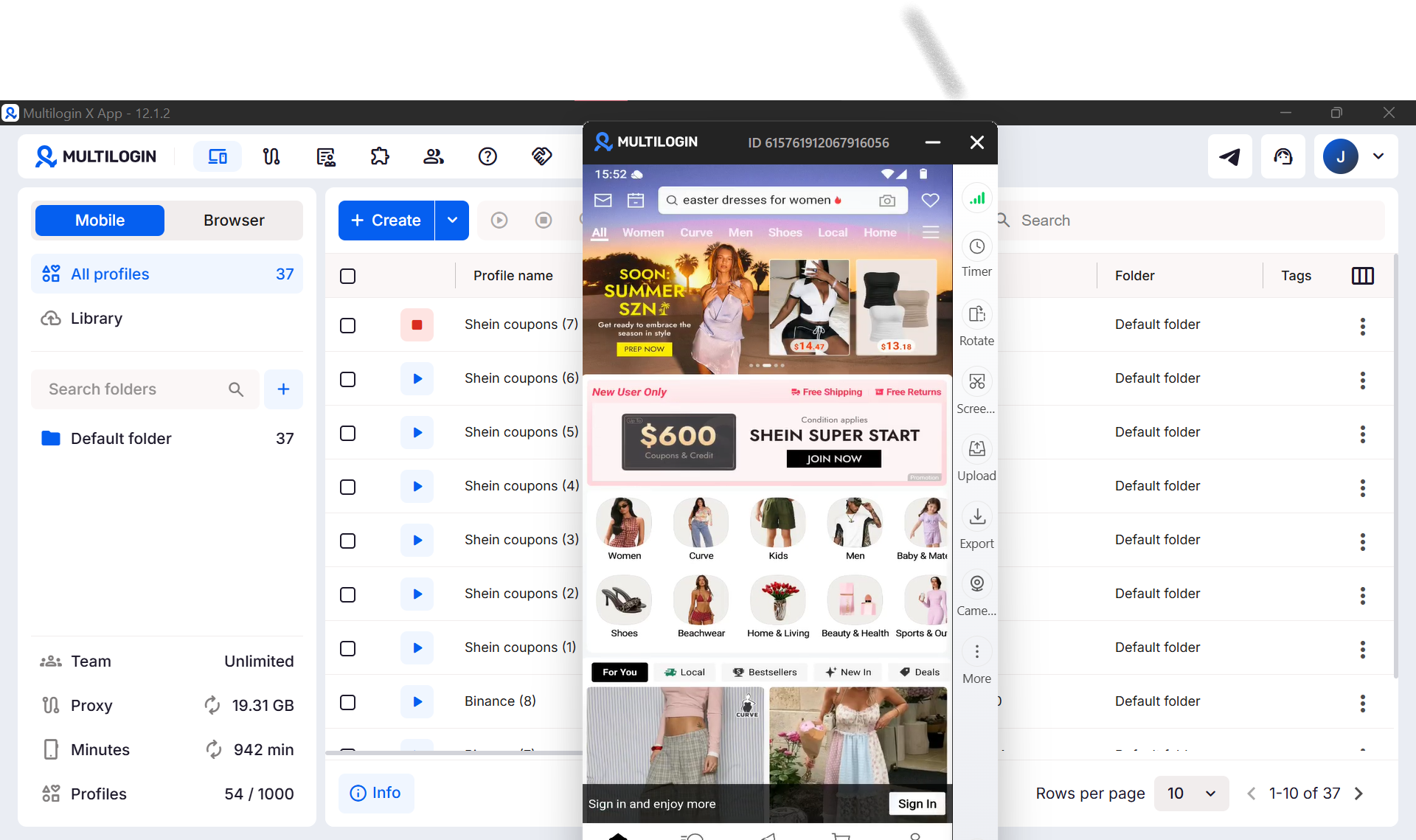
Step 2: Create a New Cloud Phone Profile
Click the + New Profile button (or Create Cloud Phone, depending on your app version) in the top-right area of the dashboard.
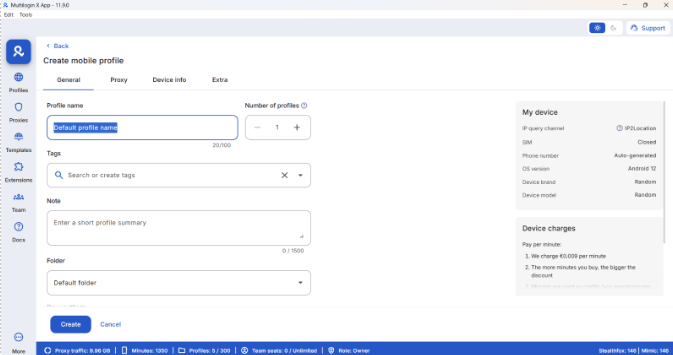
A profile creation panel will open. This is where you configure the identity for this Cloud Phone. Work through each section:
Name your Cloud Phone. Give it a descriptive name that maps to the Shein account it will manage. For example: Shein-Account-01 or Shein-US-01. Only you (and team members you invite) can see this name — Shein cannot read it.
Select Android version. Choose Android 12, 13, or 14 for the best app compatibility with the current Shein app. Android 15 is available if you want the latest OS environment.
Step 3: Choose Your Device Model
Scroll to the Device section. This is where you select the brand and model that this Cloud Phone will present to Shein.
Click the device model dropdown. You will see approximately 30 real device brands and models available — Samsung Galaxy models, Google Pixel, Xiaomi, OPPO, OnePlus, Motorola, Redmi, Vivo, realme, and others.
Select a device model. For Shein usage, any of the popular consumer Android brands works well. If you are creating multiple accounts, choose a different device model for each Cloud Phone. Running five accounts on five different device models (e.g., Samsung Galaxy S23, Google Pixel 7, Xiaomi Mi 13, OPPO A78, OnePlus 11) is more authentic than five identical models.
Step 4: Configure the Proxy
This step is critical. The proxy determines where in the world your Cloud Phone appears to be connecting from. It must match the Shein regional storefront you intend to use.
Scroll to the Proxy section.
- Select Multilogin as the proxy provider. This gives you access to Multilogin’s built-in pool of 30M+ residential and mobile IPs. No external proxy service is needed.
- Select the country. Choose the country that matches your target Shein store. If you are shopping on Shein US, select United States. If Shein UK, select United Kingdom. The country of the proxy must align with the Shein regional site — using a code from the US Shein store while connecting through a UK proxy will result in a region mismatch.
- Select a city (optional but recommended). City-level targeting is available for major markets. Selecting a specific US city (e.g., New York, Los Angeles) adds granularity to the location signal.
Select network type. For Shein account setup and regular shopping sessions, Wi-Fi mode is the right choice. This pairs correctly with residential and ISP proxies and is consistent with normal home shopping behavior.
Step 5: Review the Device Info Panel
After selecting your proxy, look at the Device Info panel on the right side of the creation screen. This panel shows the device identity that will be presented to Shein — IMEI, Android ID, device model, OS version, and location.
Confirm that:
- The device model matches what you selected
- The location reflects the country you configured for the proxy
- The IMEI shows as assigned (a unique value generated for this profile)
⚠️ Important note: The device info displayed is set at the time of profile creation and linked to the proxy configuration at that moment. If you change the proxy later, update the display may not reflect the change — but the actual proxy connection will use the new settings. For accuracy, create a new Cloud Phone profile if you need to change the target region significantly.
Step 6: Create the Profile and Launch the Cloud Phone
Click Create to save the Cloud Phone profile.
The profile now appears in your dashboard. Click Launch (or the play icon next to the profile name) to start the Cloud Phone.
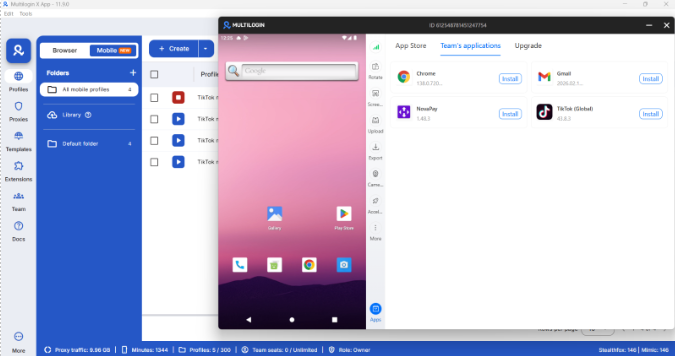
A new window opens showing the live Android device screen. You can interact with this device using your mouse as you would a touchscreen — tap, swipe, scroll, and type.
The first launch may take 15–30 seconds as the device environment initializes.
Step 7: Install the Shein App
With the Cloud Phone running, you now need to install the Shein app on this device.
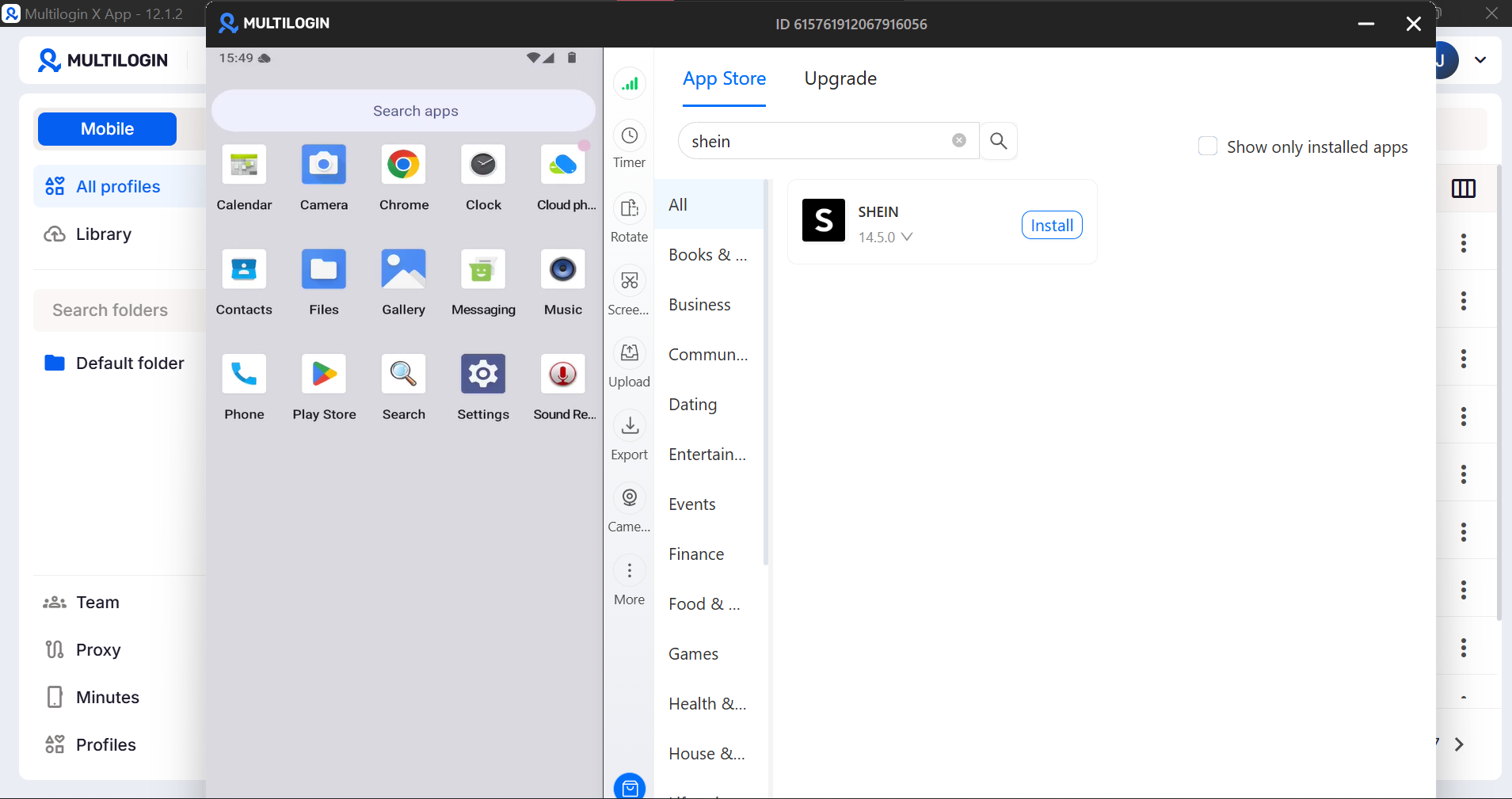
Click the Apps icon in the right-side control panel. The App Marketplace (Multilogin’s built-in app store) opens as a panel alongside the phone screen.
In the search bar, type Shein and press Enter.
Select the Shein app from the results and click Install.
Installation takes a few seconds. Once complete, you will see the app appear in the Cloud Phone’s app drawer.
⚠️ Alternative method: You can also install Shein through the Google Play Store on the Cloud Phone if it is available. Note that Play Store installations route through the proxy and consume proxy traffic. The App Marketplace method does not consume proxy traffic for the installation itself.
Step 8: Create a New Shein Account
Tap the Shein app icon on the Cloud Phone to open it.
On the Shein home screen, tap Sign In / Register and select the option to create a new account.
Use a unique email address that has not previously been associated with a Shein account. Enter it along with a new password.
Shein will send a verification email. You can open a browser on your desktop computer to access the email inbox and retrieve the code, then type it into the Cloud Phone.
Complete the registration. Upon successful account creation, Shein will display the new-user welcome offer — typically a 15–25% off coupon automatically added to your My Coupons section.
Step 9: Claim the App-Exclusive Offers
After registration, spend 2–3 minutes in the app performing natural actions before moving to checkout. This builds a minimal behavioral history that reduces the chance of the account being flagged as suspicious before the first purchase.
Actions to take:
- Browse the home feed by scrolling for 30–60 seconds
- Tap on 2–3 items and view their product pages
- Use the search bar to look up a category
- Open the app’s check-in section and complete the first daily check-in (this immediately awards points)
- Go to My Account → My Coupons to confirm your welcome coupon is present
This step is important. Accounts that go directly from registration to checkout in under 60 seconds sometimes have their first-order discounts suppressed or flagged for review.
Step 10: Stack and Apply the Discounts at Checkout
With the account warmed up, add your target items to the cart and proceed to checkout.
At the checkout screen, apply your discounts in this order to maximize savings:
- Enter your promo code first. In the coupon field, enter your welcome coupon code (or any active external code you have). Tap Apply and confirm the discount appears in the order total.
- Apply Shein Points. Below the promo code field, look for the Points section. Toggle it on to redeem available points. New accounts start with points from the check-in and registration bonus — typically 50–100 points ($0.50–$1.00) which stack directly onto the promo code discount.
- Apply a free shipping code if available. If you have a separate free shipping code (check the My Coupons section or a current site-wide promotion), enter it in the shipping section. Note: some promo codes already include free shipping — check the coupon terms before entering a separate code.
- Confirm the stacked total. The checkout summary should now reflect: sale price (if applicable) → promo code deduction → points deduction → free shipping (if applied). This is the maximum discount stack available on a single Shein order.
Complete the purchase.
Step 11: Manage Multiple Cloud Phone Profiles from the Dashboard
Repeat Steps 2 through 10 to create additional Cloud Phone profiles for additional Shein accounts.
Back in the Multilogin dashboard, all your Cloud Phone profiles are listed together. Each profile shows its name, device model, proxy location, and status. You can launch any profile independently — each one opens in its own separate window, fully isolated from the others.
Best practices for managing multiple Cloud Phone profiles:
- Name profiles clearly. Use a convention like Shein-US-01, Shein-US-02, etc. to match profiles to accounts at a glance.
- Use different device models per profile. Vary the brands across your profiles (Samsung, Google, Xiaomi, etc.) for additional authenticity.
- Assign proxies from the same target country. All Shein accounts targeting the US store should use US residential proxies. Do not mix proxy regions within the same storefront target.
- Launch only the profile you are actively using. You do not need multiple Cloud Phones running simultaneously unless you are actively managing multiple accounts in parallel.
- Keep sessions consistent. Always manage a specific Shein account from the same Cloud Phone profile. Never log into Account A’s Shein session from Account B’s Cloud Phone.
Advanced Tips
Maximize Points Accumulation Per Account
Each Shein account can generate its own ongoing points flow through actions that take less than 2 minutes per day per account:
- Daily check-in. Opens the app, taps the check-in banner. Awards 1–5 points per day.
- Review purchased items. Text reviews award points. Photo reviews award more. A single photo review on an item from your first order typically awards 50–100 points.
- Complete profile tasks. Profile completion (adding a photo, filling preferences) awards a one-time points bonus.
- Participate in in-app events. Shein runs regular games and limited-time challenges in the app that award points. These are available on the Cloud Phone’s Shein app the same as on a physical device.
Accumulated across multiple accounts, points add up to meaningful recurring discount value on top of the welcome coupon savings.
Matching Proxy Region to the Right Shein Store
Shein operates separate regional storefronts — US, UK, France, Germany, Australia, and others. Coupon codes are almost always region-specific. A code valid on Shein US will not work at checkout on Shein UK, and the pricing reflects local currency.
Configure each Cloud Phone’s proxy to match the specific Shein storefront you are targeting. When the app loads on a Cloud Phone with a US residential proxy, it will default to the US store. Attempting to manually switch to a different regional store while on a non-matching proxy results in geographic inconsistency that can trigger verification requests.
Keep proxy region and target storefront aligned from account creation through every subsequent session.
Session Length and Natural Behavior
Platforms that process e-commerce transactions at scale (Shein included) monitor behavioral signals over time. Accounts that are used exclusively at checkout — never browsing, never adding to wishlist, never engaging with the app outside of purchase flows — eventually show unusual behavior patterns.
Occasional natural sessions on the Cloud Phone (browsing the feed for a few minutes, using the search function, checking new arrivals) maintain the kind of behavioral history that makes accounts look like genuine, active users. This does not need to be extensive — a few minutes every week per account is sufficient.
Keep the Cloud Phone Session Closed When Not in Use
Cloud Phone billing runs on active time — the meter runs while the phone window is open. Close the Cloud Phone window when you are done with a session. All app data, session state, and login information persist automatically when the phone is closed, exactly where you left it.


