





Managing multiple Twitter/X accounts is a real operational challenge. Logging into each one manually and posting by hand is unsustainable past two or three accounts.
But automating across multiple accounts is also one of the fastest ways to get them all suspended at once if the infrastructure isn’t set up correctly. X flags coordinated behaviour, including posting from a shared device and IP environment, even when every account is legitimate.
This guide covers the correct infrastructure setup, the right tools, and the content rules that prevent flagging.
If you want to automate posting itself with a cloud phone and an AI agent, see this guide: How to Automate X (Twitter) with Multilogin and AI Agents.
Why X bans multiple accounts that share infrastructure
Twitter/X’s terms of service permit individuals and organisations to own multiple accounts. What they explicitly prohibit is using multiple accounts to artificially amplify content, coordinate inauthentic engagement, or evade a prior suspension.
The challenge is that the systems designed to detect these prohibited uses also catch legitimate multi-account operators who are simply using shared device infrastructure.
browser fingerprint, X links them. Once linked, any policy violation on one account creates risk for all linked accounts. And automated posting patterns — even from original, non-spam accounts — look like coordinated behaviour when they come from a shared environment.
The result: legitimate agencies and brand managers who connect all their client accounts to a single Hootsuite or Buffer session from one desktop get all accounts flagged together. Not because of anything the content did wrong, but because the infrastructure looked coordinated.
The correct infrastructure: one isolated environment per account
The only safe setup for multi-account Twitter/X posting automation is one isolated environment per account. Specifically, each account needs:
- A unique device environment with its own hardware fingerprint
- A separate IP address — ideally a residential IP matched to the account’s primary geographic context
- Its own session history and cookie storage, completely isolated from all other accounts
- A scheduling tool that runs within that isolated environment, not connected to multiple accounts simultaneously from one session
Step 1: Set up Multilogin Cloud Phones — one per account
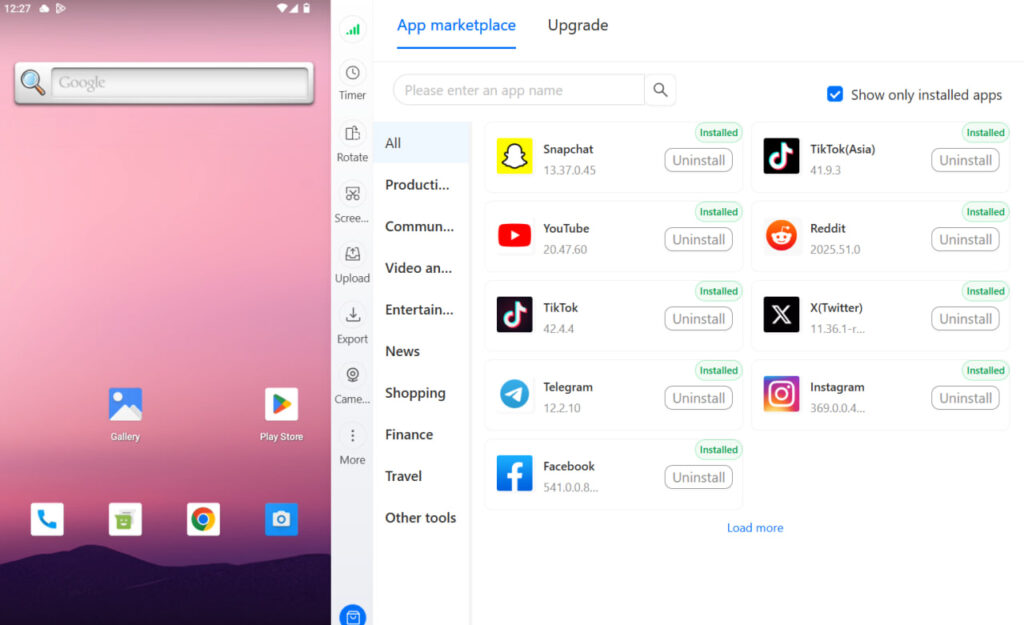
Multilogin Cloud Phones are virtual Android devices, each with a unique device fingerprint, a dedicated IP address, and a completely independent session history. When X sees login and posting activity from a Multilogin Cloud Phone, it reads a separate user on a separate device in a separate location — because at the device-signal level, that is exactly what it is.
$7.08/month annually or $11/month. Cloud phone time is $0.011/minute, billed only when the device is actively running. Unused minutes roll over.
Step 2: Install scheduling tools within each isolated environment
Inside each cloud phone’s Android environment, install a social media scheduling app. Options include:
- X’s built-in scheduling feature — available natively in the X app for all accounts at no extra cost. You compose a post and schedule it for a specific date and time within the app itself
- Buffer’s Android app — connects to a single X account and supports a content queue, scheduling, and basic analytics
- Hootsuite’s mobile client — supports scheduling and basic account management from within the app
The critical principle: each account’s scheduling tool runs within that account’s cloud phone. You do not connect multiple X accounts to one tool session from one browser or device. Each account’s automation is completely contained within its own isolated environment.
Step 3: Create content that avoids duplicate content flags
Even with properly isolated environments, posting identical content simultaneously across multiple accounts is a coordination signal that X’s systems can detect. To post safely across multiple accounts:
- Stagger posting times — at least 15 to 30 minutes between accounts posting on the same topic
- Rephrase the core message differently for each account — same information, different sentence structure and vocabulary
- Use different images, or crop and adjust the same image differently for each account
- Vary hashtag sets — do not use the exact same combination of tags on every account
- Adjust the angle or framing of the content slightly to match each account’s voice and audience
Step 4: Monitor analytics separately per account
Managing multiple Twitter accounts effectively requires understanding each account’s audience independently, not aggregating everything into one view.
Common mistakes that get multiple accounts banned at once
- Connecting all X accounts to the same Hootsuite, Buffer, or Sprout Social session from a single browser
- Posting identical content at the same time across accounts (including identical images with different captions)
- Rapidly switching between accounts in the same browser session without clearing cookies
- Using the same phone number or email address across multiple accounts
- Liking, retweeting, or quote-tweeting your own content from a secondary account to boost its visibility
- Using automation bots that post at non-human speeds or patterns
Tools that work for legitimate multi-account Twitter/X management
Beyond the scheduling tools above, there are other tools that integrate cleanly with an isolated cloud phone setup:
- Multilogin API — allows programmatic profile management and can integrate with custom posting workflows for teams running high volumes of accounts
- X Advanced Search — useful for monitoring mentions and trends per account without requiring a third-party tool
- Canva or similar creative tools — for creating slightly varied versions of the same visual content efficiently across multiple accounts
how to manage multiple social media accounts | social media management tools
Getting started with Multilogin
3-day trial: $2 — 5 profiles, cloud mobile + browser profiles, API access.
Pro plans: from $7.08/month (billed annually at $85/year) or $11/month. Includes 10–100 profiles, quick cloning, bulk operations, automation API, and bonus minutes (60–150 min) and proxy traffic (1–5 GB).
Business plan: from $57.08/month (billed annually at $685/year) or $89/month — 300+ profiles, unlimited team seats, 450+ bonus minutes, 10 GB proxy traffic.
Cloud phone minutes: $0.011/minute pay-as-you-go. Unused minutes roll over. Bulk packages: 2,000 min ($18, save 20%) | 10,000 min ($85, save 20%) | 100,000 min ($825, save 30%) | 1,000,000 min ($7,320, save 30%).
Proxy traffic: $3.50/GB. Unused traffic rolls over.
Managing multiple Twitter/X accounts for clients or different brands? Multilogin Cloud Phones give each account its own isolated environment — unique fingerprint, dedicated IP. Plans from $7.08/month. 3-day trial at $2 — multilogin.com.
Need to manage multiple X accounts? Try Multilogin Cloud Phones.
Frequently asked questions About multi-account Twitter/X management
Yes. X’s terms permit individuals and organisations to own and operate multiple accounts. What is prohibited is using multiple accounts to coordinate inauthentic engagement, ban-evade, or artificially amplify content.
Yes, if you use them correctly. The safe setup: connect each X account to the scheduling tool from within that account’s isolated cloud phone environment. The unsafe setup: connect all accounts to one Buffer or Hootsuite session from a single desktop browser.
X can restrict, lock, or suspend linked accounts simultaneously. In cases where one account violated policy, all linked accounts may receive the same treatment. Proper environment isolation from the start eliminates this risk.
There is no official account limit. The practical limit is your infrastructure. Multilogin’s Pro plans support 10 to 100 profiles and Business plans support 300+. Each profile can run independently as a separate X account environment.
Tuesday through Thursday, 8:00–10:00 AM EST. The Tuesday morning window is the single strongest for B2B and professional content. Pair it with relevant hashtags and a clear call to action for best results.
2–4 posts per day is the sweet spot for most accounts trying to grow. Include a mix of original tweets, replies, and quote tweets. Posting more than 10 times a day starts to reduce engagement per post for most account types.


