


Managing multiple Twitter/X accounts is a real operational challenge. Logging into each one manually and posting by hand is unsustainable past two or three accounts.
But automating across multiple accounts is also one of the fastest ways to get them all suspended at once if the infrastructure isn’t set up correctly. X permits multiple accounts for distinct, legitimate purposes. Enforcement focuses on prohibited behavior such as coordinated manipulation, duplicate posting, and evading suspensions. Using separate devices does not exempt accounts from these rules.
This guide covers the correct infrastructure setup, the right tools, and the content rules that prevent flagging.
If you want to automate posting itself with a cloud phone and an AI agent, see this guide: How to Automate X (Twitter) with Multilogin and AI Agents.
What are X’s rules for managing multiple accounts?
Twitter/X’s terms of service permit individuals and organisations to own multiple accounts. What they explicitly prohibit is using multiple accounts to artificially amplify content, coordinate inauthentic engagement, or evade a prior suspension.
The challenge is that the systems designed to detect these prohibited uses also catch legitimate multi-account operators who are simply using shared device infrastructure.
browser fingerprint, X links them. Once linked, any policy violation on one account creates risk for all linked accounts. And automated posting patterns — even from original, non-spam accounts — look like coordinated behaviour when they come from a shared environment.
The result: legitimate agencies and brand managers who connect all their client accounts to a single Hootsuite or Buffer session from one desktop get all accounts flagged together. Not because of anything the content did wrong, but because the infrastructure looked coordinated.
The correct infrastructure: one isolated environment per account
For mobile workflows, Multilogin lets operators assign a separate Android cloud phone to each X account, with independent app data and network settings. Browser profiles provide separate environments for web workflows. Isolation helps organize account operations, but it does not guarantee that X will treat accounts as unrelated or prevent enforcement.
For organized multi-account management, the setup can include:
A dedicated Android cloud phone for each mobile-app account, with its own device configuration.
Separate network settings, including a configured proxy where appropriate for the account’s operational needs.
Independent app data and login sessions for each cloud phone, or separate cookies and sessions when using browser profiles.
An authorized scheduling tool or X API integration to publish content across accounts while following X’s automation and authenticity rules.
Step 1: Set up Multilogin Cloud Phones, one per account
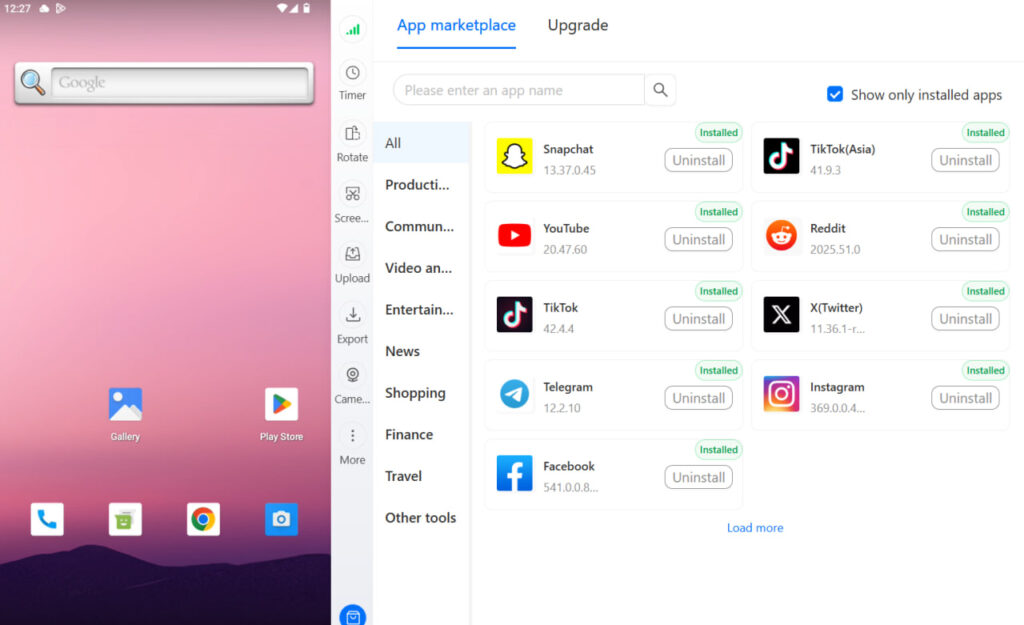
Multilogin provides dedicated Android cloud phones for managing multiple X accounts from one dashboard. Each cloud phone maintains its own app data, device configuration, and login history, helping teams keep mobile account workflows organized and separate.
To set up your cloud phones:
Open Multilogin and go to Profiles → Mobile → Create.
Name each account profile and configure its proxy connection.
Review the Android device settings and create the cloud phone.
Start the cloud phone, install the X app, and sign in to the account you are authorized to manage.
Repeat the process for additional mobile-app accounts, keeping each account in its own cloud phone.
For desktop workflows, Multilogin also provides isolated browser profiles. These environments help separate account operations but do not guarantee protection against X enforcement.
Multilogin offers a free plan with no time limit and paid plans from $7.08 per month. Cloud phone minutes are consumed while a device is running, with additional usage available according to the selected package. See the current pricing for details.
Step 2: Choose a scheduling tool for your X accounts
Once your X accounts are organized, choose a supported method for scheduling and publishing posts. Multilogin provides separate Android environments for mobile account access, while scheduling tools and authorized API integrations handle automated publishing.
Options include:
X Pro: Schedule posts for individual X accounts using X’s supported scheduling interface.
Buffer: Connect authorized X accounts, create content queues, choose posting times, and manage scheduled posts from one dashboard.
Hootsuite: Schedule X posts, organize content calendars, and manage multiple connected accounts from a central workspace.
X API: Build custom publishing workflows using official API access, subject to applicable permissions and rate limits.
You do not need to install a separate scheduling tool inside every cloud phone. Buffer and Hootsuite can manage multiple connected accounts, although posts must be scheduled for the appropriate X account individually.
For each post, select the account, prepare the content, choose the publication time, and verify that the post was added to the correct scheduling queue.
Step 3: Create distinct content for each X account
Managing separate account environments does not remove X’s content and automation restrictions. X prohibits duplicative or substantially similar automated posts across accounts, as well as coordinated activity designed to manipulate engagement.
To manage publishing across multiple accounts:
Create original content for each account: Focus on its audience, purpose, and subject matter rather than republishing substantially similar posts.
Build account-specific content calendars: Organize topics, campaigns, and publishing schedules around each account’s goals.
Use relevant visuals and hashtags: Choose media and hashtags that add value to the post, not cosmetic variations intended to disguise duplicate content.
Review posts before scheduling: Check for repetitive messages, unnecessary cross-posting, and misleading claims.
Follow X’s automation rules: Use supported publishing methods and avoid coordinated engagement or attempts to circumvent platform restrictions.
Posting at different times does not automatically make otherwise prohibited content acceptable. Prioritize distinct, useful content over fixed posting intervals.
Step 4: Monitor publishing and analytics separately per account
Managing multiple Twitter accounts effectively requires understanding each account’s audience and performance, even when scheduling tools provide a centralized dashboard.
Review each account’s results regularly:
Publishing status: Check scheduled, published, and failed posts to identify delivery problems.
Engagement: Track impressions, likes, replies, reposts, and engagement rates where available.
Traffic and conversions: Measure link clicks, website visits, and campaign outcomes associated with each account.
Content performance: Identify which topics, formats, and publishing times produce meaningful engagement.
Account access: Monitor authorization errors, disconnected scheduling integrations, and account verification requests.
Use these findings to adjust each account’s content calendar and publishing frequency. A shared reporting dashboard can simplify management, but performance decisions should reflect the objectives and results of each individual account.
Common mistakes that get multiple accounts banned at once
- Connecting all X accounts to the same Hootsuite, Buffer, or Sprout Social session from a single browser
- Posting identical content at the same time across accounts (including identical images with different captions)
- Rapidly switching between accounts in the same browser session without clearing cookies
- Using the same phone number or email address across multiple accounts
- Liking, retweeting, or quote-tweeting your own content from a secondary account to boost its visibility
- Using automation bots that post at non-human speeds or patterns
Tools that work for legitimate multi-account Twitter/X management
Beyond the scheduling tools above, there are other tools that integrate cleanly with an isolated cloud phone setup:
- Multilogin API — allows programmatic profile management and can integrate with custom posting workflows for teams running high volumes of accounts
- X Advanced Search — useful for monitoring mentions and trends per account without requiring a third-party tool
- Canva or similar creative tools — for creating slightly varied versions of the same visual content efficiently across multiple accounts
how to manage multiple social media accounts | social media management tools
Getting started with Multilogin
Free plan: Multilogin offers a free plan with no time limit and paid plans from $7.08 per month.
Pro plans: from $7.08/month (billed annually at $85/year) or $11/month. Includes 10–100 profiles, quick cloning, bulk operations, automation API, and bonus minutes (60–150 min) and proxy traffic (1–5 GB).
Business plan: from $26.67/month (billed annually at $320/year) or $40/month, 100+ profiles, unlimited team seats, 150+ bonus minutes, 5 GB proxy traffic.
Cloud phone minutes: $0.0067/minute pay-as-you-go. Unused minutes roll over. Bulk packages: 2,000 min ($16.8) | 10,000 min ($84) | 20,000 minutes ($159 save %5) | 50,000 min ($$385, save 8%) | 100,000 min ($745, save 11%) etc.
Proxy traffic: $2.275/GB. Unused traffic rolls over.
Managing multiple Twitter/X accounts for clients or different brands? Multilogin Cloud Phones give each account its own isolated environment — unique fingerprint, dedicated IP. Plans from $7.08/month. 3-day trial at $2 — multilogin.com.
Need to manage multiple X accounts? Try Multilogin Cloud Phones.
Frequently asked questions About multi-account Twitter/X management
Yes. X’s terms permit individuals and organisations to own and operate multiple accounts. What is prohibited is using multiple accounts to coordinate inauthentic engagement, ban-evade, or artificially amplify content.
Yes, if you use them correctly. The safe setup: connect each X account to the scheduling tool from within that account’s isolated cloud phone environment. The unsafe setup: connect all accounts to one Buffer or Hootsuite session from a single desktop browser.
X can restrict, lock, or suspend linked accounts simultaneously. In cases where one account violated policy, all linked accounts may receive the same treatment. Proper environment isolation from the start eliminates this risk.
There is no official account limit. The practical limit is your infrastructure. Multilogin’s Pro plans support 10 to 100 profiles and Business plans support 300+. Each profile can run independently as a separate X account environment.
Tuesday through Thursday, 8:00–10:00 AM EST. The Tuesday morning window is the single strongest for B2B and professional content. Pair it with relevant hashtags and a clear call to action for best results.
2–4 posts per day is the sweet spot for most accounts trying to grow. Include a mix of original tweets, replies, and quote tweets. Posting more than 10 times a day starts to reduce engagement per post for most account types.