
There are plenty of legitimate reasons to post on TikTok without your real identity attached. You want to test content ideas without your main audience watching every experiment. You’re building a niche account that shouldn’t be traceable to your personal brand. You create commentary or opinion content and genuinely don’t want your name associated with it. You manage TikTok for clients and need a personal test account with no connection to the work you do for them.
Most advice on how to post on TikTok anonymously stops at “use a fake username”, which isn’t anonymity at all. A display name is surface-level. TikTok’s detection systems operate well below that surface, and a pseudonym does nothing about the signals the platform actually reads.
This guide explains what genuine TikTok anonymity requires, why the approaches most people try fall short, and how to set it up properly using Multilogin Cloud Phones.
What TikTok reads when you open the app
Before getting into the solution, it’s worth understanding what you’re up against.
When you open TikTok, the app doesn’t just see your username and IP address. It reads your device model, OS version, IMEI, Android ID, screen resolution, timezone, and a range of behavioural signals. These data points are collected automatically and continuously, every session.
That collection of identifiers is your device fingerprint. It doesn’t change when you log out. It doesn’t change when you switch accounts. It doesn’t change when you connect to a VPN or toggle airplane mode. The fingerprint belongs to the hardware, not the account.
This is why the common workarounds fail:
A VPN changes your IP address. Your IMEI, Android ID, and device model stay exactly the same. Two TikTok accounts behind different VPNs on the same phone are still sharing the same device fingerprint — TikTok connects them within hours, silently and automatically.
Incognito mode clears cookies and local session data from the current browser session. It changes nothing about the hardware identifiers TikTok reads. Browsing TikTok in a private tab on your regular device provides essentially no protection against account linkage.
Logging out and back in resets the active session. The device fingerprint underneath it doesn’t move.
Genuine anonymity on TikTok means your anonymous TikTok account has never shared a device fingerprint, an IP address, a session history, or a credential with any other account you operate. A fake username solves none of those things.
What TikTok anonymity requires
To post on TikTok anonymously without the account being linked back to you or to other accounts you manage, you need all of the following to be true:
- The TikTok account is registered with credentials that have no association with your real identity
- The device fingerprint associated with that account has never appeared on any other TikTok account
- The IP address used for the account is consistent with the account’s registered location and has no history tied to your other accounts
- You never access the anonymous account from any device you use for anything else
The only practical way to achieve all of this without buying a second physical phone is a cloud phone. A cloud phone is a real Android device running in the cloud, with its own unique hardware fingerprint, its own dedicated IP address, and a completely independent operating environment. Nothing from your personal device or your other accounts touches it.
Multilogin Cloud Phones are built specifically for this kind of isolated account operation. Each cloud phone for TikTok has a distinct device identity, which is why TikTok reads it as a genuinely separate device.
Before You Start
You’ll need a Multilogin account with a plan that includes cloud phone minutes. Cloud phones are billed at $0.011 per minute, purchased as credits. A 3-day trial at $2 gives you access to 5 profiles and is the fastest way to get the setup running.
Have a new email address ready, one with no prior association with your real identity or any existing accounts. You’ll use this to register the anonymous TikTok account. Don’t use your personal phone number for verification, and don’t connect any third-party authentication (Google, Apple, Facebook) that’s linked to your real identity.
If you already have a TikTok account you want to move to an isolated environment rather than creating a new one, have your login credentials on hand.
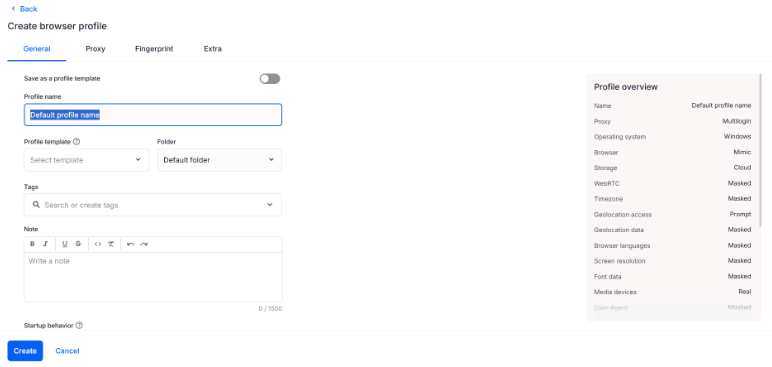
Step 1: Set up a browser profile
Open Multilogin and create a new browser profile, where each account created will have its own separate environment: different fingerprint, different storage, different history.
 Step 2: Assign a proxy to the browser profile
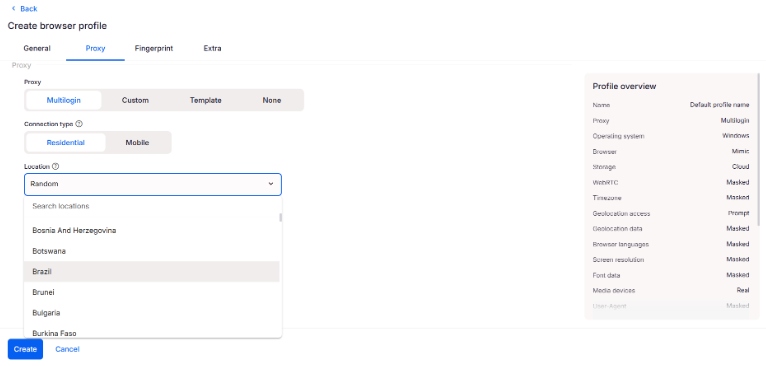
Go to the Proxy tab in the profile settings and assign a residential or mobile proxy that matches the geographic location you want.
Save it, and don’t open TikTok yet.
Step 3: Warm up with Cookie Robot
Don’t jump straight into posting. TikTok reads behavioural history, and a fresh profile with zero history looks suspicious. The good news is Multilogin has a built-in Cookie Robot that handles the warm-up for you.
Here’s how to use it:
1.Right-click on the browser profile you just created
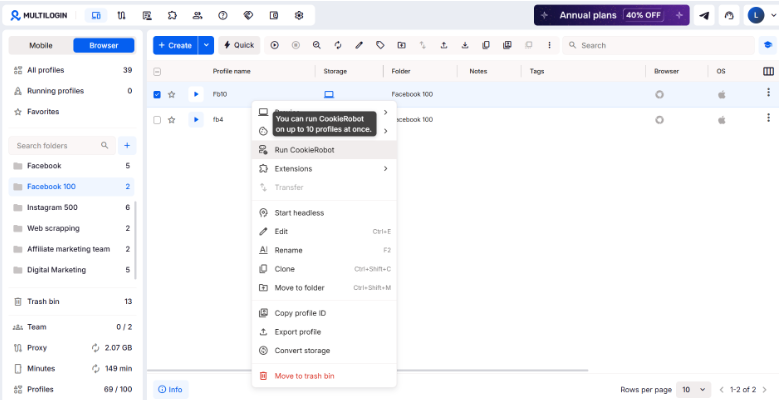
2.Select “Run Cookie Robot”
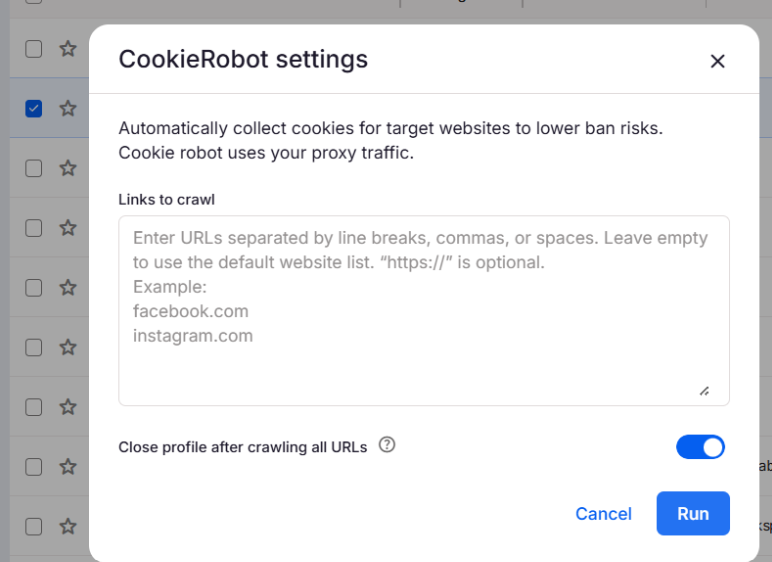
3.Enter a list of websites to visit, or leave it empty to use the default sites. If you want TikTok-specific warm-up, add tiktok.com and related addresses like creators.tiktok.com to the list
4.Wait until it finishes
That’s it. Cookie Robot browses those sites automatically, builds up some session history, and makes the profile look like it’s been used before. Run it over a couple of sessions before you register the account.
Step 4: Create your account
Now that you have set up the profile, its time to:
- Open TikTok inside the Multilogin profile
- Sign up with a fresh email or phone number
- Fill out the basics: name, bio, photo
- Don’t log into any other TikTok account from this profile, ever
Going forward, always open this account from the same profile. Every time you log in from a different environment, TikTok adds that to the account’s history, and inconsistency builds up fast.
Step 5: Grow your profile
During the growth phase, it’s important to follow a few practices:
- Post on a regular schedule using the same profile
- Actually use the app: scroll, like, comment
- Don’t buy followers or use bots
- Keep the same proxy throughout
For TikTok to respond well to your account, it’s important that it looks like a real person it’s behind it, and that it has been in use for a while. Multilogin helps with that by keeping the environment identical every session.
Step 6: Log in using Cloud Phones
Click Launch to start the cloud phone.
After a few seconds, the cloud phone opens in a new window. You’ll see a real Android home screen running in the cloud. To install TikTok, use Multilogin’s built-in App Marketplace rather than the Play Store. Click the Apps icon at the bottom of the right toolbar. The Marketplace opens as a panel alongside the cloud phone, and after downloading the app you just need to log in and start using it.
Running multiple TikTok accounts at the same time
If you’re managing more than one anonymous TikTok account, Multilogin lets you run multiple cloud phone profiles simultaneously. Select the profiles you want to run from the dashboard and click Launch all.
Each cloud phone opens in its own window, with its own device fingerprint, its own proxy, and its own isolated TikTok session. A restriction or ban on one account stays fully contained within that profile. It doesn’t create any signal that touches the others.
This is the same infrastructure setup that social media managers and agencies use when they need multiple TikTok accounts running in complete isolation. For a broader picture of how cloud phones handle this kind of operation at scale, phone farming with Multilogin covers how the cloud approach compares to physical device setups.