


How to create quick browser profiles
 ~4 minWritten by Yelena V
Quick browser profiles are temporary browser sessions that delete their data when you close them.
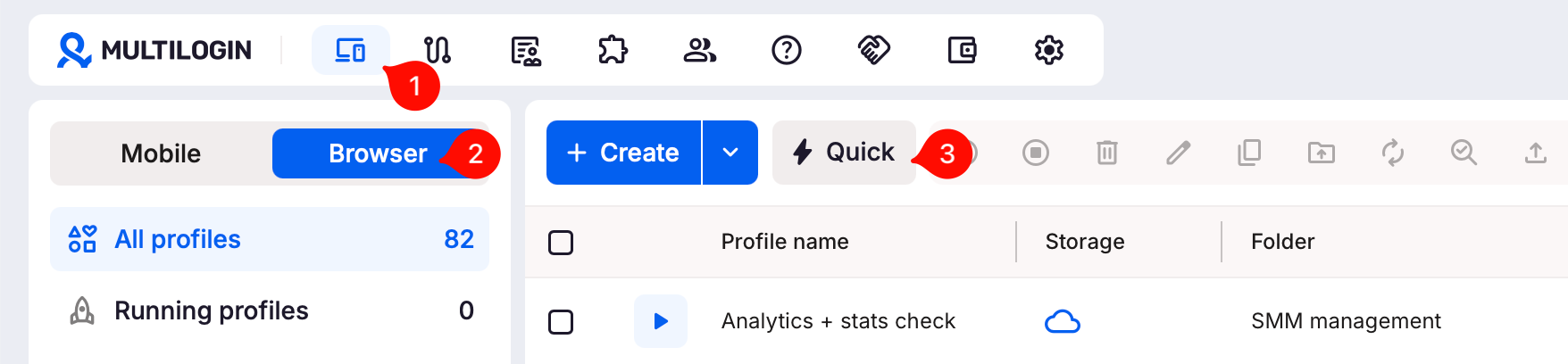
➡️ To start one, go to “Profiles” → “Browser” → “Quick” → choose your settings → click “Start”.
Use quick profiles when you need a clean browser session for a short task, like testing a page, checking a login, or opening a few URLs.
They’re great when you don’t want to clutter your main profile list with something you’ll only use once.
Working with mobile apps instead? Use Android cloud phones for apps like TikTok, Instagram, and Facebook. Quick profiles are for browser tasks only.
Who can use this feature?
- 👨💻 Account owner, manager, and operator
- 💰 Available on all plans
How to create and start a quick profile
- Go to the “Profiles” tab in the top menu
- Select “Browser” from the left-side selector
- Click “Quick” to access quick profile settings
- Click “Start” to create and launch a quick profile
How to customize a quick profile
You can keep it simple or tweak a few things depending on your task.
Profile template
Choose a profile template here: our profile template manager lets you save custom setups (like proxy, fingerprint, OS) and apply them in a click. Perfect for high-volume workflows or keeping things consistent across your team.

Pre-made cookies

Number of profiles
You can start up to 25 quick profiles at a time. Just set a number here.

Operating system
Pick the OS that matches your real device – like macOS, Windows, or Linux. This helps keep your browser fingerprint consistent.
Legacy Android profiles are retired. For mobile app work, use Android cloud phones instead.

Browser
Choose the browser type for your quick profile:
- ✅ Mimic: best for Chrome-like browsing, modern websites, automation, and long-term support
- ⚠️ Stealthfox: use only when your task needs Firefox-style behavior or Firefox add-ons
- 🚫 Stealthfox is legacy: it no longer gets core updates (latest version: v146)

Screen resolution
Screen resolution is one of the browser signals websites can read. Keep it realistic and consistent with the device you’re using.
A few simple rules:
- Don’t choose a resolution larger than your real screen
- For teams, use a size that works for everyone’s device
- Don’t minimize the profile window right after launch, since most users browse with the window open normally

Masked
You will get a random screen resolution from our fingerprint builder.
Custom
Set the desired parameter using the tips above.
Real
Websites will see your real screen parameters.
Startup behavior
With this feature, you can either restore previous tabs or open up to 10 custom start URLs every time you start a profile – perfect for skipping the routine and getting straight to work.
➡️ Check the full guide to get set up with custom URLs in seconds.

Proxy
➡️ Head over to the article Multilogin profile settings: Proxy section to get a full breakdown of each IP-masking option you have.

How to avoid data loss with quick profiles
Every time you close a quick profile, it's deleted along with all its data. By default, after you hit “Stop”, you'll see a pop-up confirmation window. You can choose to close and delete the profile, or cancel and save it as a regular profile first.
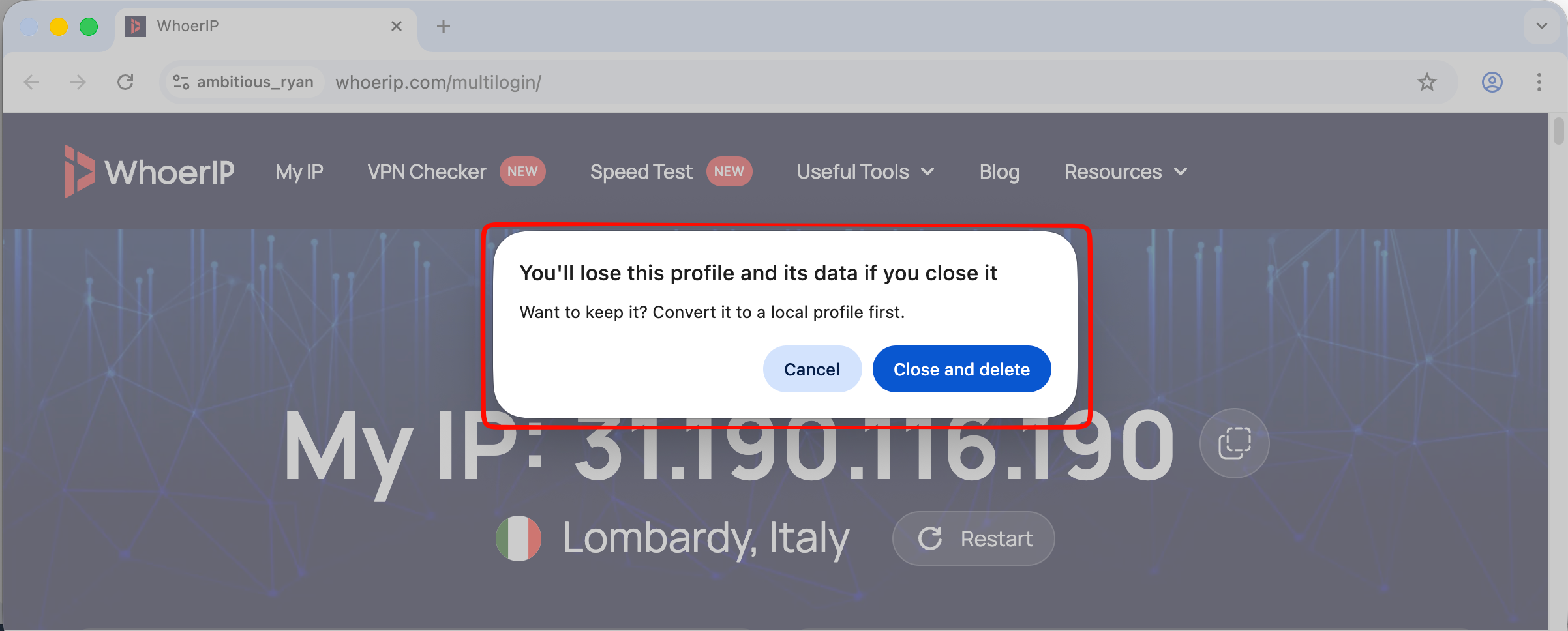
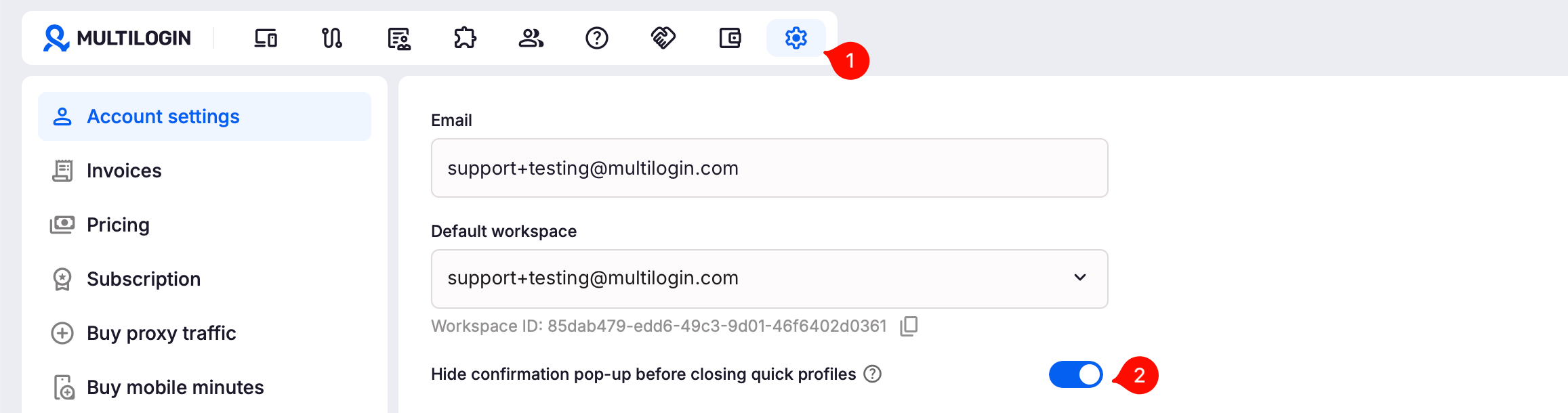
Don't want to see this pop-up every time you close a quick profile? Disable it in account settings:
Pro tips
- Use quick profiles for one-time browser checks, not long-term account work
- Add start URLs if you always open the same pages
- Save the profile as a regular browser profile before closing it if you want to keep cookies, login data, or session history
FAQs
Can I recover a closed quick profile?
Nope – it’s deleted as soon as you stop it.
Can I use custom fingerprint settings?
Partly. Quick profiles let you adjust a few basics, like screen resolution, before launch.
Need the full control panel? Use a regular browser profile instead. That’s where you can fine-tune more fingerprint settings and save the setup for later.
Can I use quick profiles for mobile apps?
No. Quick profiles are for browser sessions.
For mobile apps like TikTok, Instagram, and Facebook, use Android cloud phones. They’re built for mobile app workflows, while quick profiles are made for short browser tasks.


