How to get profile, folder, and workspace IDs in DevTools
 ~3 minWritten by Yelena V
Many Multilogin API requests use a profile ID, folder ID, workspace ID, or a combination of them.
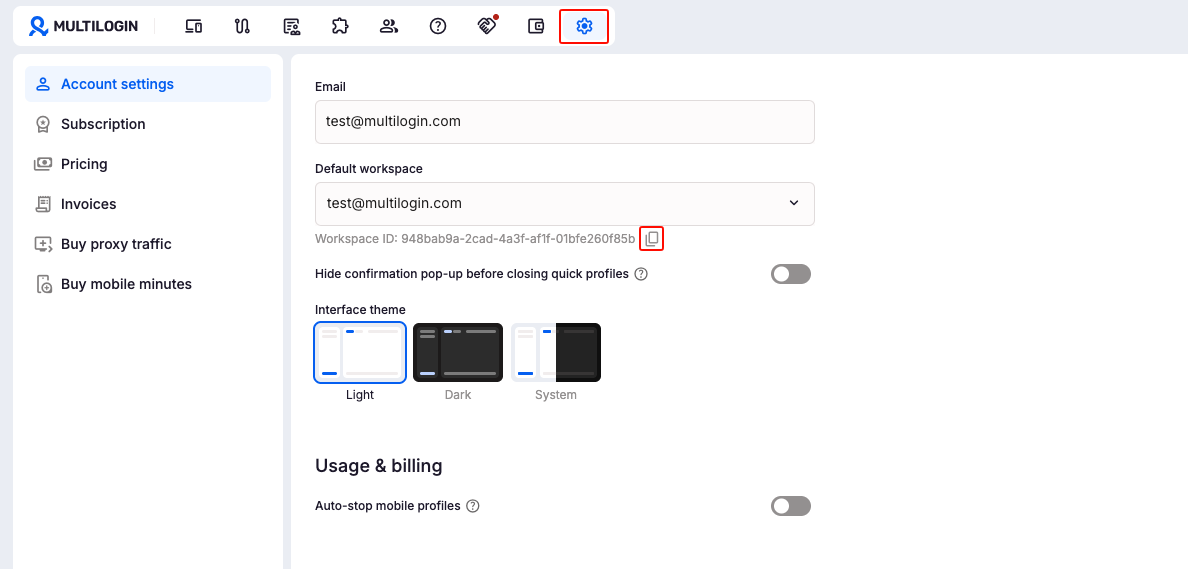
You can copy a profile ID and workspace ID directly from the Multilogin interface. If you need a folder ID, you can retrieve it through Developer Tools by checking the workspace's folder data in the Network panel.
How to get profile IDs
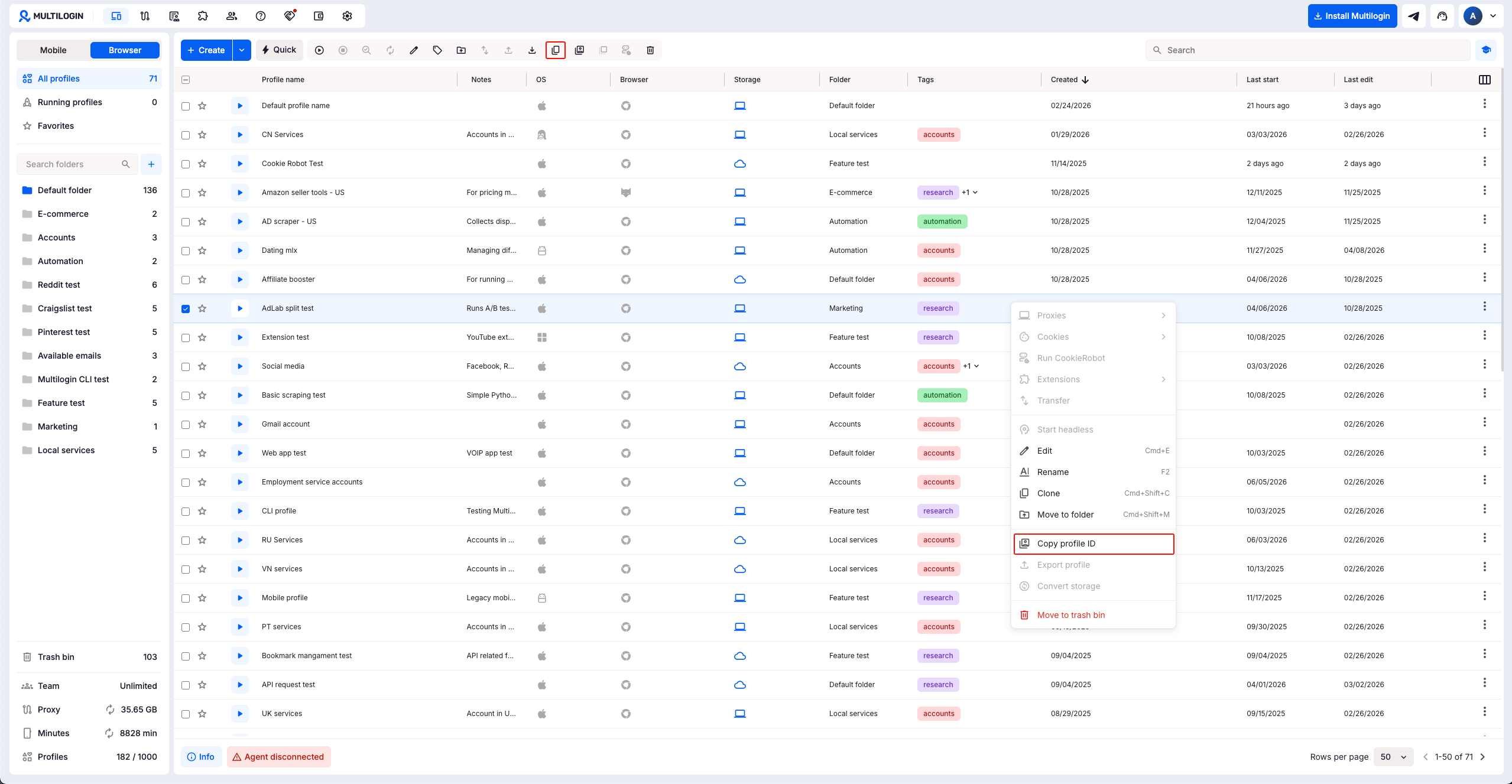
It is easy to find profile IDs in Multilogin interface:
- Select a profile or several profiles in the list using checkboxes on the left
- Click “Copy profile ID” in the top menu (or in the right-click menu)
How to get workspace and folder IDs
To retrieve a folder ID with Developer Tools, follow the steps for the Multilogin desktop app or web interface you currently use.
Desktop app
- Open Multilogin app
- Open DevTools. Here's how to do that:
-
Windows and Linux: press
Ctrl + Shift + F12 -
macOS: press
Cmd + Shift + Fn + F12
-
Windows and Linux: press
- Switch to the “Network” tab in the DevTools
- Select “Browser” from the left-side selector of Multilogin
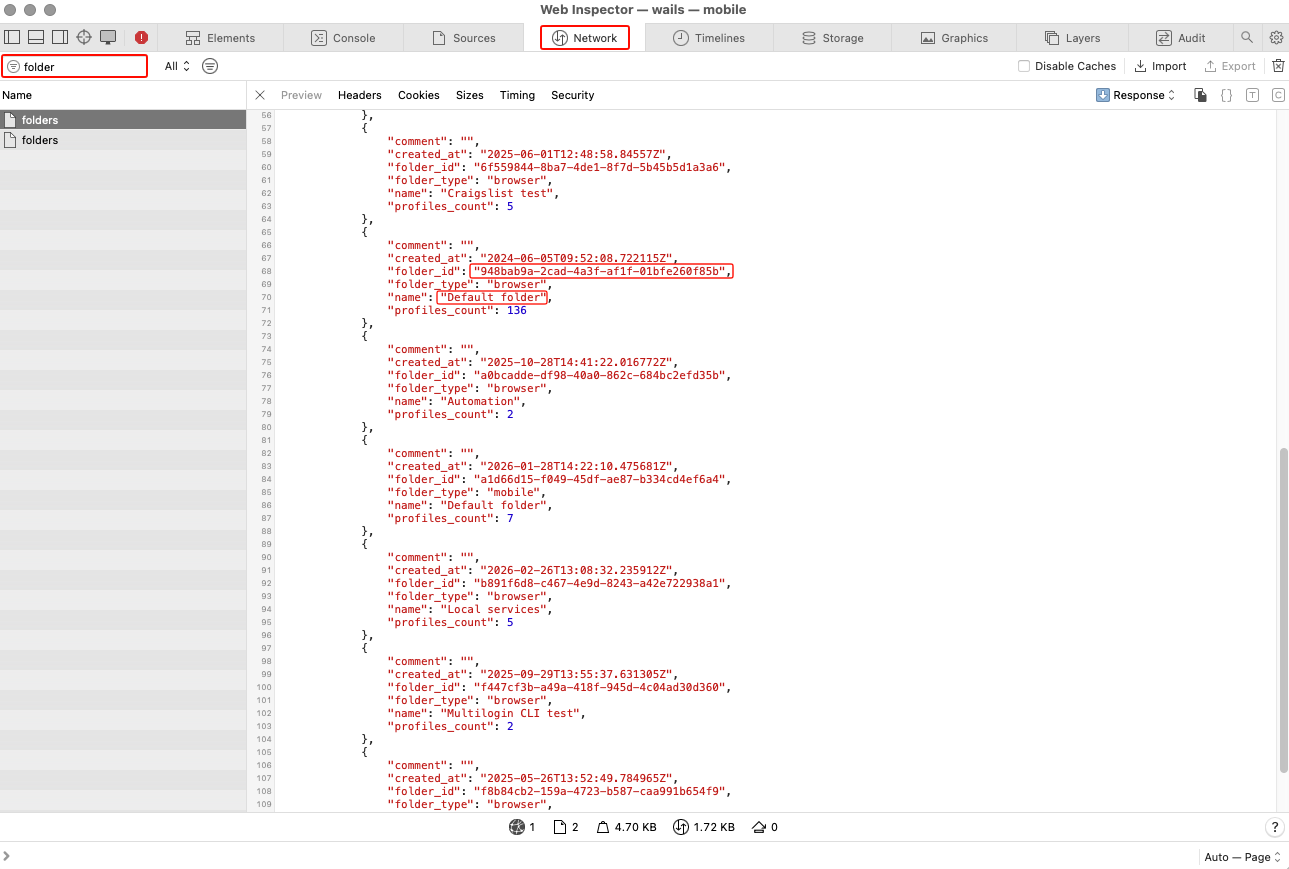
- In the logs appearing in DevTools, search for the request
foldersorusersand click on one of them - Switch to the “Preview” tab in the newly opened panel, where you will find the value you're looking for:
- To get a folder ID, copy
folder_idvalue from the folder of your choice (you can find it bynamevalue) - To get a workspace ID, look for “Default folder” value in
name(default folder ID is the same as workspace ID)
- To get a folder ID, copy
Refer to the How to switch between Multilogin workspaces article for more details about switching workspaces.
Web interface
- Open Multilogin in your browser.
- Open DevTools. Here's how to do that for Chromium- and Firefox-based browsers:
-
Windows and Linux: press
Ctrl + Shift + I -
macOS: press
Cmd + Option + I
-
Windows and Linux: press
- Switch to the “Network” tab in the DevTools panel and refresh the page
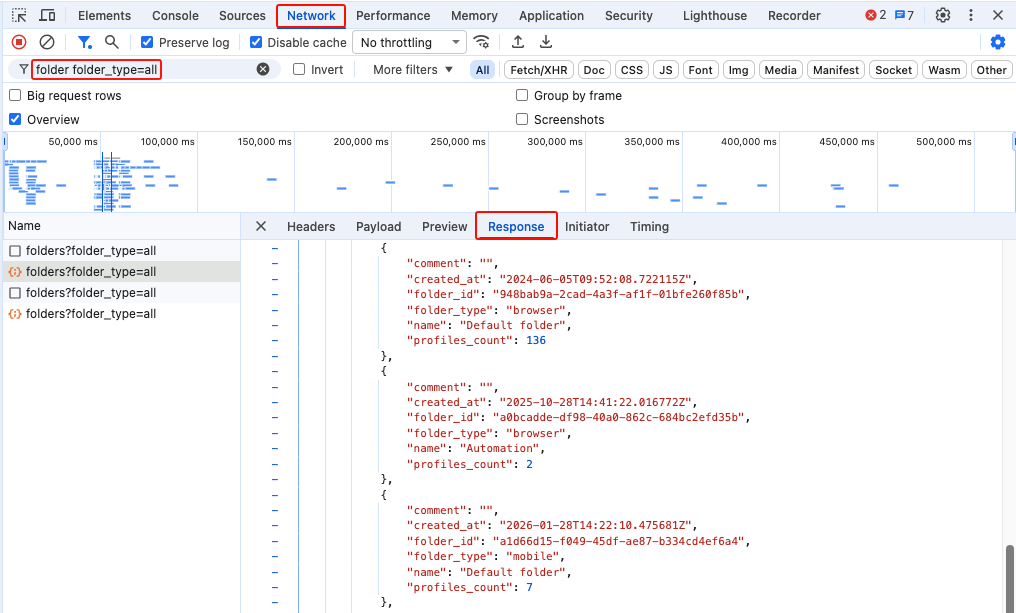
- In the logs appearing in DevTools, search for the requests
folder folder_type=allorsearchand click on one of them - Switch to the “Response” tab in the newly opened panel, where you will find the value you're looking for:
- To get a folder_id, copy
folder_idvalue from the folder of your choice (you can find it bynamevalue) - To get a
workspace_id, look for “Default folder” value inname(default folder ID is the same as workspace ID)
- To get a folder_id, copy
How to get workspace (and default folder) ID via GUI
You can get workspace and default folder ID via GUI. The workspace ID is the same as the ID of the default folder. If you don't need the other folders – you can follow the steps below:
- Click “Account settings” in the top-left corner of the main dashboard and select the workspace you need
- Click “Account settings” button again
- Click the copy button next to the “Workspace ID” field