


How to fix X (Twitter) registration and sign-in errors on cloud phones
 ~3 minWritten by Yelena V
If X won’t let you register or sign in on a cloud phone, check Google Play Integrity before trying again. Some X login and registration issues can happen when the Android device doesn’t meet the integrity checks the app expects.
➡️ Start the cloud phone → log in to a Google account → install “Play Integrity API Checker” → tap “CHECK” → complete any extra steps required for your Android version → open X and try again.
Android 14 and 16 have the simplest flow. Android 12, 13, and 15 need an additional device certificate before you run the integrity check.
This is a temporary workaround
We’re still tracking the underlying compatibility issue. There’s no permanent fix ETA yet.
Step 1: choose your Android version
Using Android 12, 13, or 15?
These versions need a valid .xml device certificate before the integrity check. Multilogin doesn’t provide these certificates, so you’ll need to obtain one separately. You can also use Android 14 or 16 to skip this step.
Android 14 or 16
Android 14 and 16 don’t need a separate certificate upload.
Start the phone and continue to the next step.
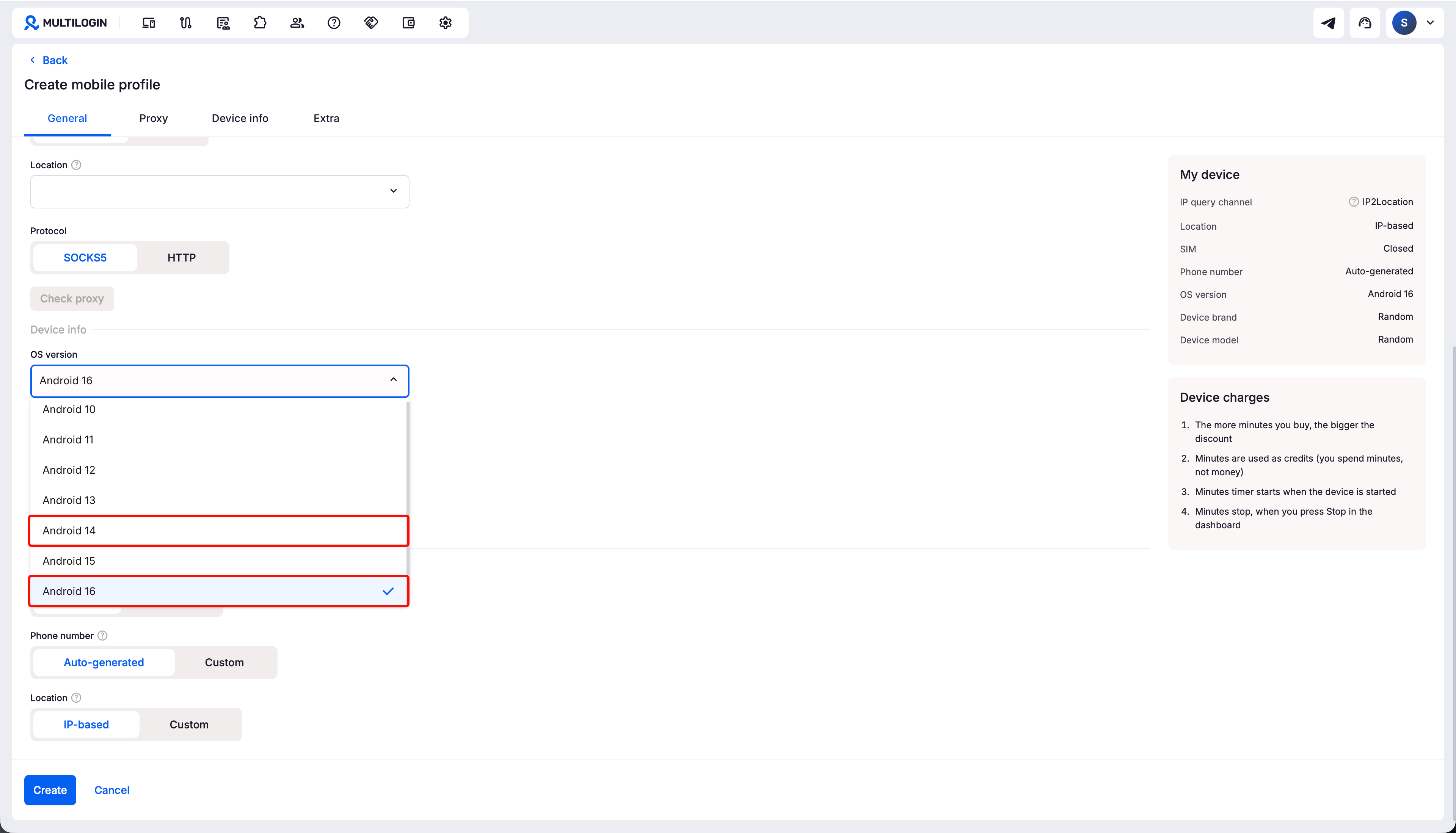
Android 12 or 13
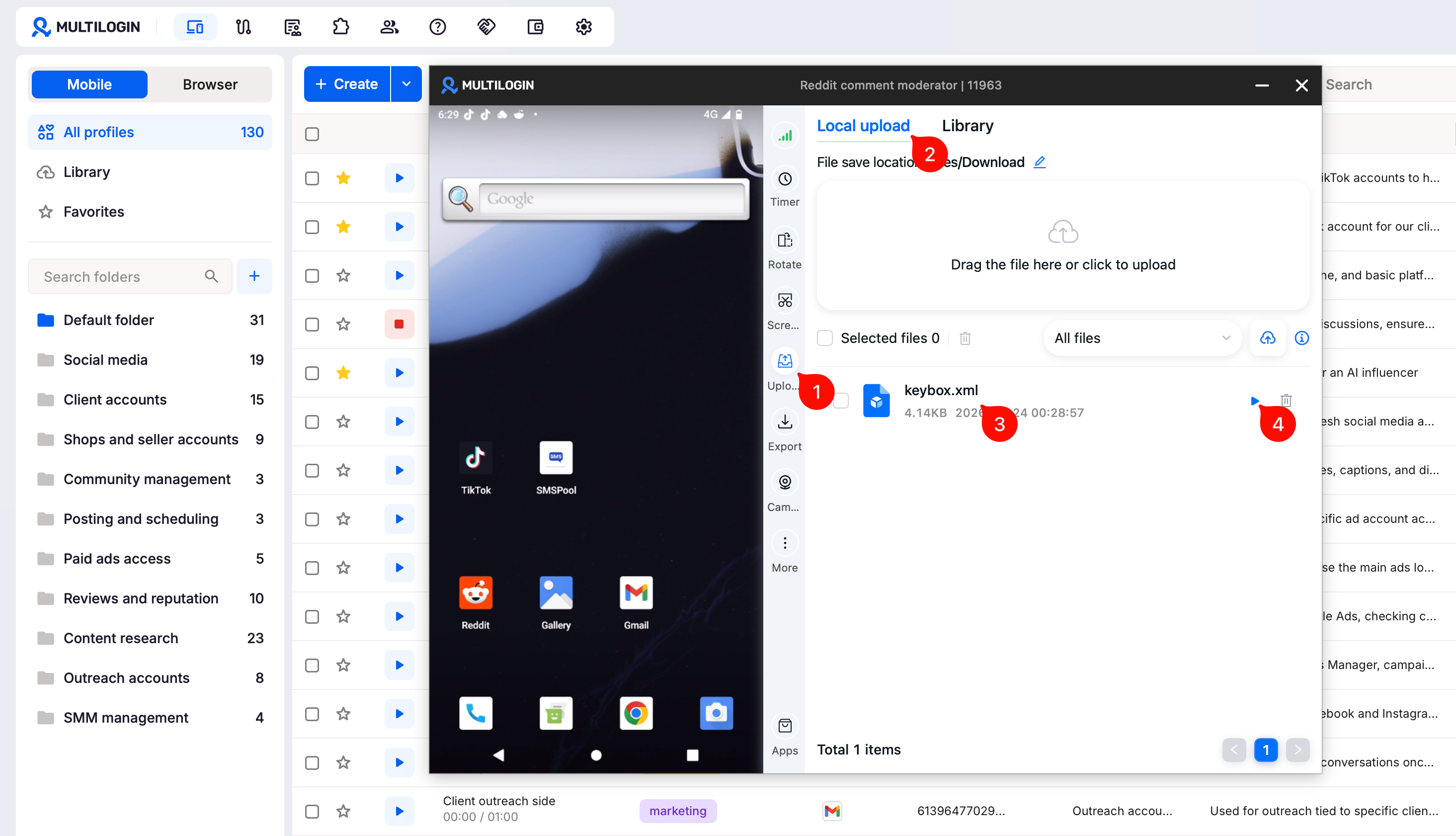
Android 12 and 13 need an additional device certificate before the integrity check.
Once you have the required certificate:
- Start the cloud phone
- Open “Upload” → “Local upload”
-
Upload your
.xmlcertificate - Click the run button next to the uploaded file
Android 15
Android 15 also needs an additional device certificate, but first update the Google components on the cloud phone.
Then:
- Start the cloud phone
- Open “Apps”
- Log in to a Google account
- Update Google Play Services and Google Play Store
- Open “Upload” → “Local upload”
-
Upload your
.xmlcertificate - Click the run button next to the uploaded file
Step 2: run Google Play Integrity API Checker
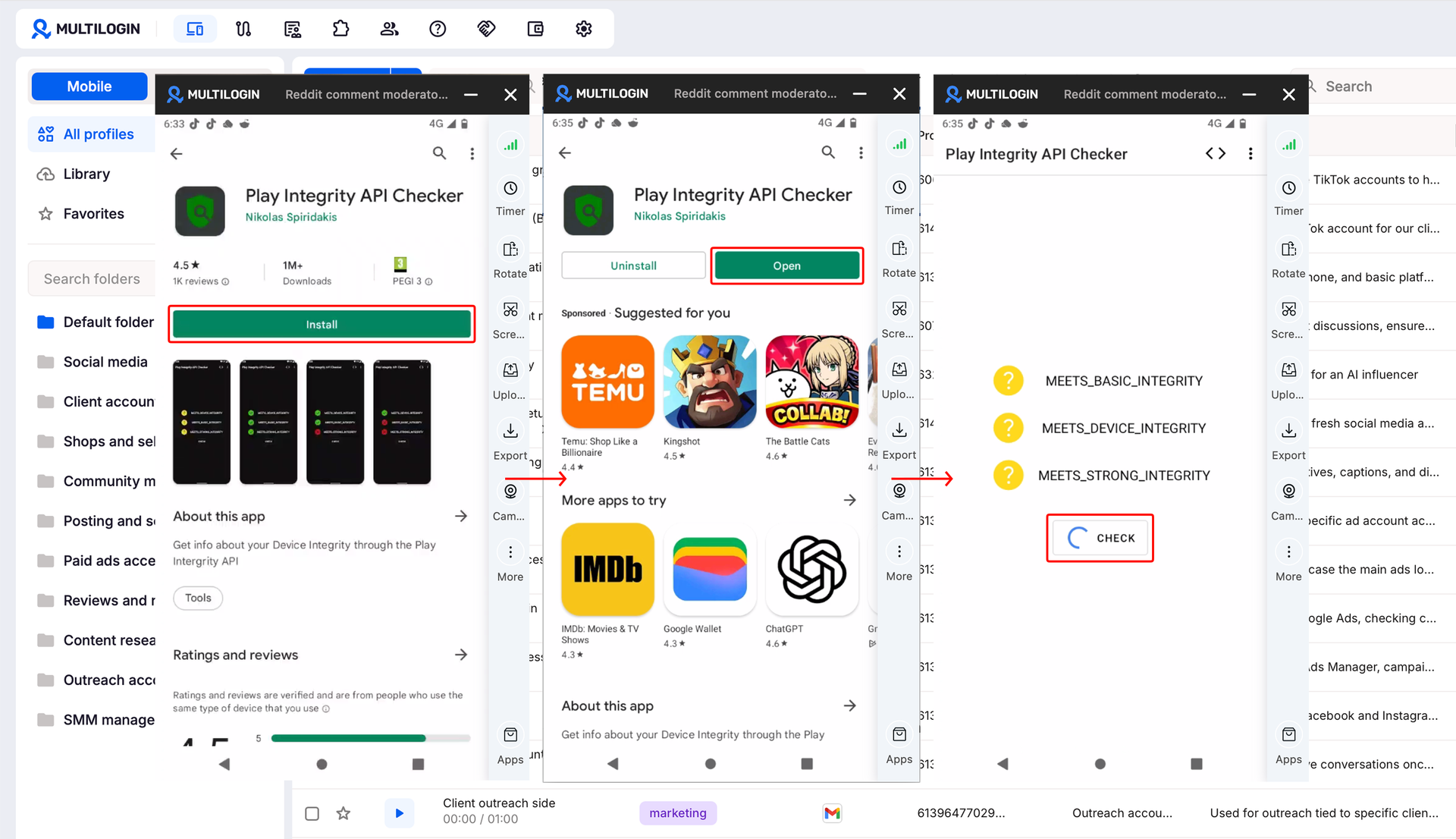
Now check whether the cloud phone passes Google Play Integrity:
- Open Google Play
- Log in to a Google account
- Search for “Play Integrity API Checker”
- Install the app
- Open it and tap “CHECK”
Continue once the integrity checks pass.
Google Play Integrity checks whether the Android device and system meet different integrity requirements. Some apps use these results for registration, sign-in, or access to certain features.
The checker can show:
MEETS_BASIC_INTEGRITYMEETS_DEVICE_INTEGRITYMEETS_STRONG_INTEGRITY
For this workaround, make sure the integrity checks pass before moving on to X.
Step 3: install X and try again
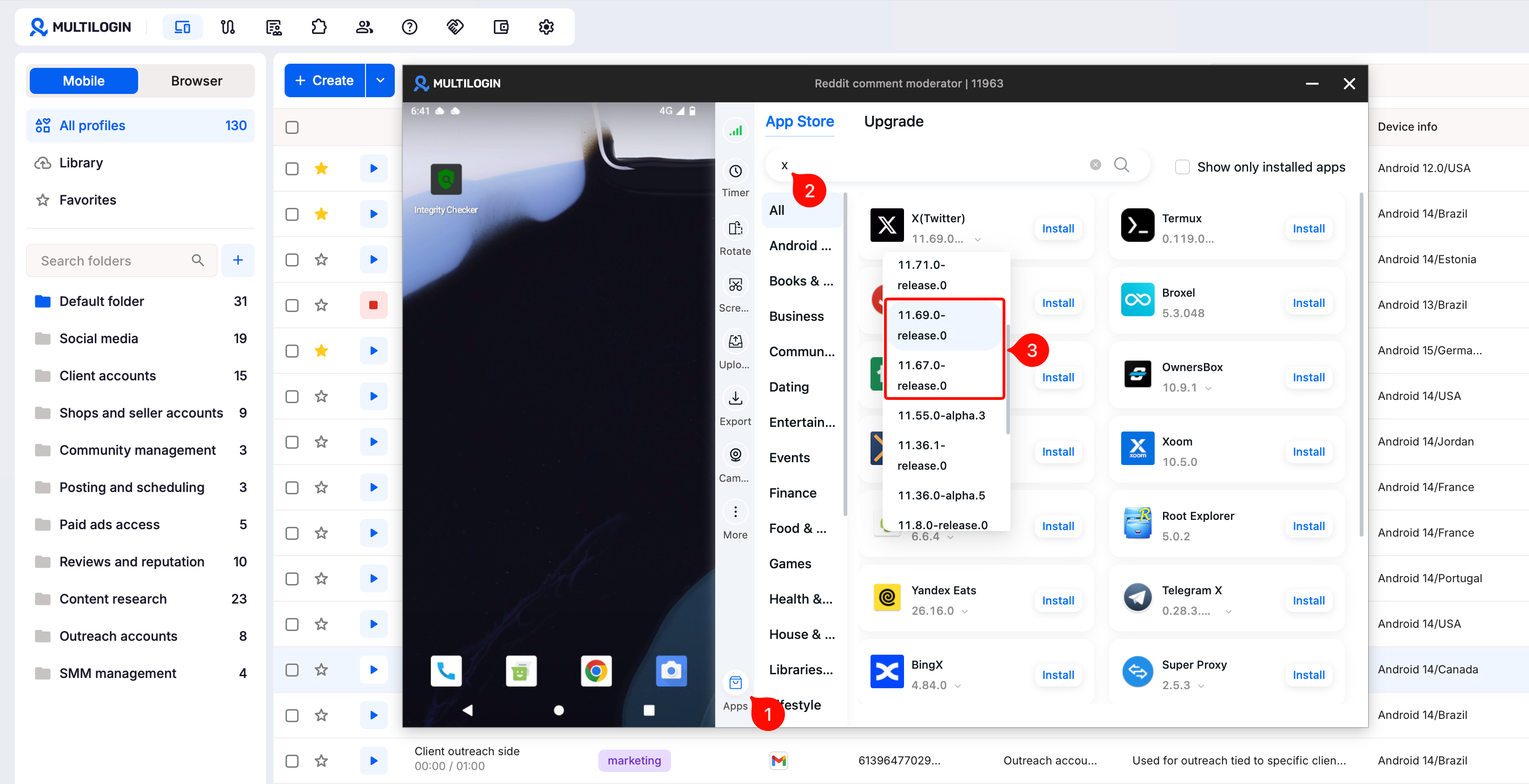
Once the cloud phone passes the integrity check:
- Open “Apps”
- Search for X
-
Install version
11.67.0or11.69.0 - Open X
- Try registration or sign-in again
FAQs
Do all Android versions need a certificate?
No. Android 14 and 16 don’t need a separate certificate upload.
Android 12, 13, and 15 do.
Which Android version should I use?
Android 14 or 16 is the simplest option because you don’t need to upload an additional certificate before running the integrity check.
Is this a permanent fix for X?
No. This is the current workaround while the compatibility issue is being investigated.


