


How to run browser profiles in headless mode
 ~5 minWritten by Yelena V
Headless mode lets you run a Multilogin browser profile through automation without opening a visible browser window. Use it when you want browser automation to run in the background through API scripts, Script runner, or CLI.
This guide covers headless automation for browser profiles. For native Android app automation on cloud phones, use ADB or Appium instead.
When to use headless mode
Use headless mode when you want to:
- Run browser automation without opening visible browser windows
- Reduce screen clutter when running several automated tasks
- Use fewer interface resources than visible browser sessions
Before you start
Make sure you have:
- A Multilogin browser profile
- Access to browser-profile automation
- A Selenium, Puppeteer, or Playwright script
- The profile ID
- The Multilogin desktop app open
- Postman or Multilogin CLI configured if you use Script runner
Choose how you want to run headless automation
API or your own script – set headless_mode=true in the Start Browser Profile request
Postman Script runner – add "is_headless": true to the request body
Multilogin CLI – add the headless value to the --profile-id flag
Preparations before using headless mode
You can use headless mode through your automation script, Postman Script runner, or Multilogin CLI. Not sure where to start? Read the steps below.
Step 1: choose the automation framework
Follow the article and make a decision which framework may be the best for your use case: How to choose the best automation framework
If you are new to browser automation, Selenium is a common starting point. Use the following article for reference: Selenium automation example.
Step 2: make a script or use the reference script
You will need to create a script, which will connect to the Multilogin API. It will also use GET Start Browser Profile endpoint. Don't know how to write it? We have reference scripts, which you can use and edit accordingly.
Reference scripts:
Step 3: enable headless mode in the endpoint parameter
Find GET Start Browser Profile endpoint in your script (or the reference script). For example, in Selenium reference script you may find the endpoint:

`https://launcher.mlx.yt:45001/api/v2/profile/f/${folder_id}/p/${profile_id}/start?automation_type=selenium&headless_mode=false`Change headless_mode=false to headless_mode=true. The endpoint will look the following way:
`https://launcher.mlx.yt:45001/api/v2/profile/f/${folder_id}/p/${profile_id}/start?automation_type=selenium&headless_mode=true`After that, you can run it via IDE (software for writing and editing scripts), terminal/Command Prompt or our Script runner tool, which is available for Postman and Multilogin CLI. In the next chapters, you will learn how to use Script runner for that.
Before trying to launch the script, make sure that you have launched the app.
Keep in mind, that the steps below are related to Script runner.
- If you want to launch the script via IDE, you need to refer to the documentation of your IDE
- If you want to launch the script via terminal (or Command Prompt/Powershell in Windows), you have to refer to the documentation of the programming language your script has been written in. For example, there are official docs related to Python usage and installation:
- Windows: Using Python on Windows
- macOS: Using Python on macOS
- Linux: Using Python on Unix Platforms – On Linux
How to run the script via Script runner (in Postman)
Step 1: put the script in the Multilogin scripts folder
If you want to run the script via Script runner, you should put your script in the corresponding folder.
- Go to the
scriptsfolder in Multilogin directory:- Windows:
C:\Users\%username%\mlx\deps\scripts - macOS:
/Users/%username%/mlx\deps\scripts - Linux:
/home/%username%/mlx/deps/scripts
- Windows:
- Paste your script there. E.g., it will be a script called
profile.py
Step 2: install and configure Postman
In order to launch Script runner, you have to configure Postman. Follow the next article before the step called “Add the CookieRobot script”: How to launch CookieRobot using Script runner in Postman.
Step 3: edit the request body
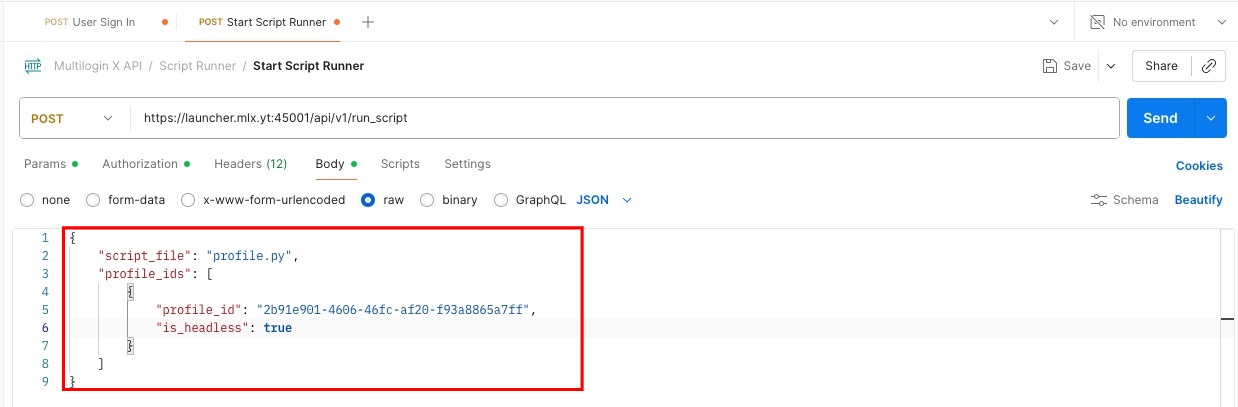
After you configured and opened GET Start Script Runner endpoint in Postman, you need to edit the request body. It will look the following way:
{
    "script_file": "<string>",
    "profile_ids": [
        {
            "profile_id": "<string>"
        }
    ]
}Here is what you need to do:
- Replace the
script_filevalue with the title of the script. In our case it isprofile.py - Replace
profile_idvalue with the ID of the profile you want to run. You can find it by following the article: How to copy profile IDs in Multilogin - Add
is_headlessparameter, and set its value totrue
Your request will have the following structure:
{
    "script_file": "<string>",
    "profile_ids": [
        {
            "profile_id": "<string>",
            "is_headless": true
        }
    ]
}
Step 4: run the script
Click “Send”.
Check that headless mode works
If the setup works, the browser profile starts through automation without opening a visible browser window. Your script continues running the browser actions in the background.
How to run the script via Script runner (in Multilogin CLI)
Step 1: put the script in the Multilogin scripts folder
If you want to run the script via Script runner, you should put your script in the corresponding folder.
- Go to the
scriptsfolder in Multilogin directory:- Windows:
C:\Users\%username%\mlx\deps\scripts - macOS:
/Users/%username%/mlx\deps\scripts - Linux:
/home/%username%/mlx/deps/scripts
- Windows:
- Paste your script there. E.g., it will be a script called
profile.py
Step 2: launch and configure Multilogin CLI
Follow the steps from the article: How to use Script runner with Multilogin CLI.
Step 3: run your script
After you launched Multilogin CLI, you can run the script and configure the profile launch in headless mode. You will need to type start-script command with --script and --profile-id flags. Add :true after the profile ID to run it in headless mode. In the end, the command will be the following:
- Windows:
xcli start-script --script <your script title> --profile-id <profile id>:true - macOS/Linux:
./xcli start-script --script <your script title> --profile-id <profile id>:true
Replace <profile id> value with the ID of the profile you want to run. You can find it by following the article: How to copy profile IDs in Multilogin

If headless mode does not work
Profile does not start
- make sure the Multilogin desktop app is open
- check the profile ID
Browser window still appears
- check that
headless_modeoris_headlessis set totrue
Script runner does not start
- check your Postman or CLI Script runner setup
- make sure the script is in the Multilogin
scriptsfolder


